> ## Documentation Index
> Fetch the complete documentation index at: https://docs.keephq.dev/llms.txt
> Use this file to discover all available pages before exploring further.
# Alert Table
The Alert Table is the central interface for viewing and managing alerts in Keep. It provides a comprehensive view of all alerts with powerful filtering, sorting, and interaction capabilities.
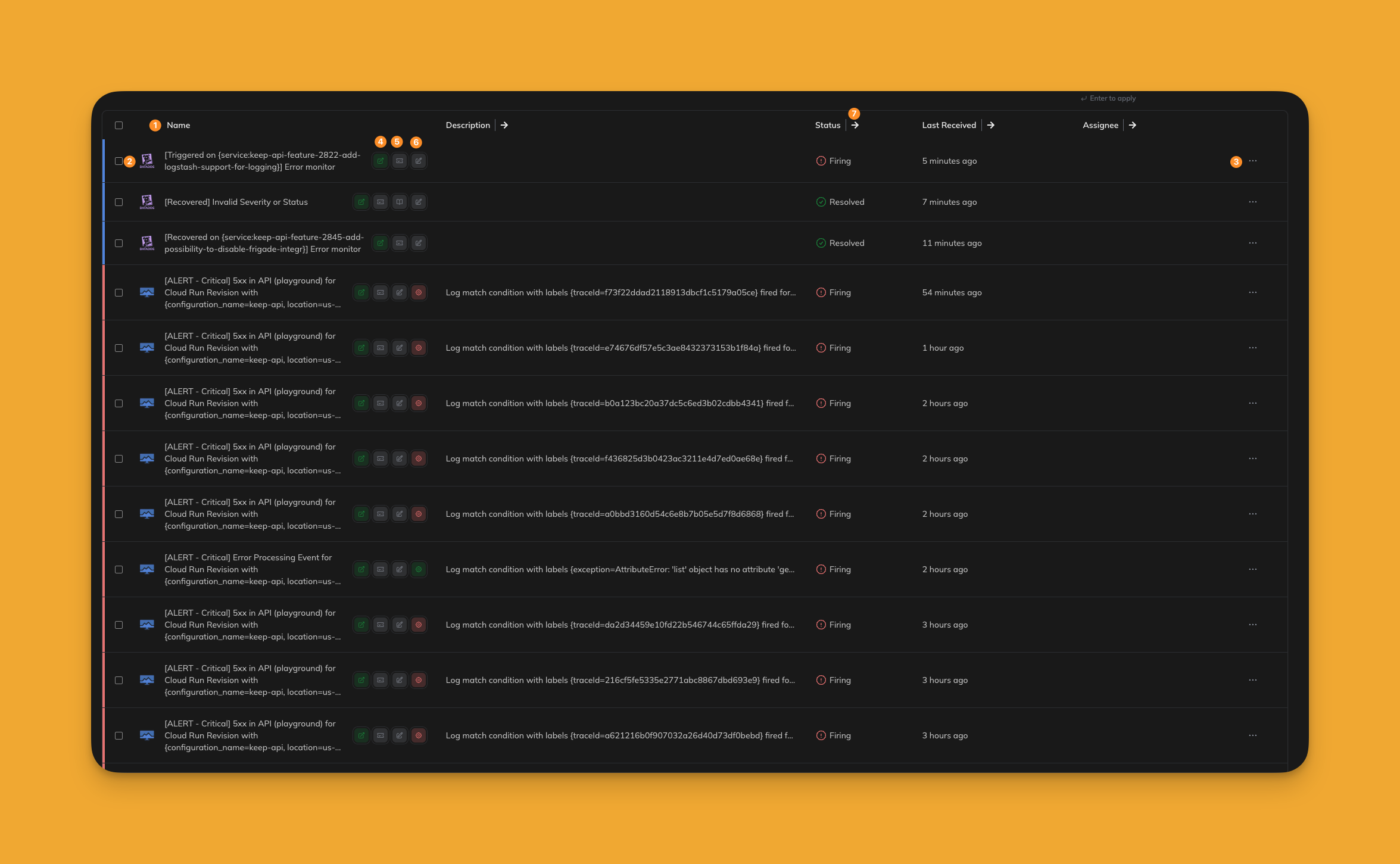 ### (1) Columns
Columns in the alert table can be customized to display the most relevant data. Users can select which columns to display and reorder them using drag-and-drop functionality.
### (1) Columns
Columns in the alert table can be customized to display the most relevant data. Users can select which columns to display and reorder them using drag-and-drop functionality.
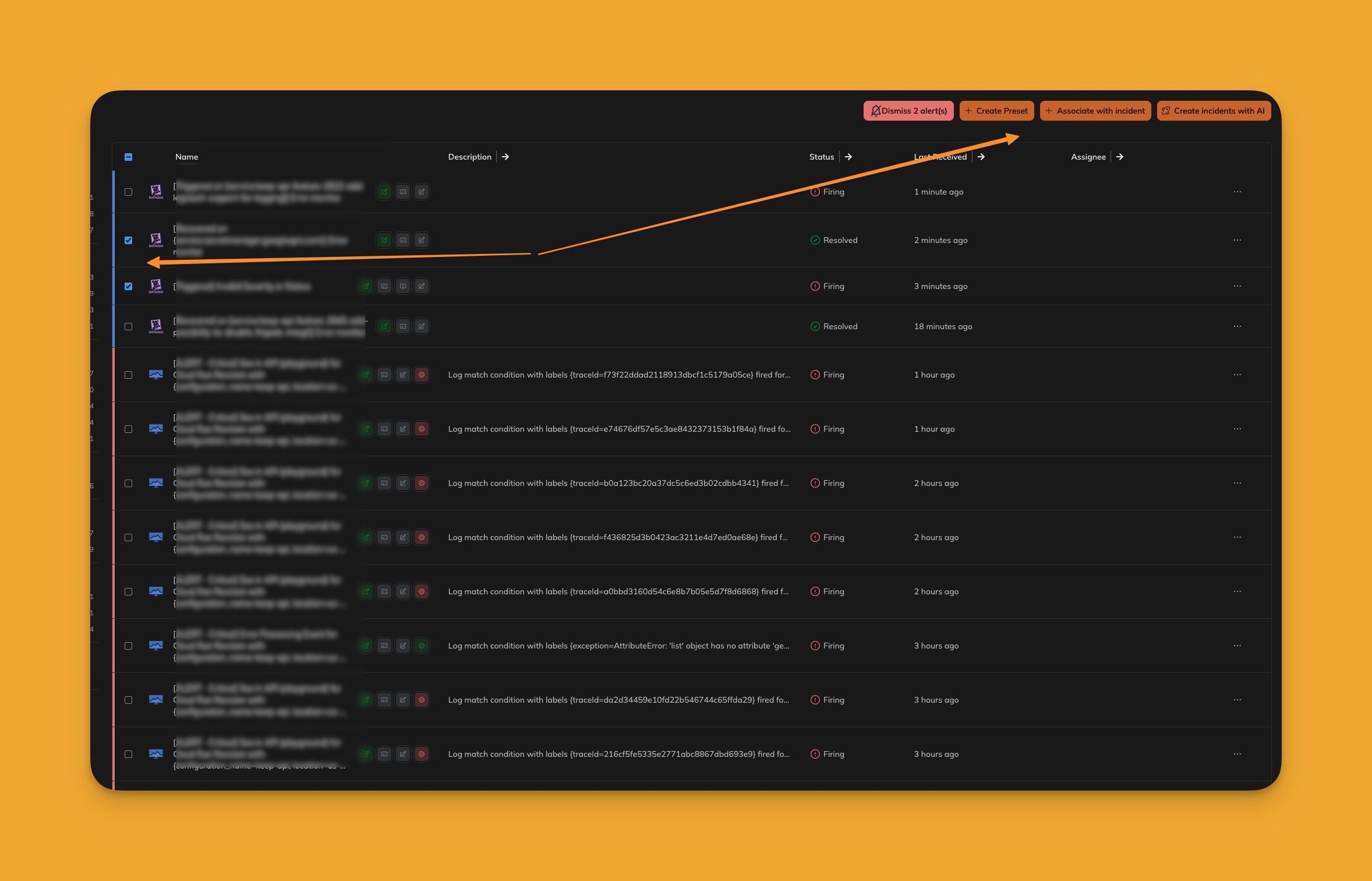
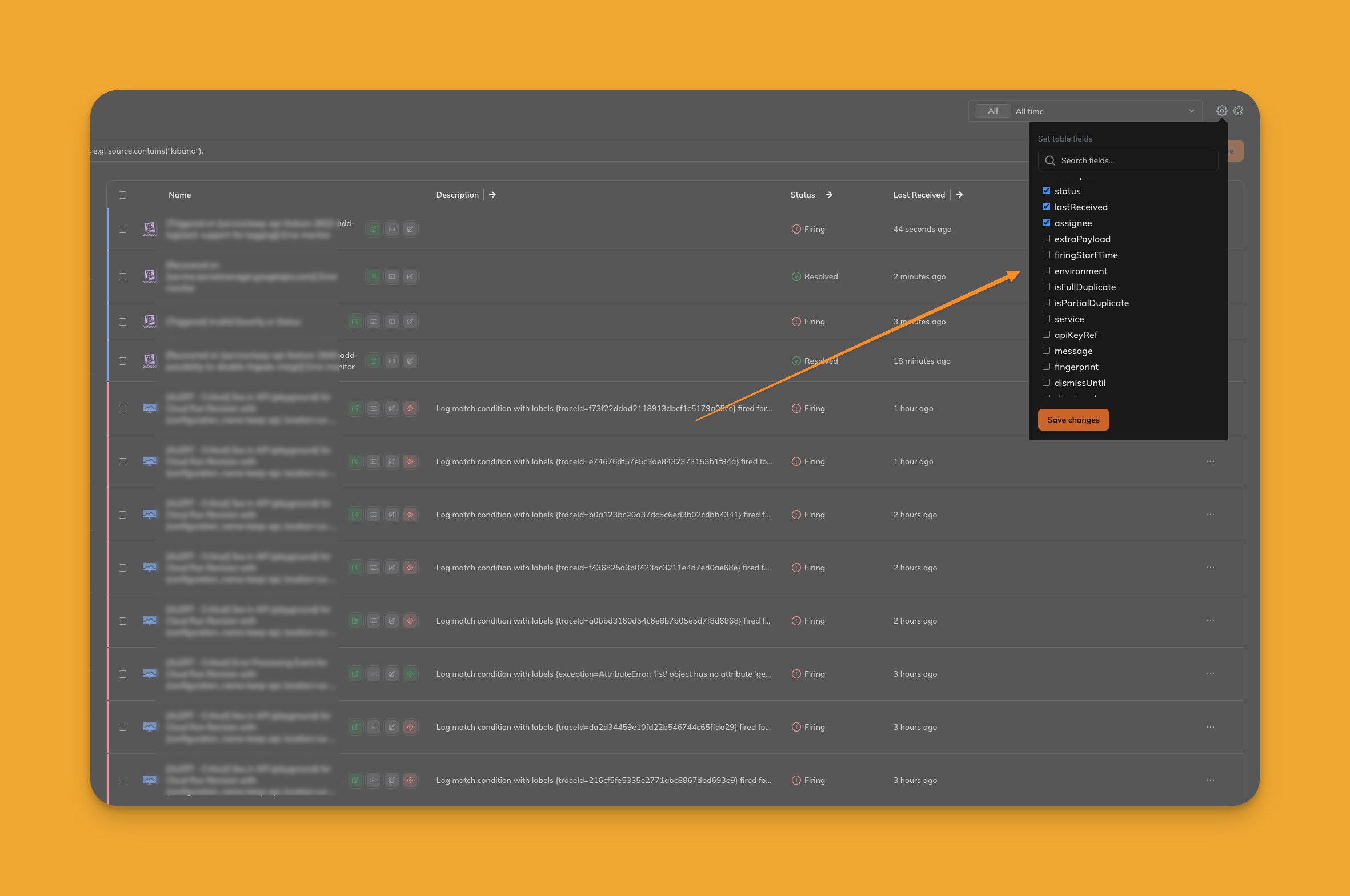 ### (2) Alert Bulk Action
Easily select one or more alerts for bulk actions. Actions include options like "assign to incident," "dismiss," or other available workflows.
### (2) Alert Bulk Action
Easily select one or more alerts for bulk actions. Actions include options like "assign to incident," "dismiss," or other available workflows.
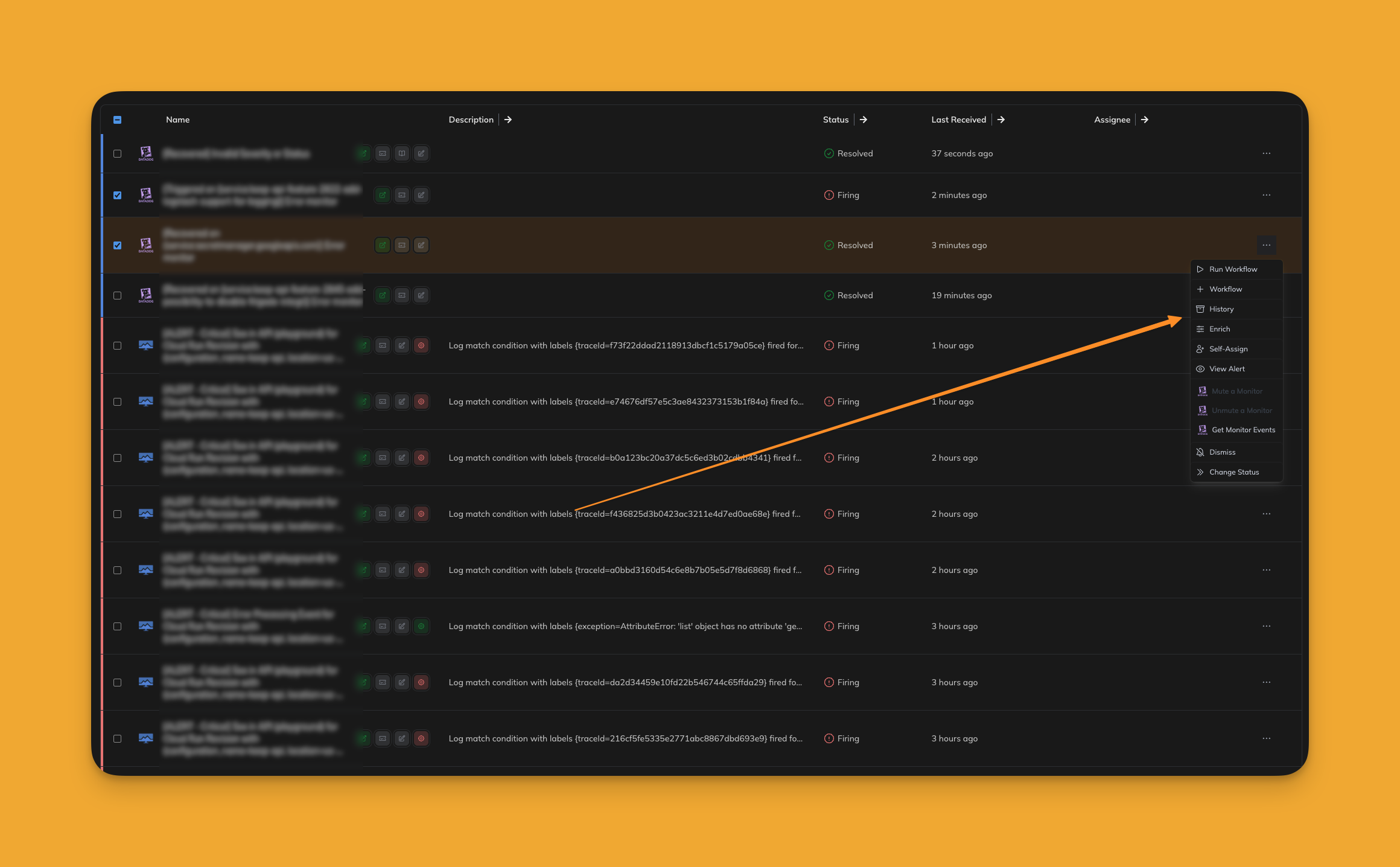
 ### (3) Alert Actions Menu
The actions menu provides quick access to various operations for each alert, such as linking to incidents, creating tickets, or escalating.
### (3) Alert Actions Menu
The actions menu provides quick access to various operations for each alert, such as linking to incidents, creating tickets, or escalating.
 ### (4) Alert Link
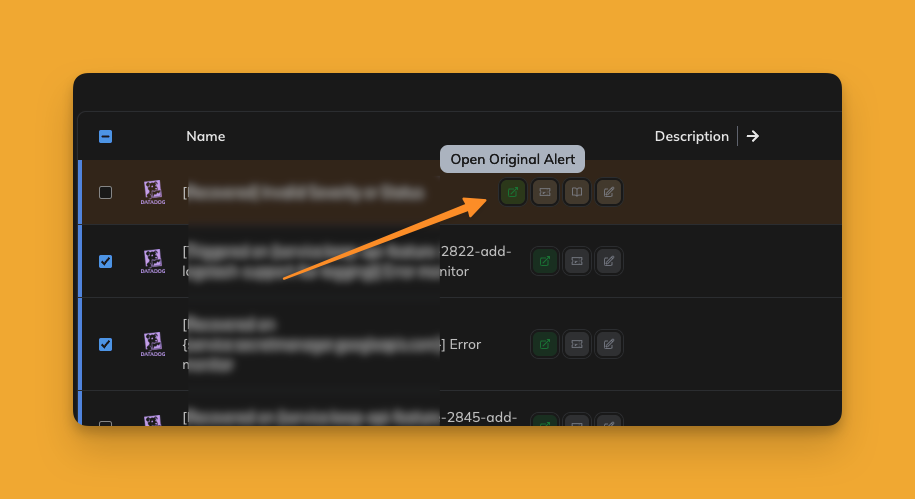
Each alert includes a badge that links directly to the original alert in the monitoring tool. Clicking this badge opens the alert in its source system for further investigation.
### (4) Alert Link
Each alert includes a badge that links directly to the original alert in the monitoring tool. Clicking this badge opens the alert in its source system for further investigation.
 ### (5) Alert Ticket
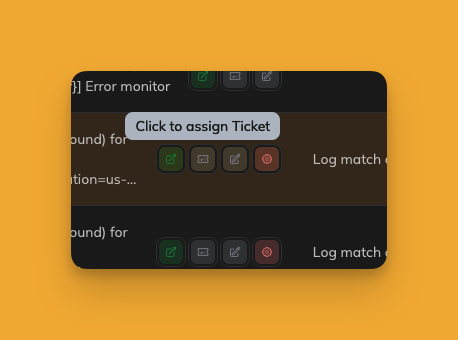
You can asign ticket to alert. If an alert is associated with a ticket, a ticket badge will be displayed. Clicking on this badge navigates directly to the assigned ticket in the ticketing tool.
### (5) Alert Ticket
You can asign ticket to alert. If an alert is associated with a ticket, a ticket badge will be displayed. Clicking on this badge navigates directly to the assigned ticket in the ticketing tool.
 ### (6) Alert Comment
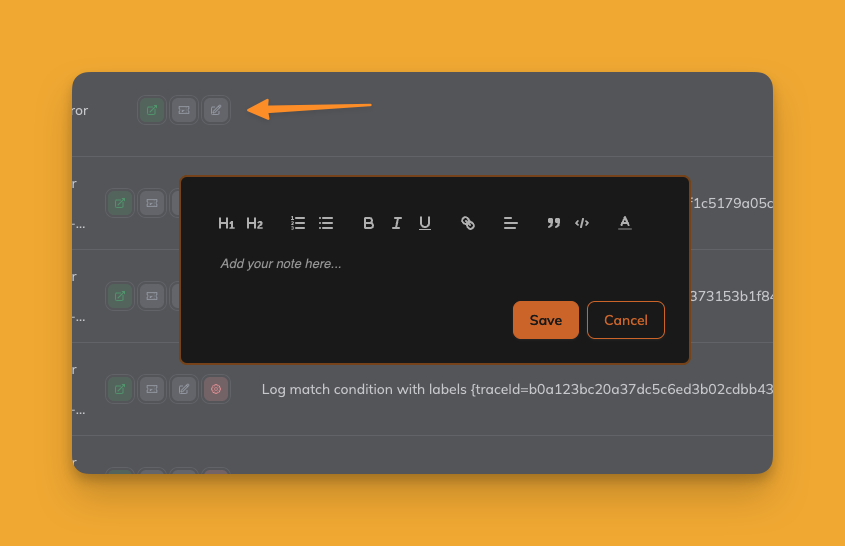
Users can add comments to any alert to provide additional context or share insights with team members. This improves collaboration and ensures all relevant information is available.
### (6) Alert Comment
Users can add comments to any alert to provide additional context or share insights with team members. This improves collaboration and ensures all relevant information is available.
 ### (7) Alert Related Workflows
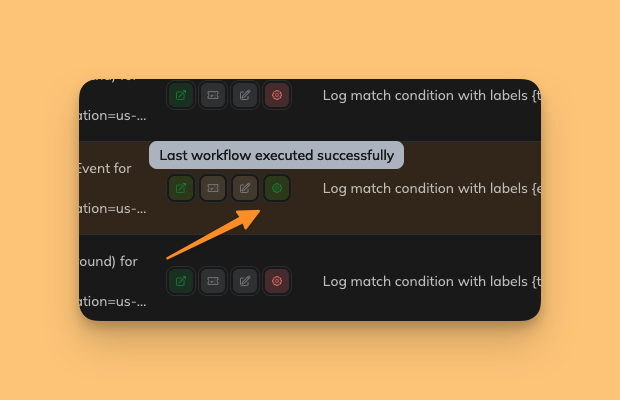
View and trigger related workflows for an alert directly from the table. This allows seamless integration with predefined processes like escalation, suppression, or custom automation.
### (7) Alert Related Workflows
View and trigger related workflows for an alert directly from the table. This allows seamless integration with predefined processes like escalation, suppression, or custom automation.
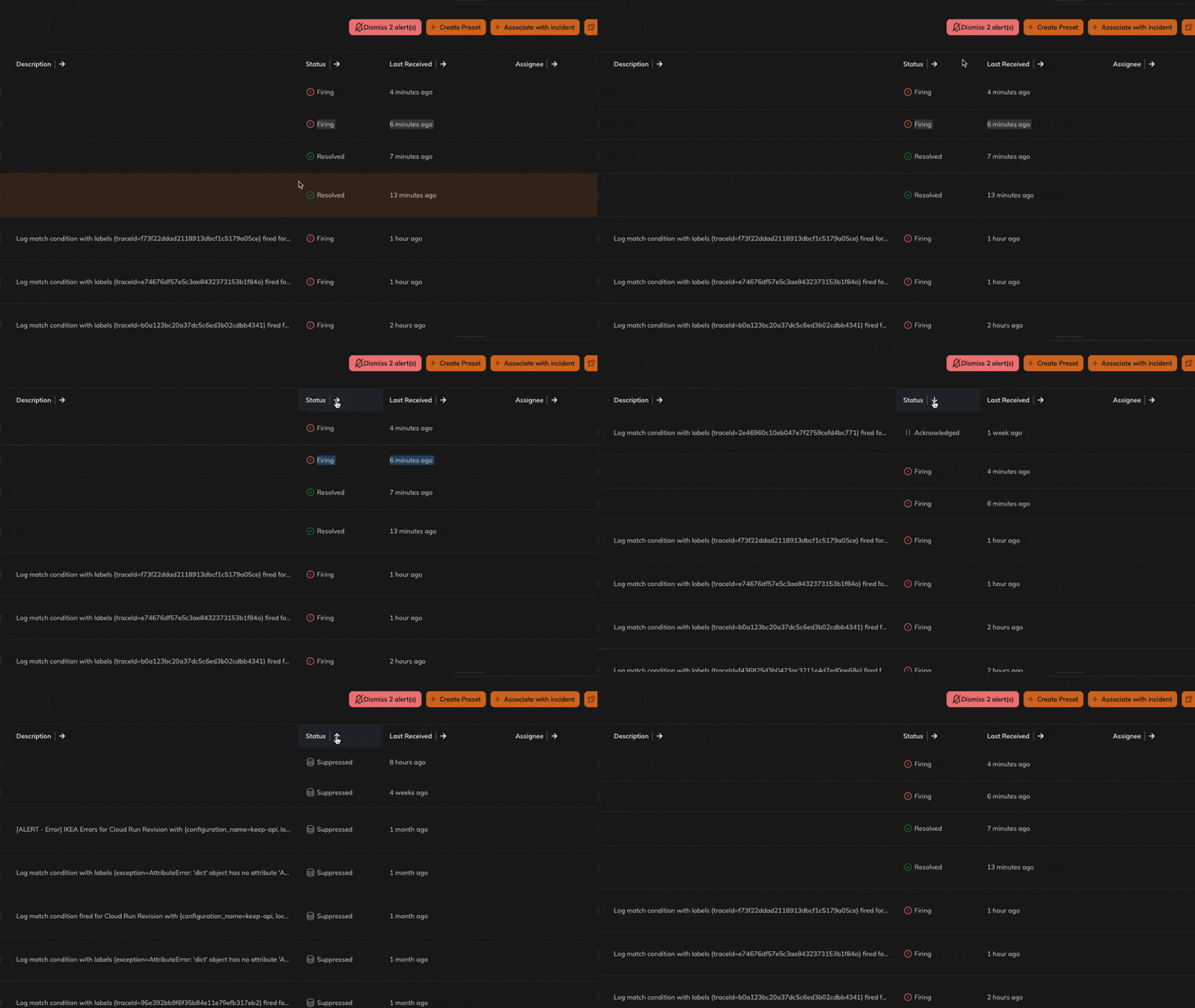
 ### (8) Sorting
The table supports sorting by any column using the "sort" icon. This makes it easy to prioritize or organize alerts based on specific criteria.
### (8) Sorting
The table supports sorting by any column using the "sort" icon. This makes it easy to prioritize or organize alerts based on specific criteria.
 ***
***