> ## Documentation Index
> Fetch the complete documentation index at: https://docs.keephq.dev/llms.txt
> Use this file to discover all available pages before exploring further.
# Azure AD Authentication
Keep Cloud: ✅
Keep Enterprise On-Premises: ✅
Keep Open Source: ⛔️
Keep supports enterprise authentication through Azure Entre ID (formerly known as Azure AD), enabling organizations to use their existing Microsoft identity platform for secure access management.
## When to Use
* **Microsoft Environment:** If your organization uses Microsoft 365 or Azure services, Azure AD integration provides seamless authentication.
* **Enterprise SSO:** Leverage Azure AD's Single Sign-On capabilities for unified access management.
## Setup Instructions (on Azure AD)
### Creating an Azure AD Application
1. Sign in to the [Azure Portal](https://portal.azure.com)
2. Navigate to **Microsoft Entra ID** > **App registrations** > **New registration**
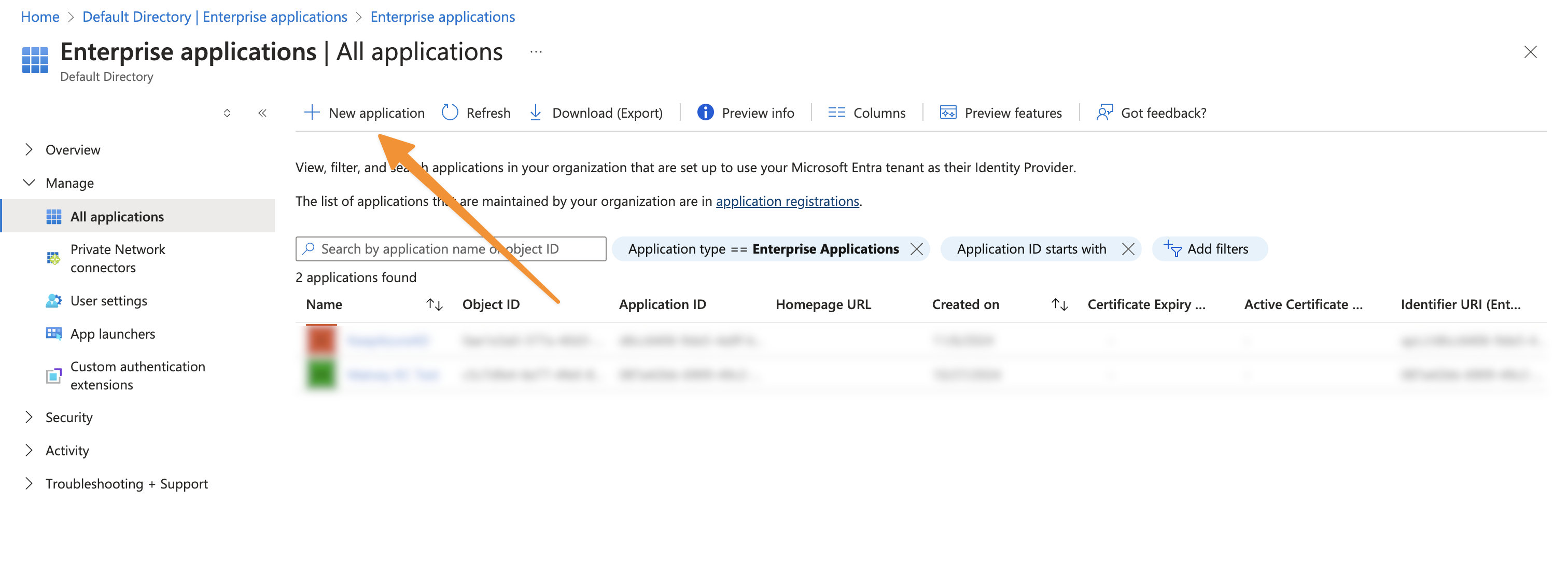 3. Configure the application:
* Name: "Keep"
Note that we are using "Register an application to integrate with Microsoft Entra ID (App you're developing)" since you're self-hosting Keep and need direct control over the authentication flow and permissions for your specific instance - unlike the cloud/managed version where Keep's team has already configured a centralized application registration.
3. Configure the application:
* Name: "Keep"
Note that we are using "Register an application to integrate with Microsoft Entra ID (App you're developing)" since you're self-hosting Keep and need direct control over the authentication flow and permissions for your specific instance - unlike the cloud/managed version where Keep's team has already configured a centralized application registration.
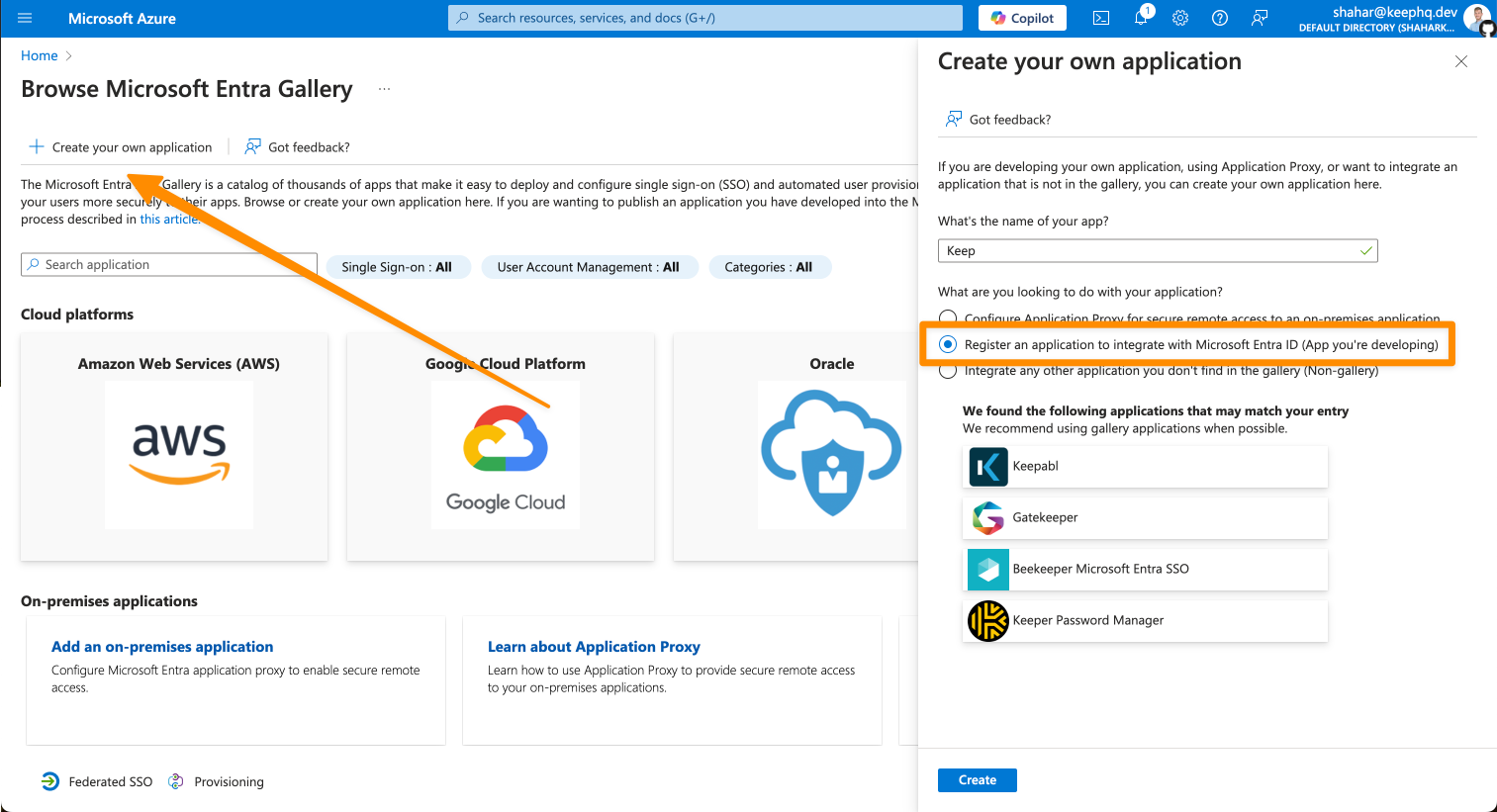 4. Configure the application (continue)
* Supported account types: "Single tenant"
We recommend using "Single tenant" for enhanced security as it restricts access to users within your organization only. While multi-tenant configuration is possible, it would allow users from any Azure AD directory to access your Keep instance, which could pose security risks unless you have specific cross-organization requirements.
* Redirect URI: "Web" + your redirect URI
We use "Web" platform instead of "Single Page Application (SPA)" because Keep's backend handles the authentication flow using client credentials/secrets, which is more secure than the implicit flow used in SPAs. This prevents exposure of tokens in the browser and provides stronger security through server-side token validation and refresh token handling.
For localhost, the redirect would be [http://localhost:3000/api/auth/callback/microsoft-entra-id](http://localhost:3000/api/auth/callback/microsoft-entra-id)
For production, it should be something like http\://your\_keep\_frontend\_domain/api/auth/callback/microsoft-entra-id
4. Configure the application (continue)
* Supported account types: "Single tenant"
We recommend using "Single tenant" for enhanced security as it restricts access to users within your organization only. While multi-tenant configuration is possible, it would allow users from any Azure AD directory to access your Keep instance, which could pose security risks unless you have specific cross-organization requirements.
* Redirect URI: "Web" + your redirect URI
We use "Web" platform instead of "Single Page Application (SPA)" because Keep's backend handles the authentication flow using client credentials/secrets, which is more secure than the implicit flow used in SPAs. This prevents exposure of tokens in the browser and provides stronger security through server-side token validation and refresh token handling.
For localhost, the redirect would be [http://localhost:3000/api/auth/callback/microsoft-entra-id](http://localhost:3000/api/auth/callback/microsoft-entra-id)
For production, it should be something like http\://your\_keep\_frontend\_domain/api/auth/callback/microsoft-entra-id
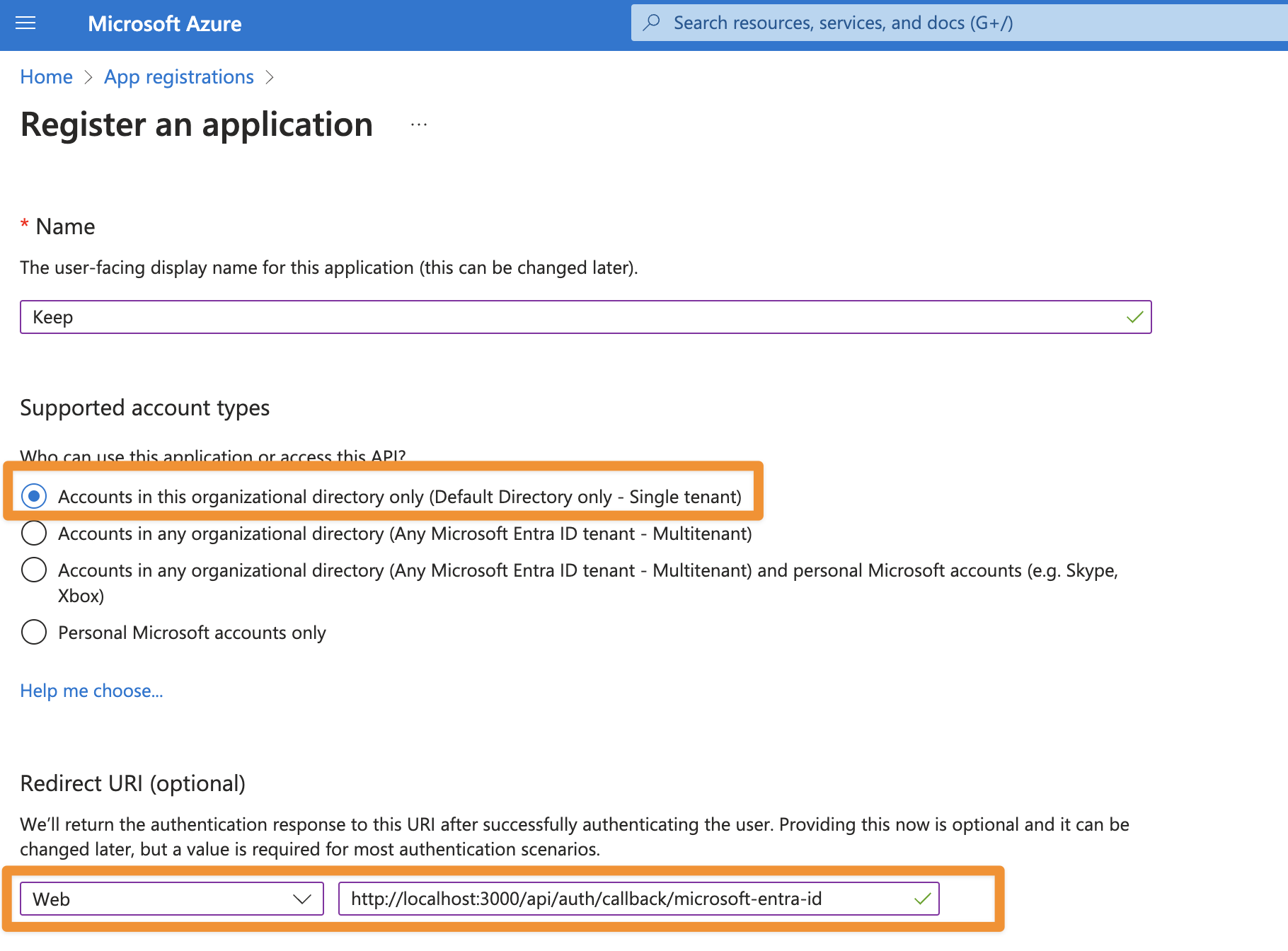 5. Finally, click "register"
### Configure Authentication
After we created the application, let's configure the authentication.
1. Go to "App Registrations" -> "All applications"
5. Finally, click "register"
### Configure Authentication
After we created the application, let's configure the authentication.
1. Go to "App Registrations" -> "All applications"
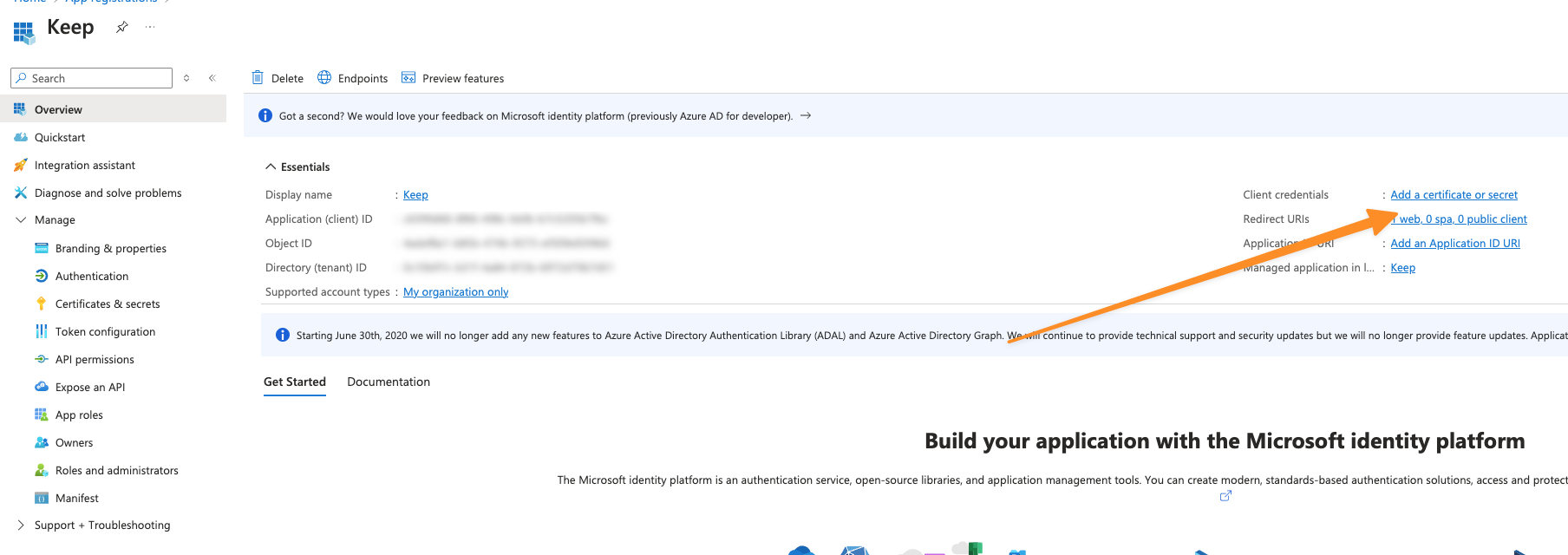
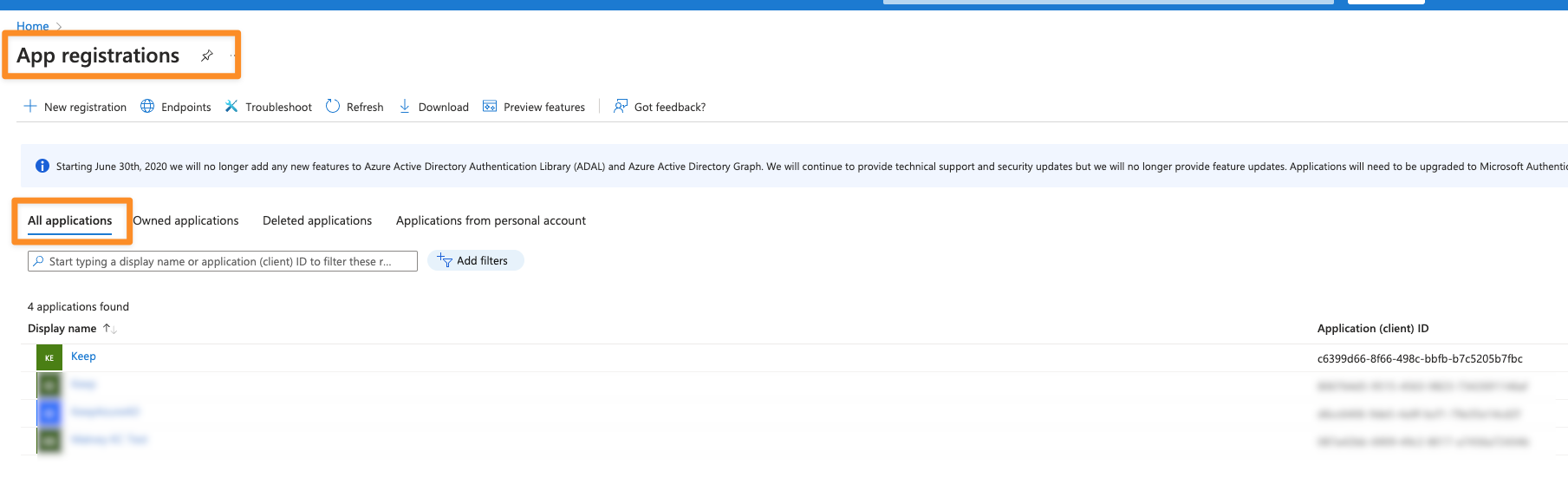 2. Click on your application -> "Add a certificate or secret"
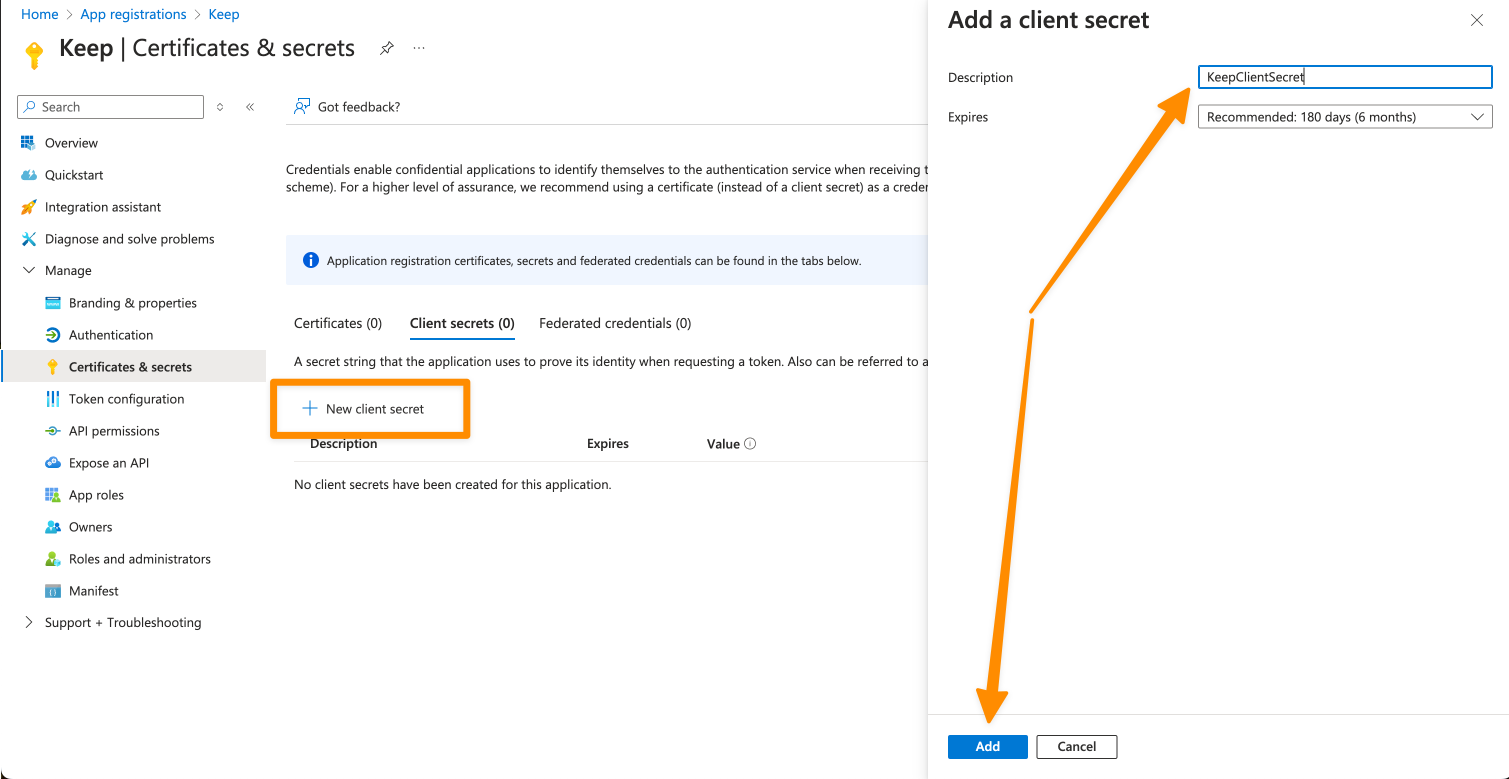
 3. Click on "New client secret" and give it a name
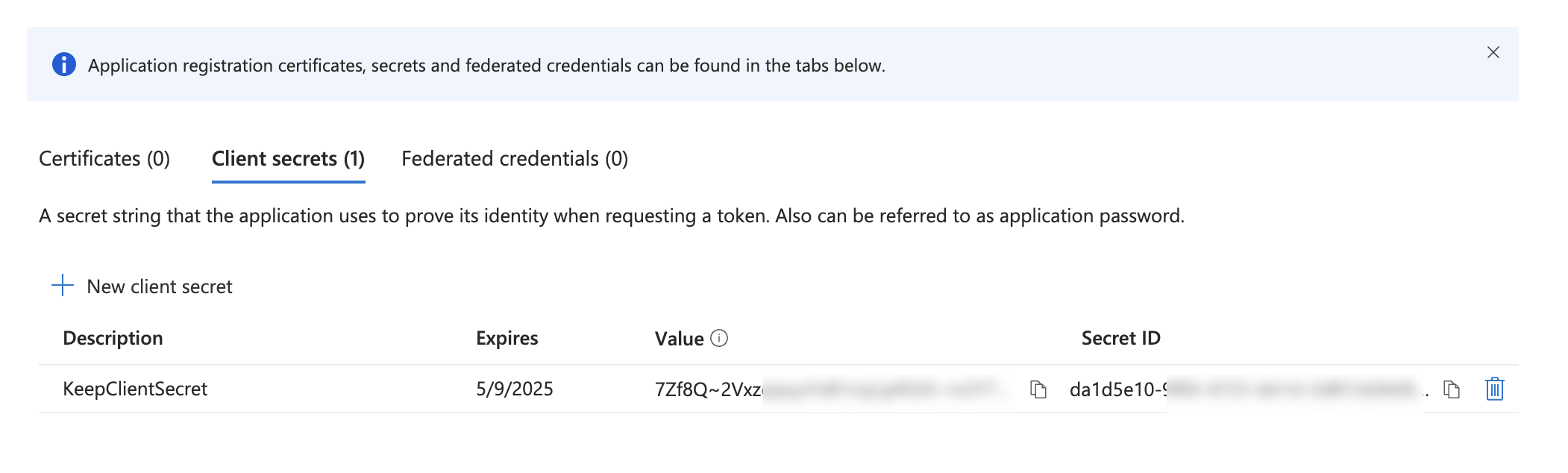
 4. Keep the "Value", we will use it soon as `KEEP_AZUREAD_CLIENT_SECRET`
 ### Configure Groups
Keep maps Azure AD groups to roles with two default groups:
1. Admin Group (read + write)
2. NOC Group (read only)
To create those groups, go to Groups -> All groups and create two groups:
### Configure Groups
Keep maps Azure AD groups to roles with two default groups:
1. Admin Group (read + write)
2. NOC Group (read only)
To create those groups, go to Groups -> All groups and create two groups:
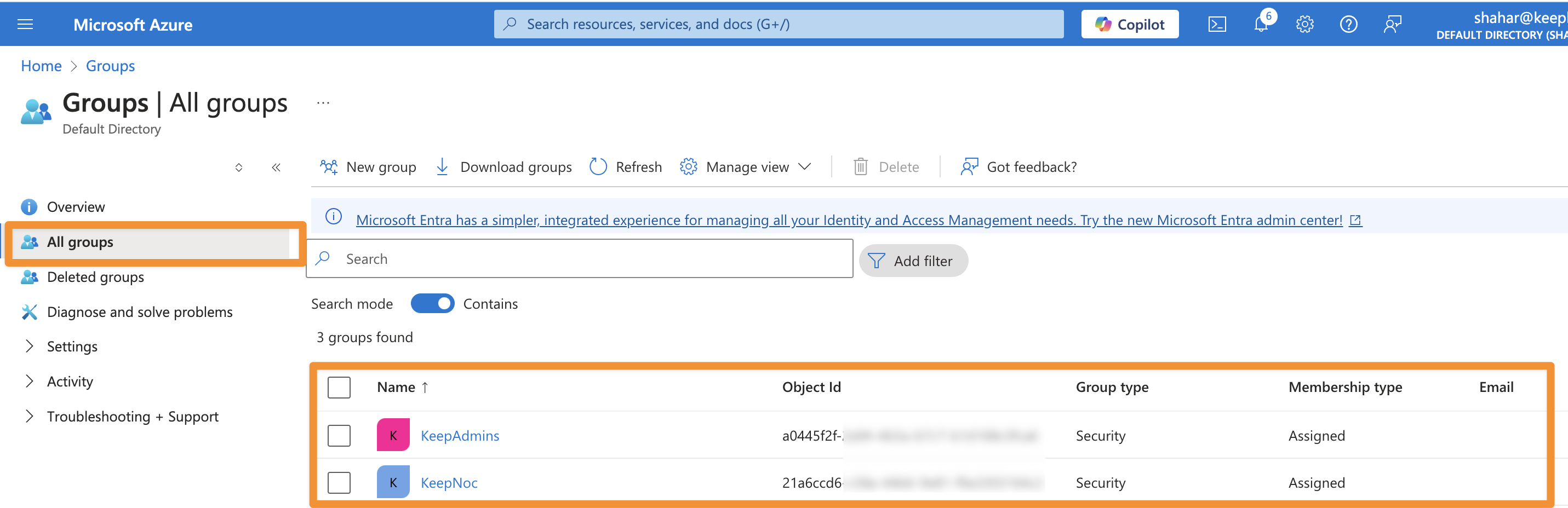 Keep the Object id of these groups and use it as `KEEP_AZUREAD_ADMIN_GROUP_ID` and `KEEP_AZUREAD_NOC_GROUP_ID`.
### Configure Group Claims
1. Navigate to **Token configuration**
Keep the Object id of these groups and use it as `KEEP_AZUREAD_ADMIN_GROUP_ID` and `KEEP_AZUREAD_NOC_GROUP_ID`.
### Configure Group Claims
1. Navigate to **Token configuration**
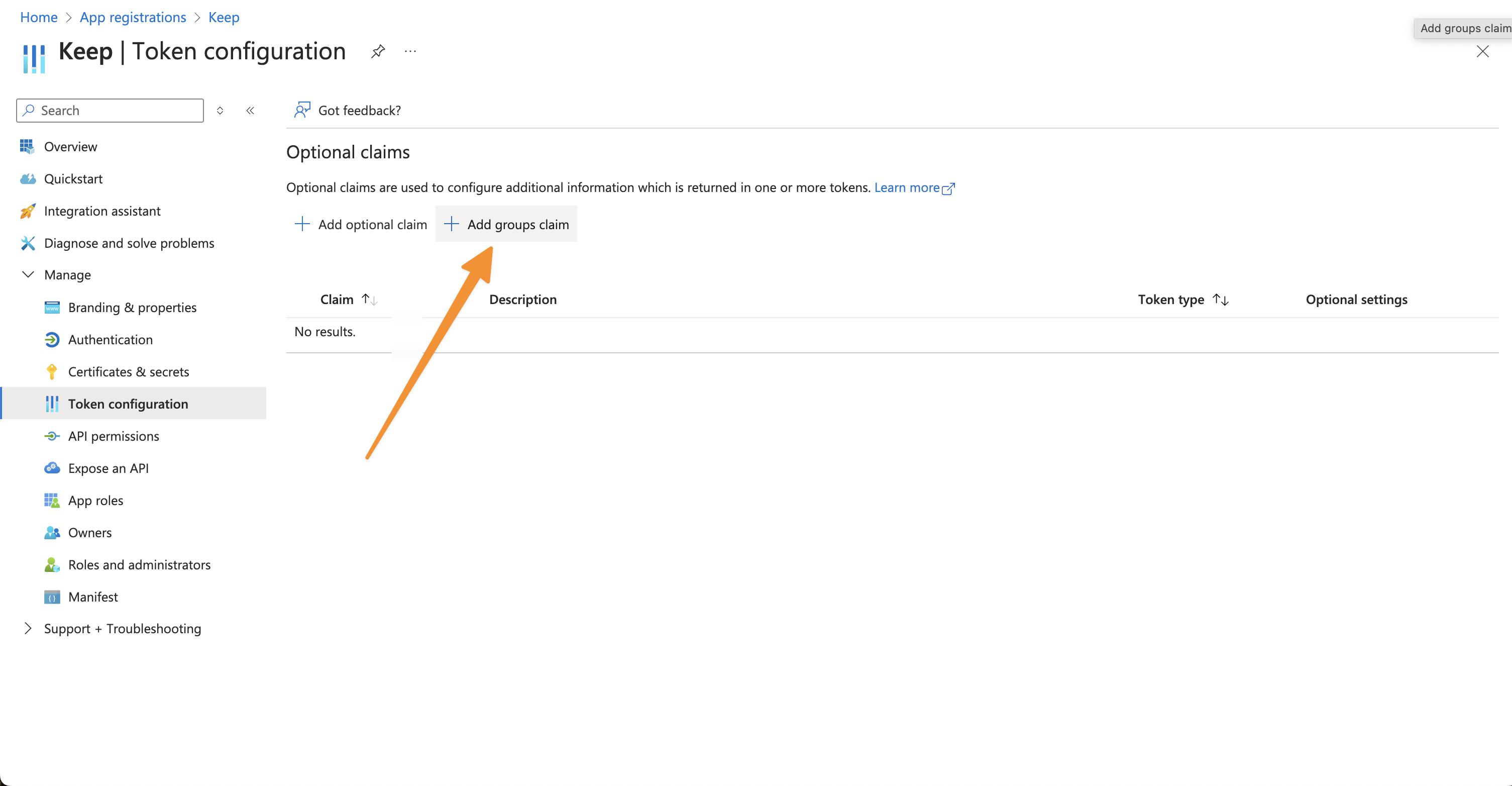 2. Add groups claim:
* Select "Security groups" and "Groups assigned to the application"
* Choose "Group ID" as the claim value
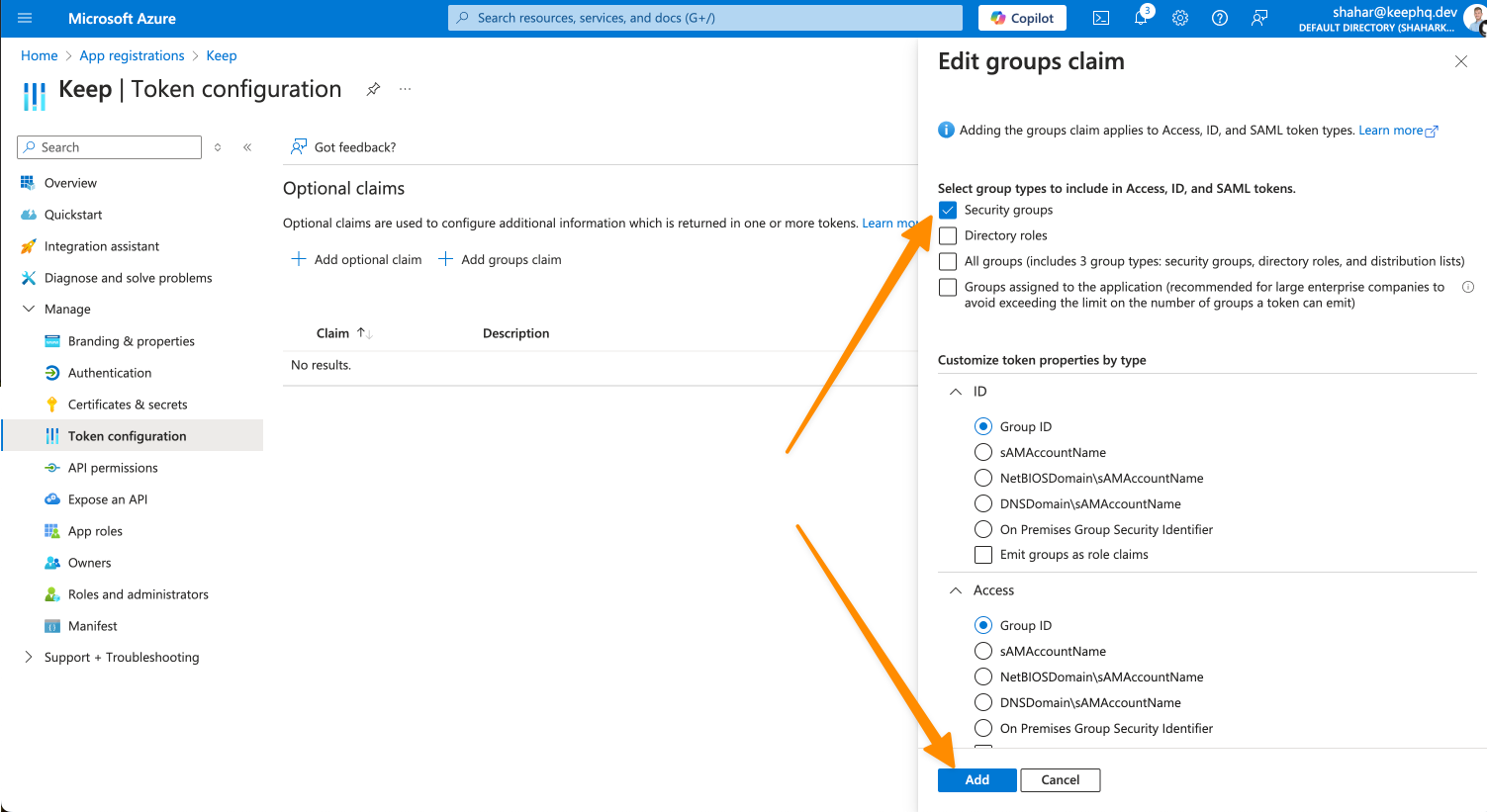
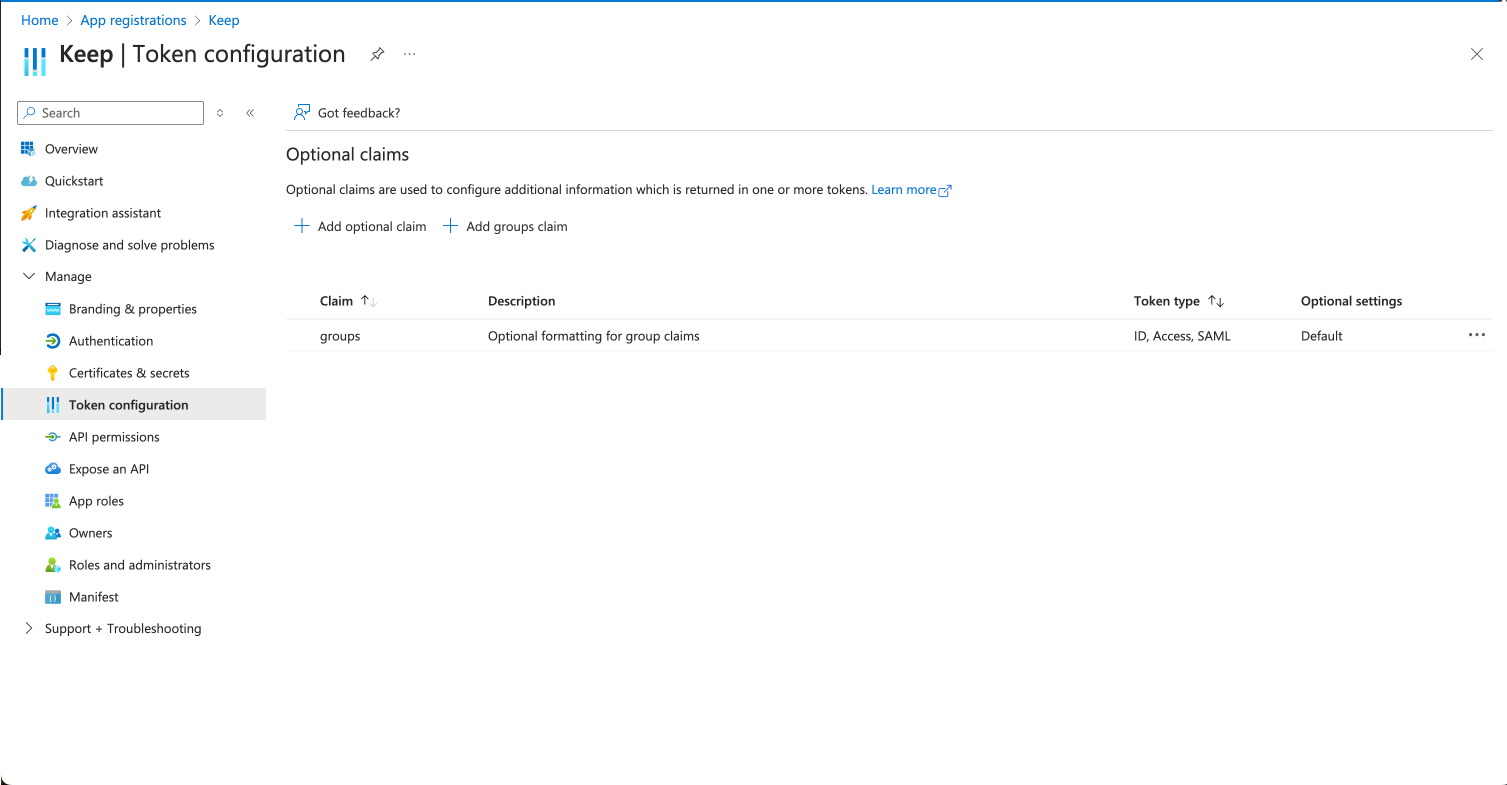
2. Add groups claim:
* Select "Security groups" and "Groups assigned to the application"
* Choose "Group ID" as the claim value
 ### Configure Application Scopes
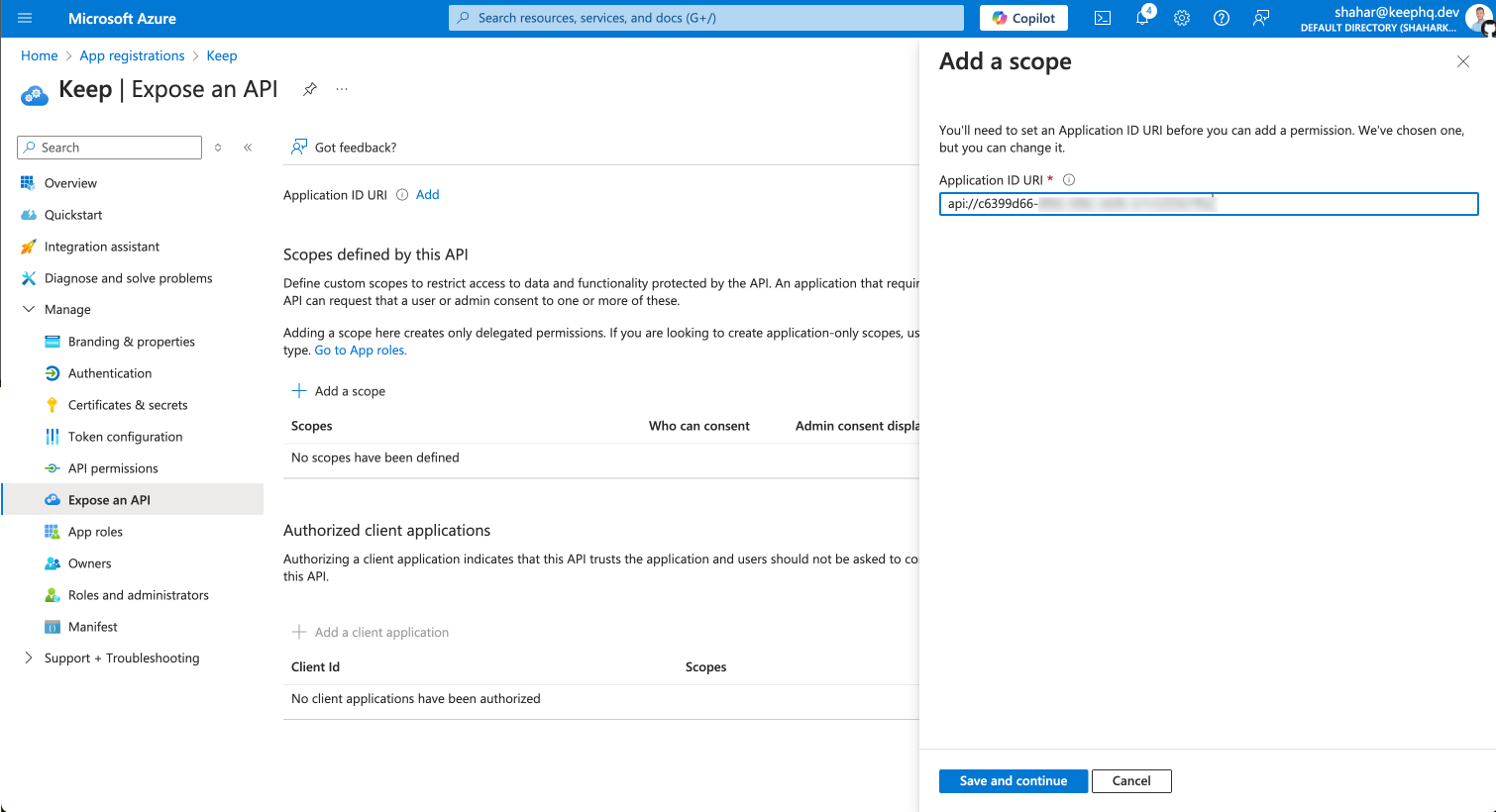
1. Go to "Expose an API" and click on "Add a scope"
### Configure Application Scopes
1. Go to "Expose an API" and click on "Add a scope"
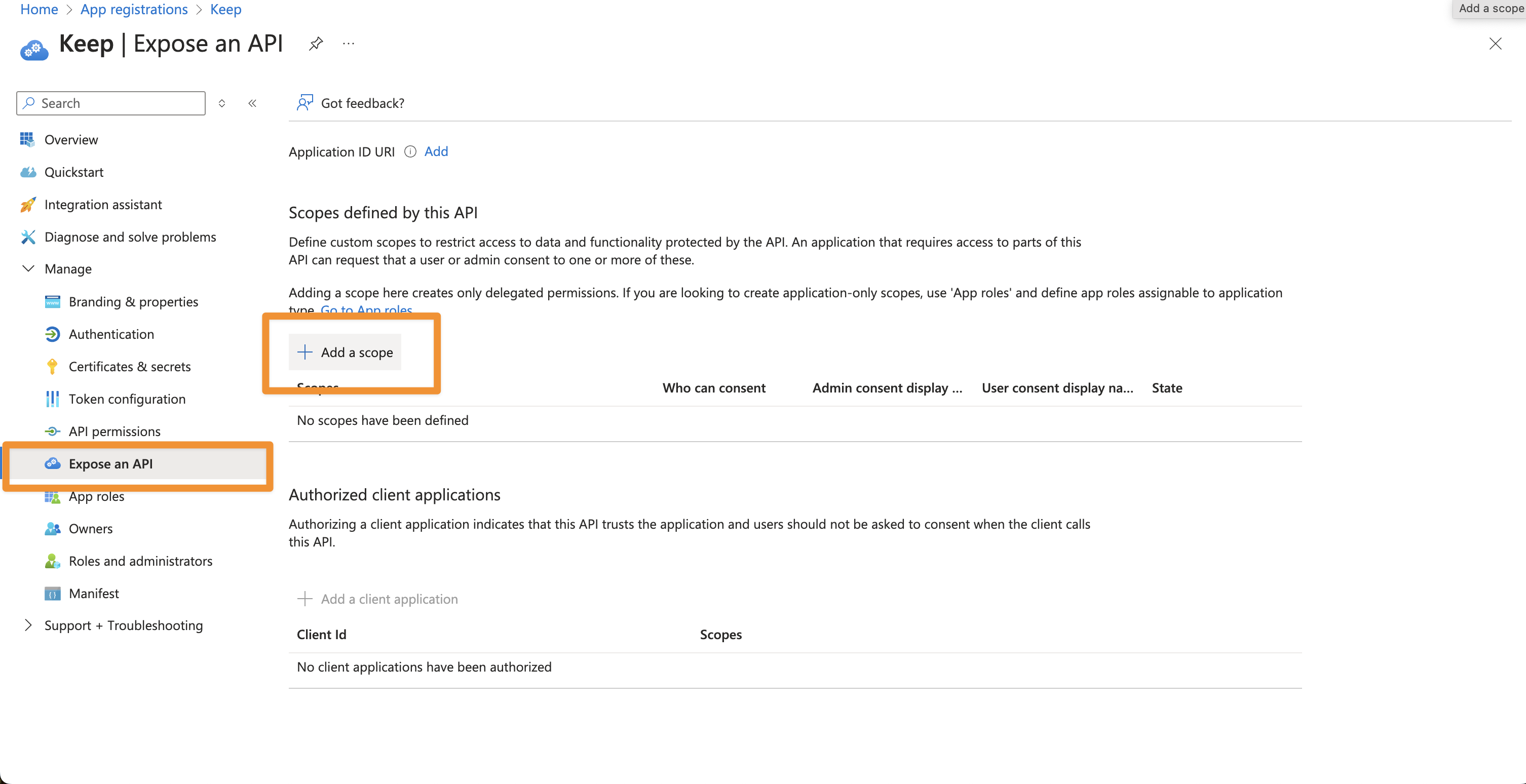 2. Keep the default Application ID and click "Save and continue"
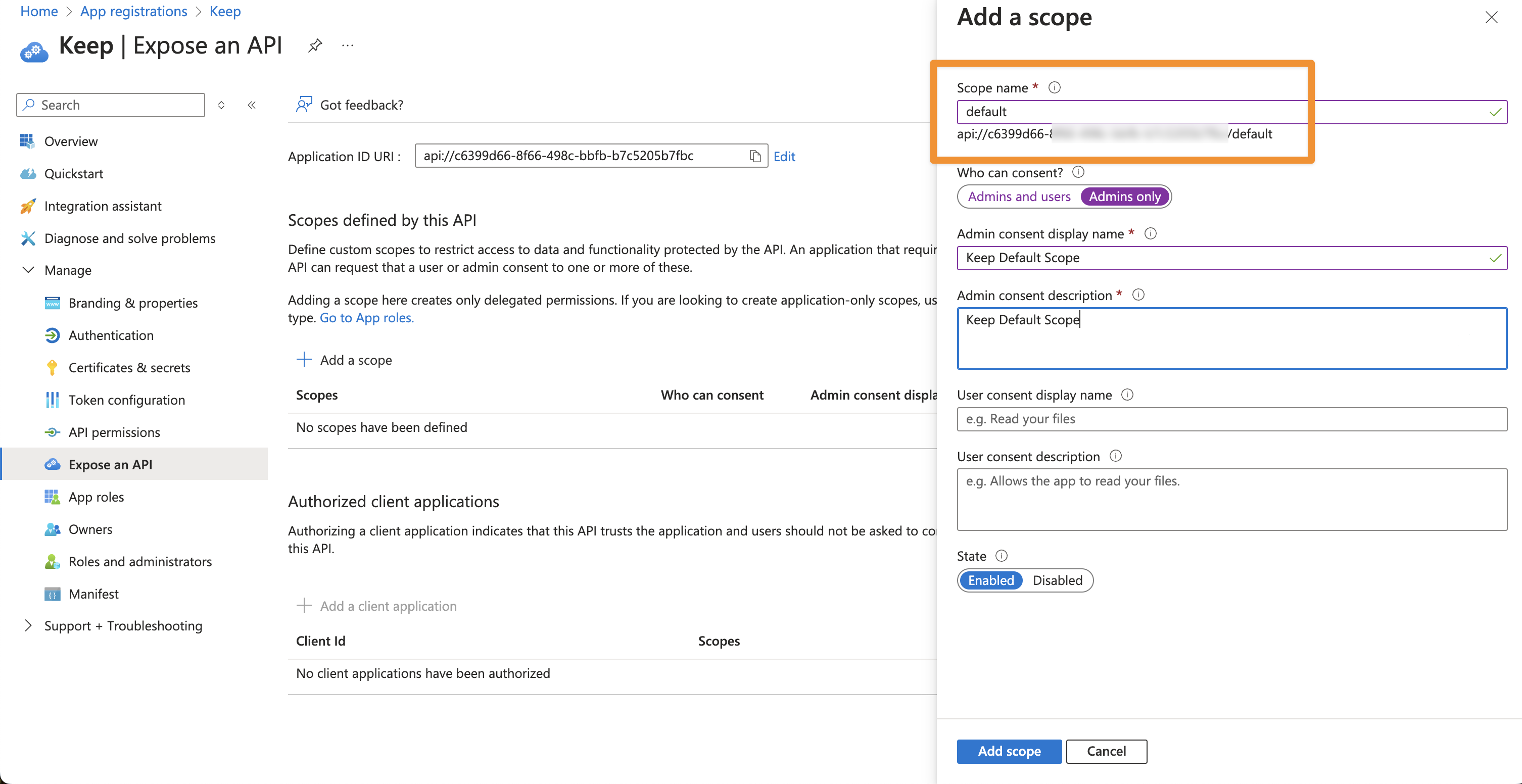
 3. Add "default" as scope name, also give a display name and description
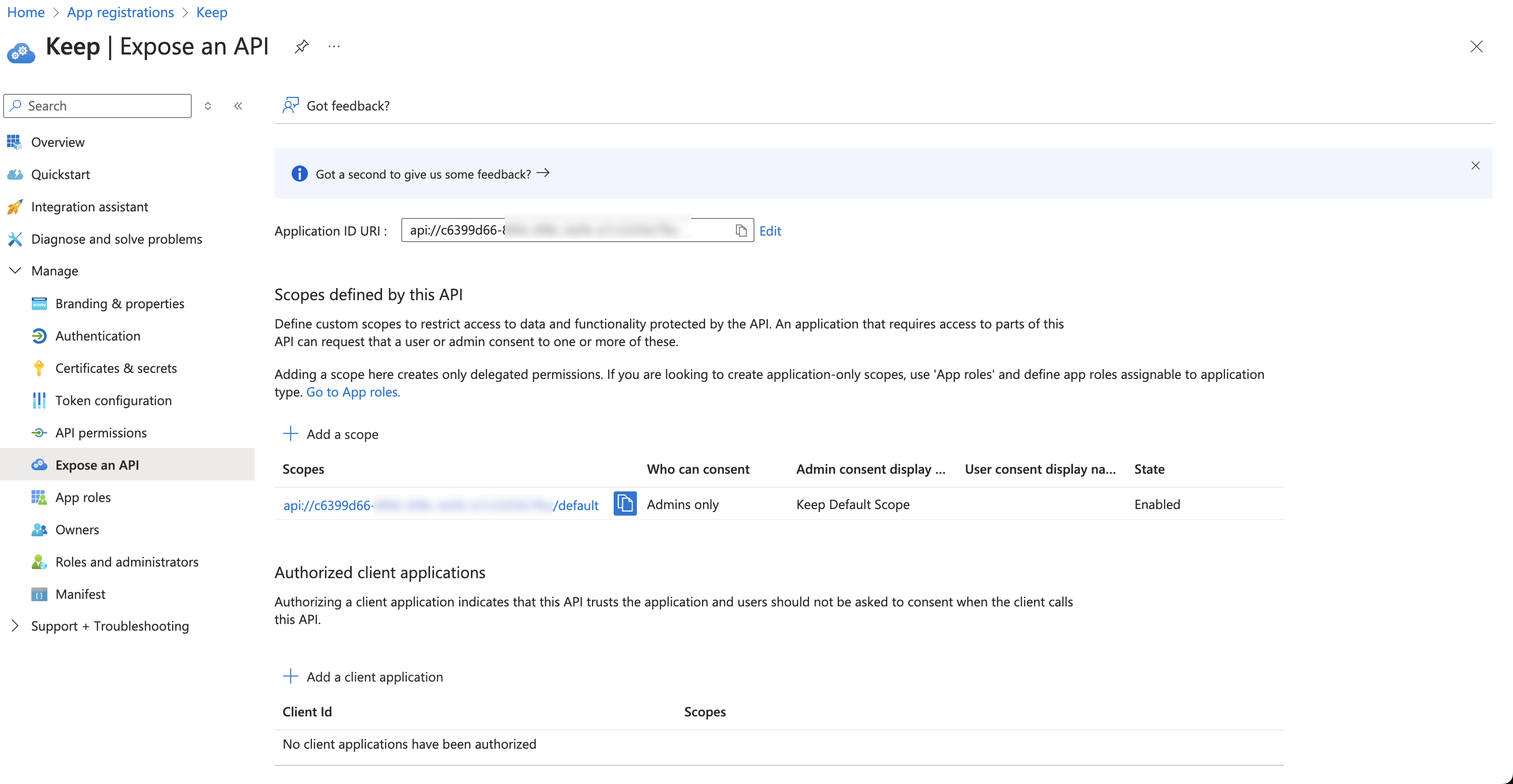
 3. Finally, click "Add scope"
 ## Setup Instructions (on Keep)
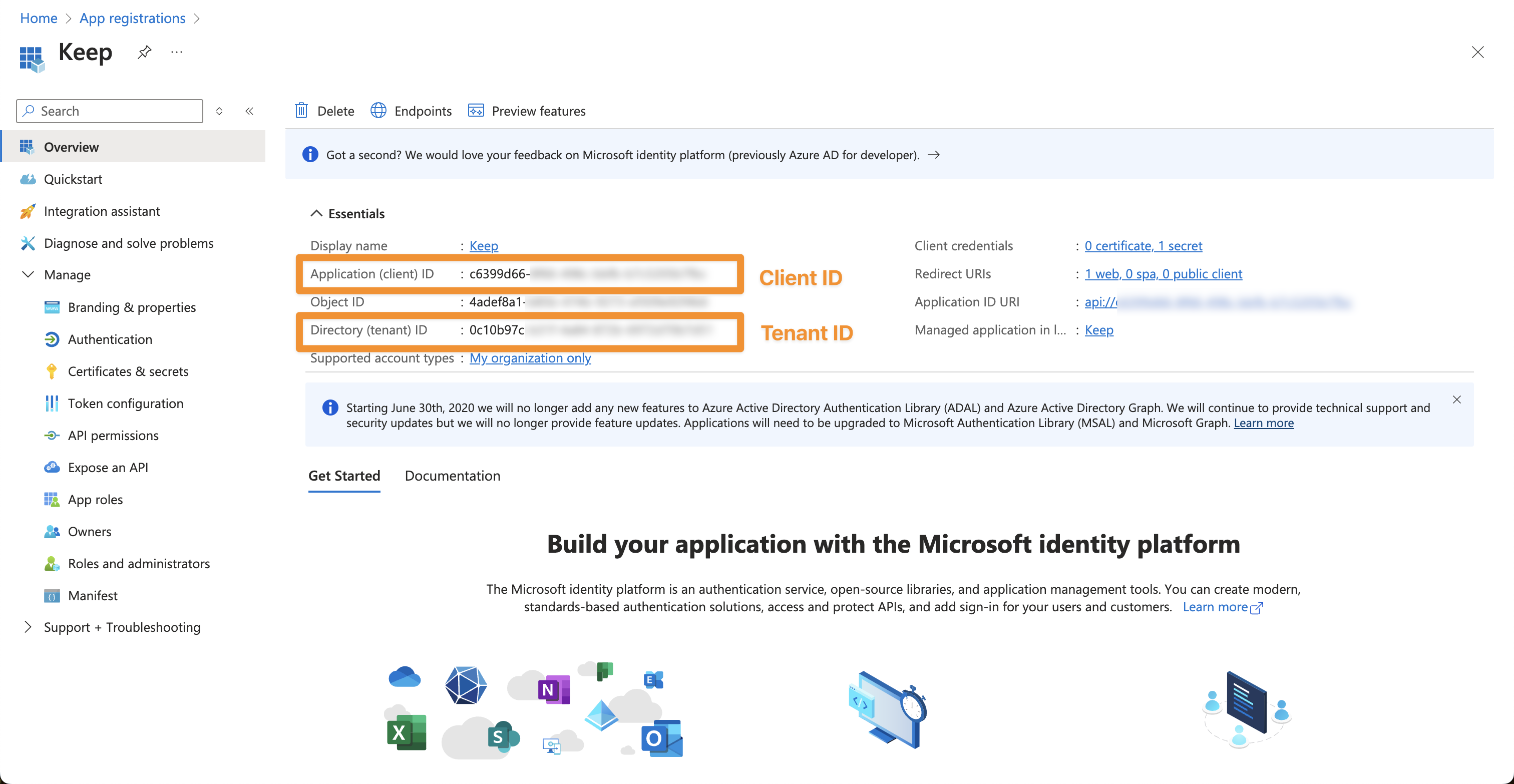
After you configured Azure AD you should have the following:
1. Azure AD Tenant ID
2. Azure AD Client ID
How to get:
## Setup Instructions (on Keep)
After you configured Azure AD you should have the following:
1. Azure AD Tenant ID
2. Azure AD Client ID
How to get:
 3. Azure AD Client Secret [See Configure Authentication](#configure-authentication).
4. Azure AD Group ID's for Admins and NOC (read only) [See Configure Groups](#configure-groups).
### Configuration
#### Frontend
| Environment Variable | Description | Required | Default Value |
| ----------------------------- | -------------------------------------------- | :------: | :-----------: |
| AUTH\_TYPE | Set to 'AZUREAD' for Azure AD authentication | Yes | - |
| KEEP\_AZUREAD\_CLIENT\_ID | Your Azure AD application (client) ID | Yes | - |
| KEEP\_AZUREAD\_CLIENT\_SECRET | Your client secret | Yes | - |
| KEEP\_AZUREAD\_TENANT\_ID | Your Azure AD tenant ID | Yes | - |
| NEXTAUTH\_URL | Your Keep application URL | Yes | - |
| NEXTAUTH\_SECRET | Random string for NextAuth.js | Yes | - |
#### Backend
| Environment Variable | Description | Required | Default Value |
| ------------------------------- | -------------------------------------------- | :------: | :-----------: |
| AUTH\_TYPE | Set to 'AZUREAD' for Azure AD authentication | Yes | - |
| KEEP\_AZUREAD\_TENANT\_ID | Your Azure AD tenant ID | Yes | - |
| KEEP\_AZUREAD\_CLIENT\_ID | Your Azure AD application (client) ID | Yes | - |
| KEEP\_AZUREAD\_ADMIN\_GROUP\_ID | The group ID of Keep Admins (read write) | Yes | - |
| KEEP\_AZUREAD\_NOC\_GROUP\_ID | The group ID of Keep NOC (read only) | Yes | - |
## Features and Limitations
#### Supported Features
* Single Sign-On (SSO)
* Role-based access control through Azure AD groups
* Multi-factor authentication (when configured in Azure AD)
#### Limitations
See [Overview](/deployment/authentication/overview)
3. Azure AD Client Secret [See Configure Authentication](#configure-authentication).
4. Azure AD Group ID's for Admins and NOC (read only) [See Configure Groups](#configure-groups).
### Configuration
#### Frontend
| Environment Variable | Description | Required | Default Value |
| ----------------------------- | -------------------------------------------- | :------: | :-----------: |
| AUTH\_TYPE | Set to 'AZUREAD' for Azure AD authentication | Yes | - |
| KEEP\_AZUREAD\_CLIENT\_ID | Your Azure AD application (client) ID | Yes | - |
| KEEP\_AZUREAD\_CLIENT\_SECRET | Your client secret | Yes | - |
| KEEP\_AZUREAD\_TENANT\_ID | Your Azure AD tenant ID | Yes | - |
| NEXTAUTH\_URL | Your Keep application URL | Yes | - |
| NEXTAUTH\_SECRET | Random string for NextAuth.js | Yes | - |
#### Backend
| Environment Variable | Description | Required | Default Value |
| ------------------------------- | -------------------------------------------- | :------: | :-----------: |
| AUTH\_TYPE | Set to 'AZUREAD' for Azure AD authentication | Yes | - |
| KEEP\_AZUREAD\_TENANT\_ID | Your Azure AD tenant ID | Yes | - |
| KEEP\_AZUREAD\_CLIENT\_ID | Your Azure AD application (client) ID | Yes | - |
| KEEP\_AZUREAD\_ADMIN\_GROUP\_ID | The group ID of Keep Admins (read write) | Yes | - |
| KEEP\_AZUREAD\_NOC\_GROUP\_ID | The group ID of Keep NOC (read only) | Yes | - |
## Features and Limitations
#### Supported Features
* Single Sign-On (SSO)
* Role-based access control through Azure AD groups
* Multi-factor authentication (when configured in Azure AD)
#### Limitations
See [Overview](/deployment/authentication/overview)