> ## Documentation Index
> Fetch the complete documentation index at: https://docs.keephq.dev/llms.txt
> Use this file to discover all available pages before exploring further.
# Asana
> Asana Provider allows you to create and update tasks in Asana
## Authentication
This provider requires authentication.
* **pat\_token**: Personal Access Token for Asana. (required: True, sensitive: True)
Certain scopes may be required to perform specific actions or queries via the provider. Below is a summary of relevant scopes and their use cases:
* **authenticated**: User is authenticated to Asana. (mandatory)
## In workflows
This provider can be used in workflows.
As "step" to query data, example:
```yaml theme={null}
steps:
- name: Query asana
provider: asana
config: "{{ provider.my_provider_name }}"
with:
task_id: {value} # Task ID.
# Apart from the above parameters, you can also provide few other parameters. Refer to the [Asana API documentation](https://developers.asana.com/docs/update-a-task) for more details.
```
As "action" to make changes or update data, example:
```yaml theme={null}
actions:
- name: Query asana
provider: asana
config: "{{ provider.my_provider_name }}"
with:
name: {value} # Task Name.
projects: {value} # List of Project IDs.
# Apart from the above parameters, you can also provide few other parameters. Refer to the [Asana API documentation](https://developers.asana.com/docs/update-a-task) for more details.
```
Check the following workflow examples:
* [create-task-in-asana.yaml](https://github.com/keephq/keep/blob/main/examples/workflows/create-task-in-asana.yaml)
* [update-task-in-asana.yaml](https://github.com/keephq/keep/blob/main/examples/workflows/update-task-in-asana.yaml)
## Connecting with the Provider
1. Go to [Asana](https://app.asana.com/0/developer-console)
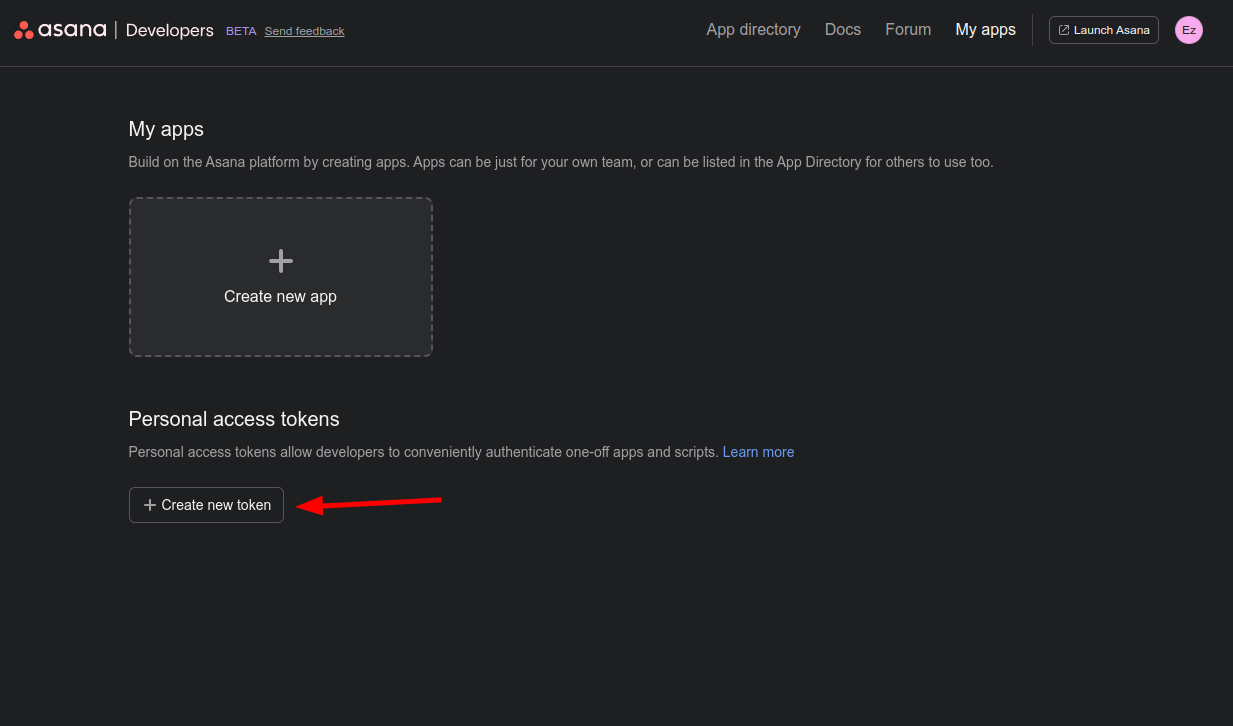 2. Click on `Create New Personal Access Token`.
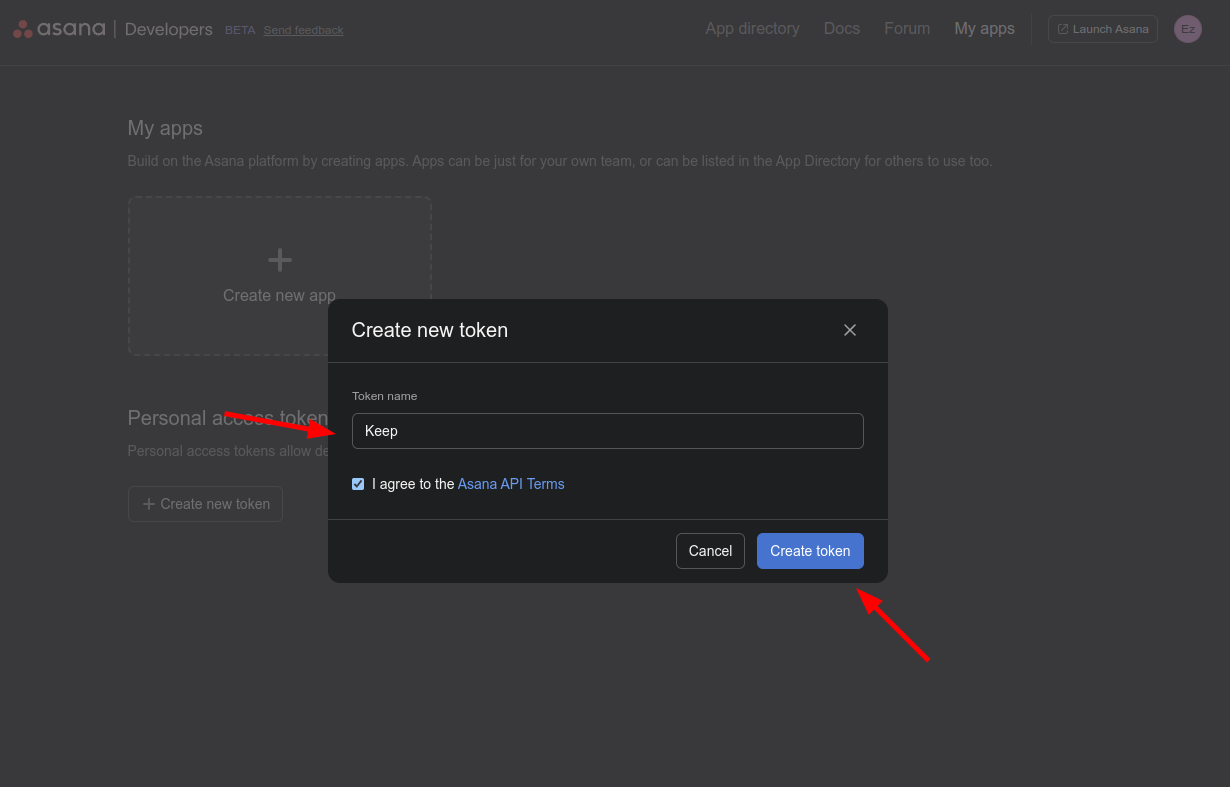 3. Give it a name and click on `Create`.
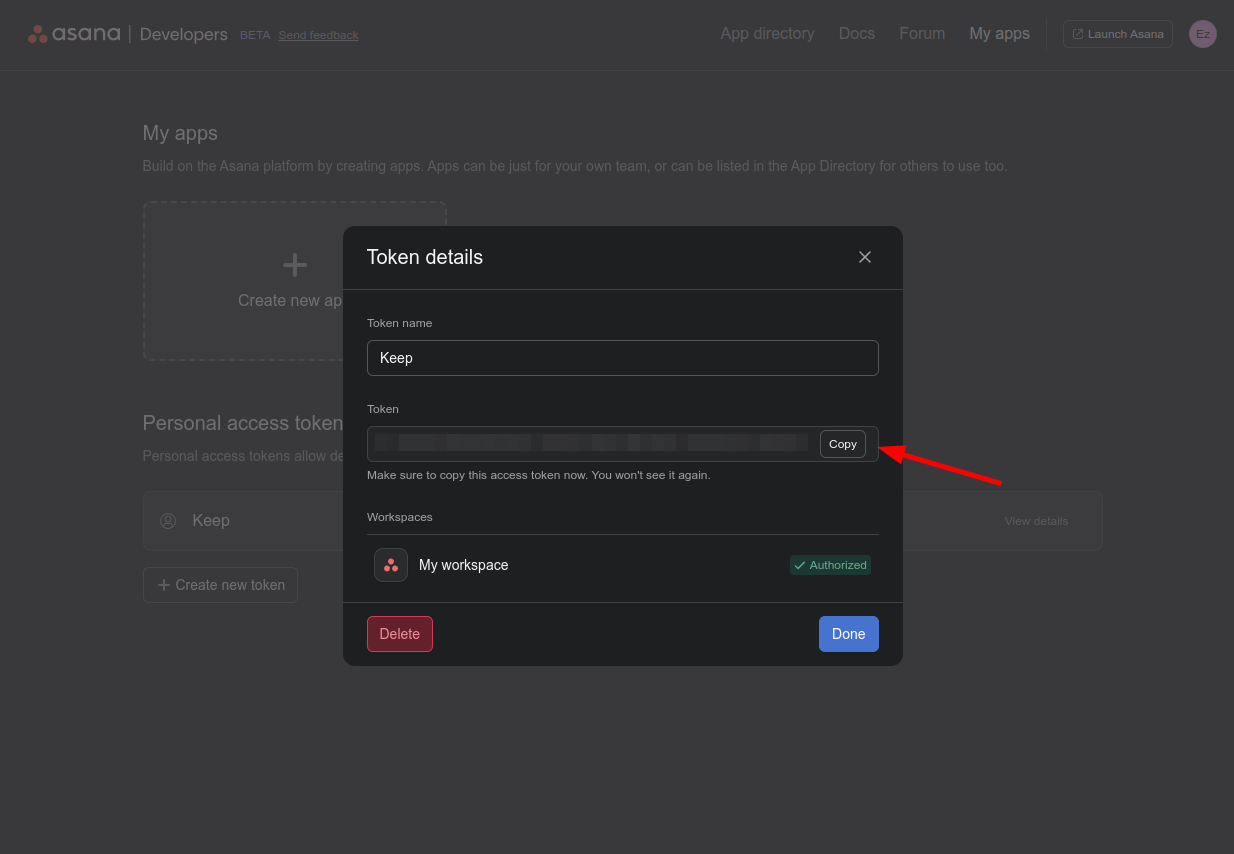
4. Copy the generated token. This will be used as the `Personal Access Token` in the provider settings.
3. Give it a name and click on `Create`.
4. Copy the generated token. This will be used as the `Personal Access Token` in the provider settings.
 ## Useful Links
* [Asana](https://asana.com)
## Useful Links
* [Asana](https://asana.com)