> ## Documentation Index
> Fetch the complete documentation index at: https://docs.keephq.dev/llms.txt
> Use this file to discover all available pages before exploring further.
# Checkly
> Checkly allows you to receive alerts from Checkly using API endpoints as well as webhooks
## Authentication
This provider requires authentication.
* **checklyApiKey**: Checkly API Key (required: True, sensitive: True)
* **accountId**: Checkly Account ID (required: True, sensitive: True)
Certain scopes may be required to perform specific actions or queries via the provider. Below is a summary of relevant scopes and their use cases:
* **read\_alerts**: Read alerts from Checkly
## In workflows
This provider can't be used as a "step" or "action" in workflows. If you want to use it, please let us know by creating an issue in the [GitHub repository](https://github.com/keephq/keep/issues).
## Connecting Checkly to Keep
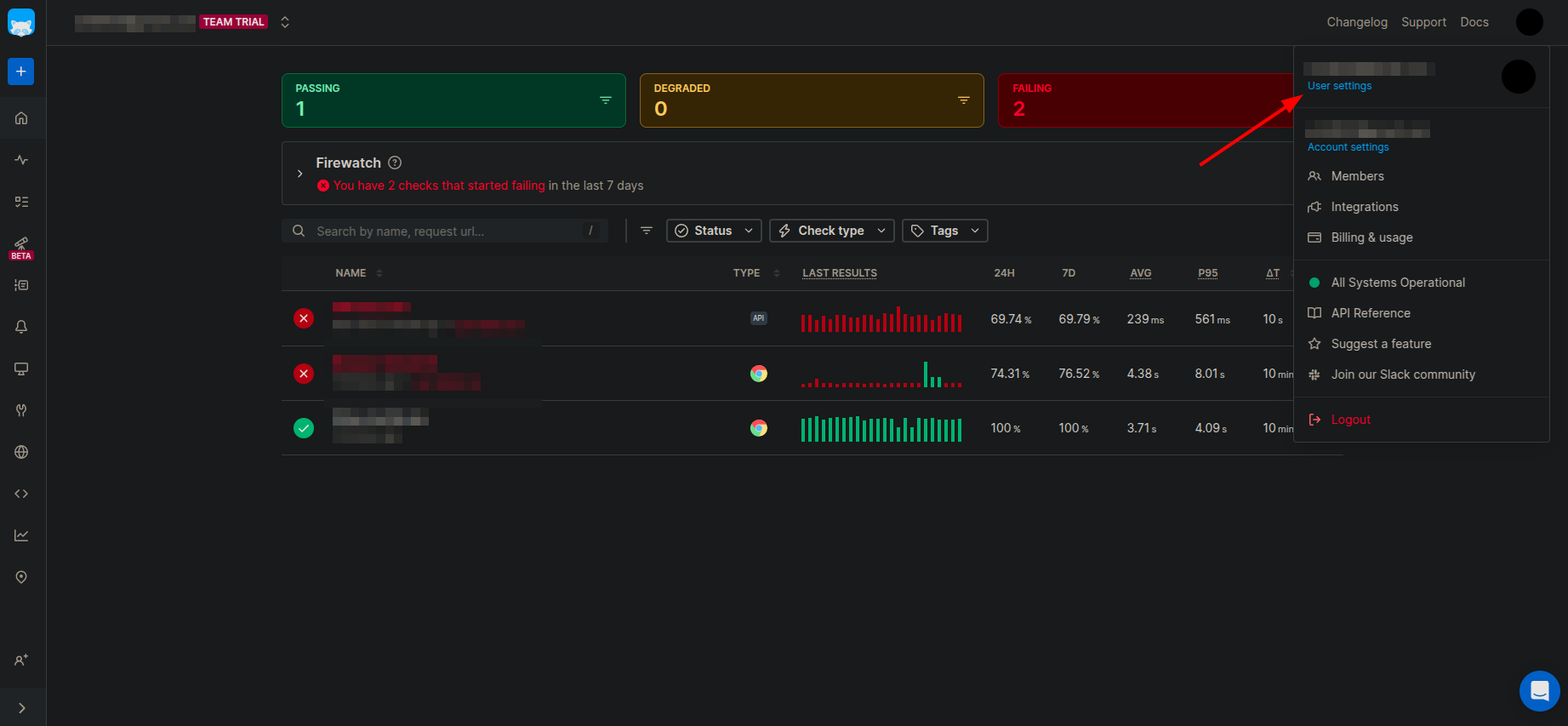
1. Open Checkly dashboard and click on your profile picture in the top right corner.
2. Click on `User Settings`.
 3. Open the `API Keys` tab and click on `Create API Key` to generate a new API key.
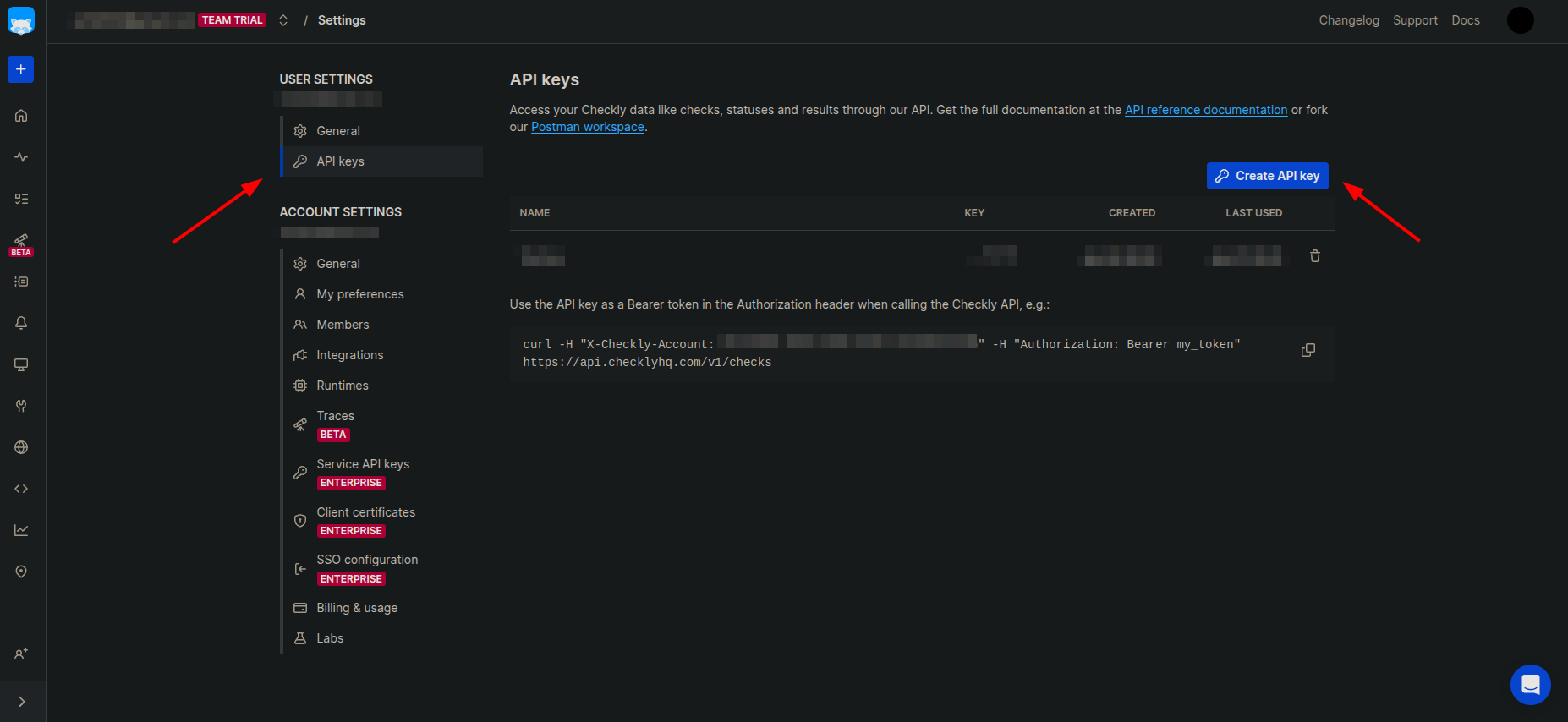 4. Copy the API key.
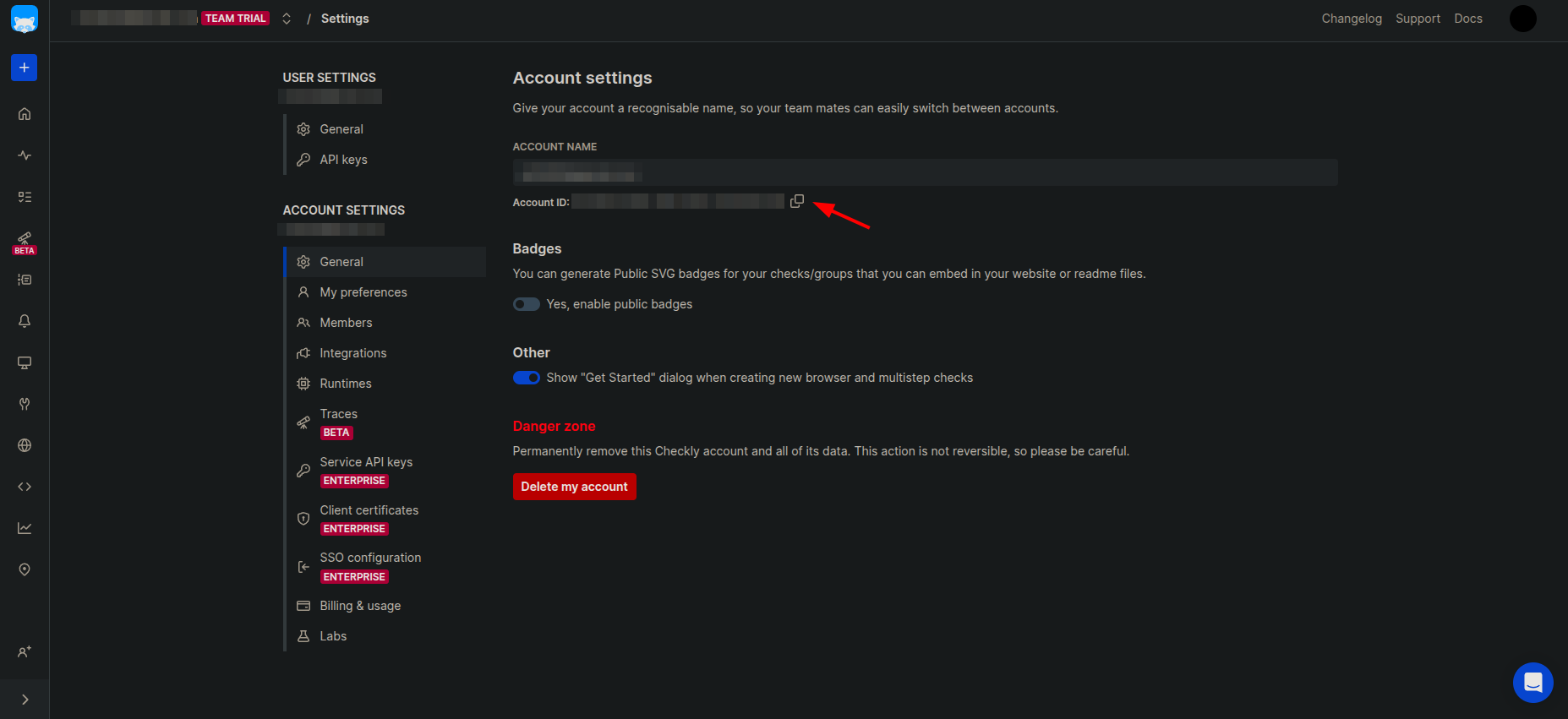
5. Open `General` tab under Account Settings and copy the `Account ID`.
4. Copy the API key.
5. Open `General` tab under Account Settings and copy the `Account ID`.
 6. Go to Keep, add Checkly as a provider and enter the API key and Account ID in the respective fields and click on `Connect`.
## Webhooks Integration
1. Open Checkly dashboard and open `Alerts` tab in the left sidebar.
6. Go to Keep, add Checkly as a provider and enter the API key and Account ID in the respective fields and click on `Connect`.
## Webhooks Integration
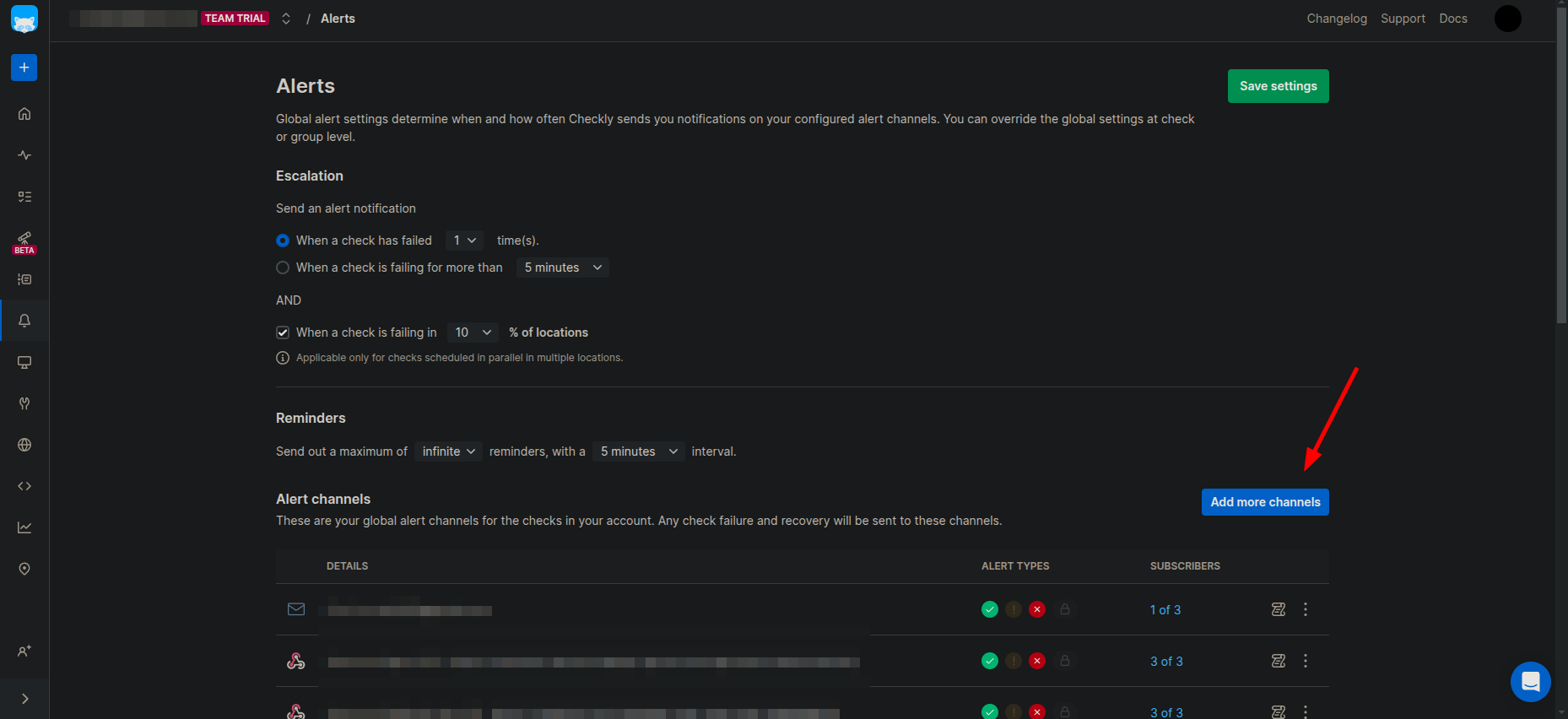
1. Open Checkly dashboard and open `Alerts` tab in the left sidebar.
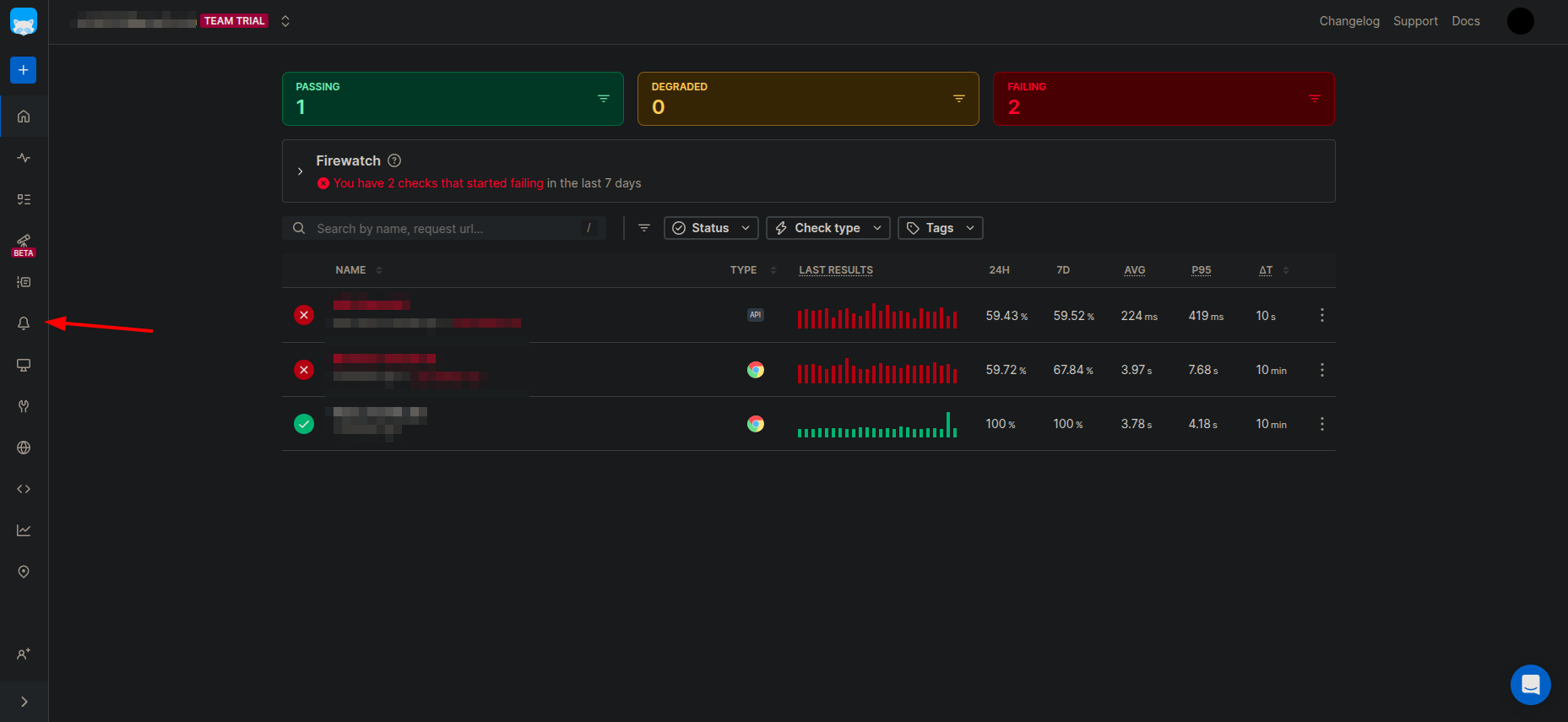 2. Click on `Add more channels`
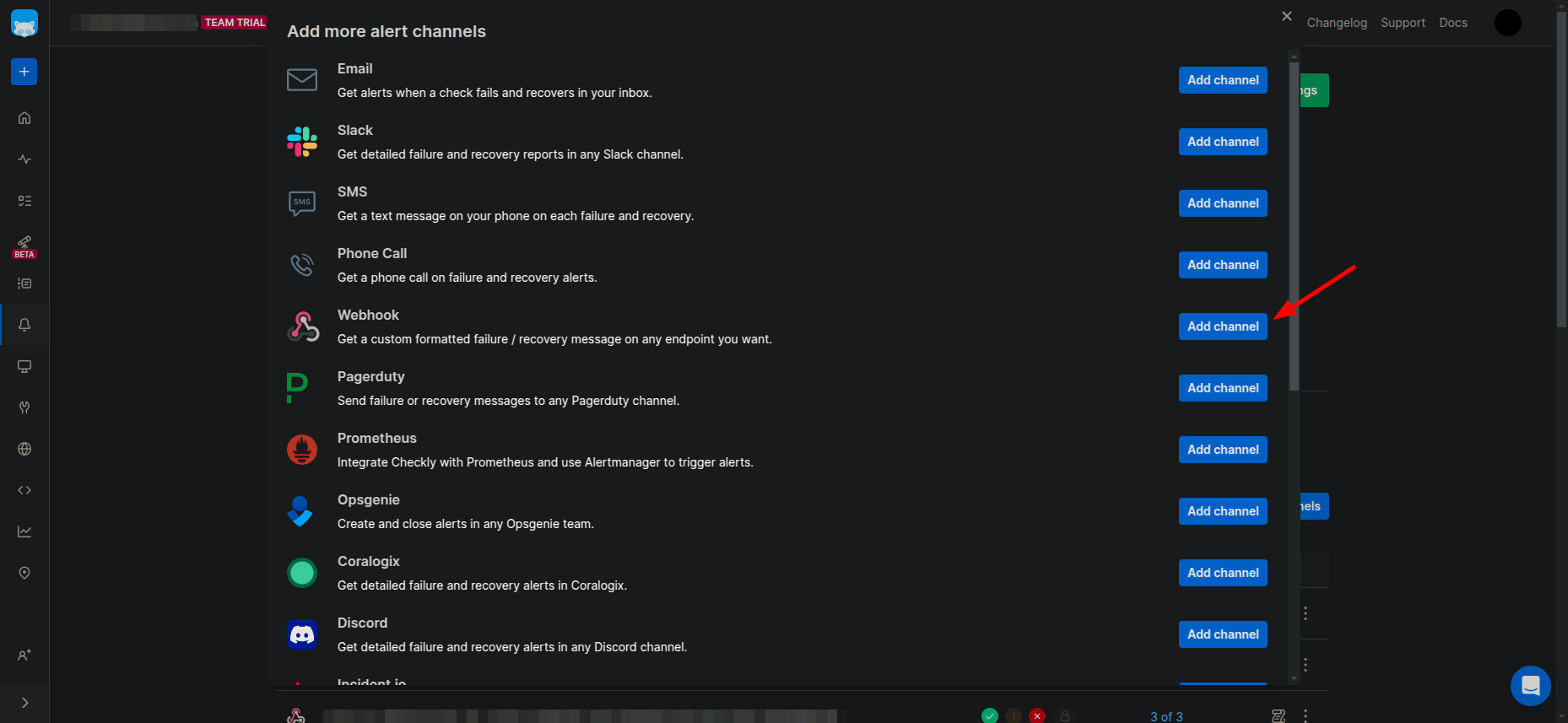
 3. Select `Webhook` from the list of available channels.
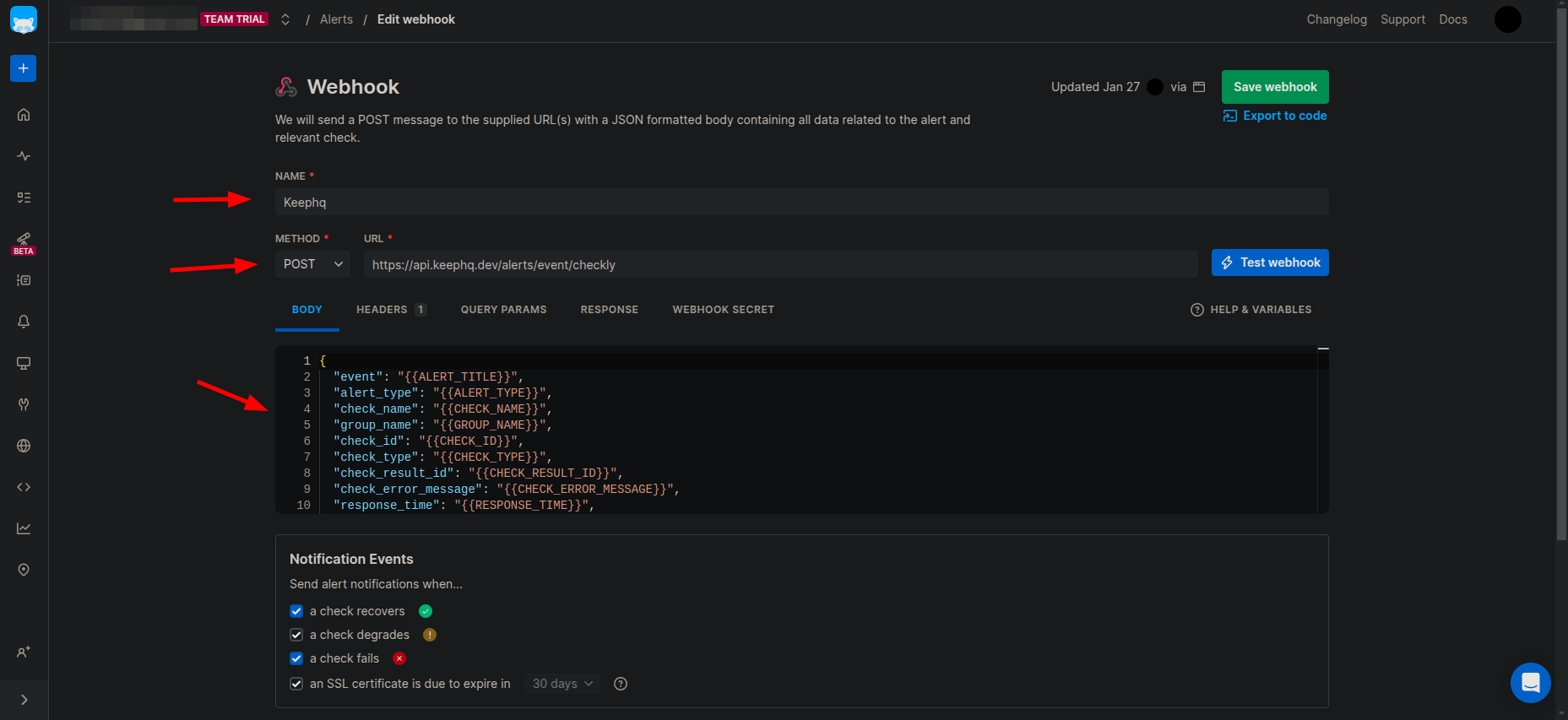
 4. Enter a name for the webhook, select the method as `POST`
5. Enter [https://api.keephq.dev/alerts/event/checkly](https://api.keephq.dev/alerts/event/checkly) as the URL.
6. Copy the below snippet and paste in the `Body` of Webhook. Refer the screenshot below for reference.
```json theme={null}
{
"event": "{{ALERT_TITLE}}",
"alert_type": "{{ALERT_TYPE}}",
"check_name": "{{CHECK_NAME}}",
"group_name": "{{GROUP_NAME}}",
"check_id": "{{CHECK_ID}}",
"check_type": "{{CHECK_TYPE}}",
"check_result_id": "{{CHECK_RESULT_ID}}",
"check_error_message": "{{CHECK_ERROR_MESSAGE}}",
"response_time": "{{RESPONSE_TIME}}",
"api_check_response_status_code": "{{API_CHECK_RESPONSE_STATUS_CODE}}",
"api_check_response_status_text": "{{API_CHECK_RESPONSE_STATUS_TEXT}}",
"run_location": "{{RUN_LOCATION}}",
"ssl_days_remaining": "{{SSL_DAYS_REMAINING}}",
"ssl_check_domain": "{{SSL_CHECK_DOMAIN}}",
"started_at": "{{STARTED_AT}}",
"tags": "{{TAGS}}",
"link": "{{RESULT_LINK}}",
"region": "{{REGION}}",
"uuid": "{{$UUID}}"
}
```
4. Enter a name for the webhook, select the method as `POST`
5. Enter [https://api.keephq.dev/alerts/event/checkly](https://api.keephq.dev/alerts/event/checkly) as the URL.
6. Copy the below snippet and paste in the `Body` of Webhook. Refer the screenshot below for reference.
```json theme={null}
{
"event": "{{ALERT_TITLE}}",
"alert_type": "{{ALERT_TYPE}}",
"check_name": "{{CHECK_NAME}}",
"group_name": "{{GROUP_NAME}}",
"check_id": "{{CHECK_ID}}",
"check_type": "{{CHECK_TYPE}}",
"check_result_id": "{{CHECK_RESULT_ID}}",
"check_error_message": "{{CHECK_ERROR_MESSAGE}}",
"response_time": "{{RESPONSE_TIME}}",
"api_check_response_status_code": "{{API_CHECK_RESPONSE_STATUS_CODE}}",
"api_check_response_status_text": "{{API_CHECK_RESPONSE_STATUS_TEXT}}",
"run_location": "{{RUN_LOCATION}}",
"ssl_days_remaining": "{{SSL_DAYS_REMAINING}}",
"ssl_check_domain": "{{SSL_CHECK_DOMAIN}}",
"started_at": "{{STARTED_AT}}",
"tags": "{{TAGS}}",
"link": "{{RESULT_LINK}}",
"region": "{{REGION}}",
"uuid": "{{$UUID}}"
}
```
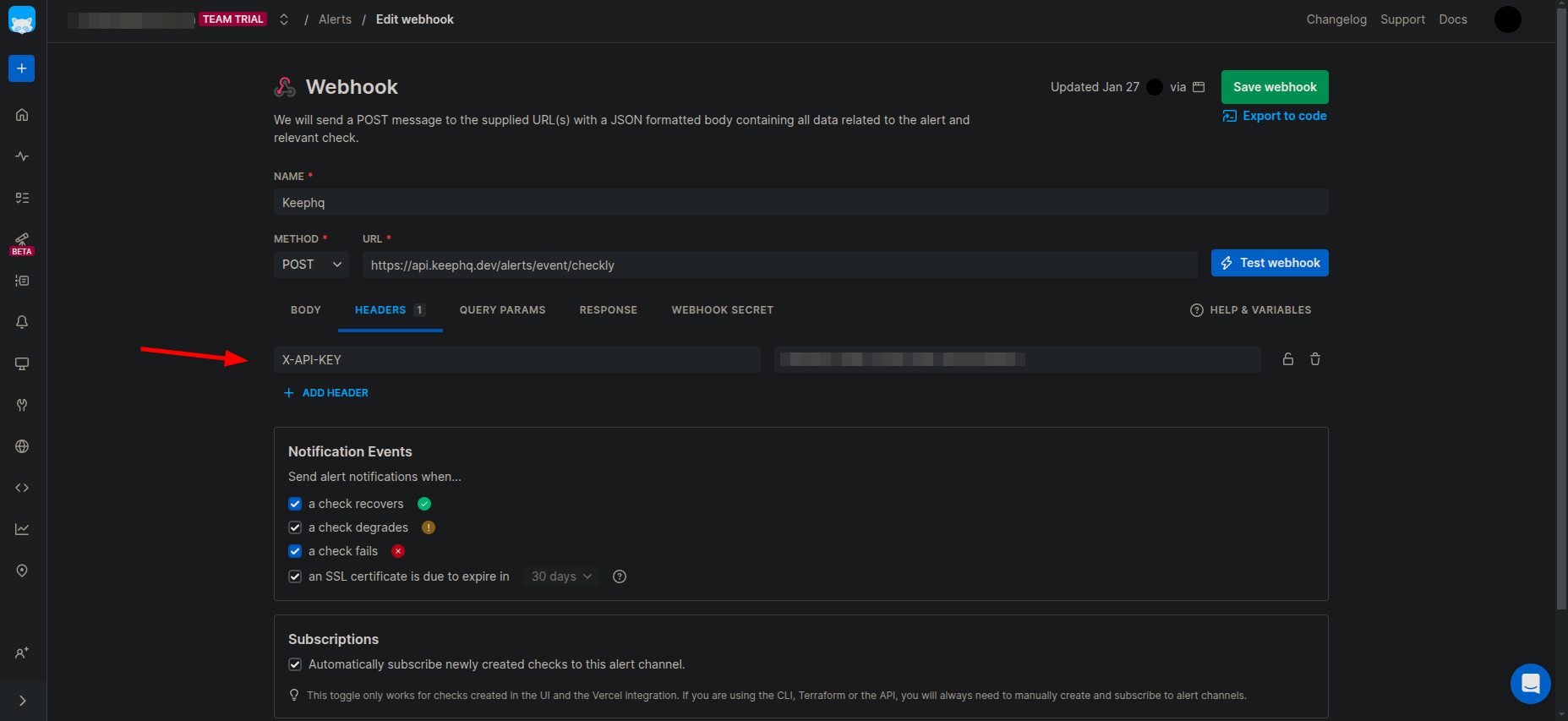
 7. Go to Headers tab and add a new header with key as `X-API-KEY` and create a new API key in Keep and paste it as the value and save the webhook.
 8. Follow the below steps to create a new API key in Keep.
9. Go to Keep dashboard and click on the profile icon in the botton left corner and click `Settings`.
8. Follow the below steps to create a new API key in Keep.
9. Go to Keep dashboard and click on the profile icon in the botton left corner and click `Settings`.
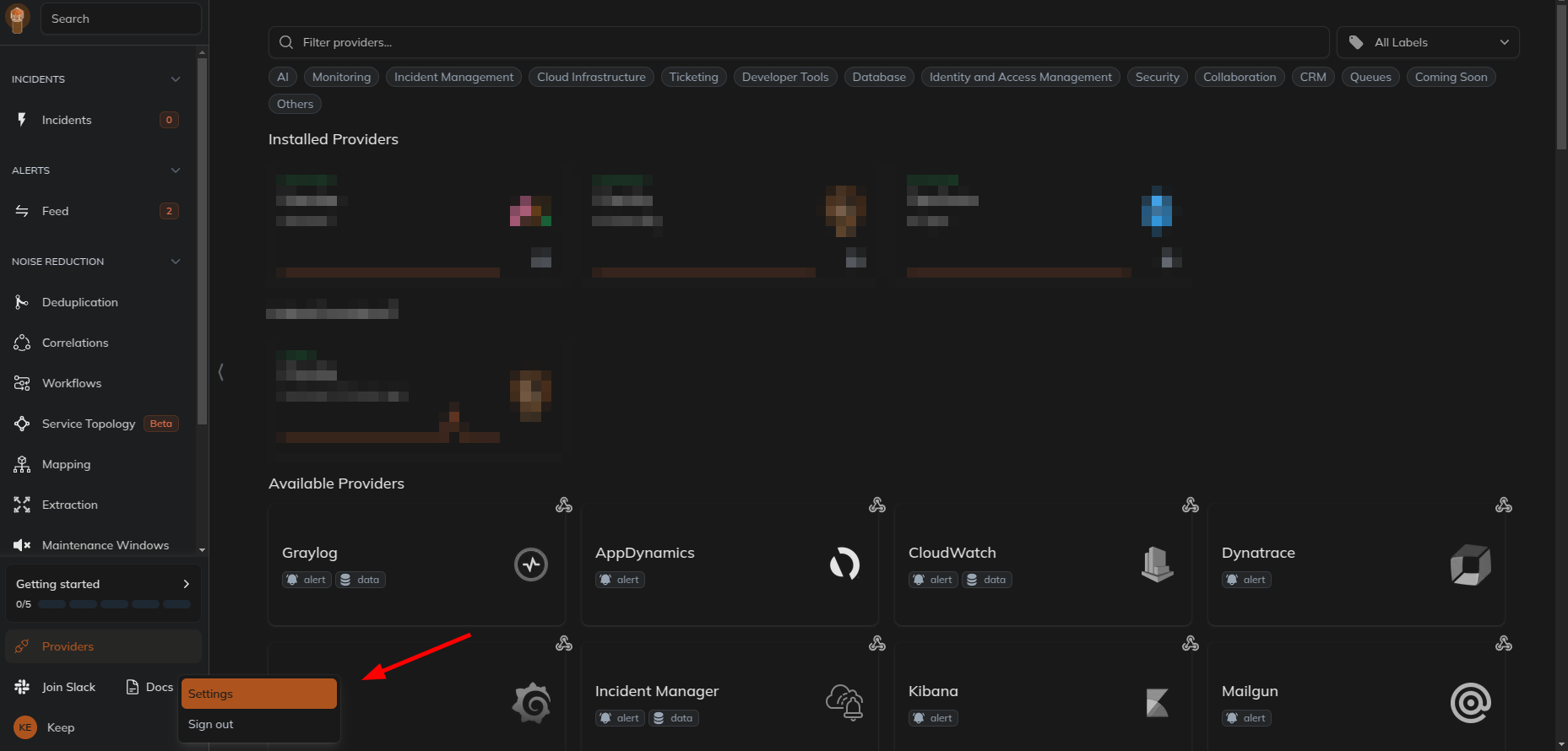 10. Select `Users and Access` tab and then select `API Keys` tab and create a new API key.
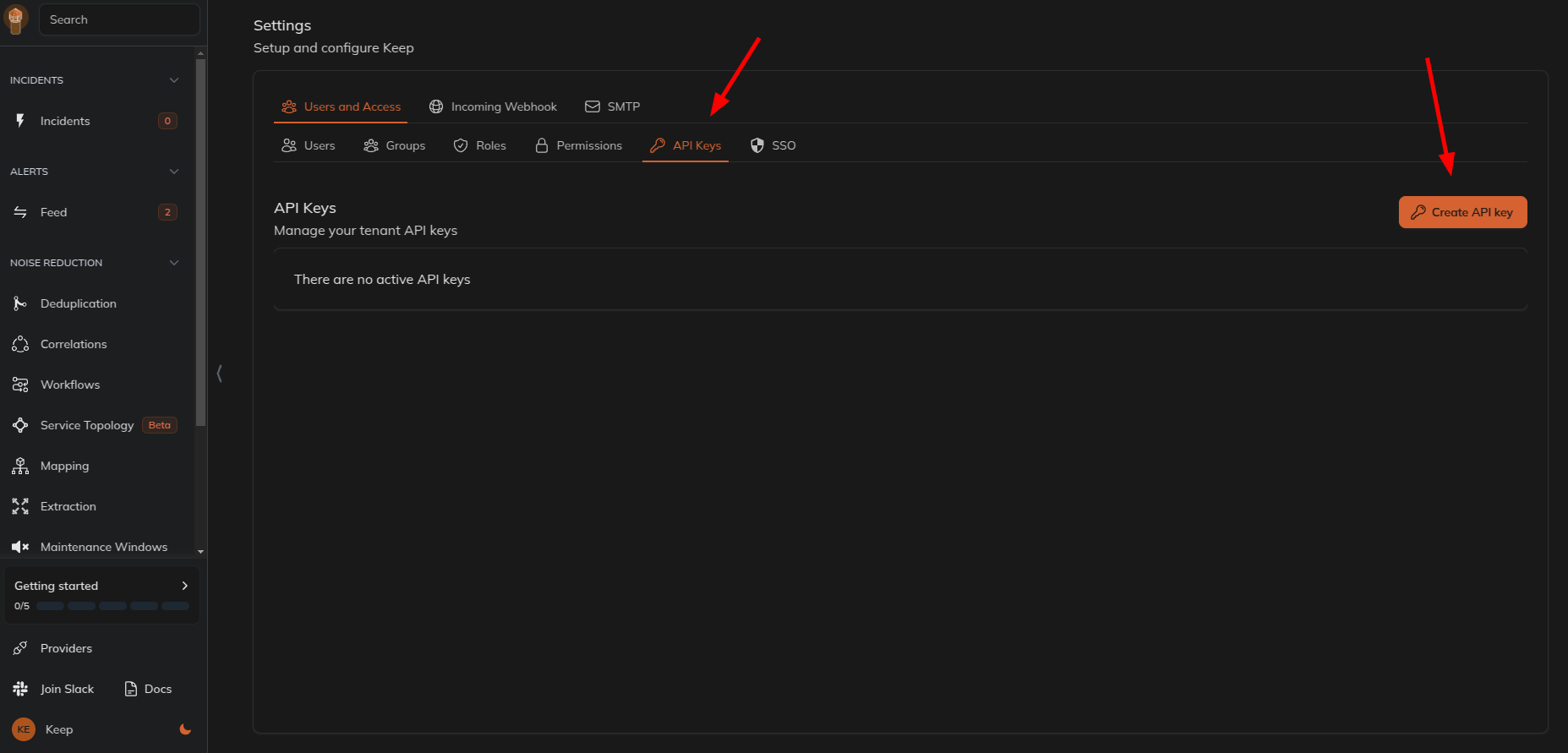 11. Give name and select the role as `webhook` and click on `Create API Key`.
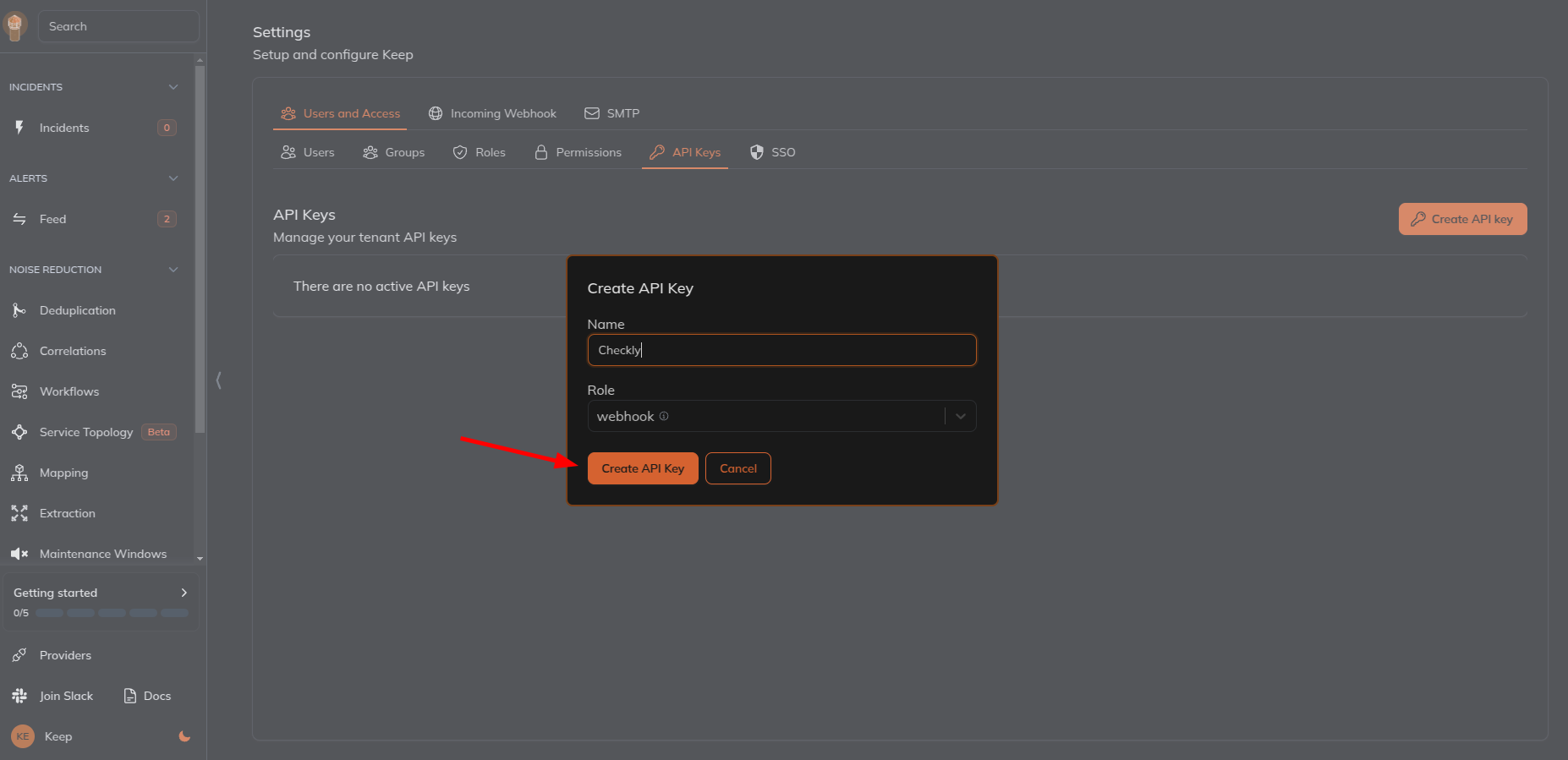 12. Use the generated API key in the `X-API-KEY` header of the webhook created in Checkly.
## Useful Links
* [Checkly Website](https://www.checklyhq.com/)
12. Use the generated API key in the `X-API-KEY` header of the webhook created in Checkly.
## Useful Links
* [Checkly Website](https://www.checklyhq.com/)