> ## Documentation Index
> Fetch the complete documentation index at: https://docs.keephq.dev/llms.txt
> Use this file to discover all available pages before exploring further.
# Coralogix
> Coralogix provider allows you to send alerts from Coralogix to Keep using webhooks.
## Overview
Coralogix is a modern observability platform delivers comprehensive visibility into all your logs, metrics, traces and security events with end-to-end monitoring.
## Connecting Coralogix to Keep
To connect Coralogix to Keep, you need to configure it as a webhook from Coralogix. Follow the steps below to set up the integration:
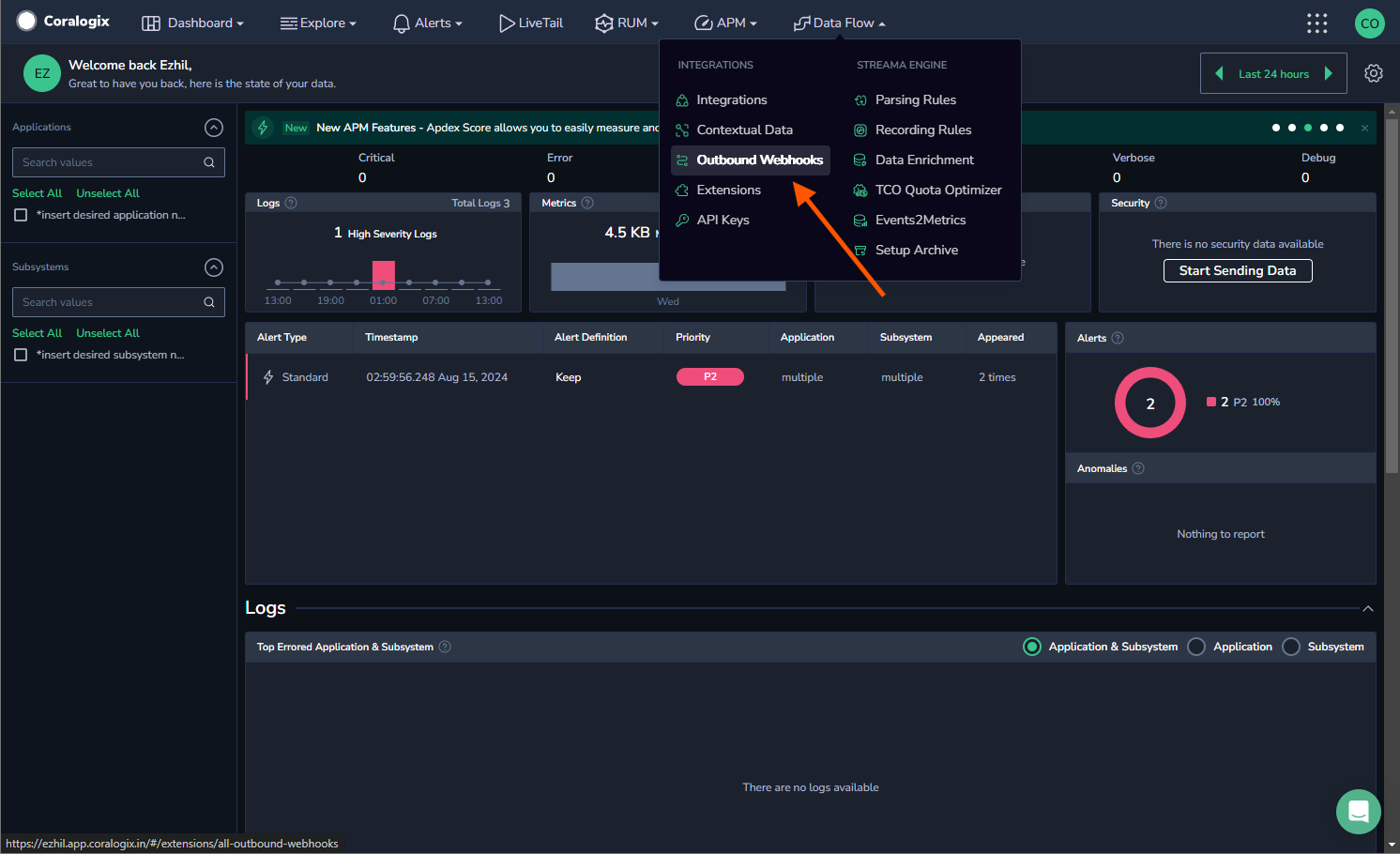
1. From the Coralogix toolbar, navigate to Data Flow > Outbound Webhooks.
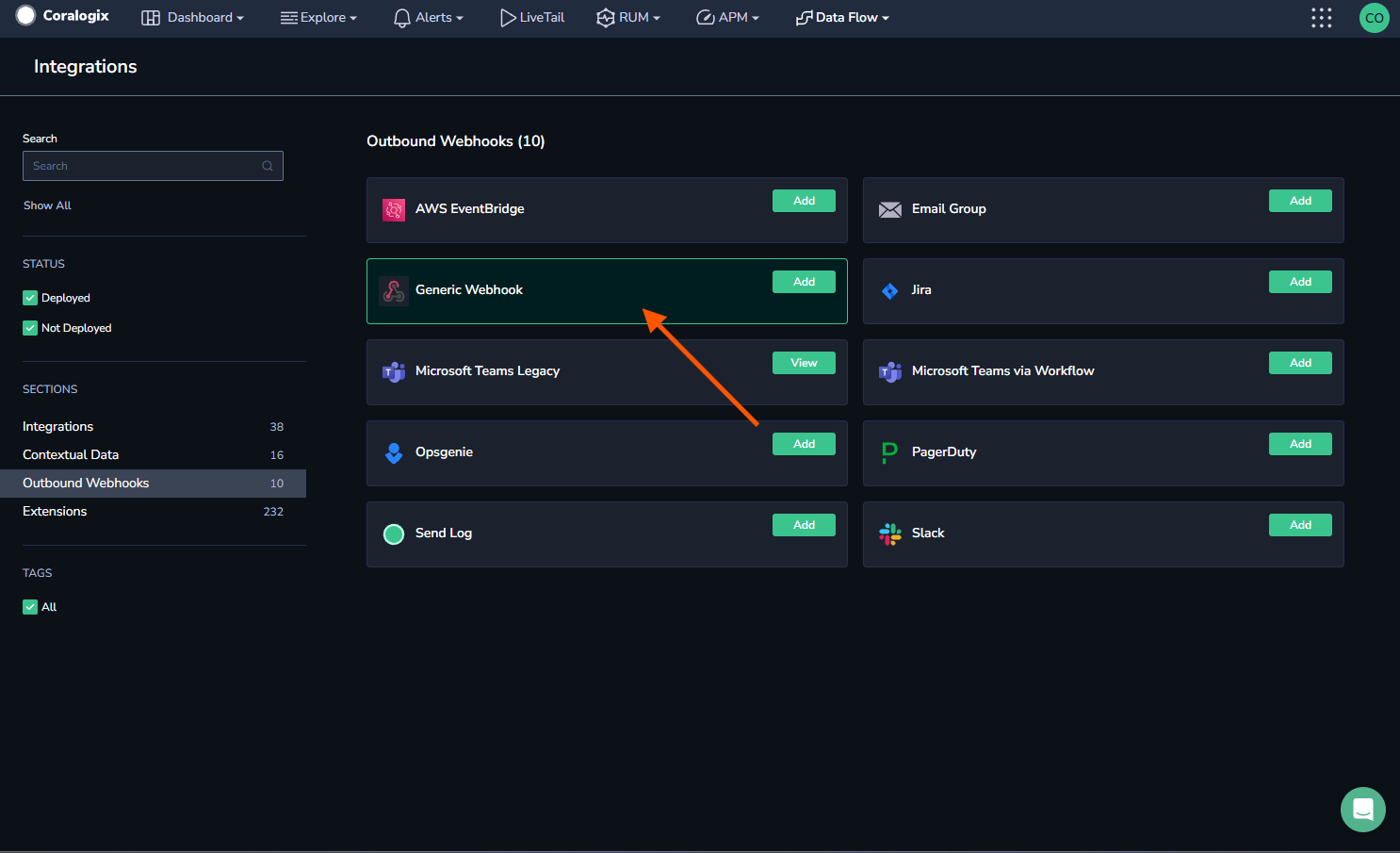
 2. In the Outbound Webhooks section, click Generic Webhook.
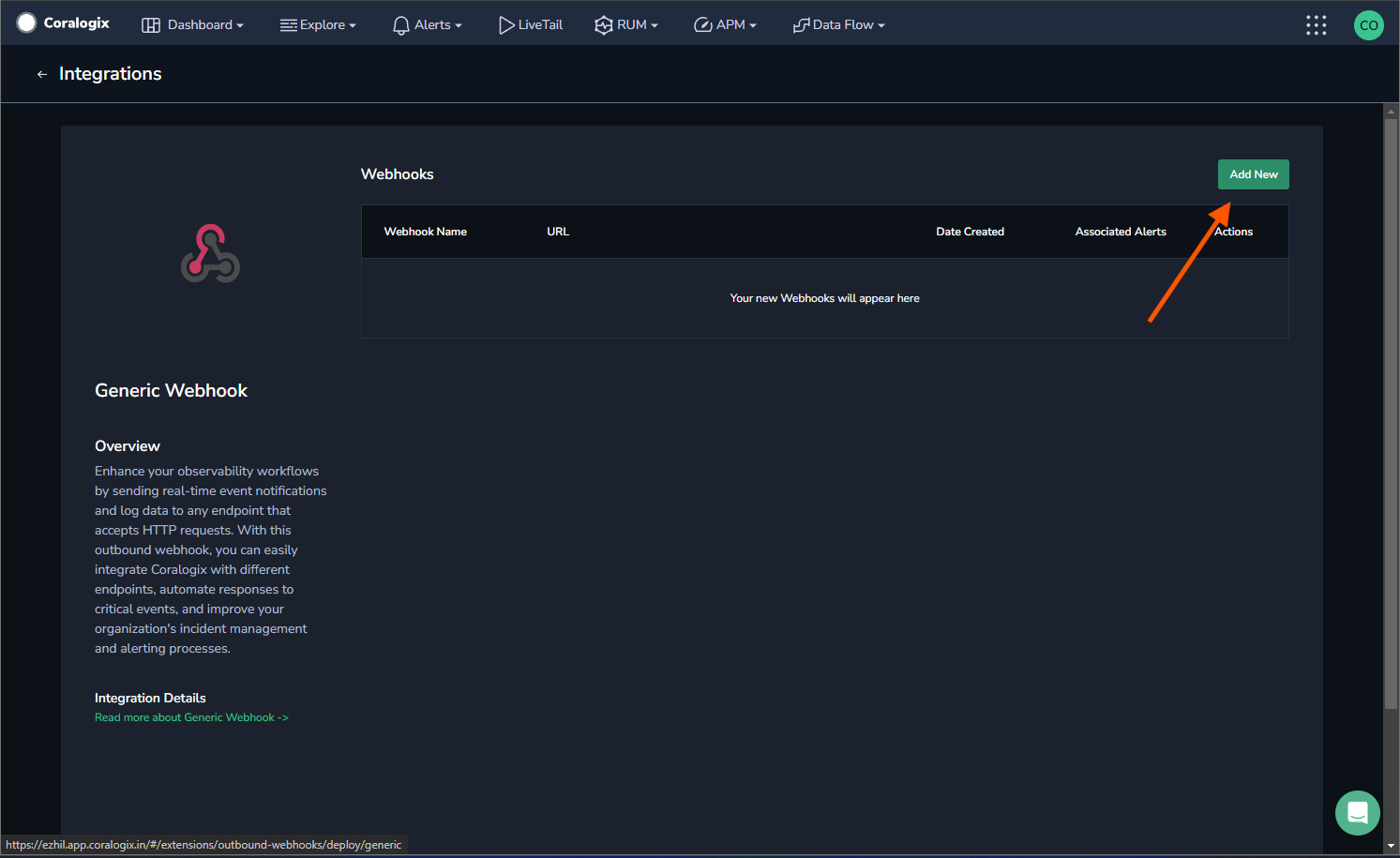
 3. Click Add New.
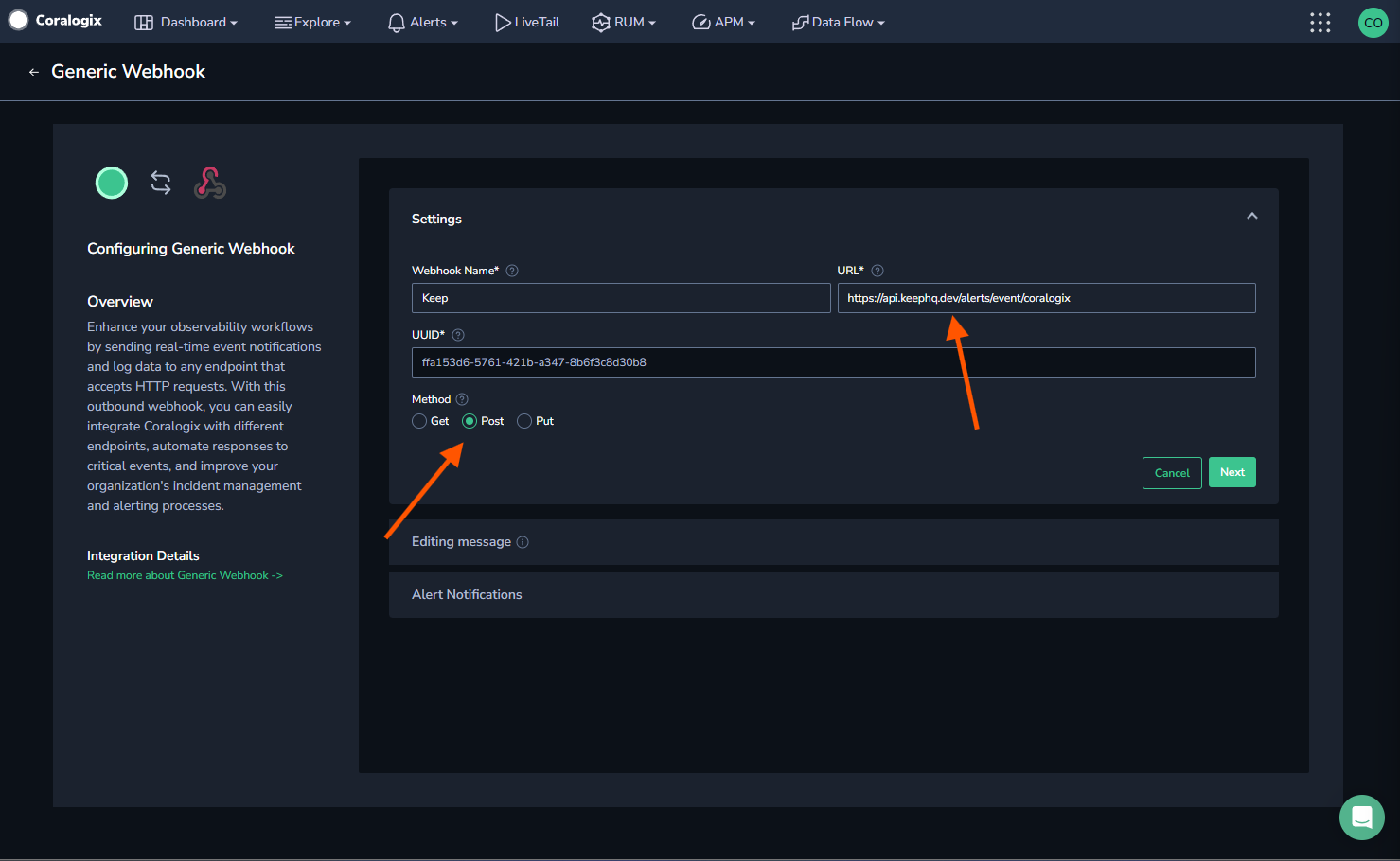
 4. Enter a webhook name and set the URL to `https://api.keephq.dev/alerts/event/coralogix`.
5. Select HTTP method (POST).
4. Enter a webhook name and set the URL to `https://api.keephq.dev/alerts/event/coralogix`.
5. Select HTTP method (POST).
 6. Generate an API key with webhook role from the [Keep settings](https://platform.keephq.dev/settings?selectedTab=api-key). Copy the API key and paste it in the request header in the next step.
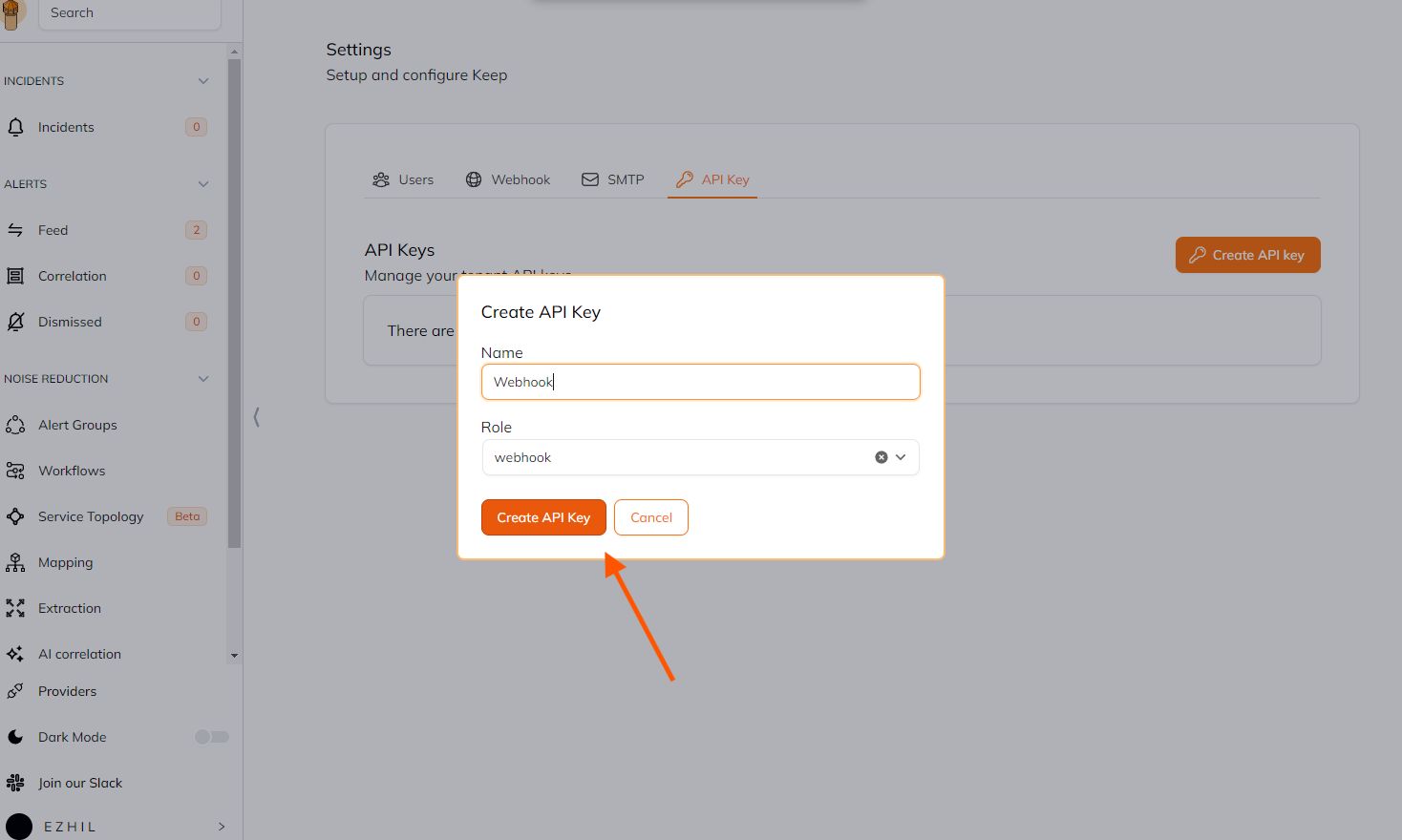 7. Add a request header with the key "x-api-key" and API key as the value in coralogix webhook configuration.
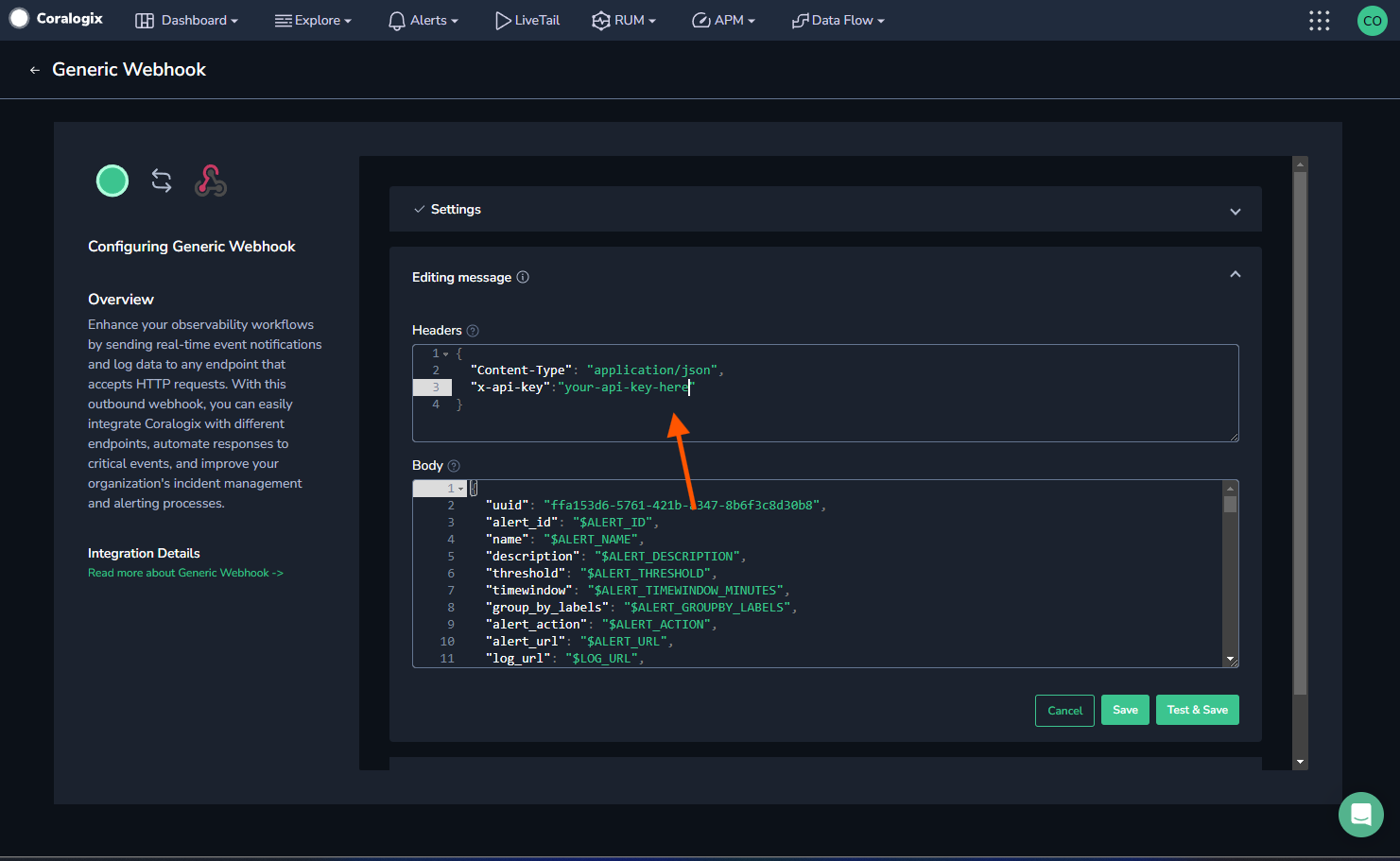 8. Edit the body of the messages that will be sent when the webhook is triggered (optional).
9. Save the configuration.
## Useful Links
* [Coralogix Website](https://coralogix.com/)
## In workflows
This provider can't be used as a "step" or "action" in workflows. If you want to use it, please let us know by creating an issue in the [GitHub repository](https://github.com/keephq/keep/issues).
8. Edit the body of the messages that will be sent when the webhook is triggered (optional).
9. Save the configuration.
## Useful Links
* [Coralogix Website](https://coralogix.com/)
## In workflows
This provider can't be used as a "step" or "action" in workflows. If you want to use it, please let us know by creating an issue in the [GitHub repository](https://github.com/keephq/keep/issues).