> ## Documentation Index
> Fetch the complete documentation index at: https://docs.keephq.dev/llms.txt
> Use this file to discover all available pages before exploring further.
# Dash0
> Dash0 provider allows you to get events from Dash0 using webhooks.
## Overview
Dash0 is modern OpenTelemetry Native Observability, built on CNCF Open Standards such as PromQL, Perses and OTLP with full cost control.
## Connecting Dash0 to Keep
To connect Dash0 to Keep, you need to create a webhook in Dash0.
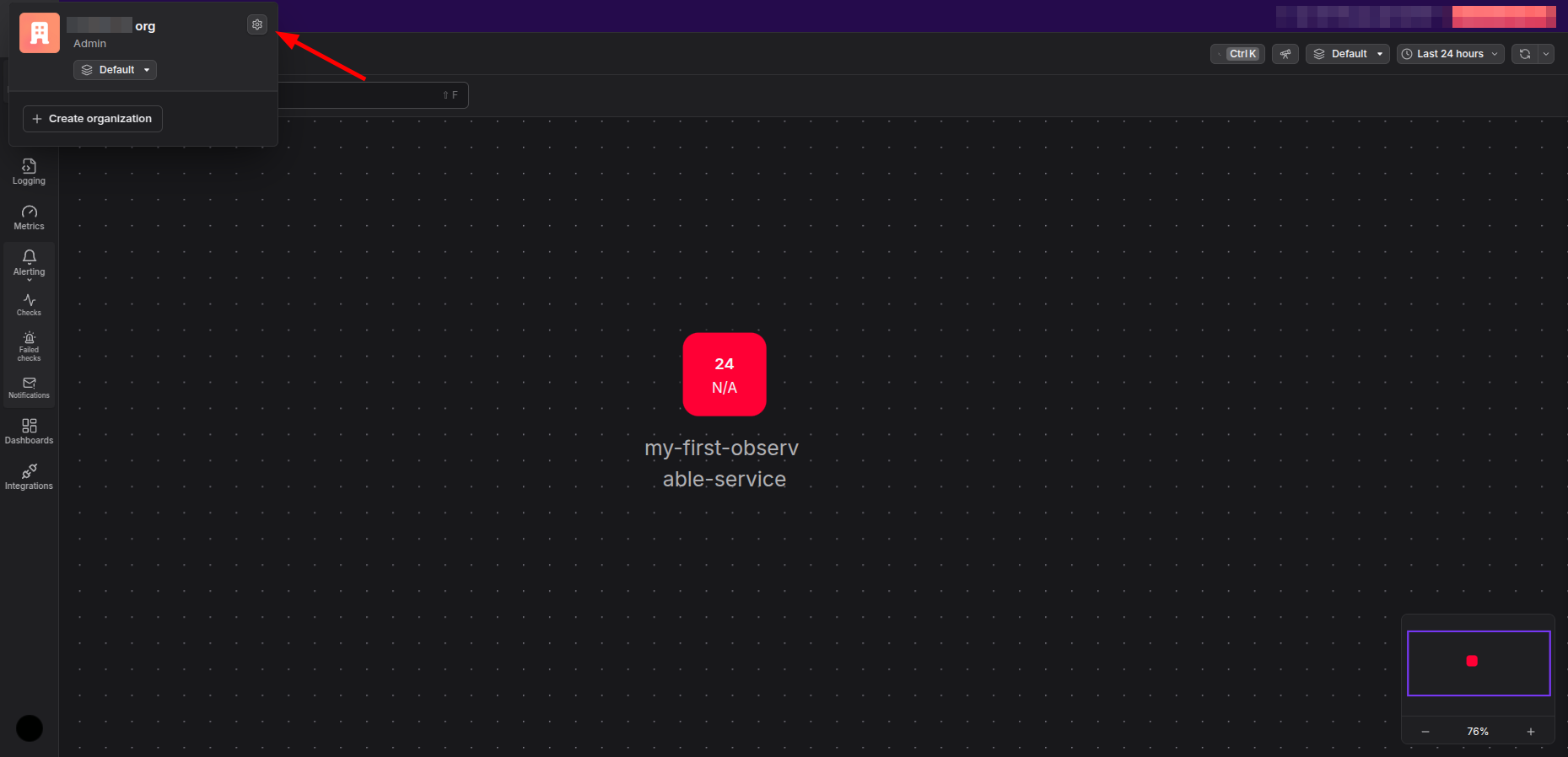
1. Go to Dash0 dashboard and click on Organization settings.
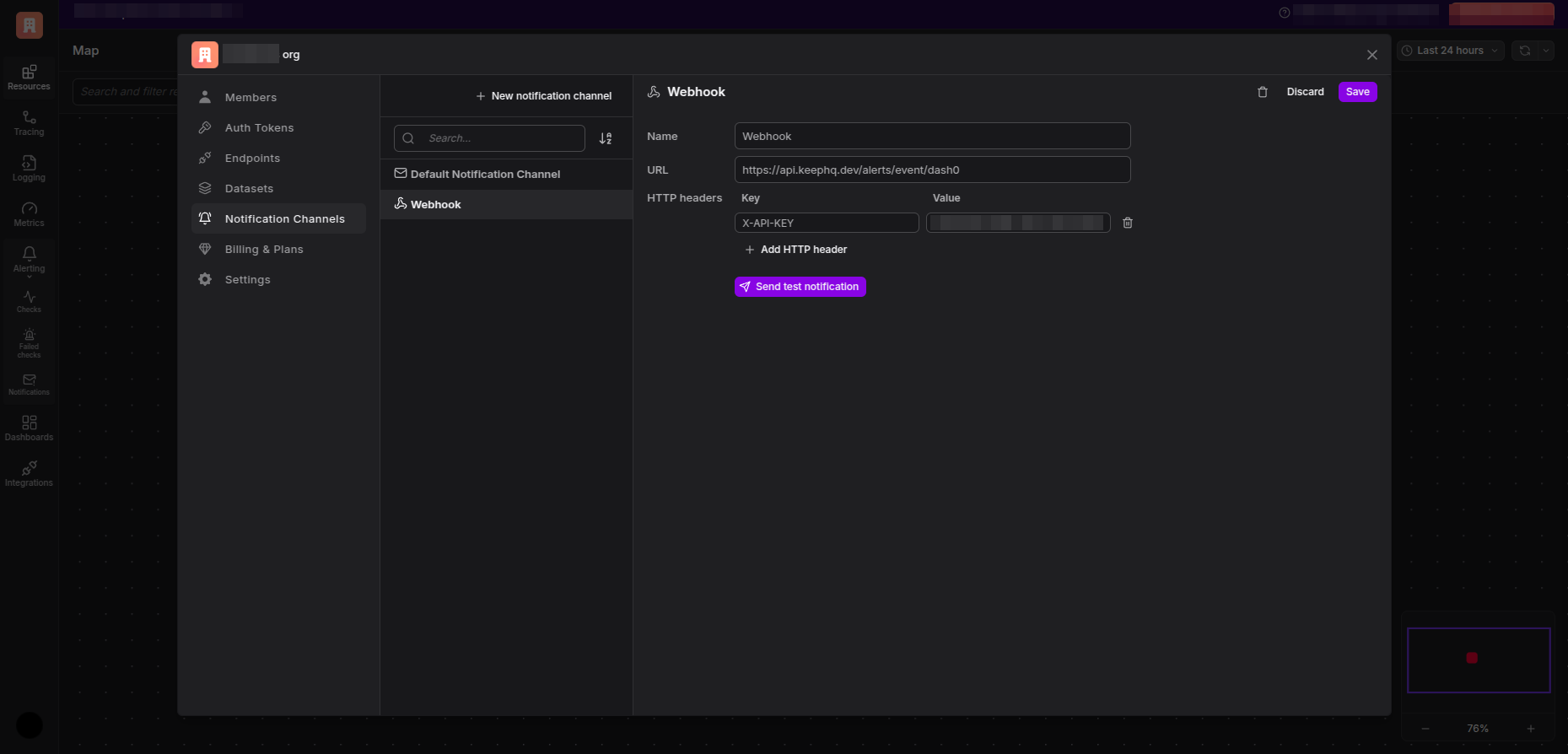
 2. Click on `Notification Channels` and create a New notification channel of type `Webhook`.
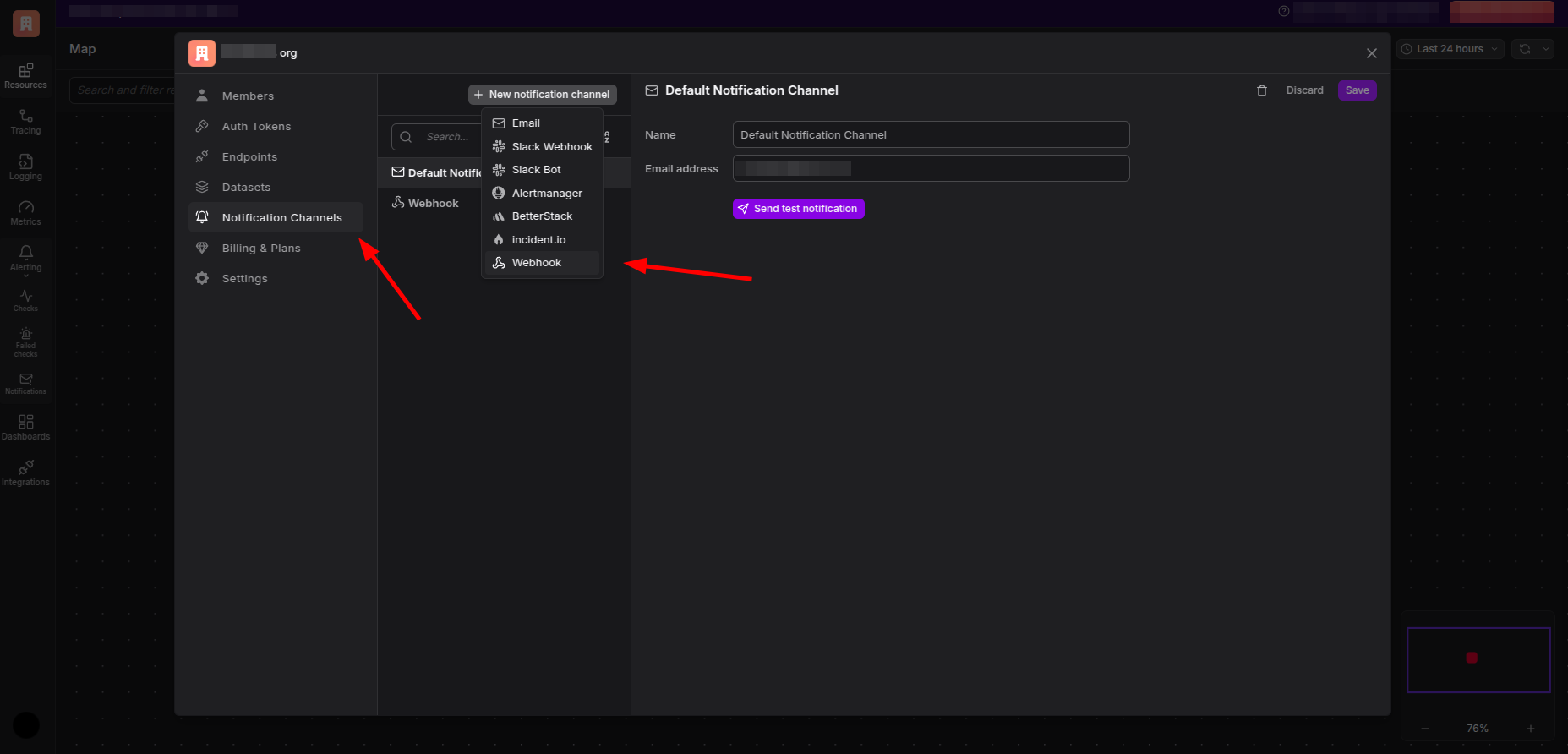 3. Give a name to the webhook and enter [https://api.keephq.dev/alerts/event/dash0](https://api.keephq.dev/alerts/event/dash0) as the URL.
4. Follow the below steps to create a new API key in Keep.
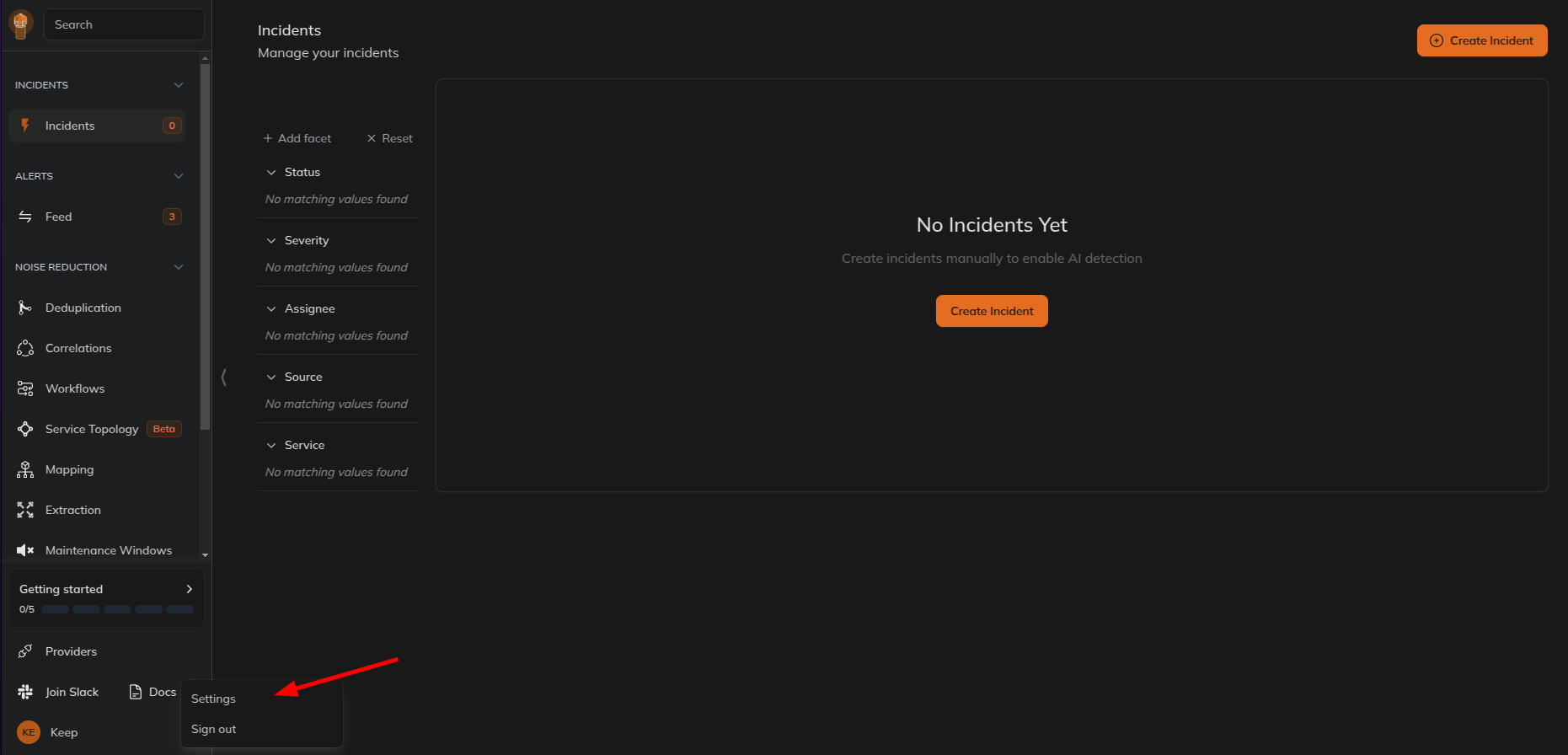
5. Go to Keep dashboard and click on the profile icon in the botton left corner and click `Settings`.
3. Give a name to the webhook and enter [https://api.keephq.dev/alerts/event/dash0](https://api.keephq.dev/alerts/event/dash0) as the URL.
4. Follow the below steps to create a new API key in Keep.
5. Go to Keep dashboard and click on the profile icon in the botton left corner and click `Settings`.
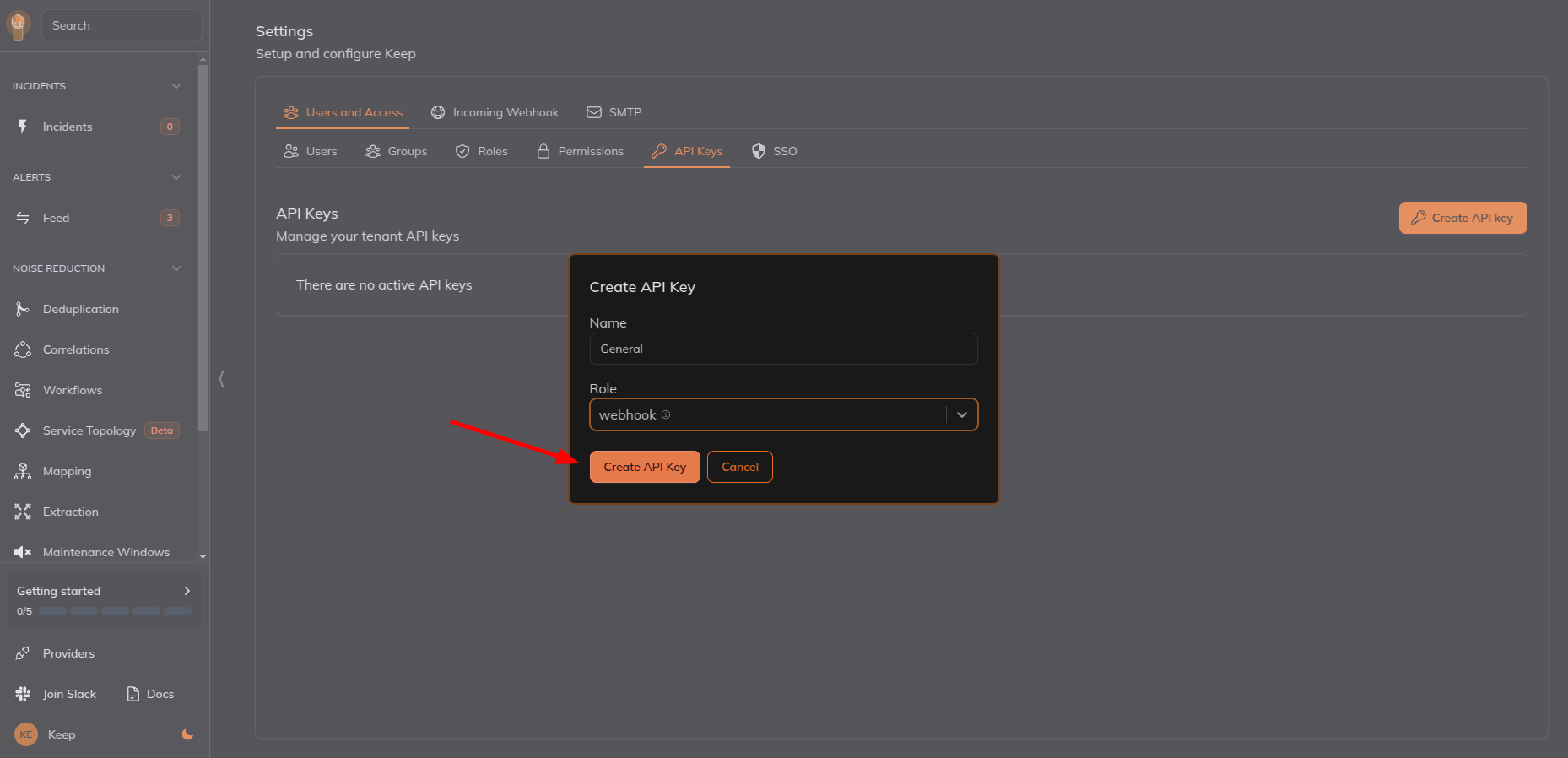
 6. Select `Users and Access` tab and then select `API Keys` tab and create a new API key.
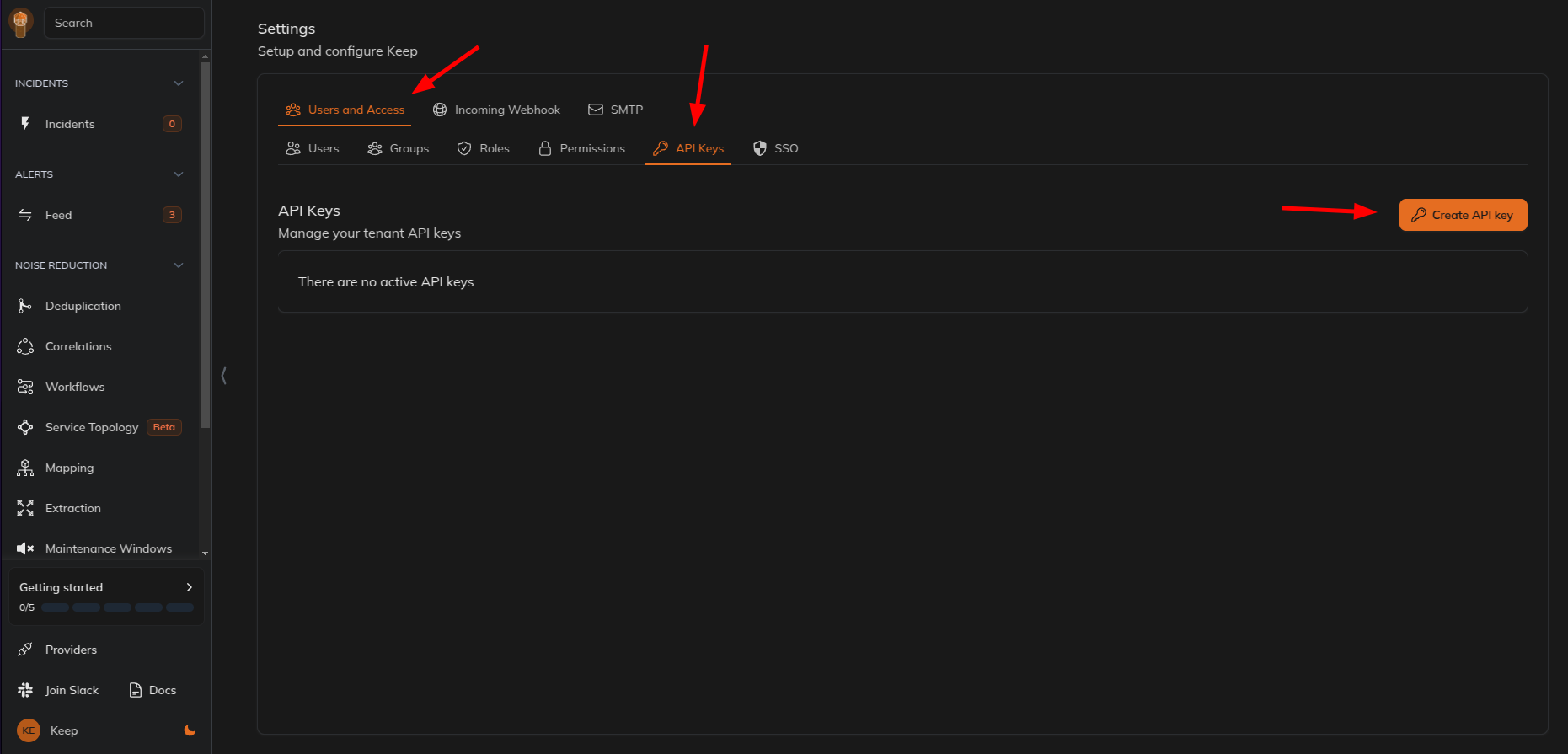 7. Give name and select the role as `webhook` and click on `Create API Key`.
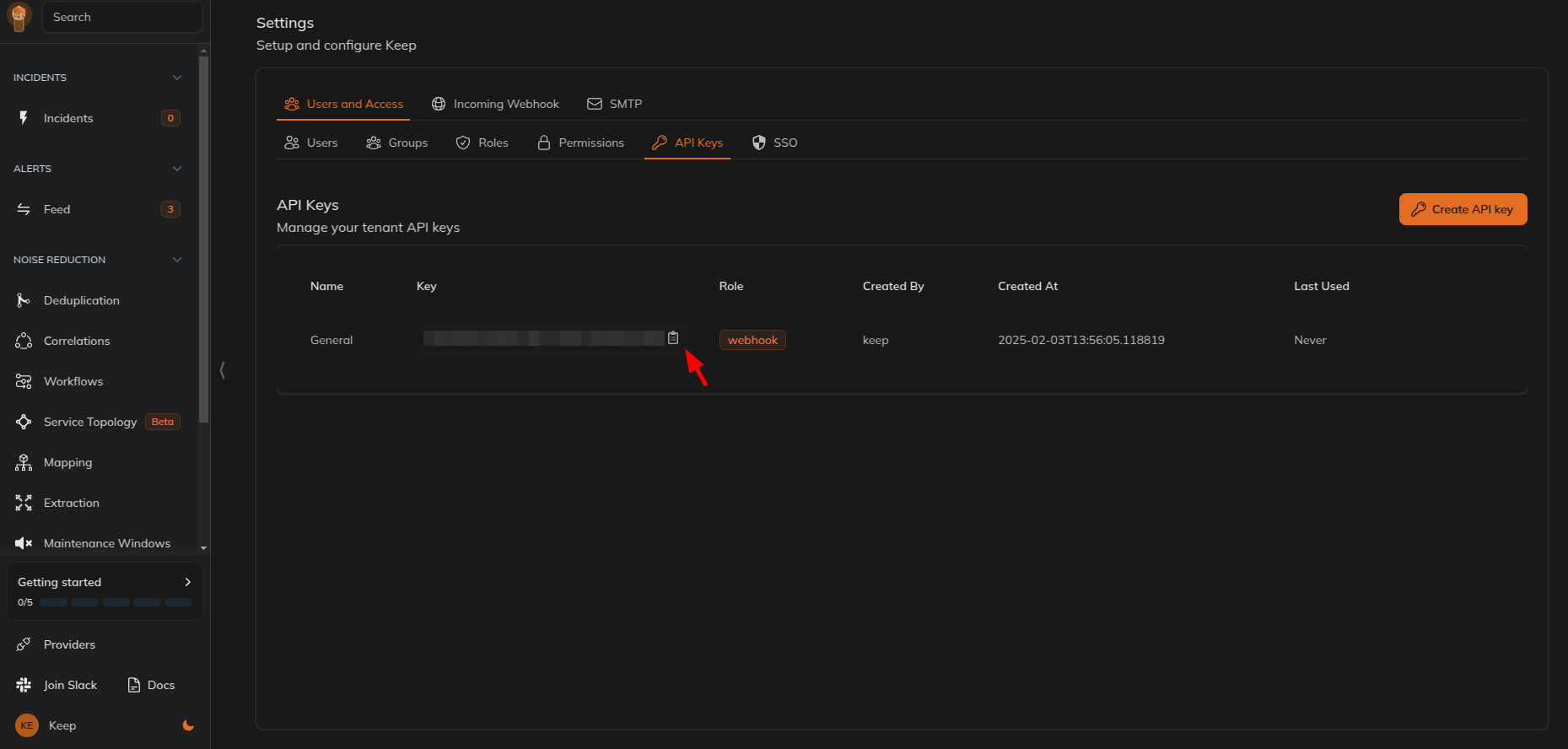
 8. Copy the API key.
 9. Add a new request header with key `X-API-KEY` and value as the API key copied from Keep and save the webhook.
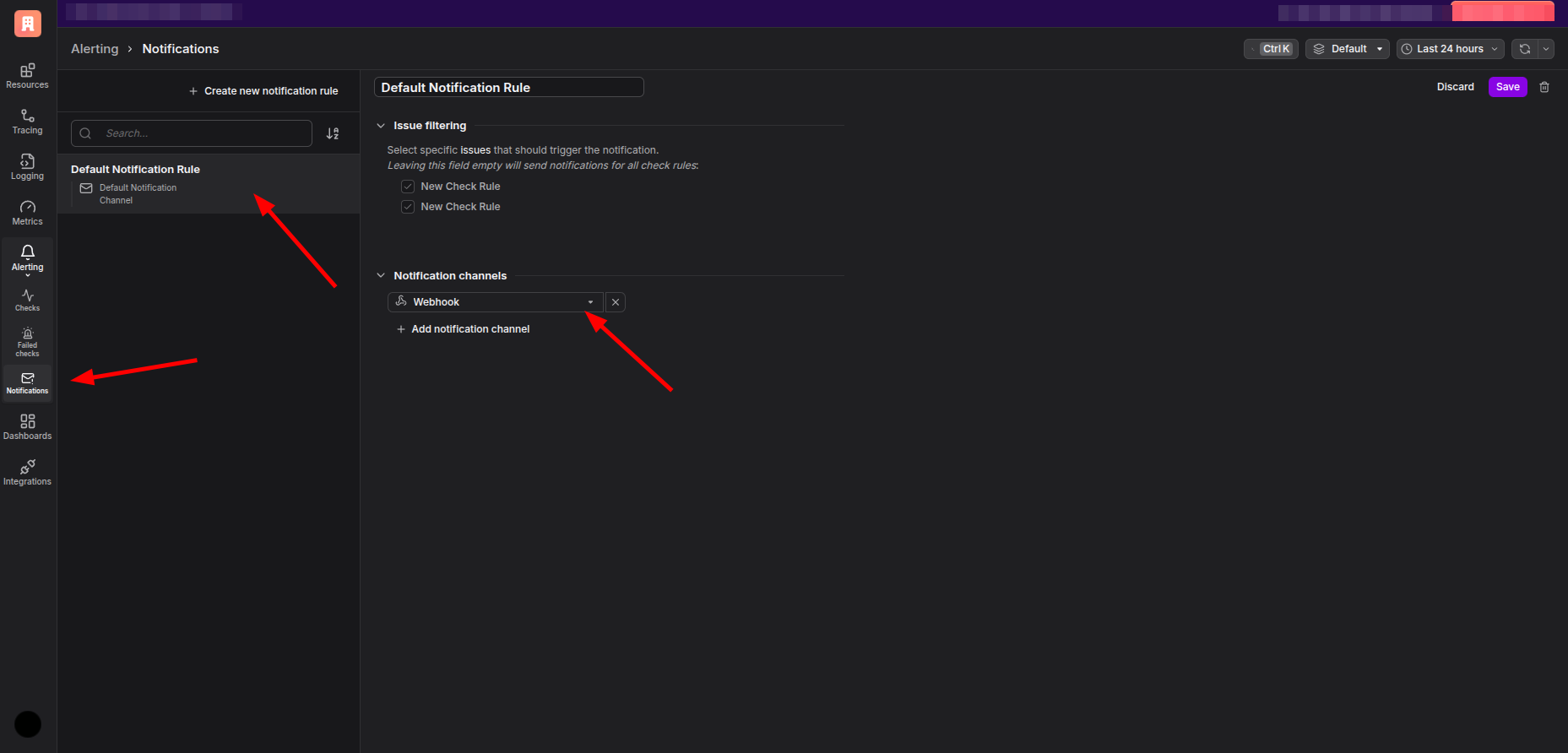
 10. Go to `Notifications` under `Alerting` and create a new notification rule if required or change the existing notification rule to use the webhook created.
 11. Go to `Checks` under `Alerting` and create a new check or edit an existing check to use the notification rule created.
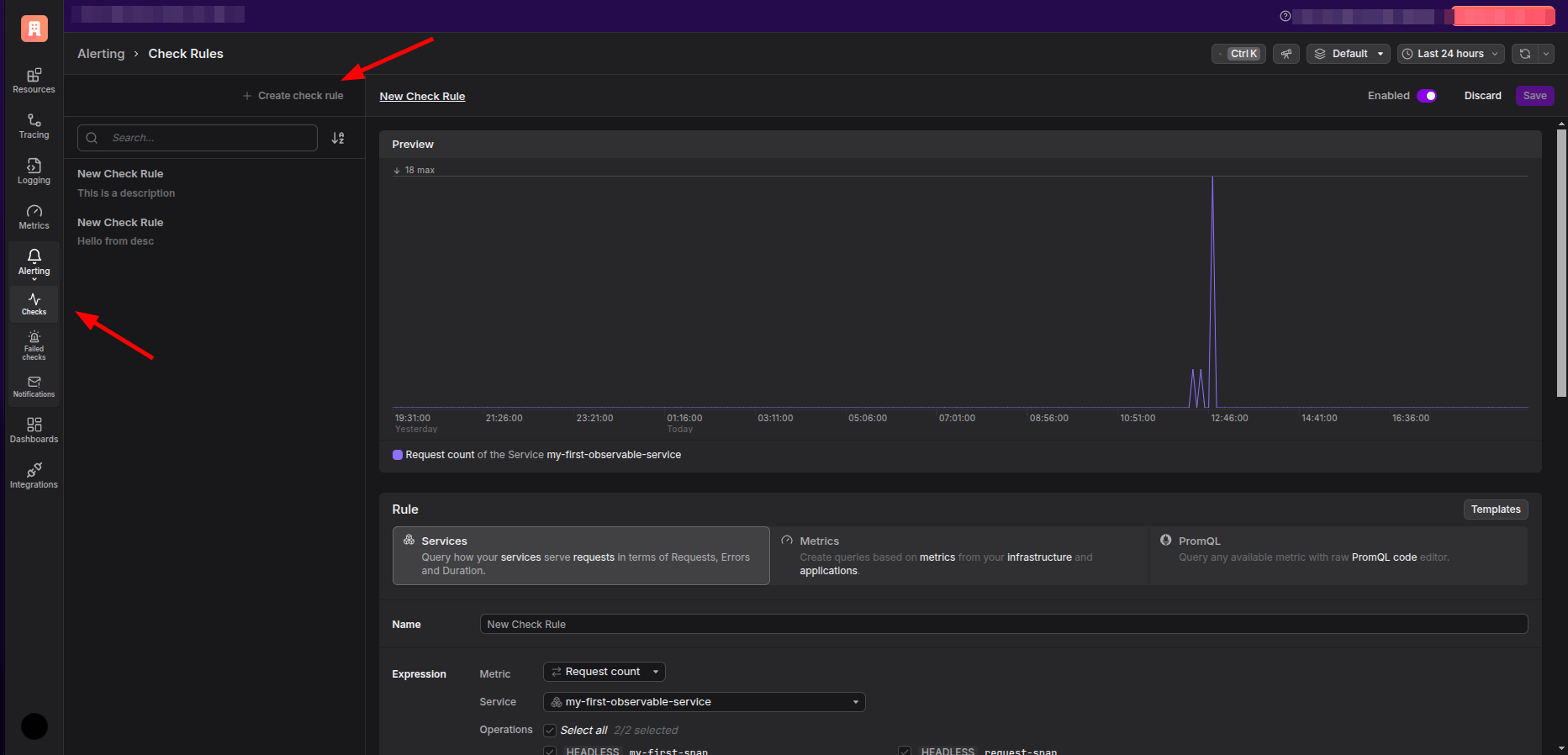
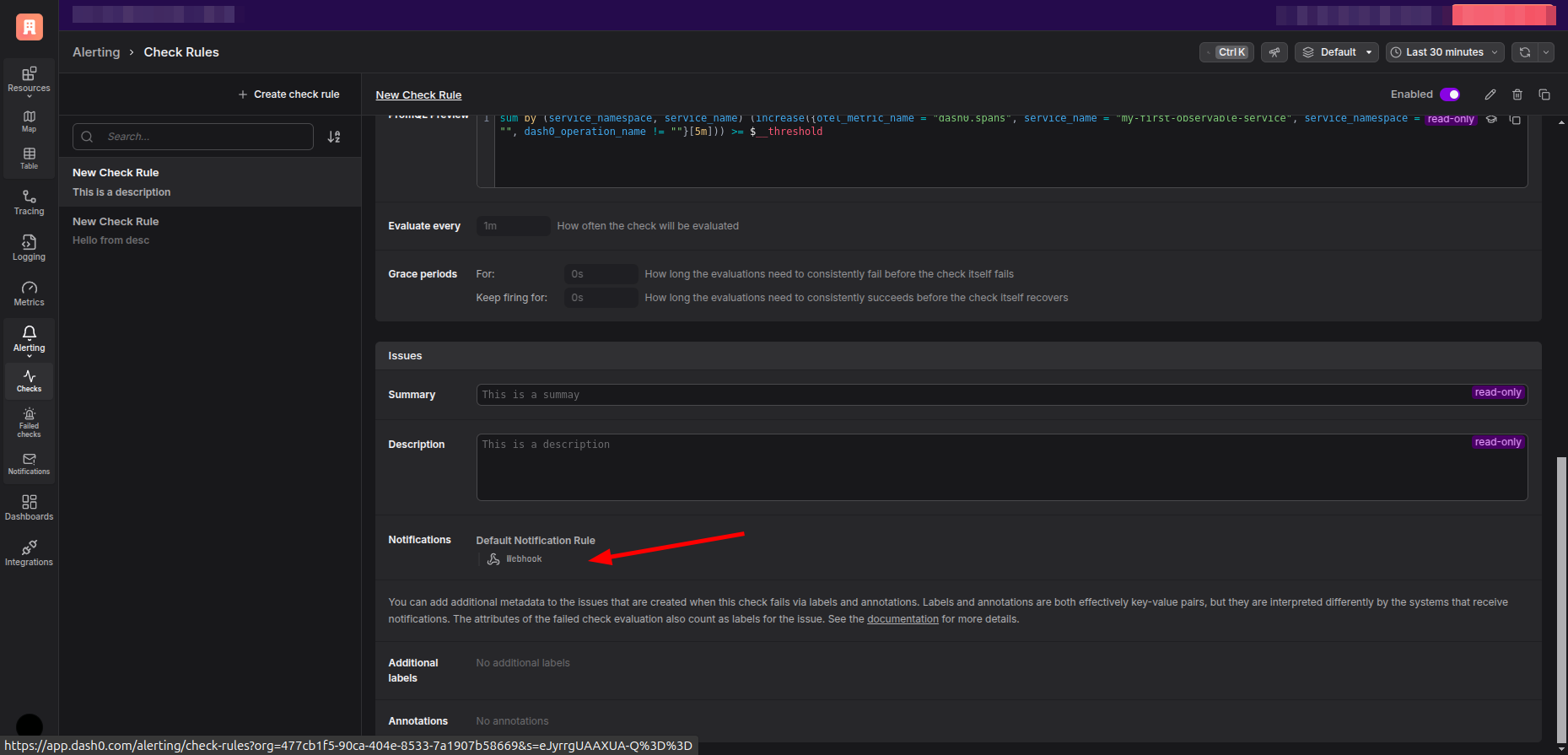 12. Now you will start receiving events in Keep from Dash0.
## Useful Links
* [Dash0](https://dash0.com/)
## In workflows
This provider can't be used as a "step" or "action" in workflows. If you want to use it, please let us know by creating an issue in the [GitHub repository](https://github.com/keephq/keep/issues).
12. Now you will start receiving events in Keep from Dash0.
## Useful Links
* [Dash0](https://dash0.com/)
## In workflows
This provider can't be used as a "step" or "action" in workflows. If you want to use it, please let us know by creating an issue in the [GitHub repository](https://github.com/keephq/keep/issues).