> ## Documentation Index
> Fetch the complete documentation index at: https://docs.keephq.dev/llms.txt
> Use this file to discover all available pages before exploring further.
# Flashduty
> Flashduty docs
 ## Authentication
This provider requires authentication.
* **integration\_key**: Flashduty integration key (required: True, sensitive: True)
## In workflows
This provider can be used in workflows.
As "action" to make changes or update data, example:
```yaml theme={null}
actions:
- name: Query flashduty
provider: flashduty
config: "{{ provider.my_provider_name }}"
with:
title: {value} # The title of the incident
event_status: {value} # The status of the incident, one of: Info, Warning, Critical, Ok
description: {value} # The description of the incident
alert_key: {value} # Alert identifier, used to update or automatically recover existing alerts. If you're reporting a recovery event, this value must exist.
labels: {value} # The labels of the incident
```
Check the following workflow example:
* [flashduty\_example.yml](https://github.com/keephq/keep/blob/main/examples/workflows/flashduty_example.yml)
## Integration Key Generation
The Flashduty gets integration key as an authentication method
1.Enter the Flashduty console, select Integration Center => Alert Events to enter the integration selection page
## Authentication
This provider requires authentication.
* **integration\_key**: Flashduty integration key (required: True, sensitive: True)
## In workflows
This provider can be used in workflows.
As "action" to make changes or update data, example:
```yaml theme={null}
actions:
- name: Query flashduty
provider: flashduty
config: "{{ provider.my_provider_name }}"
with:
title: {value} # The title of the incident
event_status: {value} # The status of the incident, one of: Info, Warning, Critical, Ok
description: {value} # The description of the incident
alert_key: {value} # Alert identifier, used to update or automatically recover existing alerts. If you're reporting a recovery event, this value must exist.
labels: {value} # The labels of the incident
```
Check the following workflow example:
* [flashduty\_example.yml](https://github.com/keephq/keep/blob/main/examples/workflows/flashduty_example.yml)
## Integration Key Generation
The Flashduty gets integration key as an authentication method
1.Enter the Flashduty console, select Integration Center => Alert Events to enter the integration selection page
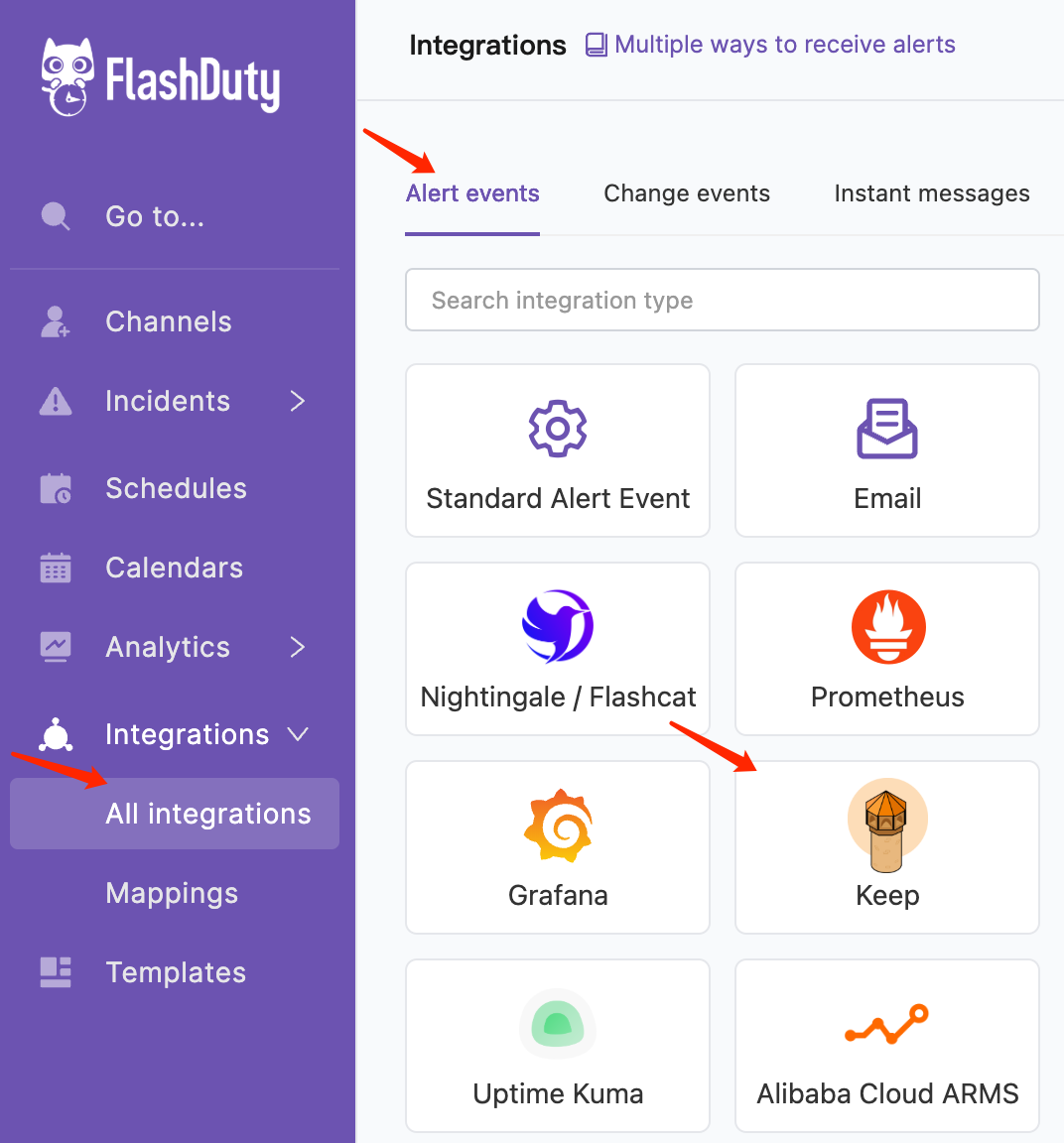 2.Select Keep integration
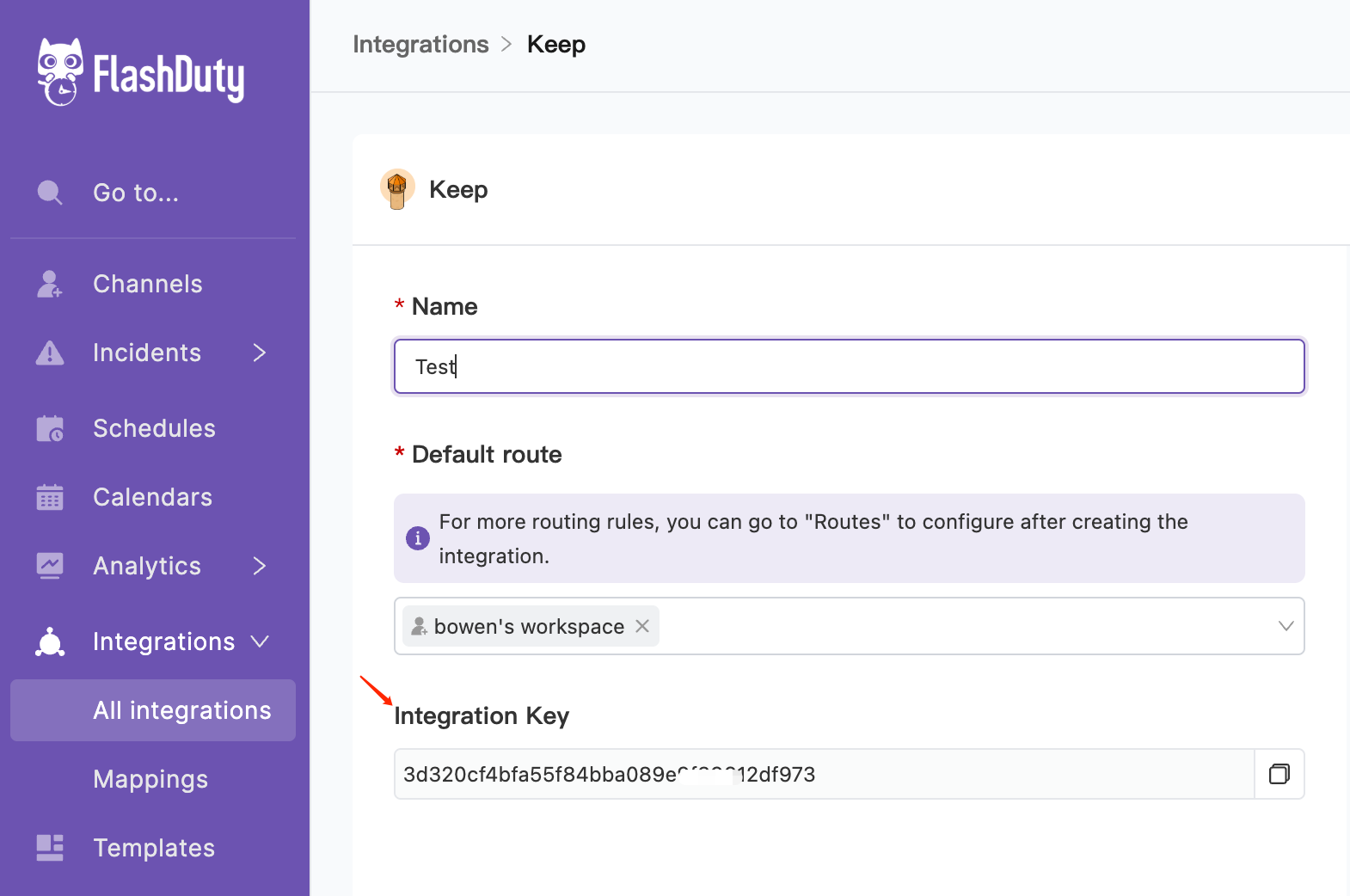
3.Define a name for the current integration
4.Configure default routing and select the corresponding channel
5.Copy the integration Key to Keep
6.Complete the integration configuration
2.Select Keep integration
3.Define a name for the current integration
4.Configure default routing and select the corresponding channel
5.Copy the integration Key to Keep
6.Complete the integration configuration
 ## Useful Links
* [https://docs.flashcat.cloud/en/flashduty/keep-alert-integration-guide?nav=01JCQ7A4N4WRWNXW8EWEHXCMF5](https://docs.flashcat.cloud/en/flashduty/keep-alert-integration-guide?nav=01JCQ7A4N4WRWNXW8EWEHXCMF5)
## Useful Links
* [https://docs.flashcat.cloud/en/flashduty/keep-alert-integration-guide?nav=01JCQ7A4N4WRWNXW8EWEHXCMF5](https://docs.flashcat.cloud/en/flashduty/keep-alert-integration-guide?nav=01JCQ7A4N4WRWNXW8EWEHXCMF5)