> ## Documentation Index
> Fetch the complete documentation index at: https://docs.keephq.dev/llms.txt
> Use this file to discover all available pages before exploring further.
# GCP Monitoring
> GCP Monitoring provider allows you to get alerts and logs from GCP Monitoring via webhooks and log queries.
## Overview
The GCP Monitoring Provider enables seamless integration between Keep and GCP Monitoring, allowing alerts from GCP Monitoring to be directly sent to Keep through webhook configurations. In addition to alerts, the provider now supports querying log entries from GCP Logging, enabling a comprehensive view of alerts and associated logs within Keep's platform.
## Connecting GCP Monitoring to Keep
### Alert Integration via Webhook
To connect GCP Monitoring alerts to Keep, configure a webhook as a notification channel in GCP Monitoring and link it to the desired alert policy.
### Step 1: Access Notification Channels
Log in to the Google Cloud Platform console.
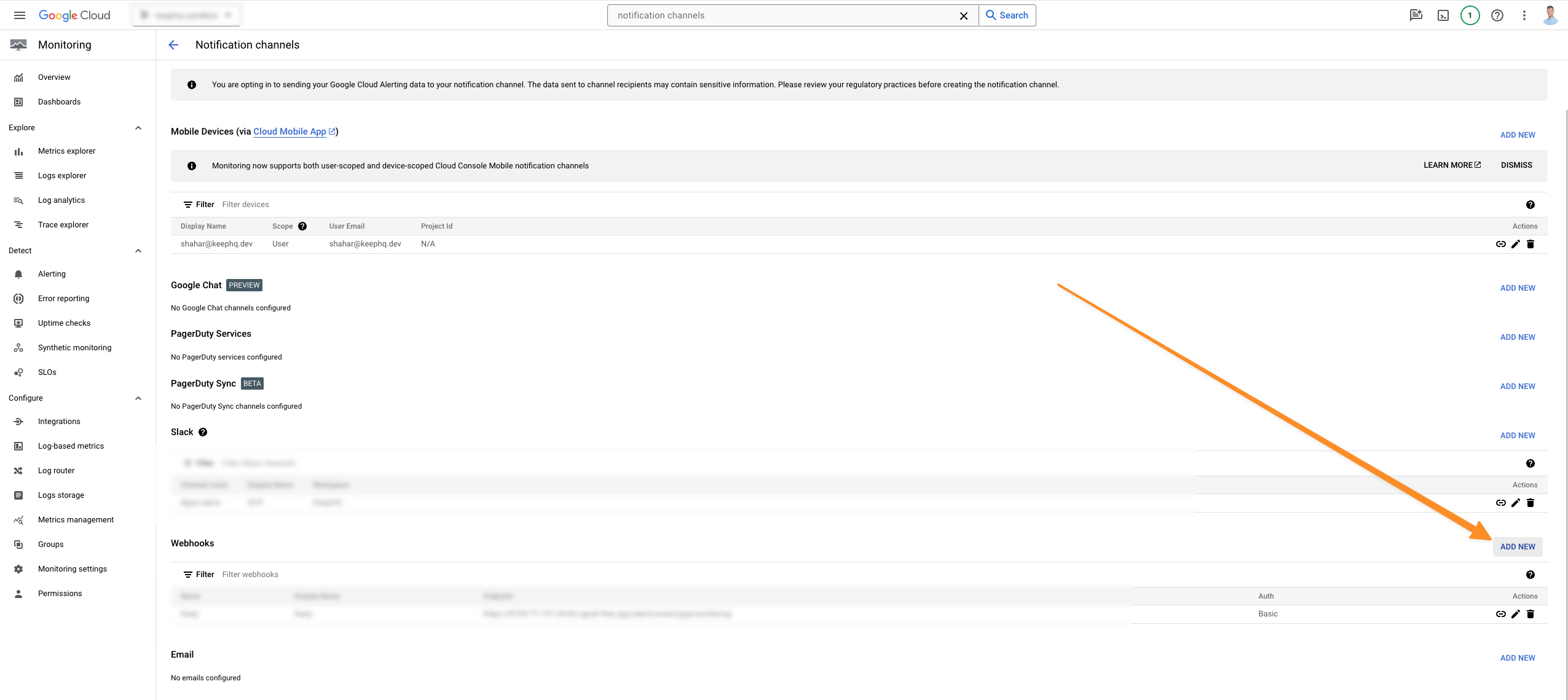
Navigate to **Monitoring > Alerting > Notification channels**.
 ### Step 2: Add a New Webhook
Within the Webhooks section, click on **ADD NEW**.
### Step 2: Add a New Webhook
Within the Webhooks section, click on **ADD NEW**.
 ### Step 3: Configure the Webhook
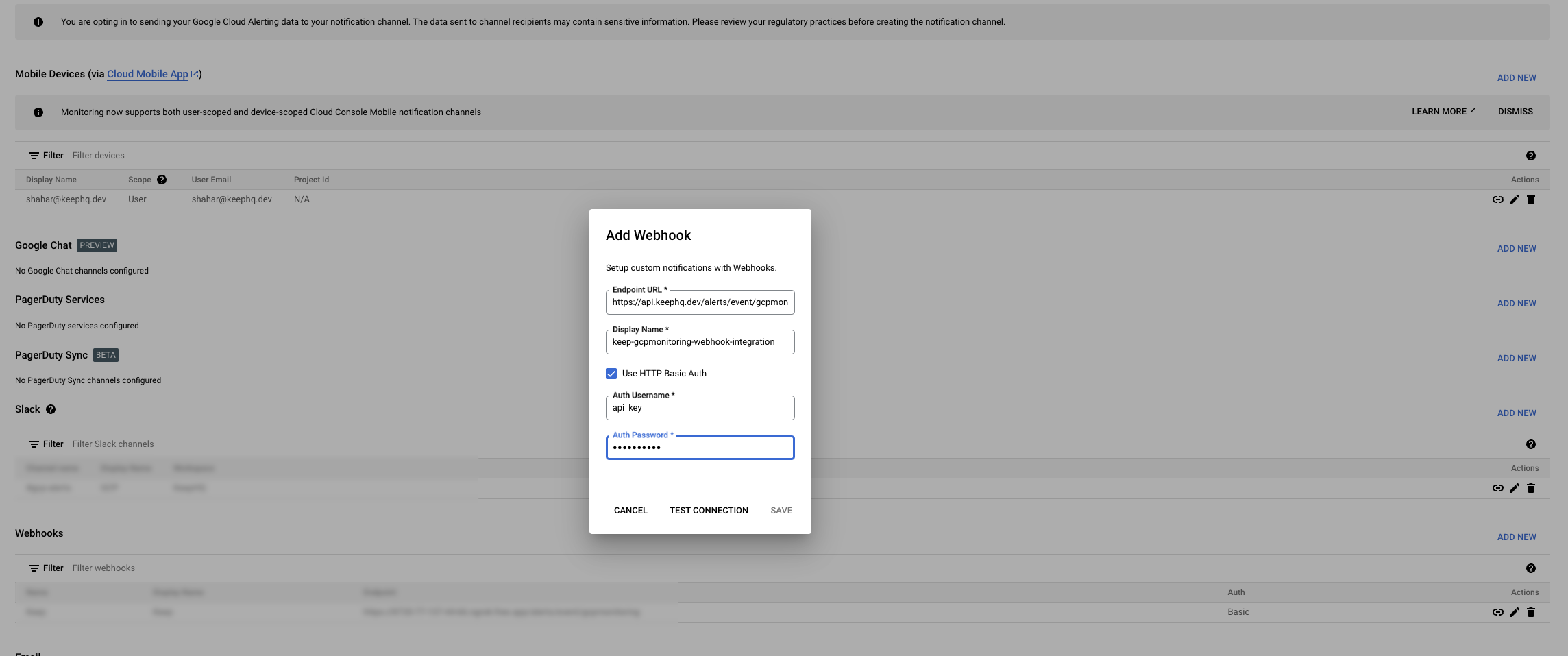
In the Endpoint URL field, enter the webhook URL provided by Keep.
* **Display Name**: keep-gcpmonitoring-webhook-integration
* Enable **Use HTTP Basic Auth** and input the following credentials:
* **Auth Username**: `api_key`
* **Auth Password**: `%YOURAPIKEY%`
### Step 3: Configure the Webhook
In the Endpoint URL field, enter the webhook URL provided by Keep.
* **Display Name**: keep-gcpmonitoring-webhook-integration
* Enable **Use HTTP Basic Auth** and input the following credentials:
* **Auth Username**: `api_key`
* **Auth Password**: `%YOURAPIKEY%`
 ### Step 4: Save the Webhook Configuration
* Click **Save** to store the webhook configuration.
### Step 5: Associate the Webhook with an Alert Policy
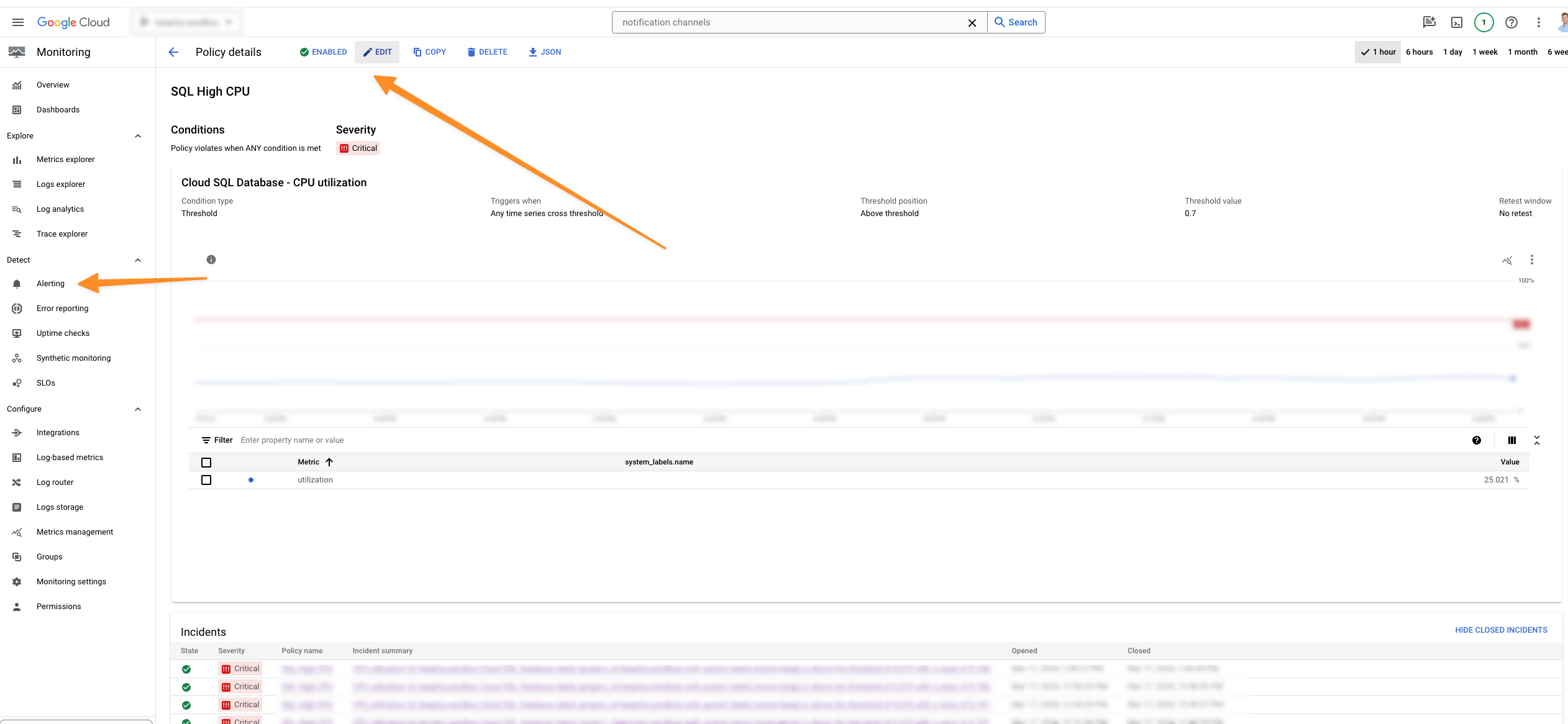
Navigate to the alert policy you wish to send notifications from to Keep.
* Click **Edit**.
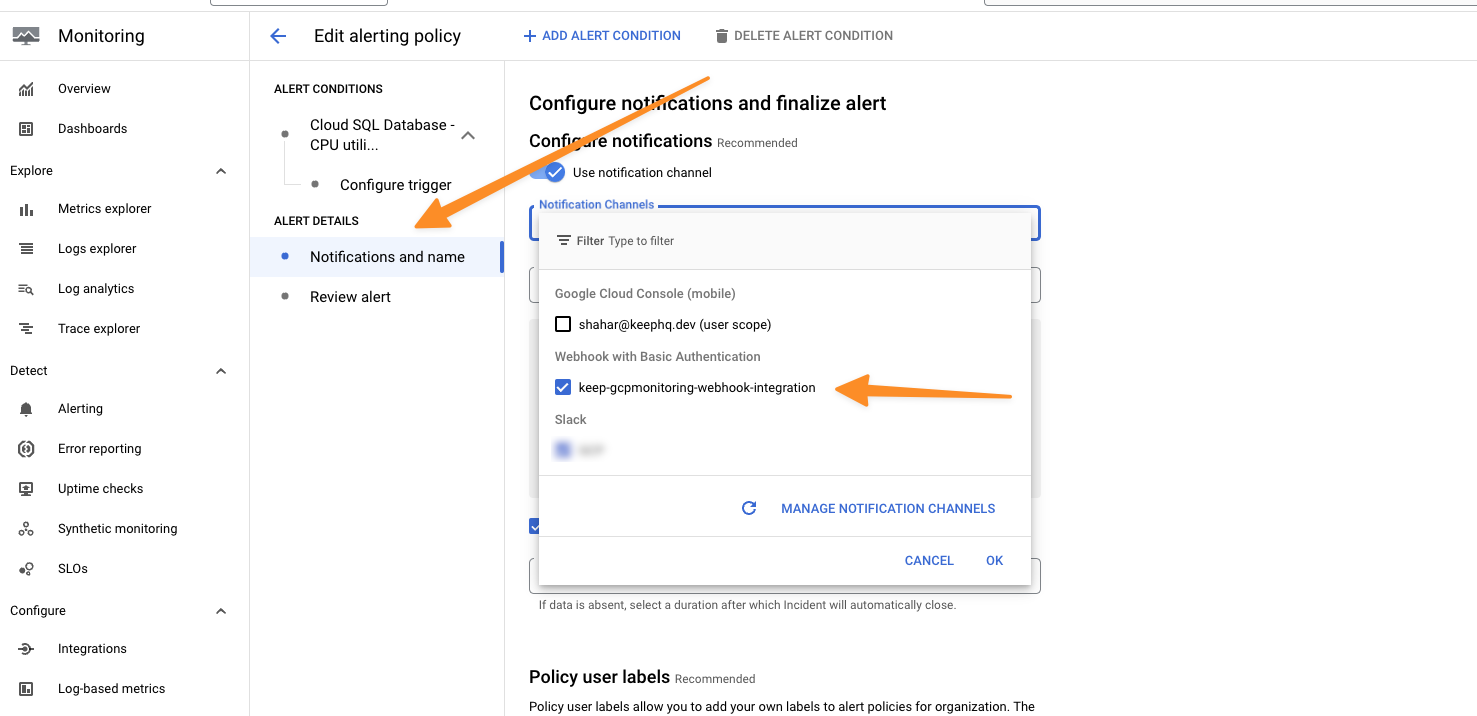
* Under "Notifications and name," find the **Notification Channels** section and select the `keep-gcpmonitoring-webhook-integration` channel you created.
* Save the changes by clicking on **SAVE POLICY**.
### Step 4: Save the Webhook Configuration
* Click **Save** to store the webhook configuration.
### Step 5: Associate the Webhook with an Alert Policy
Navigate to the alert policy you wish to send notifications from to Keep.
* Click **Edit**.
* Under "Notifications and name," find the **Notification Channels** section and select the `keep-gcpmonitoring-webhook-integration` channel you created.
* Save the changes by clicking on **SAVE POLICY**.
 ### Step 6: Review the Alert in Keep
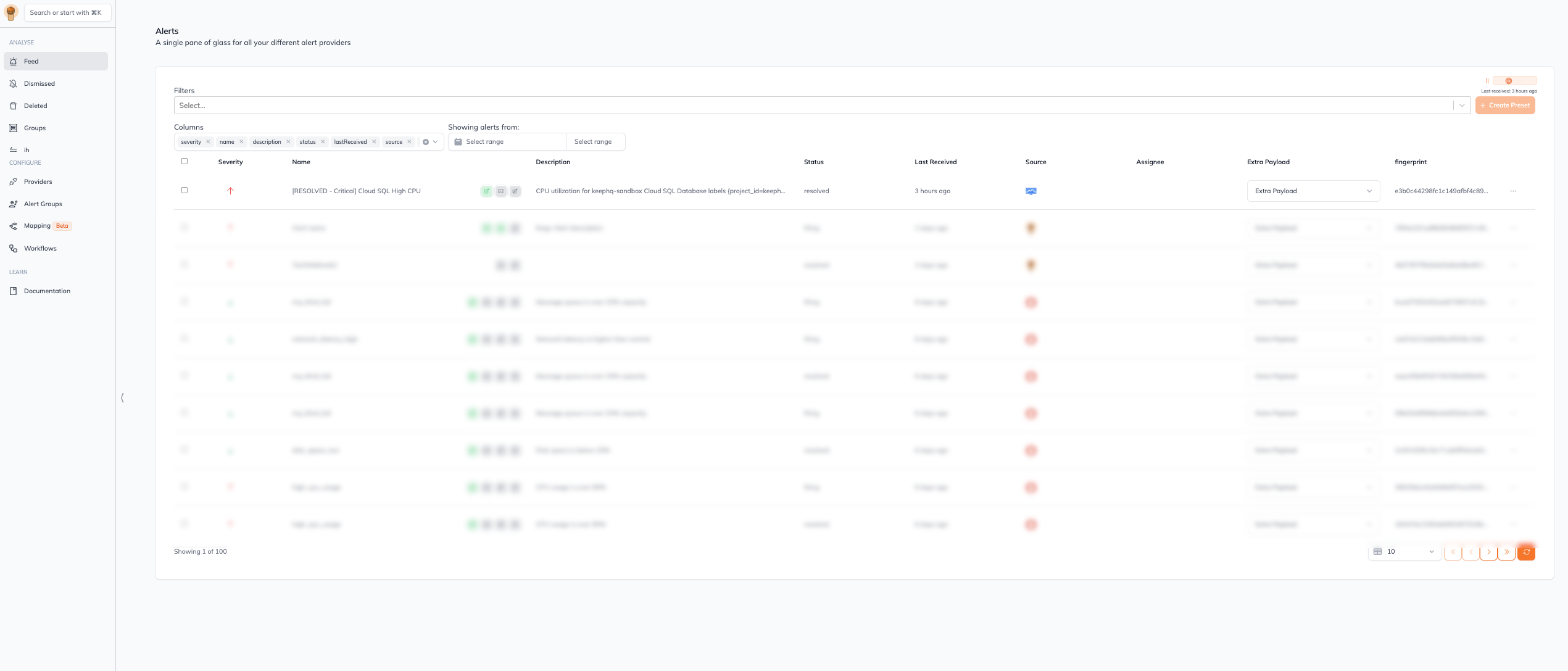
Once the setup is complete, alerts from GCP Monitoring will start appearing in Keep.
### Step 6: Review the Alert in Keep
Once the setup is complete, alerts from GCP Monitoring will start appearing in Keep.
 ## Log Query Integration
The GCP Monitoring Provider also supports querying logs from GCP Logging, allowing you to fetch log entries based on specific filters. This is helpful for enriching alert data with related logs or for monitoring specific events in Keep.
### Authentication Requirements
To enable log querying, you need to provide a service account JSON file with the `logs.viewer` role. This service account should be configured in the `authentication` section of your GCP Monitoring Provider configuration.
### Querying Logs
The provider’s `query` function supports filtering logs based on criteria such as resource type, severity, or specific keywords. You can specify a time range for querying logs using `timedelta_in_days`, and control the number of entries with `page_size`.
#### Example Usage
Here’s an example of how you might use the provider to query log entries:
```python theme={null}
query(filter='resource.type="cloud_run_revision" AND severity="ERROR"', timedelta_in_days=1)
```
This will return logs of severity “ERROR” related to Cloud Run revisions from the past day.
#### Post Installation Validation
To validate both alerts and logs, follow these steps:
1. Alert Validation: Test the webhook by triggering an alert in GCP Monitoring and confirm it appears in Keep.
2. Log Query Validation: Execute a simple log query and verify that log entries are returned as expected.
### Useful Links
* [GCP Monitoring Notification Channels](https://cloud.google.com/monitoring/support/notification-options)
* [GCP Monitoring Alerting](https://cloud.google.com/monitoring/alerts)
## Authentication
This provider requires authentication.
* **service\_account\_json**: A service account JSON with logging viewer role (required: True, sensitive: True)
Certain scopes may be required to perform specific actions or queries via the provider. Below is a summary of relevant scopes and their use cases:
* **roles/logs.viewer**: Read access to GCP logging (mandatory)
## In workflows
This provider can be used in workflows.
As "step" to query data, example:
```yaml theme={null}
steps:
- name: Query gcpmonitoring
provider: gcpmonitoring
config: "{{ provider.my_provider_name }}"
with:
filter: {value}
timedelta_in_days: {value}
page_size: {value}
raw: {value}
project: {value}
```
Check the following workflow examples:
* [gcp\_logging\_open\_ai.yaml](https://github.com/keephq/keep/blob/main/examples/workflows/gcp_logging_open_ai.yaml)
* [slack-message-reaction.yml](https://github.com/keephq/keep/blob/main/examples/workflows/slack-message-reaction.yml)
## Provider Methods
The provider exposes the following [Provider Methods](/providers/provider-methods#via-ai-assistant). They are available in the [AI Assistant](/overview/ai-incident-assistant).
* **execute\_query** Query the GCP logs (view, scopes: no additional scopes)
## Log Query Integration
The GCP Monitoring Provider also supports querying logs from GCP Logging, allowing you to fetch log entries based on specific filters. This is helpful for enriching alert data with related logs or for monitoring specific events in Keep.
### Authentication Requirements
To enable log querying, you need to provide a service account JSON file with the `logs.viewer` role. This service account should be configured in the `authentication` section of your GCP Monitoring Provider configuration.
### Querying Logs
The provider’s `query` function supports filtering logs based on criteria such as resource type, severity, or specific keywords. You can specify a time range for querying logs using `timedelta_in_days`, and control the number of entries with `page_size`.
#### Example Usage
Here’s an example of how you might use the provider to query log entries:
```python theme={null}
query(filter='resource.type="cloud_run_revision" AND severity="ERROR"', timedelta_in_days=1)
```
This will return logs of severity “ERROR” related to Cloud Run revisions from the past day.
#### Post Installation Validation
To validate both alerts and logs, follow these steps:
1. Alert Validation: Test the webhook by triggering an alert in GCP Monitoring and confirm it appears in Keep.
2. Log Query Validation: Execute a simple log query and verify that log entries are returned as expected.
### Useful Links
* [GCP Monitoring Notification Channels](https://cloud.google.com/monitoring/support/notification-options)
* [GCP Monitoring Alerting](https://cloud.google.com/monitoring/alerts)
## Authentication
This provider requires authentication.
* **service\_account\_json**: A service account JSON with logging viewer role (required: True, sensitive: True)
Certain scopes may be required to perform specific actions or queries via the provider. Below is a summary of relevant scopes and their use cases:
* **roles/logs.viewer**: Read access to GCP logging (mandatory)
## In workflows
This provider can be used in workflows.
As "step" to query data, example:
```yaml theme={null}
steps:
- name: Query gcpmonitoring
provider: gcpmonitoring
config: "{{ provider.my_provider_name }}"
with:
filter: {value}
timedelta_in_days: {value}
page_size: {value}
raw: {value}
project: {value}
```
Check the following workflow examples:
* [gcp\_logging\_open\_ai.yaml](https://github.com/keephq/keep/blob/main/examples/workflows/gcp_logging_open_ai.yaml)
* [slack-message-reaction.yml](https://github.com/keephq/keep/blob/main/examples/workflows/slack-message-reaction.yml)
## Provider Methods
The provider exposes the following [Provider Methods](/providers/provider-methods#via-ai-assistant). They are available in the [AI Assistant](/overview/ai-incident-assistant).
* **execute\_query** Query the GCP logs (view, scopes: no additional scopes)