> ## Documentation Index
> Fetch the complete documentation index at: https://docs.keephq.dev/llms.txt
> Use this file to discover all available pages before exploring further.
# LibreNMS
> LibreNMS allows you to receive alerts from LibreNMS using API endpoints as well as webhooks
## Authentication
This provider requires authentication.
* **host\_url**: LibreNMS Host URL (required: True, sensitive: False)
* **api\_key**: LibreNMS API Key (required: True, sensitive: True)
Certain scopes may be required to perform specific actions or queries via the provider. Below is a summary of relevant scopes and their use cases:
* **read\_alerts**: Read alerts from LibreNMS
## In workflows
This provider can't be used as a "step" or "action" in workflows. If you want to use it, please let us know by creating an issue in the [GitHub repository](https://github.com/keephq/keep/issues).
## Connecting LibreNMS to Keep
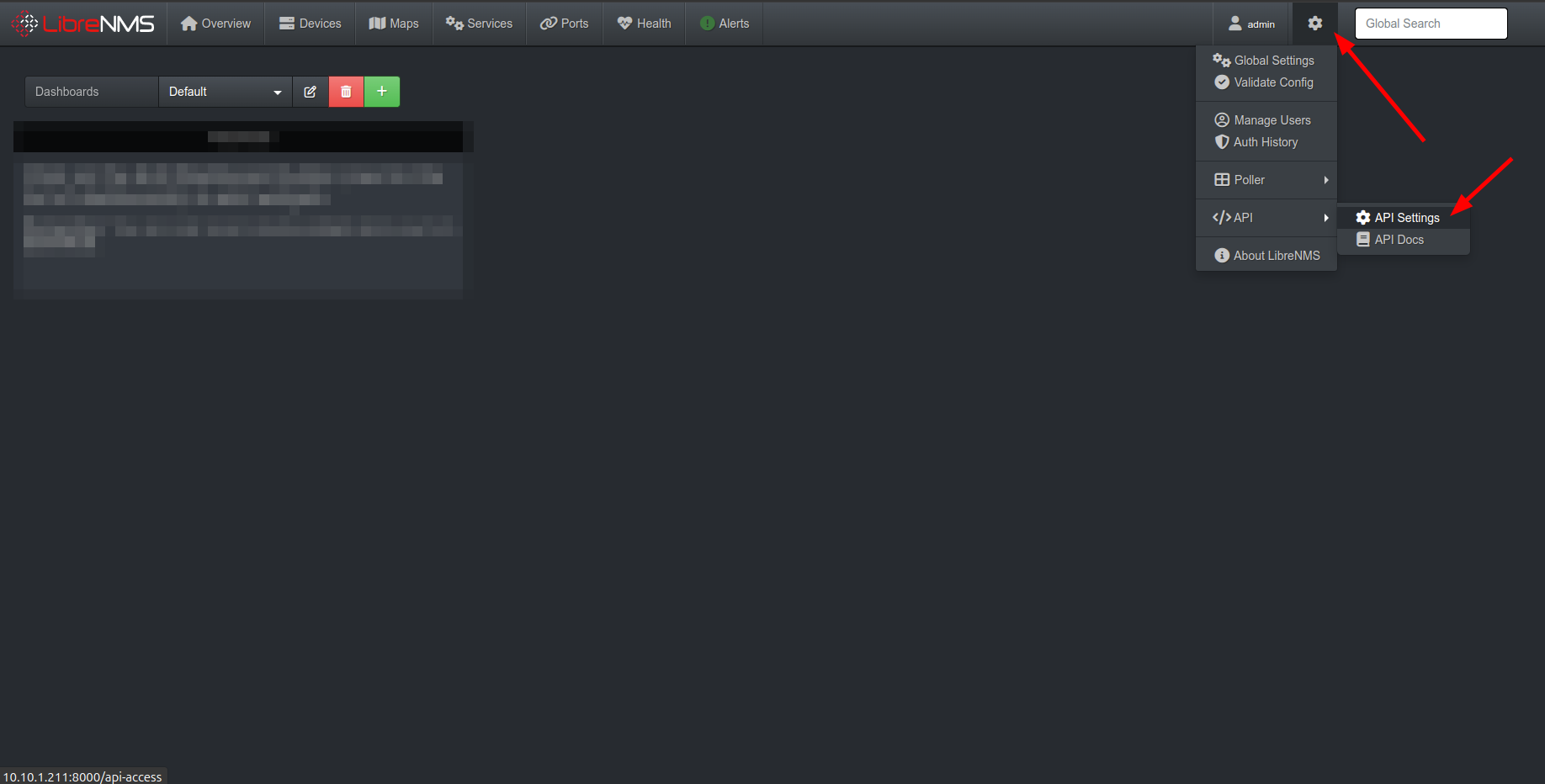
1. Open LibreNMS dashboard and click on settings in the top right corner.
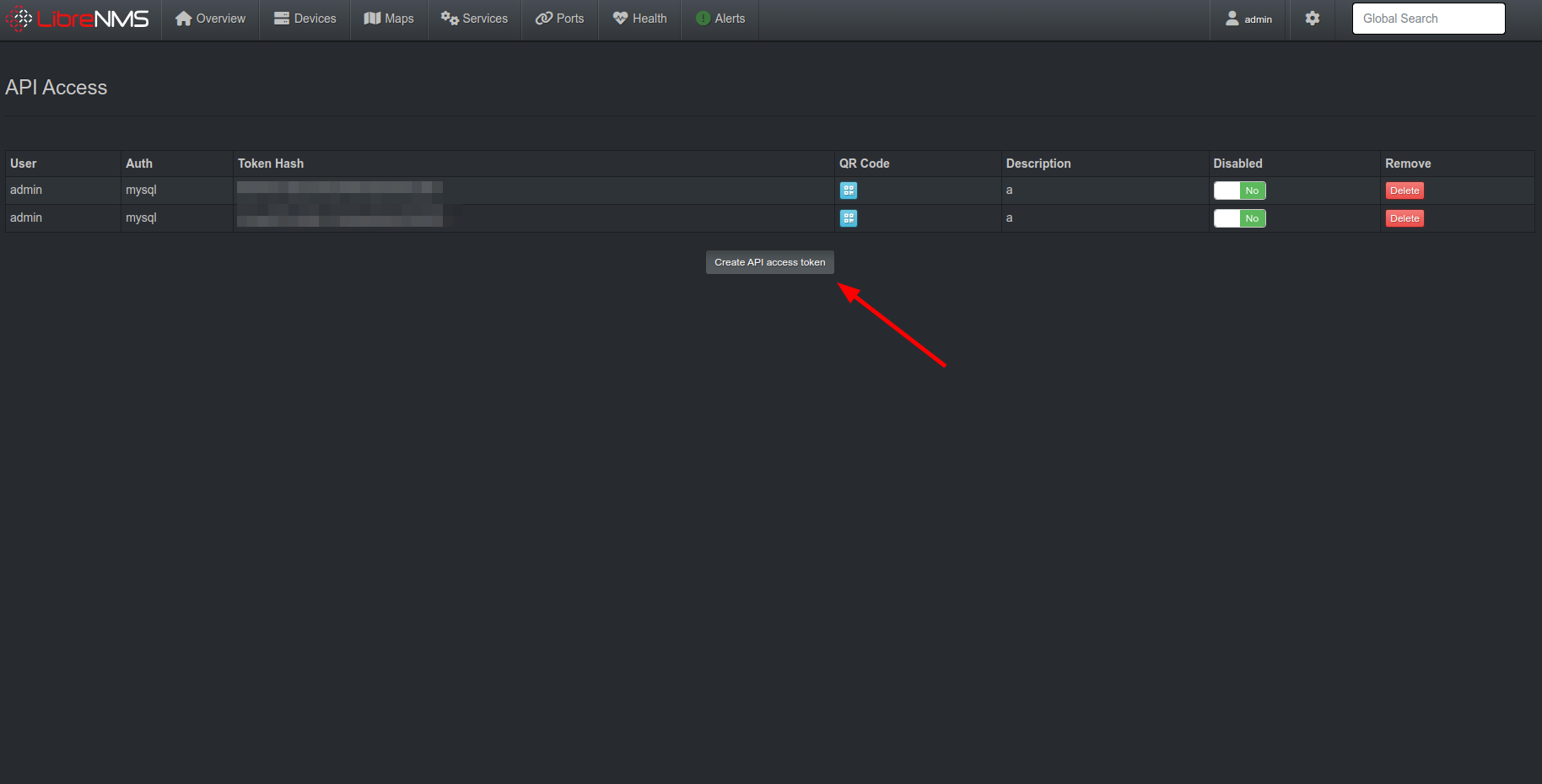
 2. Click on `Create API access token` to generate a new API key.
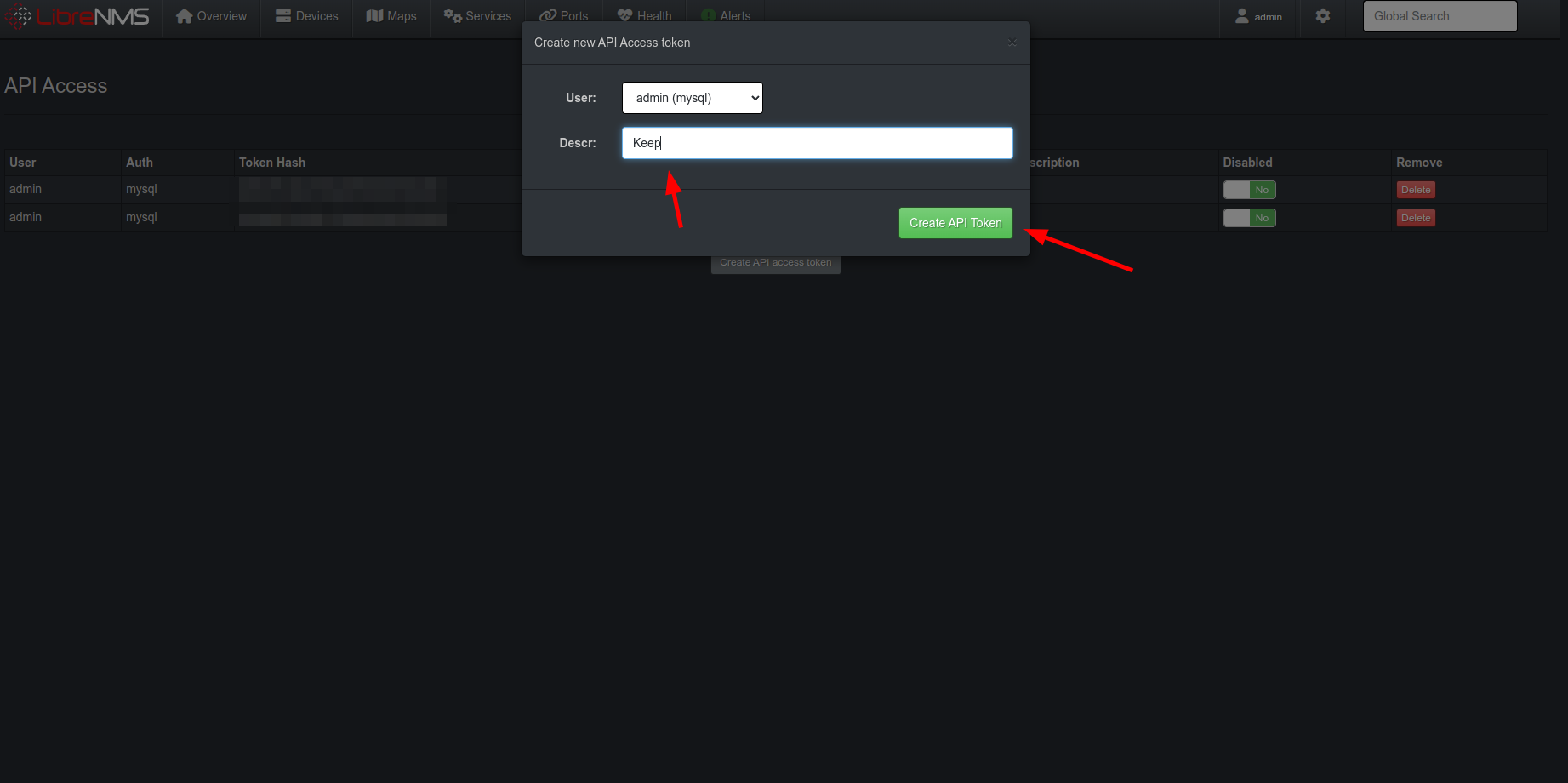
 3. Give a description to the API key and click on `Create API Token`.
 ## Webhooks Integration
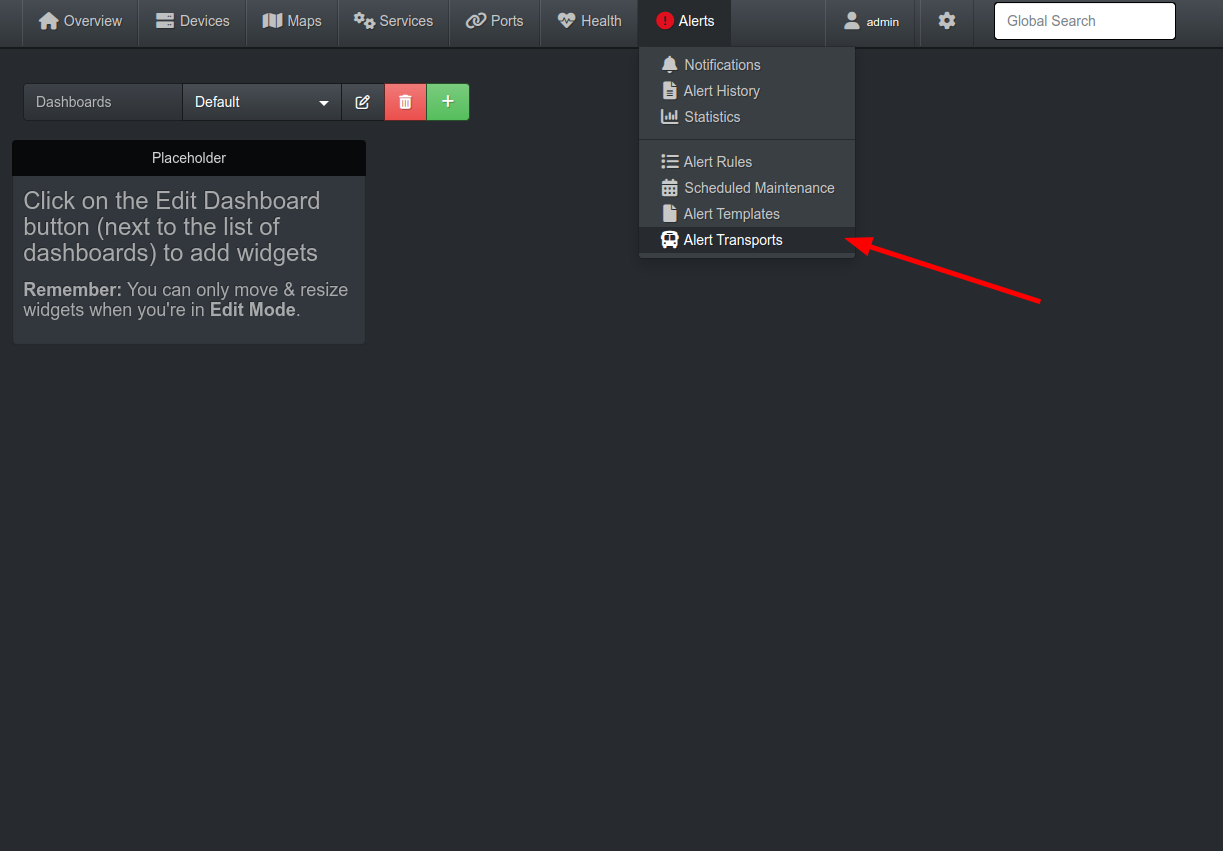
1. Open LibreNMS dashboard and open `Alerts` tab in the navigation bar and click on `Alert Transports`.
## Webhooks Integration
1. Open LibreNMS dashboard and open `Alerts` tab in the navigation bar and click on `Alert Transports`.
 2. Click on `Create add transport` and select `Transport type` as `API`. Select the `API Method` as `POST`.
3. Fill the `API URL` with [https://api.keephq.dev/alerts/event/libre\_nms](https://api.keephq.dev/alerts/event/libre_nms).
2. Click on `Create add transport` and select `Transport type` as `API`. Select the `API Method` as `POST`.
3. Fill the `API URL` with [https://api.keephq.dev/alerts/event/libre\_nms](https://api.keephq.dev/alerts/event/libre_nms).
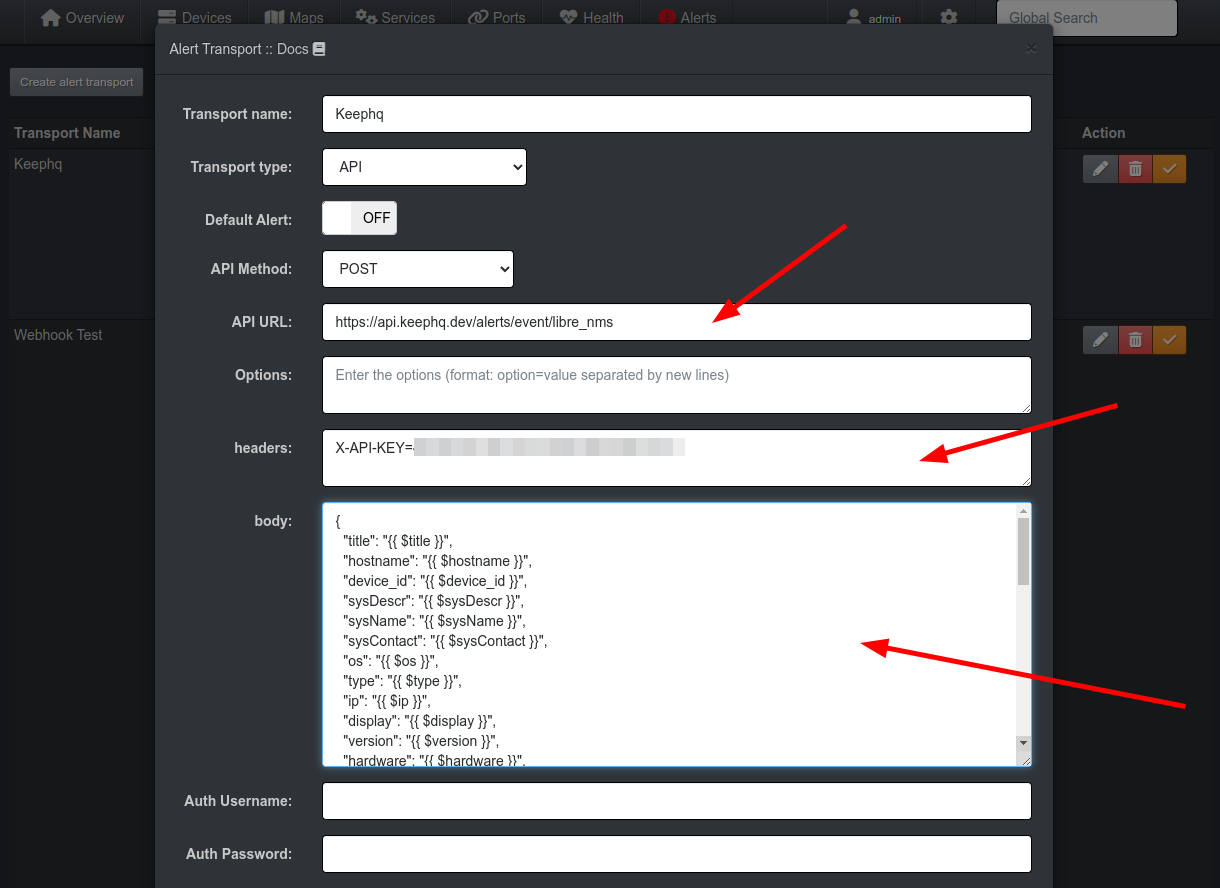 4. Copy the below JSON and paste it in `body` field.
```json theme={null}
{
"title": "{{ $title }}",
"hostname": "{{ $hostname }}",
"device_id": "{{ $device_id }}",
"sysDescr": "{{ $sysDescr }}",
"sysName": "{{ $sysName }}",
"sysContact": "{{ $sysContact }}",
"os": "{{ $os }}",
"type": "{{ $type }}",
"ip": "{{ $ip }}",
"display": "{{ $display }}",
"version": "{{ $version }}",
"hardware": "{{ $hardware }}",
"features": "{{ $features }}",
"serial": "{{ $serial }}",
"status": "{{ $status }}",
"status_reason": "{{ $status_reason }}",
"location": "{{ $location }}",
"description": "{{ $description }}",
"notes": "{{ $notes }}",
"uptime": "{{ $uptime }}",
"uptime_short": "{{ $uptime_short }}",
"uptime_long": "{{ $uptime_long }}",
"elapsed": "{{ $elapsed }}",
"alerted": "{{ $alerted }}",
"alert_id": "{{ $alert_id }}",
"alert_notes": "{{ $alert_notes }}",
"proc": "{{ $proc }}",
"rule_id": "{{ $rule_id }}",
"id": "{{ $id }}",
"faults": "{{ $faults }}",
"uid": "{{ $uid }}",
"severity": "{{ $severity }}",
"rule": "{{ $rule }}",
"name": "{{ $name }}",
"string": "{{ $string }}",
"timestamp": "{{ $timestamp }}",
"contacts": "{{ $contacts }}",
"state": "{{ $state }}",
"msg": "{{ $msg }}",
"builder": "{{ $builder }}"
}
```
5. Follow the below steps to create a new API key in Keep.
6. Go to Keep dashboard and click on the profile icon in the botton left corner and click `Settings`.
4. Copy the below JSON and paste it in `body` field.
```json theme={null}
{
"title": "{{ $title }}",
"hostname": "{{ $hostname }}",
"device_id": "{{ $device_id }}",
"sysDescr": "{{ $sysDescr }}",
"sysName": "{{ $sysName }}",
"sysContact": "{{ $sysContact }}",
"os": "{{ $os }}",
"type": "{{ $type }}",
"ip": "{{ $ip }}",
"display": "{{ $display }}",
"version": "{{ $version }}",
"hardware": "{{ $hardware }}",
"features": "{{ $features }}",
"serial": "{{ $serial }}",
"status": "{{ $status }}",
"status_reason": "{{ $status_reason }}",
"location": "{{ $location }}",
"description": "{{ $description }}",
"notes": "{{ $notes }}",
"uptime": "{{ $uptime }}",
"uptime_short": "{{ $uptime_short }}",
"uptime_long": "{{ $uptime_long }}",
"elapsed": "{{ $elapsed }}",
"alerted": "{{ $alerted }}",
"alert_id": "{{ $alert_id }}",
"alert_notes": "{{ $alert_notes }}",
"proc": "{{ $proc }}",
"rule_id": "{{ $rule_id }}",
"id": "{{ $id }}",
"faults": "{{ $faults }}",
"uid": "{{ $uid }}",
"severity": "{{ $severity }}",
"rule": "{{ $rule }}",
"name": "{{ $name }}",
"string": "{{ $string }}",
"timestamp": "{{ $timestamp }}",
"contacts": "{{ $contacts }}",
"state": "{{ $state }}",
"msg": "{{ $msg }}",
"builder": "{{ $builder }}"
}
```
5. Follow the below steps to create a new API key in Keep.
6. Go to Keep dashboard and click on the profile icon in the botton left corner and click `Settings`.
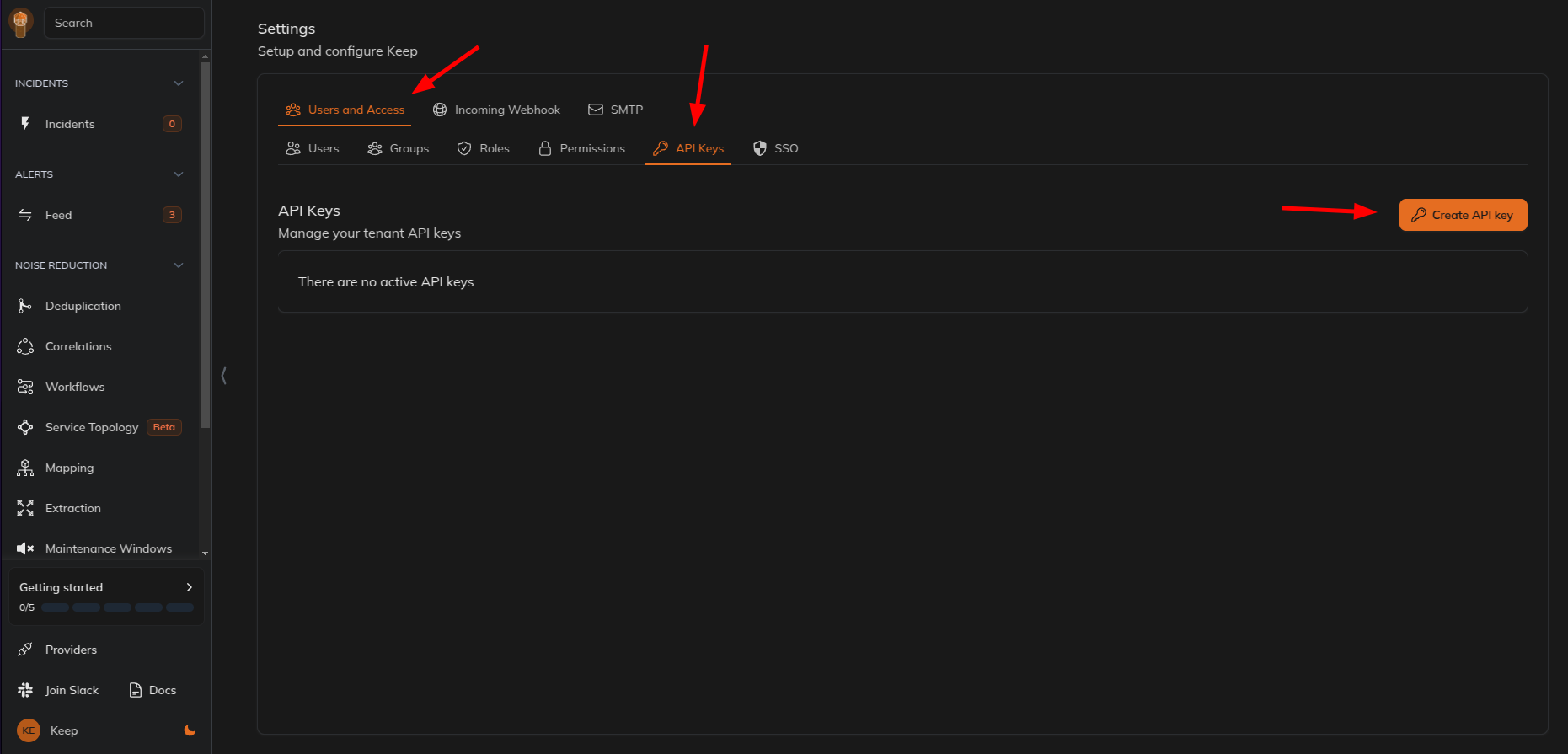
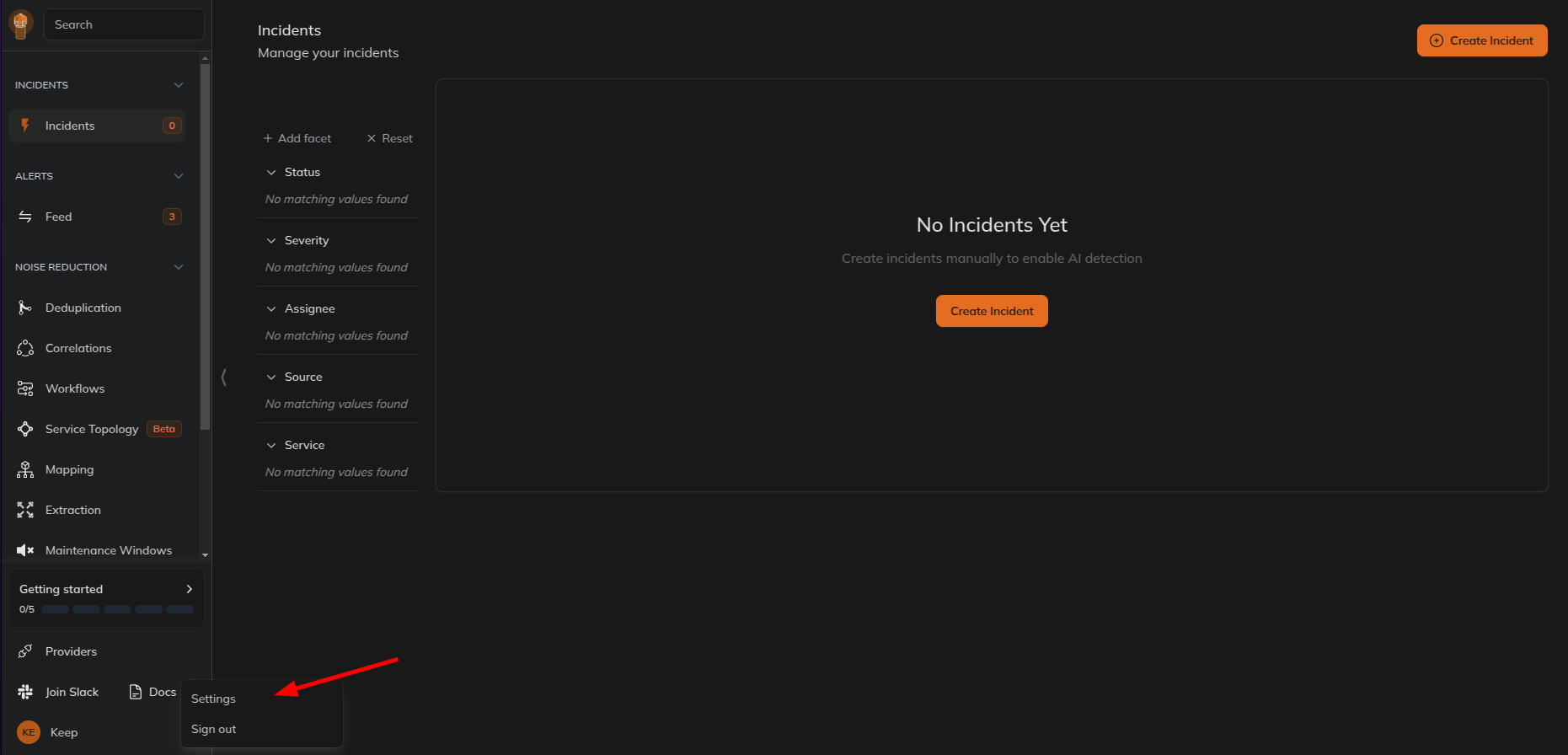 7. Select `Users and Access` tab and then select `API Keys` tab and create a new API key.
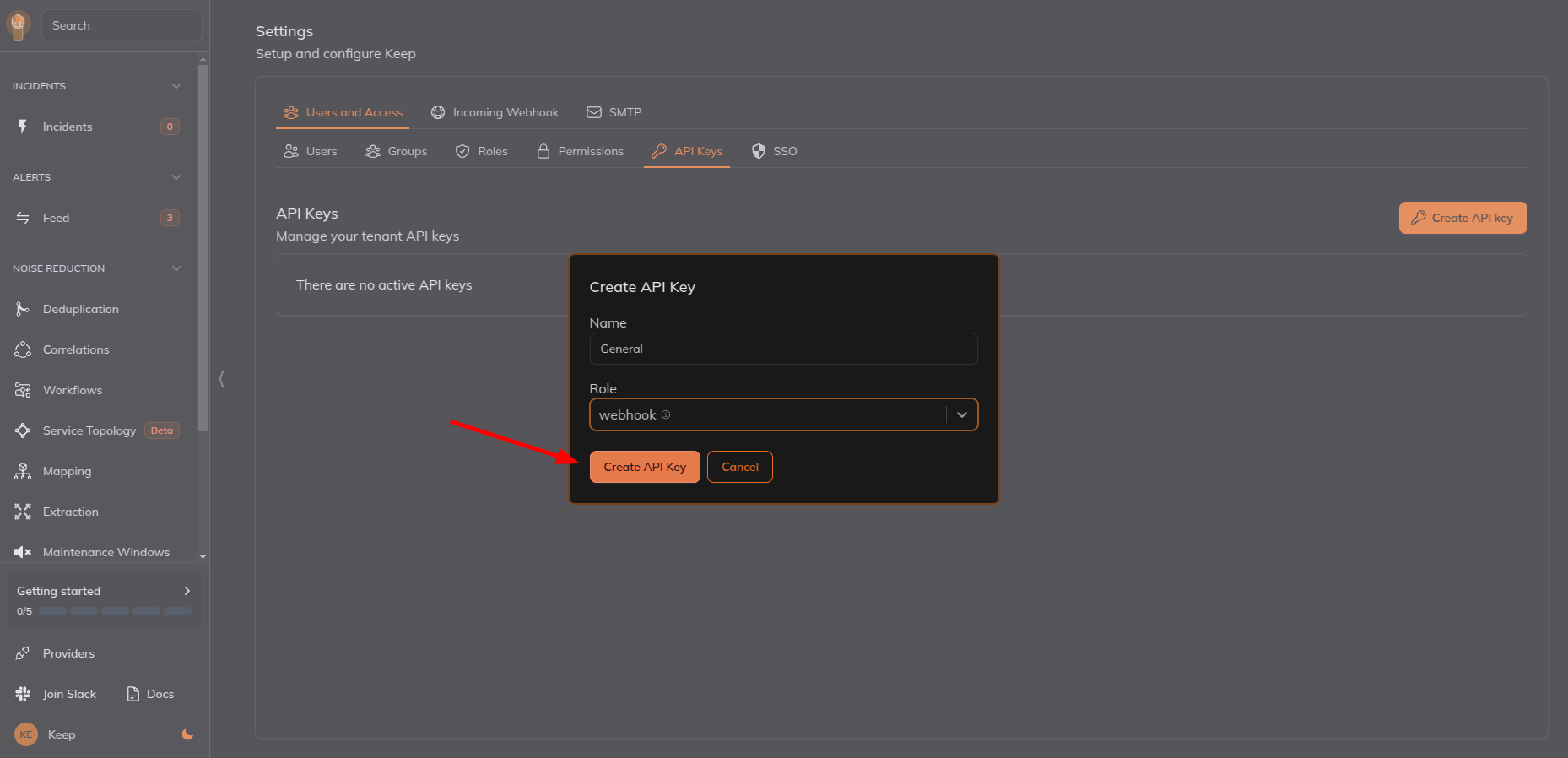
 8. Give name and select the role as `webhook` and click on `Create API Key`.
 9. Copy the API key.
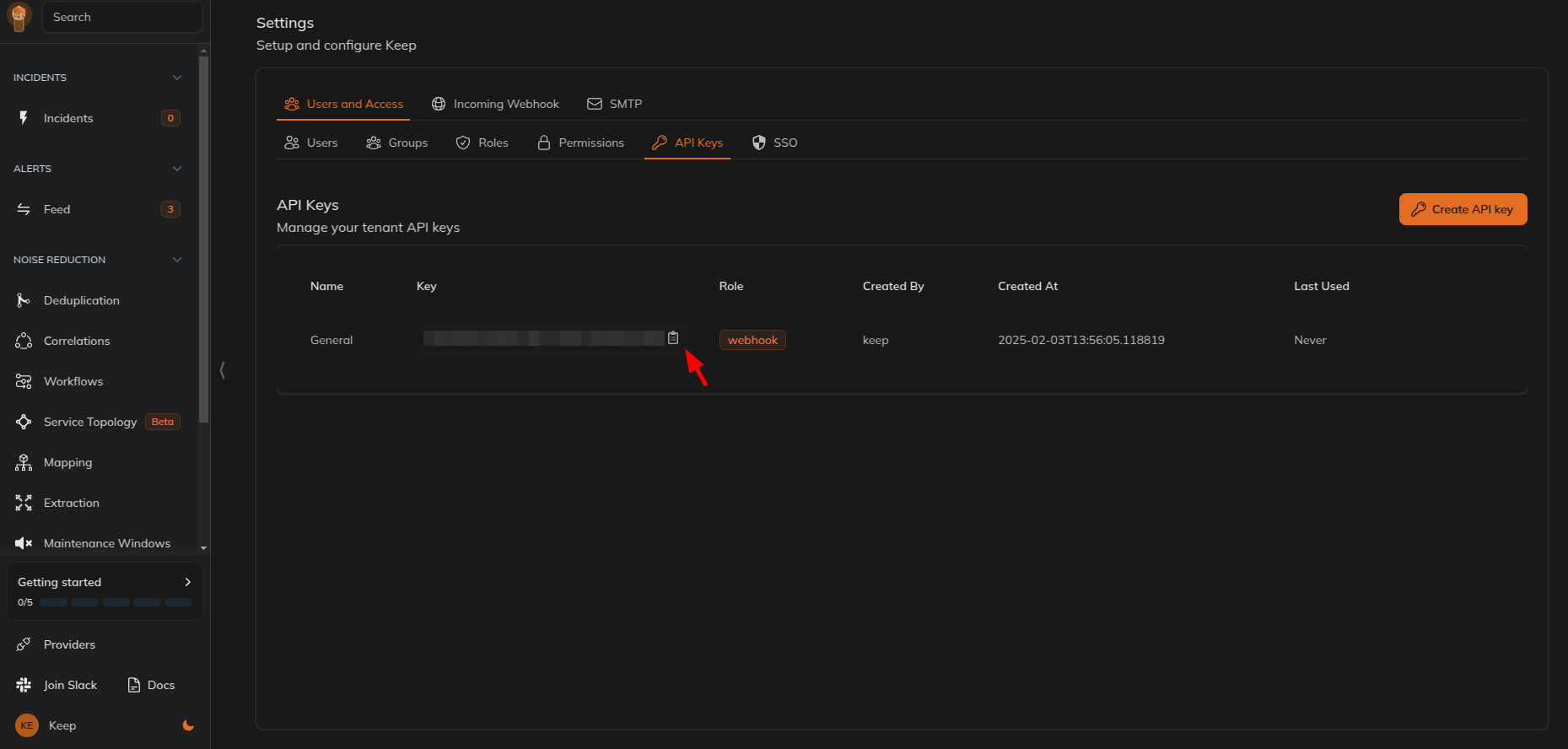 10. Add a new header with key as `X-API-KEY` and create a new API key in Keep and paste it as the value and save the webhook.
11. Save the webhook.
12. You can add devices from the Devices tab in the LibreNMS dashboard and select the alert transport that you have created.
10. Add a new header with key as `X-API-KEY` and create a new API key in Keep and paste it as the value and save the webhook.
11. Save the webhook.
12. You can add devices from the Devices tab in the LibreNMS dashboard and select the alert transport that you have created.
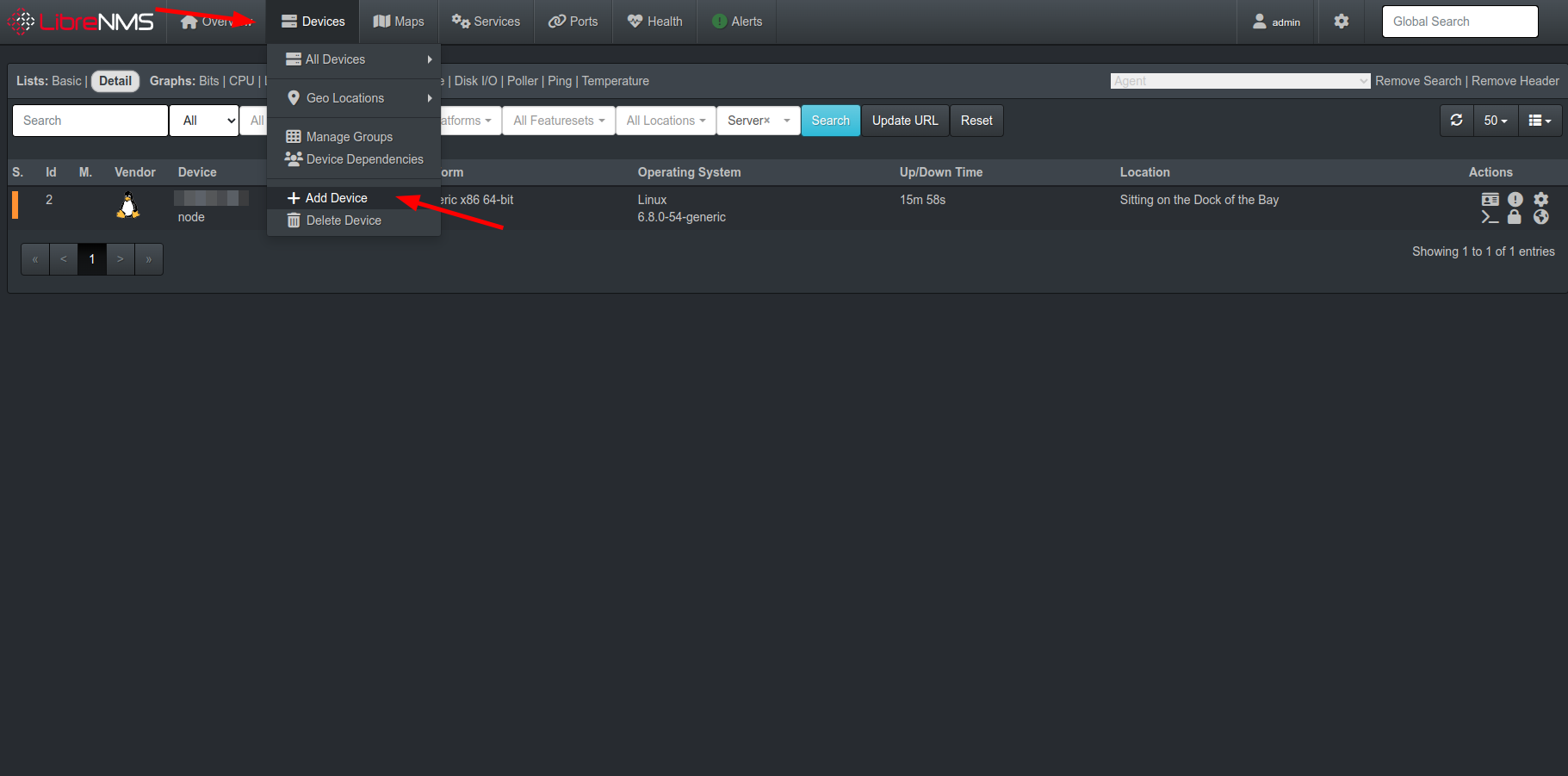 13. Now, you will receive the alerts in Keep.
## Useful Links
* [LibreNMS](https://www.librenms.org/)
13. Now, you will receive the alerts in Keep.
## Useful Links
* [LibreNMS](https://www.librenms.org/)