> ## Documentation Index
> Fetch the complete documentation index at: https://docs.keephq.dev/llms.txt
> Use this file to discover all available pages before exploring further.
# NetBox
> NetBox provider allows you to get events from NetBox through webhook.
## Overview
NetBox is the leading solution for modeling and documenting modern networks. By combining the traditional disciplines of IP address management (IPAM) and datacenter infrastructure management (DCIM) with powerful APIs and extensions, NetBox provides the ideal "source of truth" to power network automation. Read on to discover why thousands of organizations worldwide put NetBox at the heart of their infrastructure.
## Connecting NetBox to Keep
To connect NetBox to Keep, you need to create a webhook in NetBox.
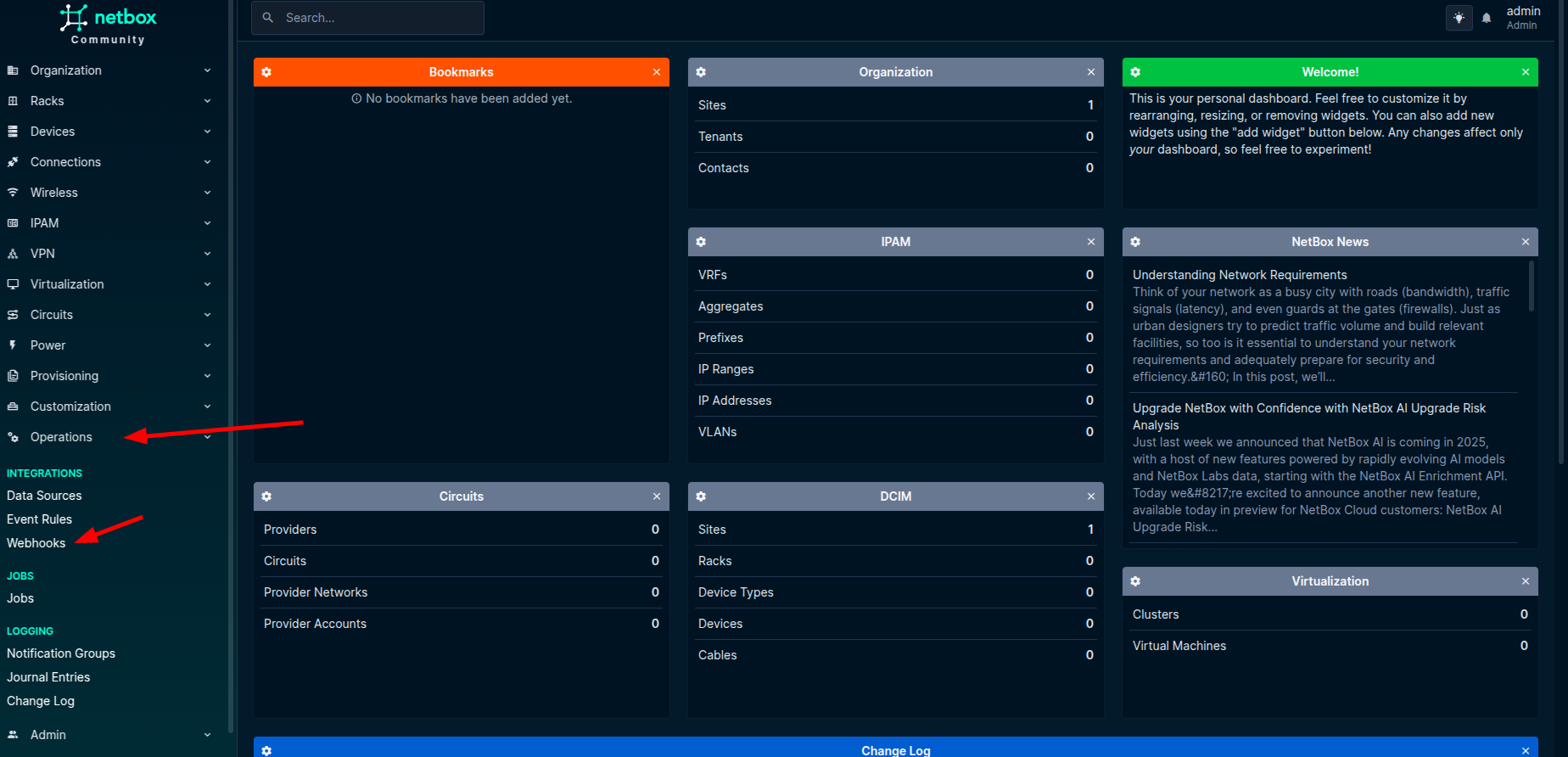
1. Go to NetBox dashboard, click on `Webhooks` under `Operations` section in the sidebar.
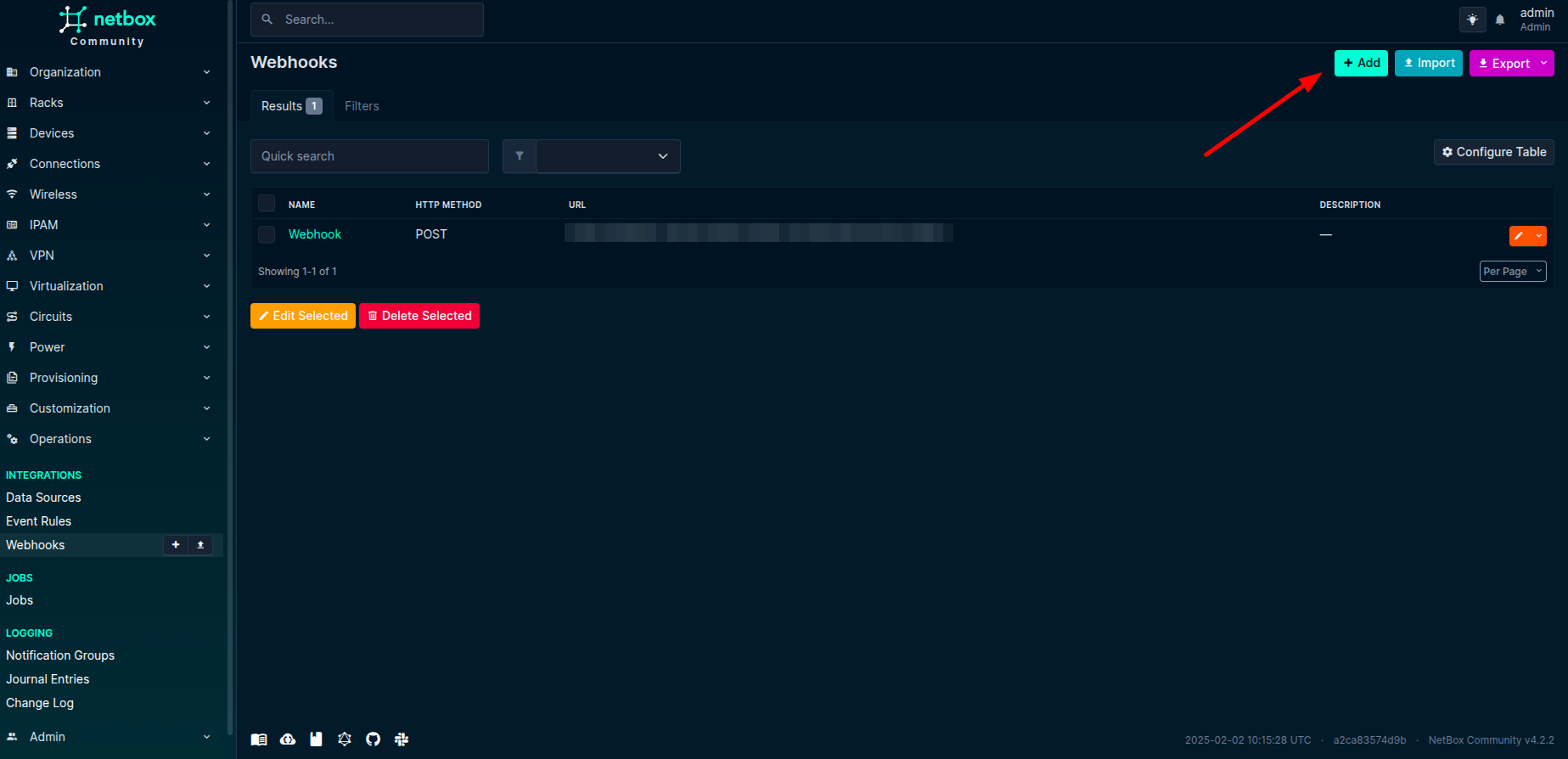
 2. Add a new webhook by clicking on `Add` button.
 3. Enter [https://api.keephq.dev/alerts/event/netbox](https://api.keephq.dev/alerts/event/netbox) as the URL and select the request method as `POST`.
4. Follow the below steps to create a new API key in Keep.
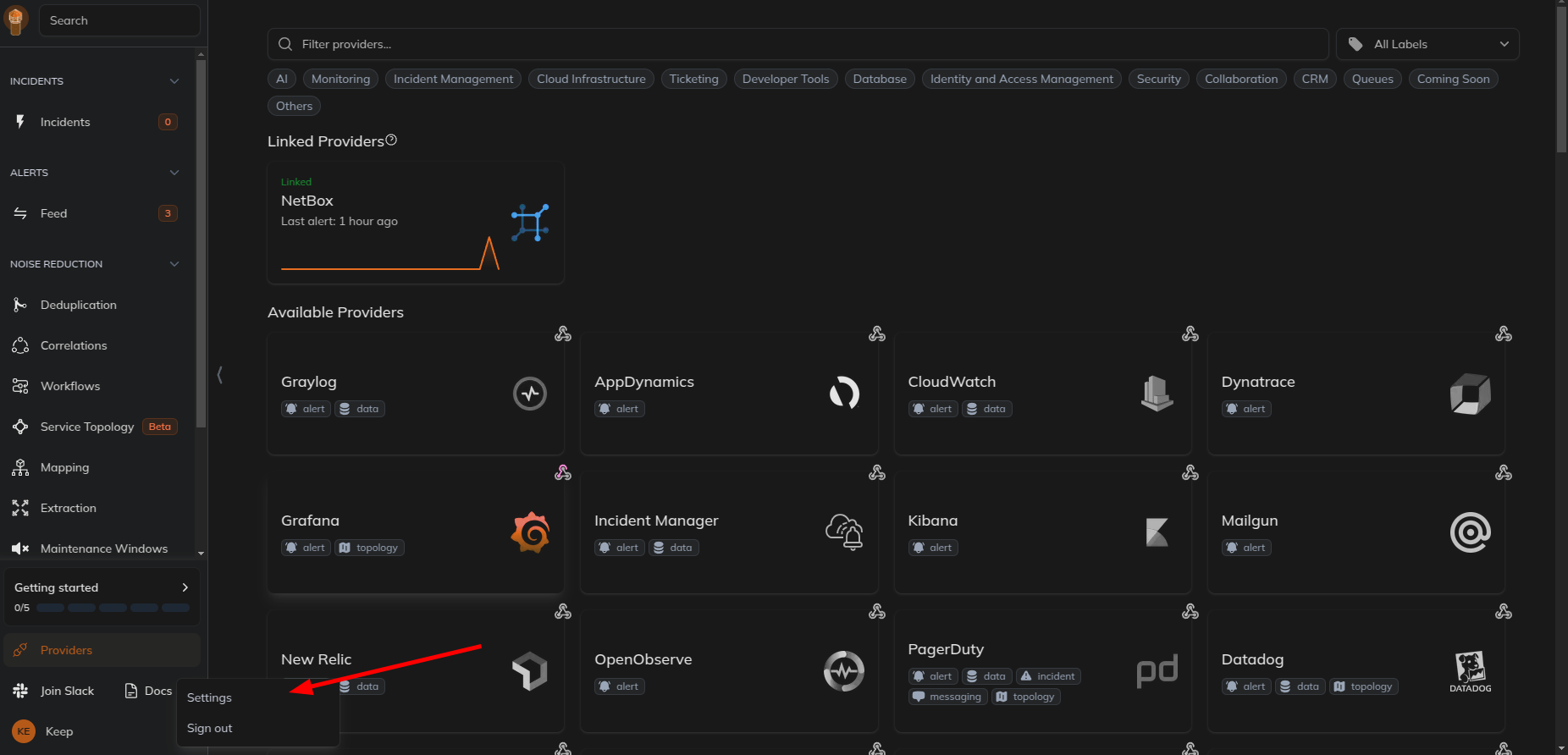
5. Go to Keep dashboard and click on the profile icon in the botton left corner and click `Settings`.
3. Enter [https://api.keephq.dev/alerts/event/netbox](https://api.keephq.dev/alerts/event/netbox) as the URL and select the request method as `POST`.
4. Follow the below steps to create a new API key in Keep.
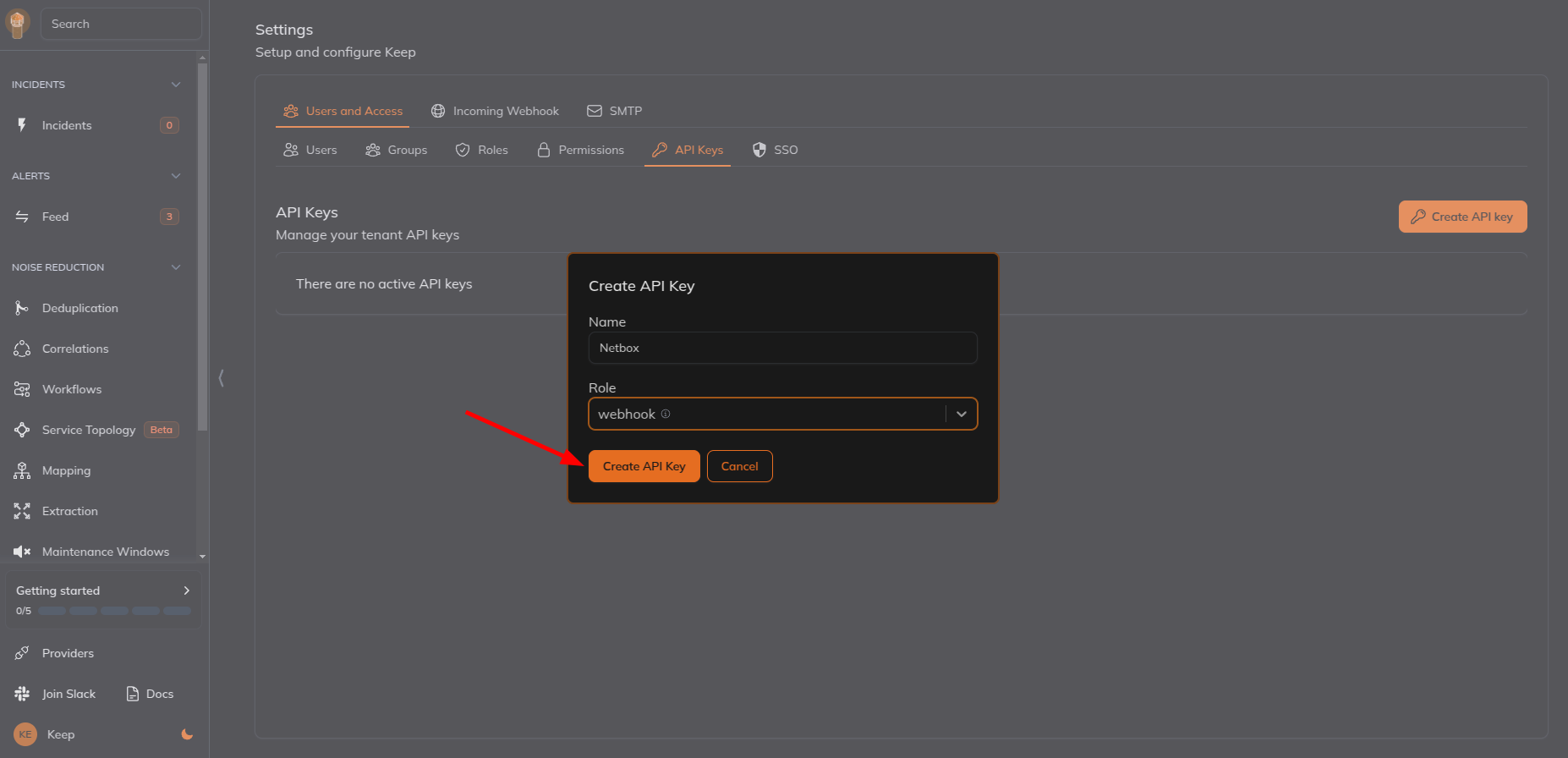
5. Go to Keep dashboard and click on the profile icon in the botton left corner and click `Settings`.
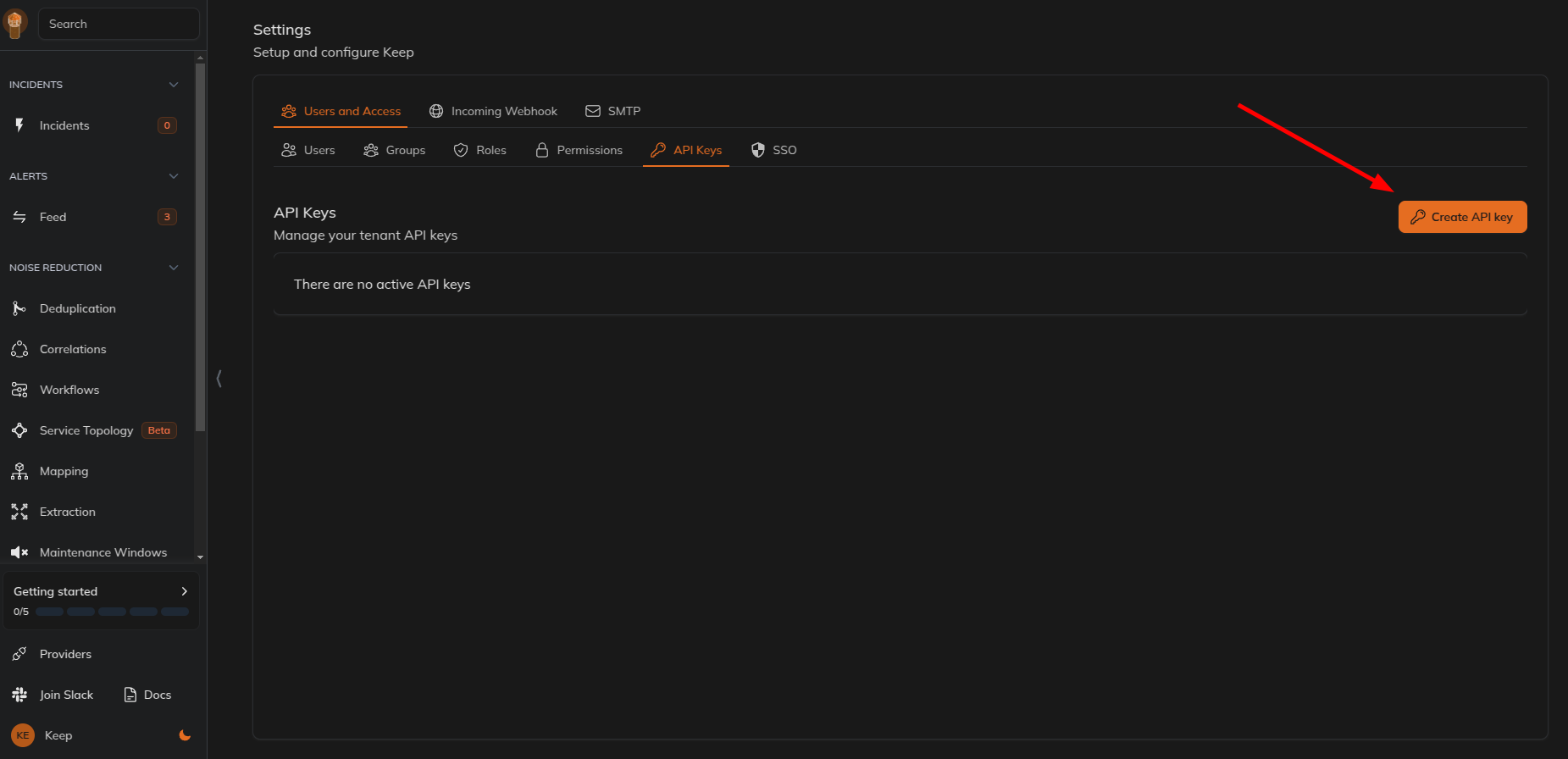
 6. Select `Users and Access` tab and then select `API Keys` tab and create a new API key.
 7. Give name and select the role as `webhook` and click on `Create API Key`.
 8. In the `Additional headers` field enter `X-API-KEY` as the key and the API key generated in step 7 as the value. It should look like below. Refer the screenshot from step 3.
```
X-API-KEY: your-api-key
```
9. Disable the `SSL verification` (Optional) or enable it based on your requirement.
8. In the `Additional headers` field enter `X-API-KEY` as the key and the API key generated in step 7 as the value. It should look like below. Refer the screenshot from step 3.
```
X-API-KEY: your-api-key
```
9. Disable the `SSL verification` (Optional) or enable it based on your requirement.
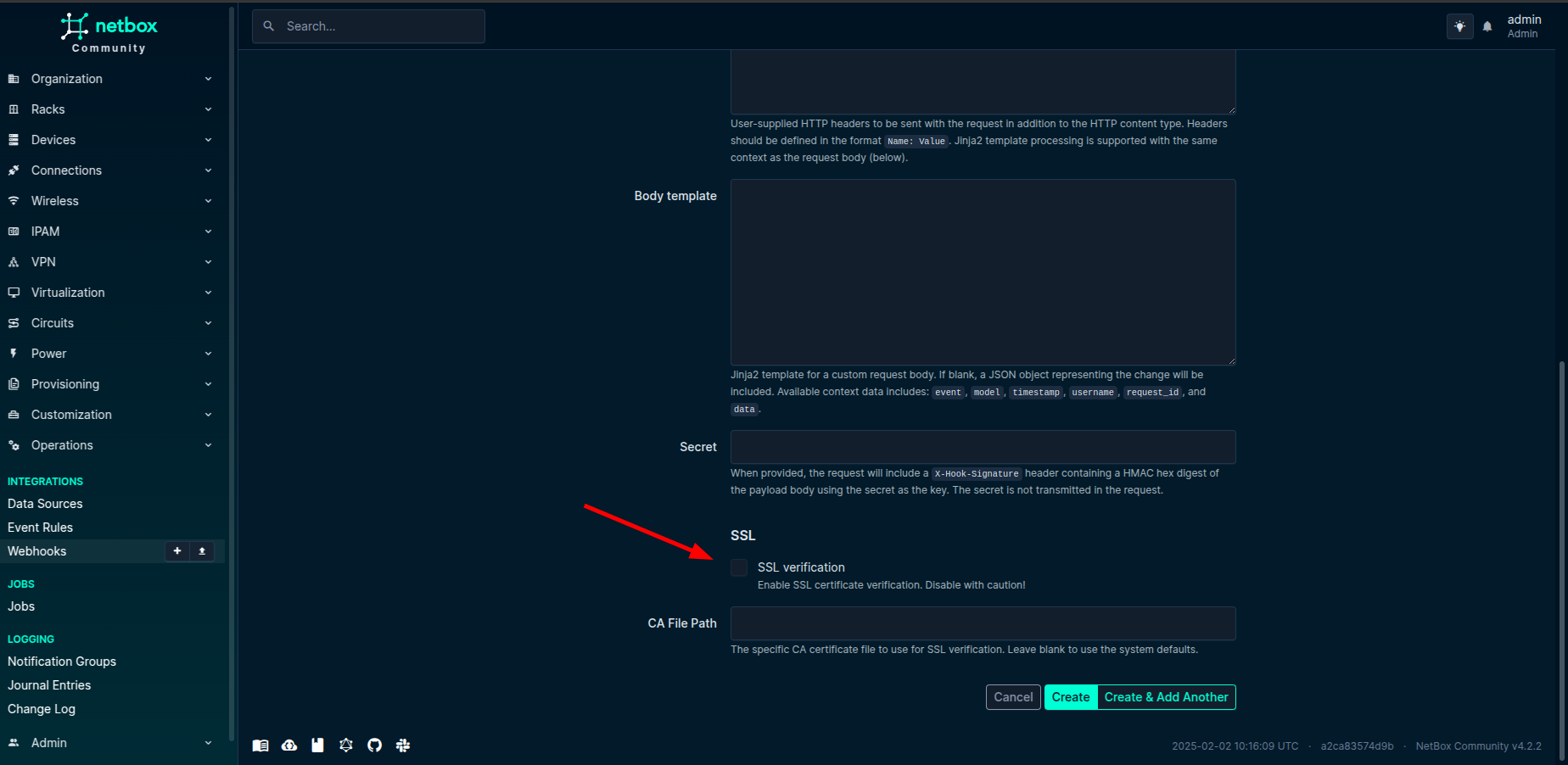 10. Click on `Save` to save the webhook.
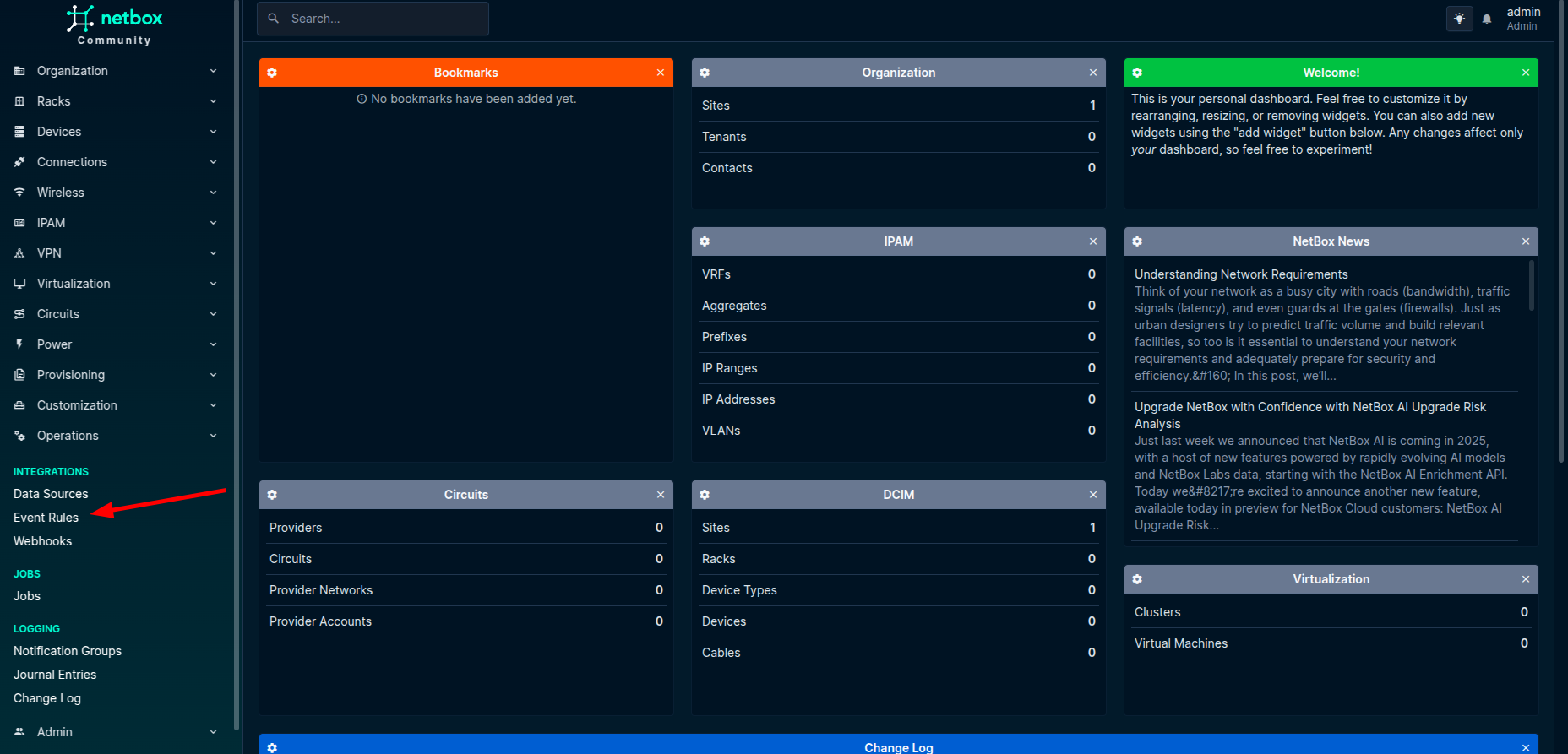
11. Go to `Event Rules` under `Operations` section in the sidebar and click on `Add` button to create a new event rule.
10. Click on `Save` to save the webhook.
11. Go to `Event Rules` under `Operations` section in the sidebar and click on `Add` button to create a new event rule.
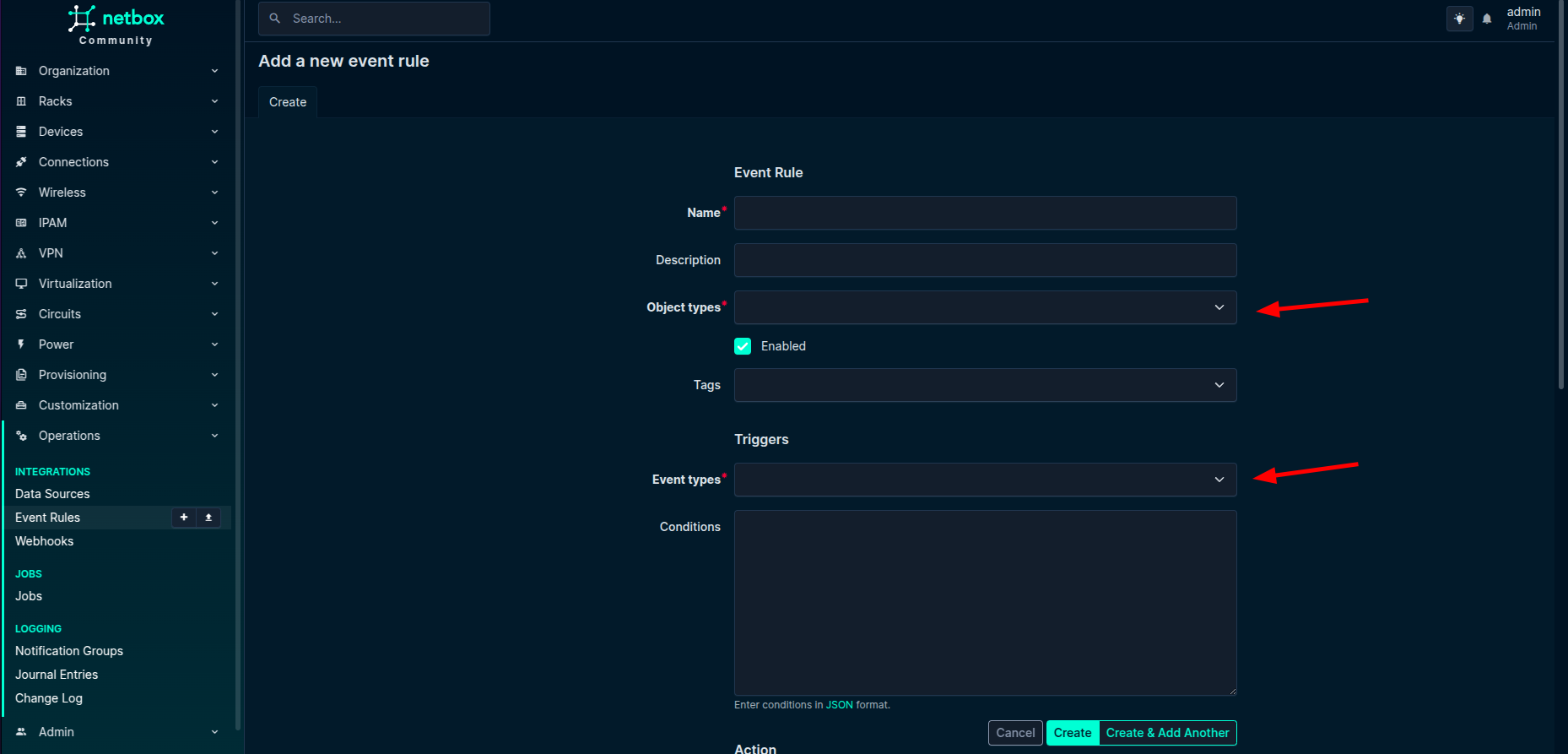
 12. Fill the required fields based on your requirement. Select the `Object types` and `Event types` for which you want to receive the events.
 13. In the `Action type` select `Webhook` and select the webhook created in step 3 and click on `Save`.
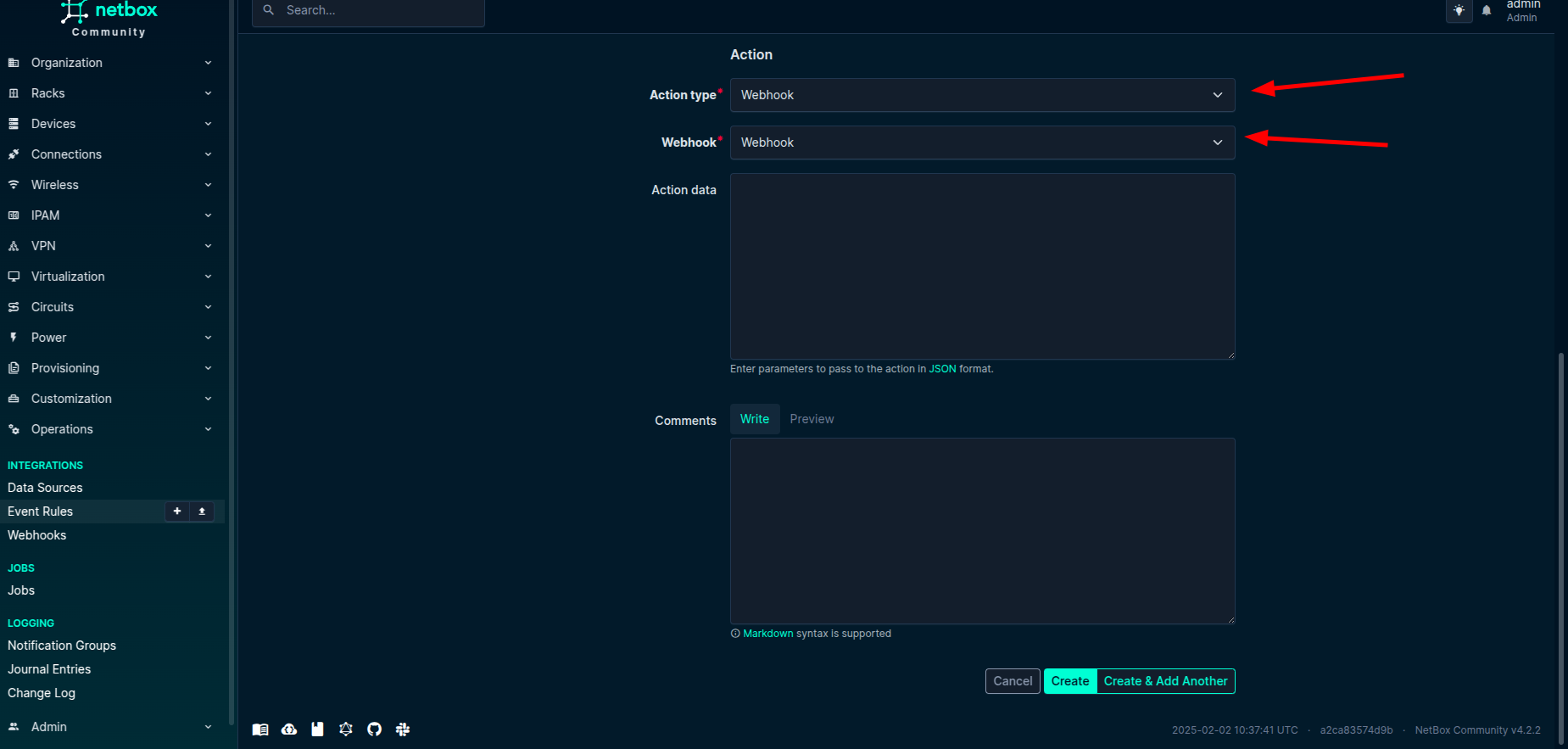 Now, you have successfully connected NetBox to Keep. You will start receiving the events in Keep based on the event rules you have created.
## Useful Links
* [NetBox](https://netboxlabs.com/)
## In workflows
This provider can't be used as a "step" or "action" in workflows. If you want to use it, please let us know by creating an issue in the [GitHub repository](https://github.com/keephq/keep/issues).
Now, you have successfully connected NetBox to Keep. You will start receiving the events in Keep based on the event rules you have created.
## Useful Links
* [NetBox](https://netboxlabs.com/)
## In workflows
This provider can't be used as a "step" or "action" in workflows. If you want to use it, please let us know by creating an issue in the [GitHub repository](https://github.com/keephq/keep/issues).