> ## Documentation Index
> Fetch the complete documentation index at: https://docs.keephq.dev/llms.txt
> Use this file to discover all available pages before exploring further.
# Opsgenie Provider
> OpsGenie Provider is a provider that allows to create alerts in OpsGenie.
## Authentication
This provider requires authentication.
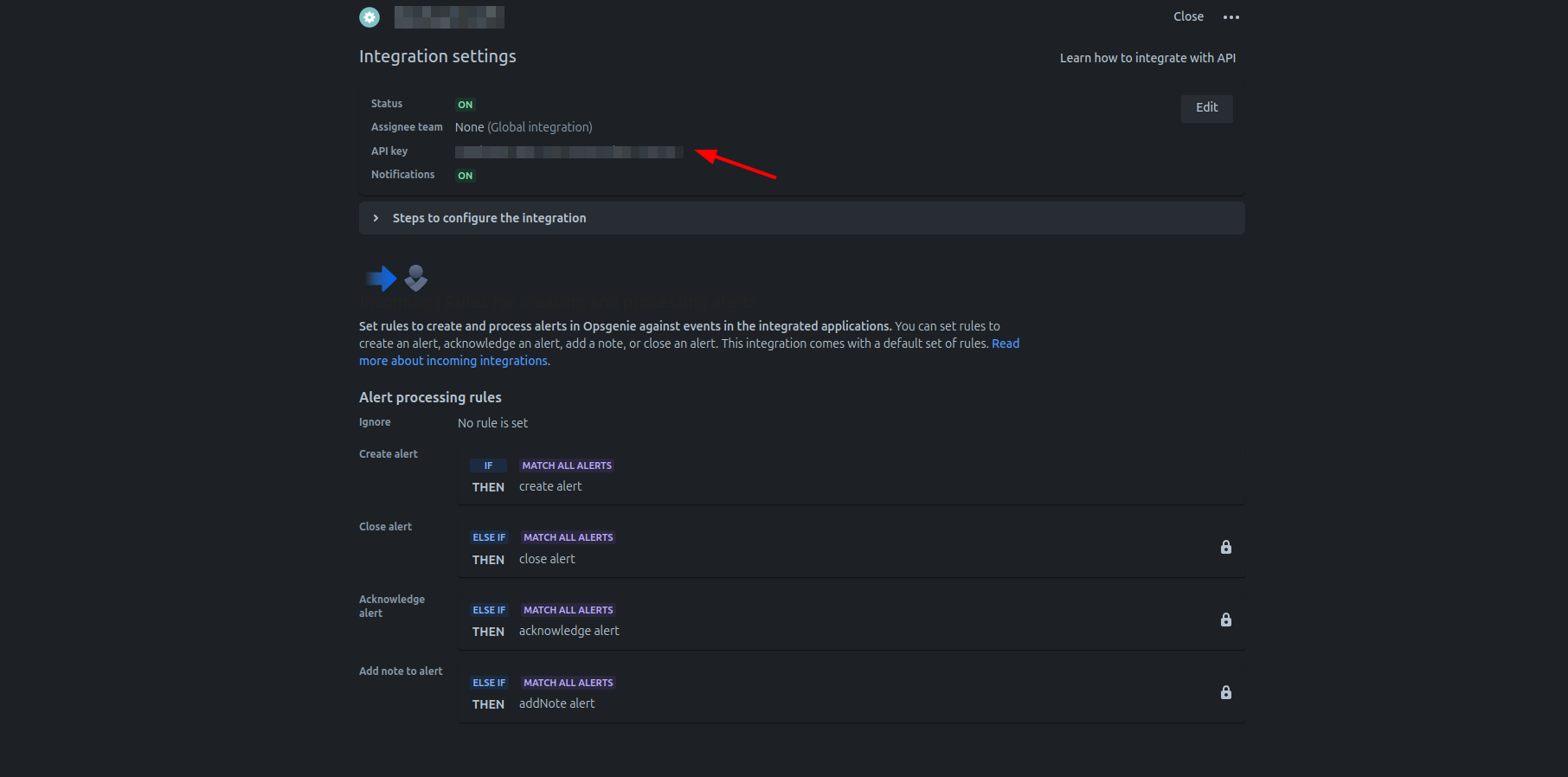
* **api\_key**: OpsGenie api key (required: True, sensitive: True)
* **integration\_name**: OpsGenie integration name (required: True, sensitive: False)
Certain scopes may be required to perform specific actions or queries via the provider. Below is a summary of relevant scopes and their use cases:
* **opsgenie:create**: Create OpsGenie alerts (mandatory)
## In workflows
This provider can be used in workflows.
As "step" to query data, example:
```yaml theme={null}
steps:
- name: Query opsgenie
provider: opsgenie
config: "{{ provider.my_provider_name }}"
with:
query_type: {value}
query: {value}
```
As "action" to make changes or update data, example:
```yaml theme={null}
actions:
- name: Query opsgenie
provider: opsgenie
config: "{{ provider.my_provider_name }}"
with:
user: {value} # Display name of the request owner
note: {value} # Additional note that will be added while creating the alert
source: {value} # Source field of the alert. Default value is IP address of the incoming request
message: {value} # Message of the alert
alias: {value} # Client-defined identifier of the alert, that is also the key element of alert deduplication
description: {value} # Description field of the alert that is generally used to provide a detailed information
responders: {value} # Responders that the alert will be routed to send notifications
visible_to: {value} # Teams and users that the alert will become visible to without sending any notification
actions: {value} # Custom actions that will be available for the alert
tags: {value} # Tags of the alert
details: {value} # Map of key-value pairs to use as custom properties of the alert
entity: {value} # Entity field of the alert that is generally used to specify which domain alert is related to
priority: {value} # Priority level of the alert
type: {value} # Type of the request, e.g. create_alert, close_alert
# Additional arguments
```
Check the following workflow examples:
* [failed-to-login-workflow.yml](https://github.com/keephq/keep/blob/main/examples/workflows/failed-to-login-workflow.yml)
* [opsgenie-close-alert.yml](https://github.com/keephq/keep/blob/main/examples/workflows/opsgenie-close-alert.yml)
* [opsgenie-create-alert-cel.yml](https://github.com/keephq/keep/blob/main/examples/workflows/opsgenie-create-alert-cel.yml)
* [opsgenie-create-alert.yml](https://github.com/keephq/keep/blob/main/examples/workflows/opsgenie-create-alert.yml)
* [opsgenie\_open\_alerts.yml](https://github.com/keephq/keep/blob/main/examples/workflows/opsgenie_open_alerts.yml)
## Provider Methods
The provider exposes the following [Provider Methods](/providers/provider-methods#via-ai-assistant). They are available in the [AI Assistant](/overview/ai-incident-assistant).
* **close\_alert** Close an alert (action, scopes: opsgenie:create)
* **comment\_alert** Comment an alert (action, scopes: opsgenie:create)
## Connecting with the Provider
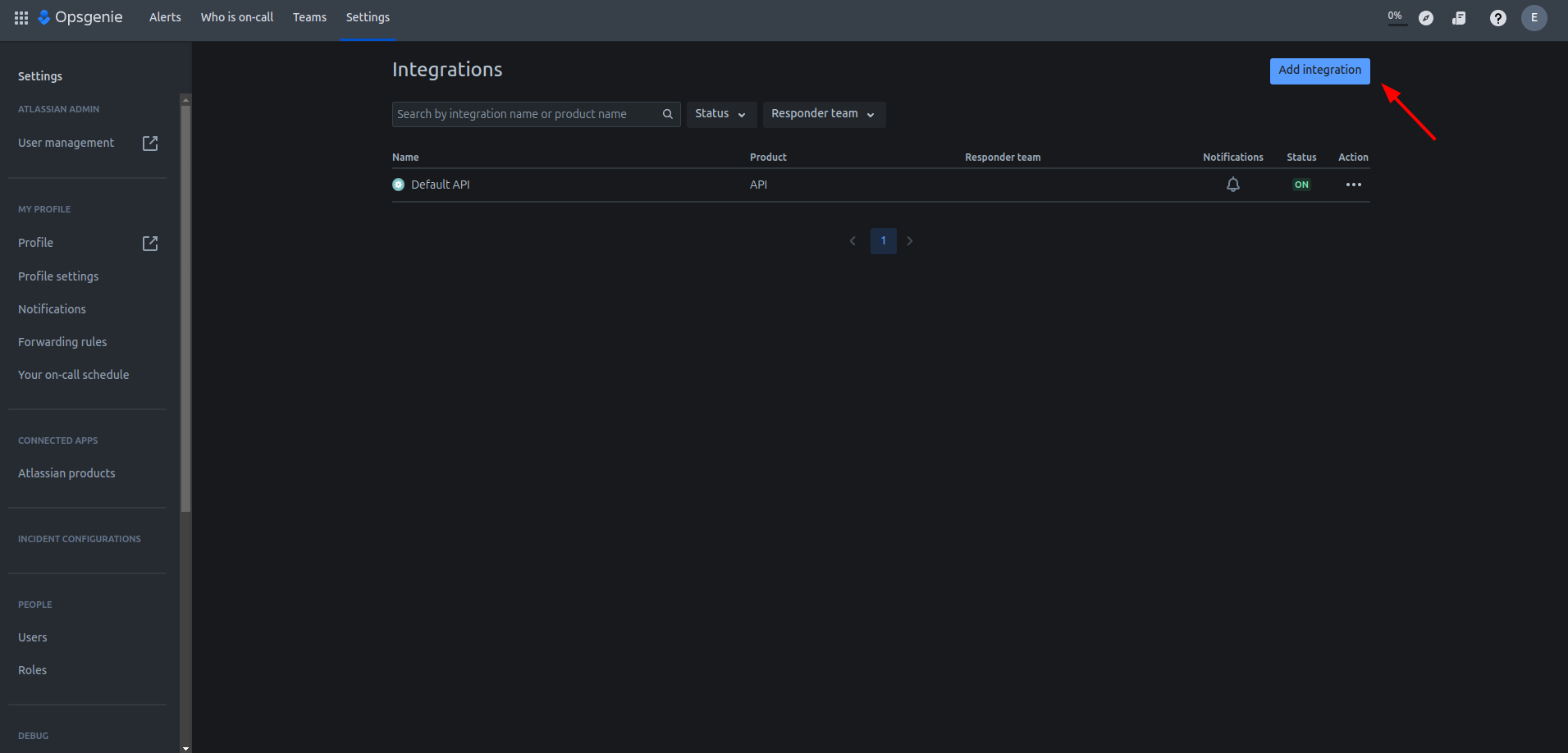
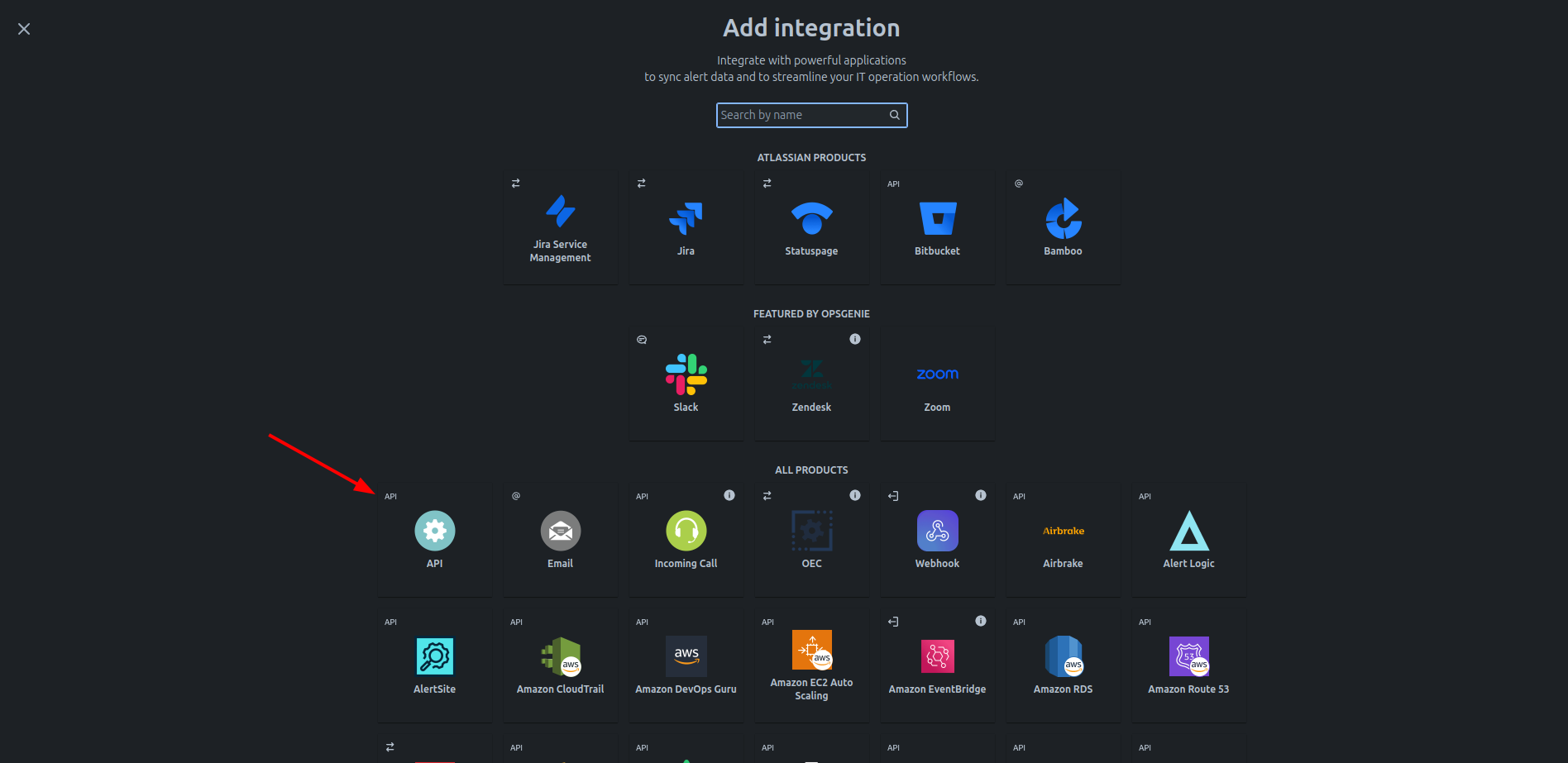
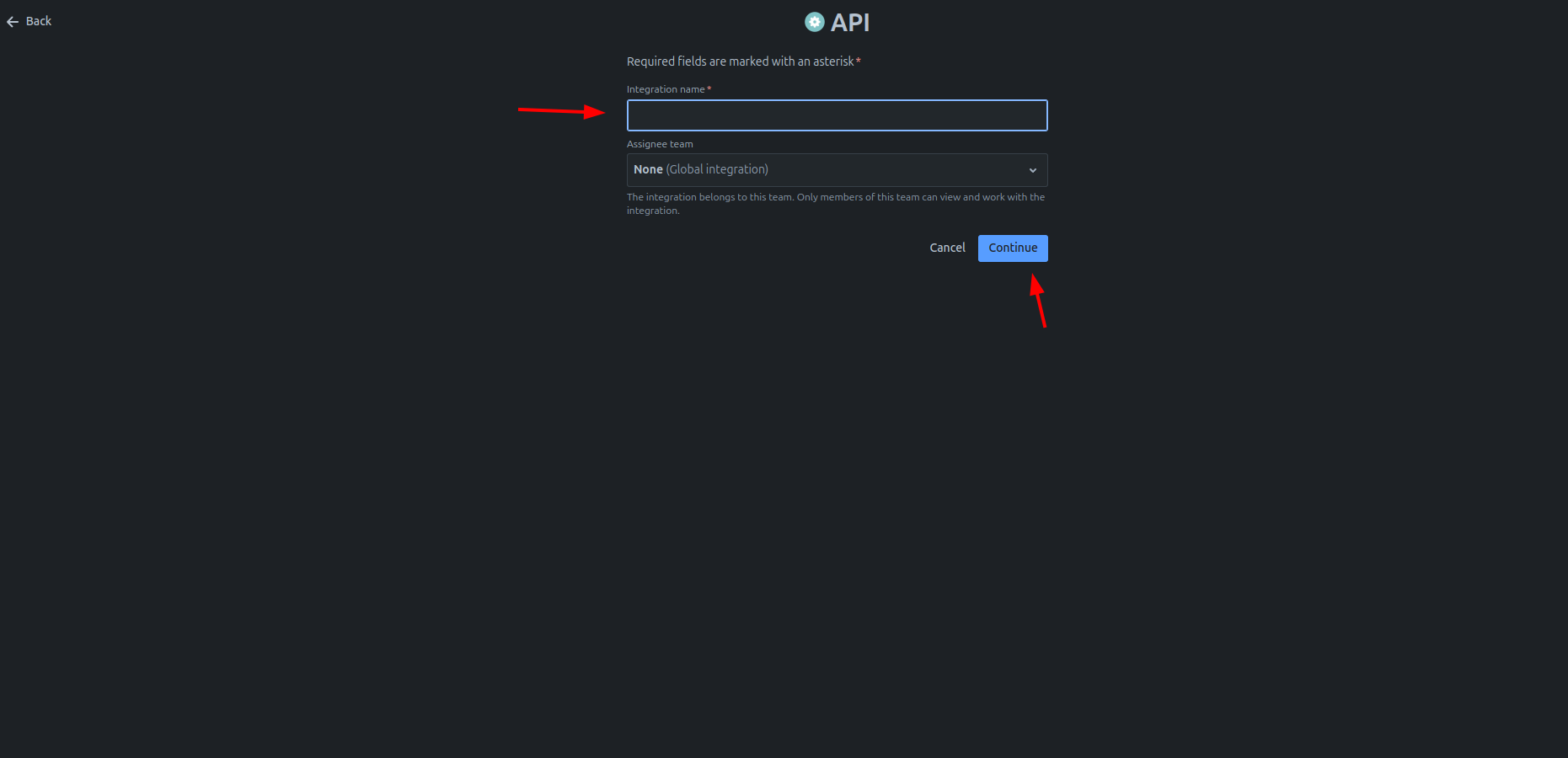
To use the Opsgenie Provider, you'll need to provide the API Key and Integration Name from API Integration. You can create an API integration under Settings -> Integrations -> Add integration and search for API Integration. Select API and provide a name for the integration and click on continue.
You can create an integration key under Settings -> Integrations -> Add integration
If you are in the free tier, the integration key can be created under Teams ->
Your team -> Integrations -> Add Integration (API)
Visit the [Opsgenie API Integration](https://app.opsgenie.com/settings/integrations/create/api) for creating an API integration quickly.
 Visit the [Opsgenie API Integration](https://support.atlassian.com/opsgenie/docs/create-a-default-api-integration/) documentation for latest information.
## Useful Links
* How to create Opsgenie API Integration - [https://support.atlassian.com/opsgenie/docs/create-a-default-api-integration/](https://support.atlassian.com/opsgenie/docs/create-a-default-api-integration/)
Visit the [Opsgenie API Integration](https://support.atlassian.com/opsgenie/docs/create-a-default-api-integration/) documentation for latest information.
## Useful Links
* How to create Opsgenie API Integration - [https://support.atlassian.com/opsgenie/docs/create-a-default-api-integration/](https://support.atlassian.com/opsgenie/docs/create-a-default-api-integration/)