> ## Documentation Index
> Fetch the complete documentation index at: https://docs.keephq.dev/llms.txt
> Use this file to discover all available pages before exploring further.
# Sentry
> Sentry provider allows you to query Sentry events and to pull/push alerts from Sentry
## Authentication
This provider requires authentication.
* **api\_key**: Sentry Api Key (required: True, sensitive: True)
* **organization\_slug**: Sentry organization slug (required: True, sensitive: False)
* **api\_url**: Sentry API URL (required: False, sensitive: False)
* **project\_slug**: Sentry project slug within the organization (required: False, sensitive: False)
Certain scopes may be required to perform specific actions or queries via the provider. Below is a summary of relevant scopes and their use cases:
* \*\*\*\*: Write permission for projects in organization
## In workflows
This provider can be used in workflows.
As "step" to query data, example:
```yaml theme={null}
steps:
- name: Query sentry
provider: sentry
config: "{{ provider.my_provider_name }}"
with:
project: {value} # project name
time: {value} # time range, for example: 14d
```
Check the following workflow example:
* [create\_jira\_ticket\_upon\_alerts.yml](https://github.com/keephq/keep/blob/main/examples/workflows/create_jira_ticket_upon_alerts.yml)
## Connecting with the Provider
To connect self hosted Sentry, you need to set the `api_url` parameter.
Default value is `https://sentry.io/api/0/`.
### API Key
To obtain the Sentry API key, follow these steps ([Docs](https://docs.sentry.io/product/integrations/integration-platform/?original_referrer=https%3A%2F%2Fwww.google.com%2F#internal-integrations)):
1. Log in to your Sentry account.
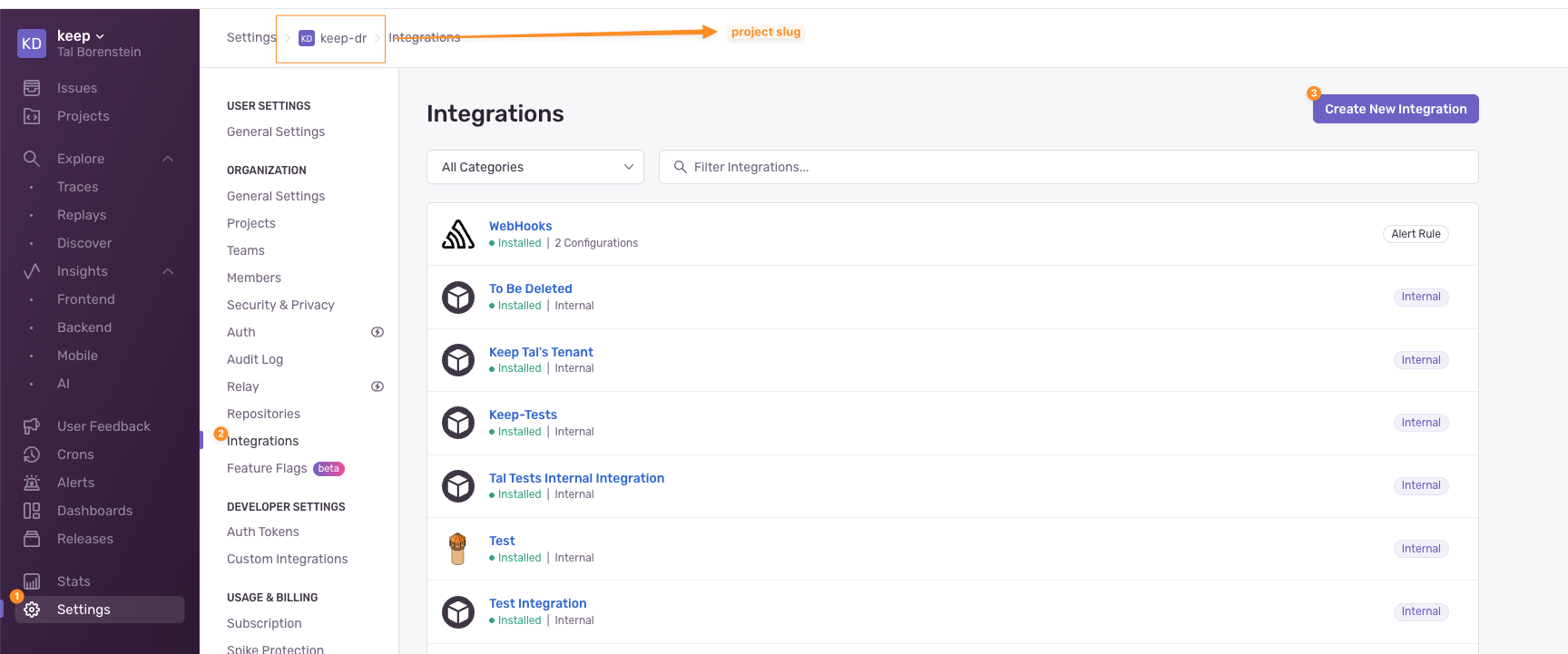
2. Navigate `Settings` -> `Developer Settings` section.
3. Click on `Custom integrations`.
4. Click on `Create New Integration` on the top right side of the screen.
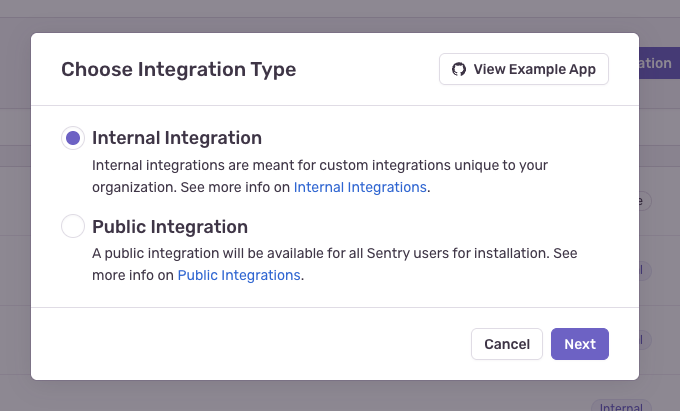
 5. Select `Internal Integration` and click `Next`
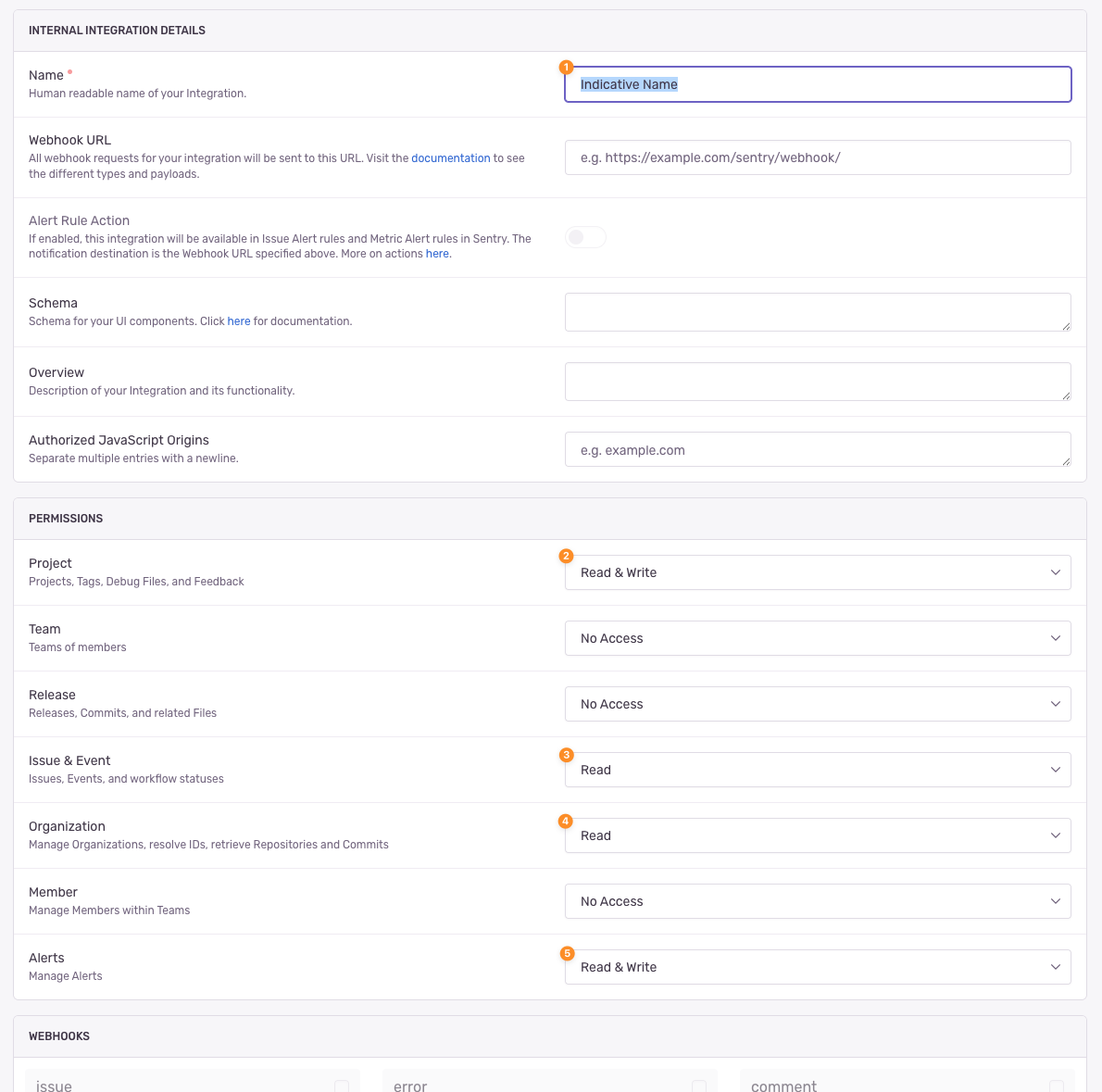
 6. Give the integration an indicative name, e.g. `Keep Integration`
7. From the permission section, select the required scopes:
Project: Read & Write
Issue & Event: Read
Organization: Read
Alerts: Read & Write (Not Mandatory)
6. Give the integration an indicative name, e.g. `Keep Integration`
7. From the permission section, select the required scopes:
Project: Read & Write
Issue & Event: Read
Organization: Read
Alerts: Read & Write (Not Mandatory)
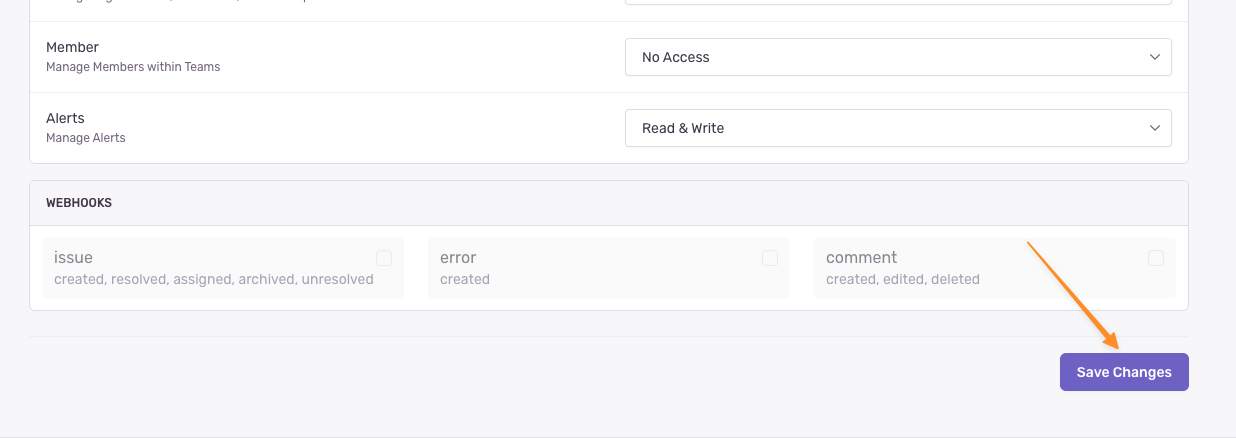
 8. Click `Save Changes`
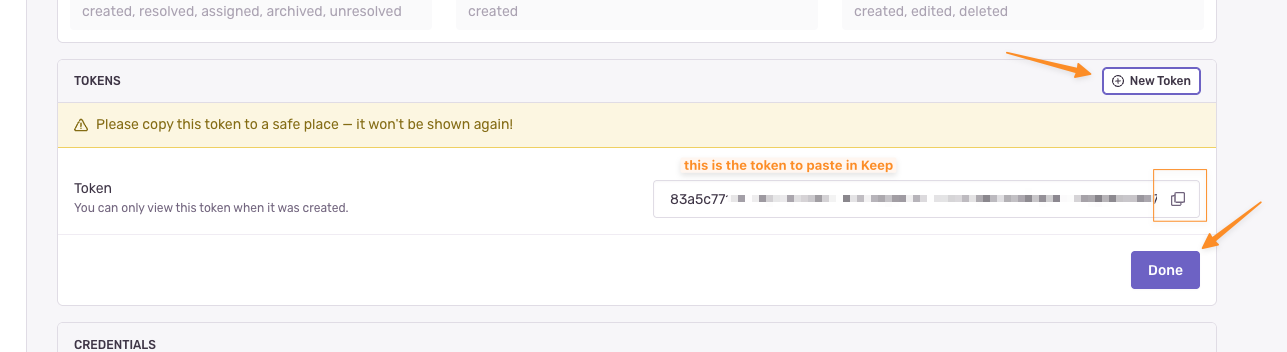
 9. Scroll down to the bottom of the screen to the `TOKENS` section and copy the generated token -- This is the API key you will be using in Keep.
 ### Organization Slug
You can find the Organization Slug in your Sentry URL.
For example, this is our playground account: `https://keep-dr.sentry.io/` - The organization slug is `keep-dr`.
To obtain the Organization Slug from the settings page:
1. Log in to your Sentry account.
2. Navigate `Settings` -> `General Settings`.
3. Copy the Organization Slug from the Organization Slug input.
## Notes
When installing Sentry webhook integration, Keep enables built-in Webhook integration to all accessible projects and adds a new Alert that has an `Action` to send a notification via Webhooks to all accessible projects.
You can achieve alerts pushing from Sentry to Keep using an `Internal Integration` which is not automated via the platform. [Contact us](mailto:founder@keephq.dev) to set it up.
## Useful Links
* [Sentry Integration Platform](https://docs.sentry.io/product/integrations/integration-platform/)
* [Sentry API Reference](https://docs.sentry.io/api/)
### Organization Slug
You can find the Organization Slug in your Sentry URL.
For example, this is our playground account: `https://keep-dr.sentry.io/` - The organization slug is `keep-dr`.
To obtain the Organization Slug from the settings page:
1. Log in to your Sentry account.
2. Navigate `Settings` -> `General Settings`.
3. Copy the Organization Slug from the Organization Slug input.
## Notes
When installing Sentry webhook integration, Keep enables built-in Webhook integration to all accessible projects and adds a new Alert that has an `Action` to send a notification via Webhooks to all accessible projects.
You can achieve alerts pushing from Sentry to Keep using an `Internal Integration` which is not automated via the platform. [Contact us](mailto:founder@keephq.dev) to set it up.
## Useful Links
* [Sentry Integration Platform](https://docs.sentry.io/product/integrations/integration-platform/)
* [Sentry API Reference](https://docs.sentry.io/api/)