> ## Documentation Index
> Fetch the complete documentation index at: https://docs.keephq.dev/llms.txt
> Use this file to discover all available pages before exploring further.
# Microsoft Teams Provider
> Microsoft Teams Provider is a provider that allows to notify alerts to Microsoft Teams chats.
## Authentication
This provider requires authentication.
* **webhook\_url**: Teams Webhook Url (required: True, sensitive: True)
## In workflows
This provider can be used in workflows.
As "action" to make changes or update data, example:
```yaml theme={null}
actions:
- name: Query teams
provider: teams
config: "{{ provider.my_provider_name }}"
with:
message: {value} # The message to send
typeCard: {value} # The card type. Can be "MessageCard" (legacy) or "message" (for Adaptive Cards). Default is "message"
themeColor: {value} # Hexadecimal color (only used with MessageCard type)
sections: {value} # For MessageCard: Array of custom information sections. For Adaptive Cards: Array of card elements following the Adaptive Card schema. Can be provided as a JSON string or array.
schema: {value} # Schema URL for Adaptive Cards. Default is "http://adaptivecards.io/schemas/adaptive-card.json"
attachments: {value} # Custom attachments array for Adaptive Cards (overrides default attachment structure). Can be provided as a JSON string or array.
mentions: {value} # List of user mentions to include in the Adaptive Card. Each mention should be a dict with 'id' (user ID, Microsoft Entra Object ID, or UPN) and 'name' (display name) keys.
Example: [{"id": "user-id-123", "name": "John Doe"}, {"id": "john.doe@example.com", "name": "John Doe"}]
```
Check the following workflow examples:
* [create\_jira\_ticket\_upon\_alerts.yml](https://github.com/keephq/keep/blob/main/examples/workflows/create_jira_ticket_upon_alerts.yml)
* [teams-adaptive-card-notifier.yaml](https://github.com/keephq/keep/blob/main/examples/workflows/teams-adaptive-card-notifier.yaml)
* [teams-adaptive-cards-with-mentions.yaml](https://github.com/keephq/keep/blob/main/examples/workflows/teams-adaptive-cards-with-mentions.yaml)
## Connecting with the Provider
1. In the New Teams client, select Teams and navigate to the channel where
you want to add an Incoming Webhook. 2. Select More options ••• on the right
side of the channel name. 3. Select Manage Channel
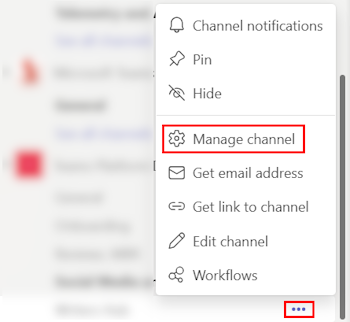 For members who aren't admins of the channel, the Manage channel option is
available under the Open channel details option in the upper-right corner
of a channel.
4. Select Edit
For members who aren't admins of the channel, the Manage channel option is
available under the Open channel details option in the upper-right corner
of a channel.
4. Select Edit
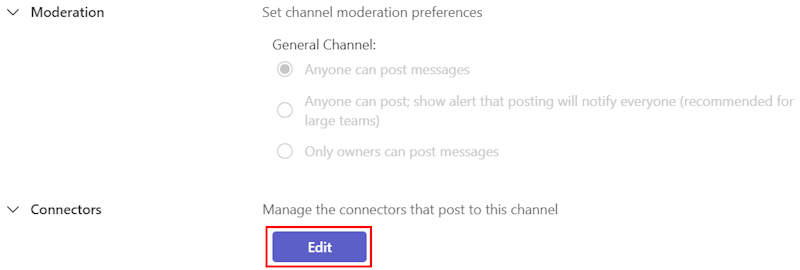 5. Search for Incoming Webhook and select Add.
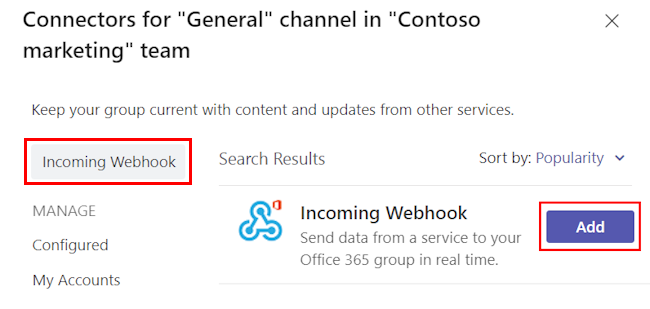 6. Select Add
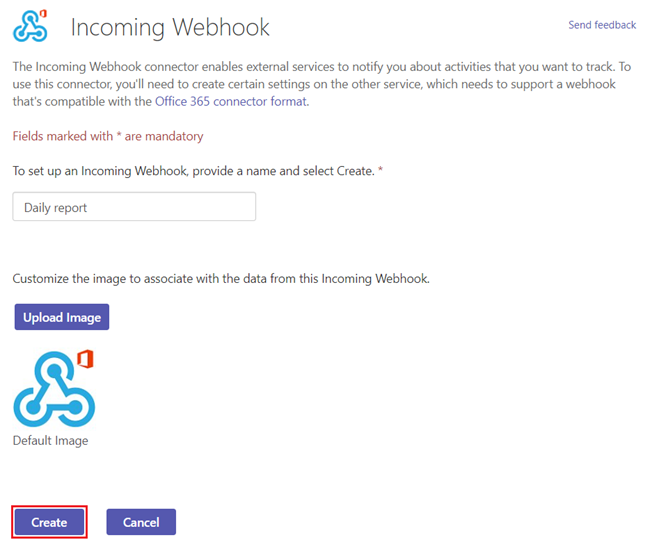
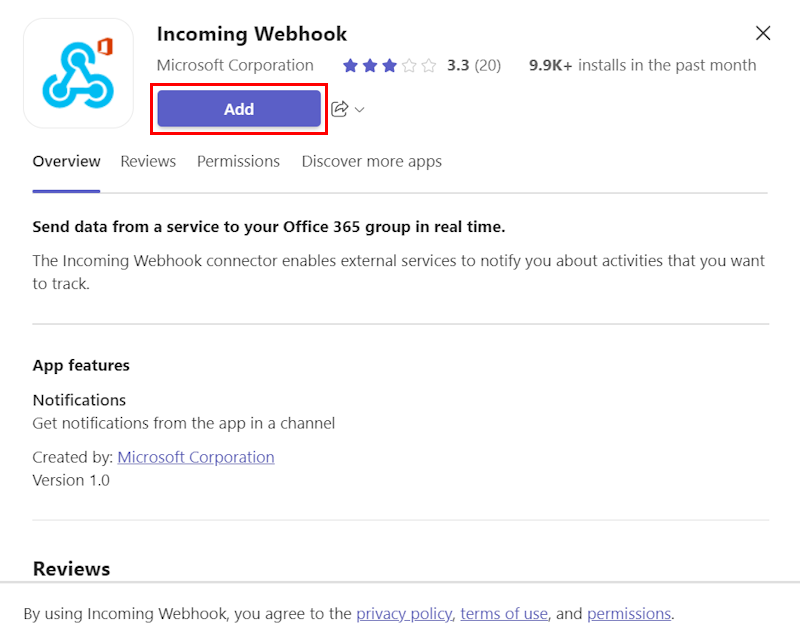 7. Provide a name for the webhook and upload an image if necessary. 8. Select
Create.
7. Provide a name for the webhook and upload an image if necessary. 8. Select
Create.
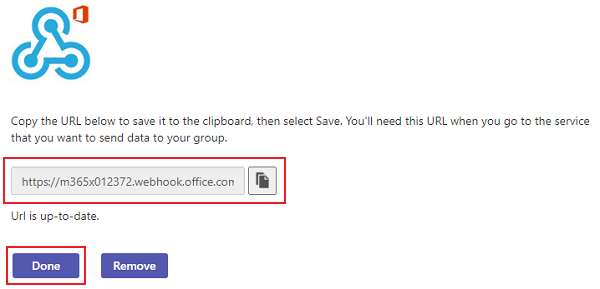
 9. Copy and save the unique webhook URL present in the dialog. The URL maps to
the channel and you can use it to send information to Teams. 10. Select Done.
The webhook is now available in the Teams channel.
9. Copy and save the unique webhook URL present in the dialog. The URL maps to
the channel and you can use it to send information to Teams. 10. Select Done.
The webhook is now available in the Teams channel.
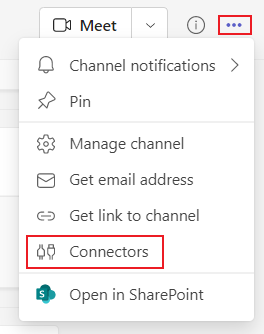
 1. In the Classic Teams client, select Teams and navigate to the channel
where you want to add an Incoming Webhook. 2. Select More options ••• from
the upper-right corner. 3. Select Connectors from the dropdown menu.
1. In the Classic Teams client, select Teams and navigate to the channel
where you want to add an Incoming Webhook. 2. Select More options ••• from
the upper-right corner. 3. Select Connectors from the dropdown menu.
 4. Search for Incoming Webhook and select Add.
5. Select Add.
4. Search for Incoming Webhook and select Add.
5. Select Add.
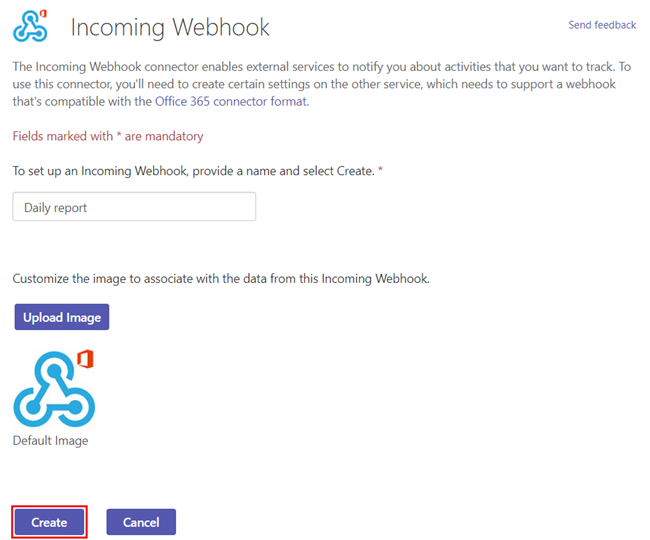
 6. Provide a name for the webhook and upload an image if necessary. 7.
Select Create.
6. Provide a name for the webhook and upload an image if necessary. 7.
Select Create.
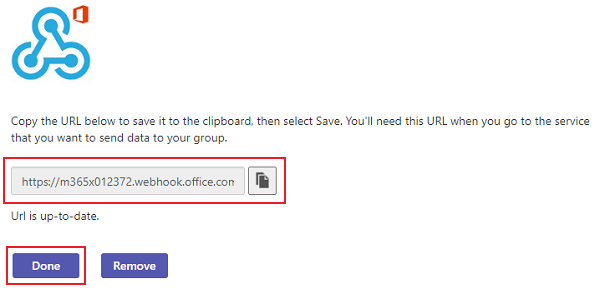
 8. Copy and save the unique webhook URL present in the dialog. The URL maps
to the channel and you can use it to send information to Teams. 9. Select
Done.
8. Copy and save the unique webhook URL present in the dialog. The URL maps
to the channel and you can use it to send information to Teams. 9. Select
Done.
 ## Notes
When using Adaptive Cards (`typeCard="message"`):
* The `sections` parameter should follow the [Adaptive Cards schema](https://adaptivecards.io/explorer/)
* `themeColor` is ignored for Adaptive Cards
* If no sections are provided, the message will be displayed as a simple text block
* Both `sections` and `attachments` can be provided as JSON strings or arrays
* You can mention users in your Adaptive Cards using the `mentions` parameter
### Workflow Example
You can also find this example in our [examples](https://github.com/keephq/keep/tree/main/examples/workflows/keep-teams-adaptive-cards.yaml) folder in the Keep GitHub repository.
```yaml theme={null}
id: 6bc7c72e-ab3d-4913-84dd-08b9323195ae
description: Teams Adaptive Cards Example
disabled: false
triggers:
- type: manual
- filters:
- key: source
value: r".*"
type: alert
consts: {}
name: Keep Teams Adaptive Cards
owners: []
services: []
steps: []
actions:
- name: teams-action
provider:
config: "{{ providers.teams }}"
type: teams
with:
message: ""
sections: '[{"type": "TextBlock", "text": "{{alert.name}}"}, {"type": "TextBlock", "text": "Tal from Keep"}]'
typeCard: message
# Optional: Add mentions to notify specific users
# mentions: '[{"id": "user@example.com", "name": "User Name"}]'
```
You can also find an example with user mentions in our [examples](https://github.com/keephq/keep/tree/main/examples/workflows/keep-teams-adaptive-cards-with-mentions.yaml) folder.
The sections parameter is a JSON string that follows the Adaptive Cards schema, but can also be an object.
If it's a string, it will be parsed as a JSON string.
### Using Sections
```python theme={null}
provider.notify(
message="Fallback text",
typeCard="message",
sections=[
{
"type": "TextBlock",
"text": "Hello from Adaptive Card!"
},
{
"type": "Image",
"url": "https://example.com/image.jpg"
}
]
)
```
### Using Custom Attachments
```python theme={null}
provider.notify(
typeCard="message",
attachments=[{
"contentType": "application/vnd.microsoft.card.adaptive",
"content": {
"type": "AdaptiveCard",
"version": "1.2",
"body": [
{
"type": "TextBlock",
"text": "Custom Attachment Example"
}
]
}
}]
)
```
### Using User Mentions in Adaptive Cards
You can mention users in your Adaptive Cards using the `mentions` parameter. The text in your card should include the mention in the format `User Name`, and you need to provide the user's ID and name in the `mentions` parameter.
Teams supports three types of user IDs for mentions:
* Teams User ID (format: `29:1234...`)
* Microsoft Entra Object ID (format: `49c4641c-ab91-4248-aebb-6a7de286397b`)
* User Principal Name (UPN) (format: `user@example.com`)
```python theme={null}
provider.notify(
typeCard="message",
sections=[
{
"type": "TextBlock",
"text": "Hello John Doe, please review this alert!"
}
],
mentions=[
{
"id": "john.doe@example.com", # Can be UPN, Microsoft Entra Object ID, or Teams User ID
"name": "John Doe"
}
]
)
```
You can also mention multiple users in a single card:
```python theme={null}
provider.notify(
typeCard="message",
sections=[
{
"type": "TextBlock",
"text": "Hello John Doe and Jane Smith, please review this alert!"
}
],
mentions=[
{
"id": "john.doe@example.com",
"name": "John Doe"
},
{
"id": "49c4641c-ab91-4248-aebb-6a7de286397b", # Microsoft Entra Object ID
"name": "Jane Smith"
}
]
)
```
In YAML workflows, you can provide the mentions as a JSON string:
```yaml theme={null}
actions:
- name: teams-action
provider:
config: "{{ providers.teams }}"
type: teams
with:
typeCard: message
sections: '[{"type": "TextBlock", "text": "Hello John Doe, please review this alert!"}]'
mentions: '[{"id": "john.doe@example.com", "name": "John Doe"}]'
```
## Useful Links
* [https://learn.microsoft.com/pt-br/microsoftteams/platform/webhooks-and-connectors/how-to/add-incoming-webhook](https://learn.microsoft.com/pt-br/microsoftteams/platform/webhooks-and-connectors/how-to/add-incoming-webhook)
* [https://learn.microsoft.com/en-us/microsoftteams/platform/webhooks-and-connectors/how-to/connectors-using](https://learn.microsoft.com/en-us/microsoftteams/platform/webhooks-and-connectors/how-to/connectors-using)
* [https://adaptivecards.io/explorer/](https://adaptivecards.io/explorer/)
* [https://adaptivecards.io/schemas/adaptive-card.json](https://adaptivecards.io/schemas/adaptive-card.json)
## Notes
When using Adaptive Cards (`typeCard="message"`):
* The `sections` parameter should follow the [Adaptive Cards schema](https://adaptivecards.io/explorer/)
* `themeColor` is ignored for Adaptive Cards
* If no sections are provided, the message will be displayed as a simple text block
* Both `sections` and `attachments` can be provided as JSON strings or arrays
* You can mention users in your Adaptive Cards using the `mentions` parameter
### Workflow Example
You can also find this example in our [examples](https://github.com/keephq/keep/tree/main/examples/workflows/keep-teams-adaptive-cards.yaml) folder in the Keep GitHub repository.
```yaml theme={null}
id: 6bc7c72e-ab3d-4913-84dd-08b9323195ae
description: Teams Adaptive Cards Example
disabled: false
triggers:
- type: manual
- filters:
- key: source
value: r".*"
type: alert
consts: {}
name: Keep Teams Adaptive Cards
owners: []
services: []
steps: []
actions:
- name: teams-action
provider:
config: "{{ providers.teams }}"
type: teams
with:
message: ""
sections: '[{"type": "TextBlock", "text": "{{alert.name}}"}, {"type": "TextBlock", "text": "Tal from Keep"}]'
typeCard: message
# Optional: Add mentions to notify specific users
# mentions: '[{"id": "user@example.com", "name": "User Name"}]'
```
You can also find an example with user mentions in our [examples](https://github.com/keephq/keep/tree/main/examples/workflows/keep-teams-adaptive-cards-with-mentions.yaml) folder.
The sections parameter is a JSON string that follows the Adaptive Cards schema, but can also be an object.
If it's a string, it will be parsed as a JSON string.
### Using Sections
```python theme={null}
provider.notify(
message="Fallback text",
typeCard="message",
sections=[
{
"type": "TextBlock",
"text": "Hello from Adaptive Card!"
},
{
"type": "Image",
"url": "https://example.com/image.jpg"
}
]
)
```
### Using Custom Attachments
```python theme={null}
provider.notify(
typeCard="message",
attachments=[{
"contentType": "application/vnd.microsoft.card.adaptive",
"content": {
"type": "AdaptiveCard",
"version": "1.2",
"body": [
{
"type": "TextBlock",
"text": "Custom Attachment Example"
}
]
}
}]
)
```
### Using User Mentions in Adaptive Cards
You can mention users in your Adaptive Cards using the `mentions` parameter. The text in your card should include the mention in the format `User Name`, and you need to provide the user's ID and name in the `mentions` parameter.
Teams supports three types of user IDs for mentions:
* Teams User ID (format: `29:1234...`)
* Microsoft Entra Object ID (format: `49c4641c-ab91-4248-aebb-6a7de286397b`)
* User Principal Name (UPN) (format: `user@example.com`)
```python theme={null}
provider.notify(
typeCard="message",
sections=[
{
"type": "TextBlock",
"text": "Hello John Doe, please review this alert!"
}
],
mentions=[
{
"id": "john.doe@example.com", # Can be UPN, Microsoft Entra Object ID, or Teams User ID
"name": "John Doe"
}
]
)
```
You can also mention multiple users in a single card:
```python theme={null}
provider.notify(
typeCard="message",
sections=[
{
"type": "TextBlock",
"text": "Hello John Doe and Jane Smith, please review this alert!"
}
],
mentions=[
{
"id": "john.doe@example.com",
"name": "John Doe"
},
{
"id": "49c4641c-ab91-4248-aebb-6a7de286397b", # Microsoft Entra Object ID
"name": "Jane Smith"
}
]
)
```
In YAML workflows, you can provide the mentions as a JSON string:
```yaml theme={null}
actions:
- name: teams-action
provider:
config: "{{ providers.teams }}"
type: teams
with:
typeCard: message
sections: '[{"type": "TextBlock", "text": "Hello John Doe, please review this alert!"}]'
mentions: '[{"id": "john.doe@example.com", "name": "John Doe"}]'
```
## Useful Links
* [https://learn.microsoft.com/pt-br/microsoftteams/platform/webhooks-and-connectors/how-to/add-incoming-webhook](https://learn.microsoft.com/pt-br/microsoftteams/platform/webhooks-and-connectors/how-to/add-incoming-webhook)
* [https://learn.microsoft.com/en-us/microsoftteams/platform/webhooks-and-connectors/how-to/connectors-using](https://learn.microsoft.com/en-us/microsoftteams/platform/webhooks-and-connectors/how-to/connectors-using)
* [https://adaptivecards.io/explorer/](https://adaptivecards.io/explorer/)
* [https://adaptivecards.io/schemas/adaptive-card.json](https://adaptivecards.io/schemas/adaptive-card.json)