> ## Documentation Index
> Fetch the complete documentation index at: https://docs.keephq.dev/llms.txt
> Use this file to discover all available pages before exploring further.
# ThousandEyes
> ThousandEyes allows you to receive alerts from ThousandEyes using API endpoints as well as webhooks
## Authentication
This provider requires authentication.
* **oauth2\_token**: OAuth2 Bearer Token (required: True, sensitive: True)
Certain scopes may be required to perform specific actions or queries via the provider. Below is a summary of relevant scopes and their use cases:
* **authenticated**: User is Authenticated
## In workflows
This provider can't be used as a "step" or "action" in workflows. If you want to use it, please let us know by creating an issue in the [GitHub repository](https://github.com/keephq/keep/issues).
## Connecting ThousandEyes to Keep
1. Go to [ThousandEyes Dashboard](https://app.thousandeyes.com/dashboard)
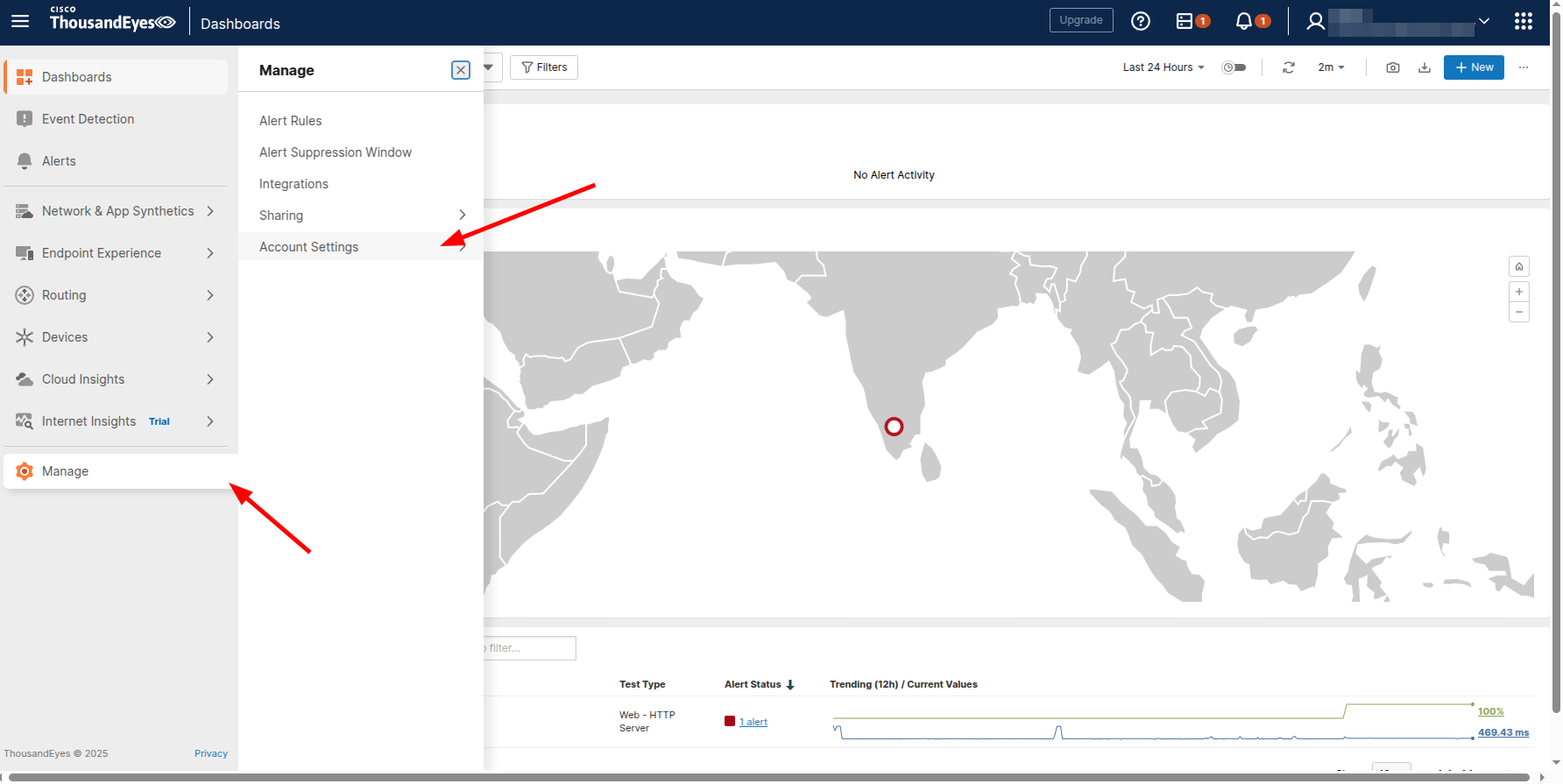
2. Click on `Manage` in the left sidebar and select `Account Settings`.
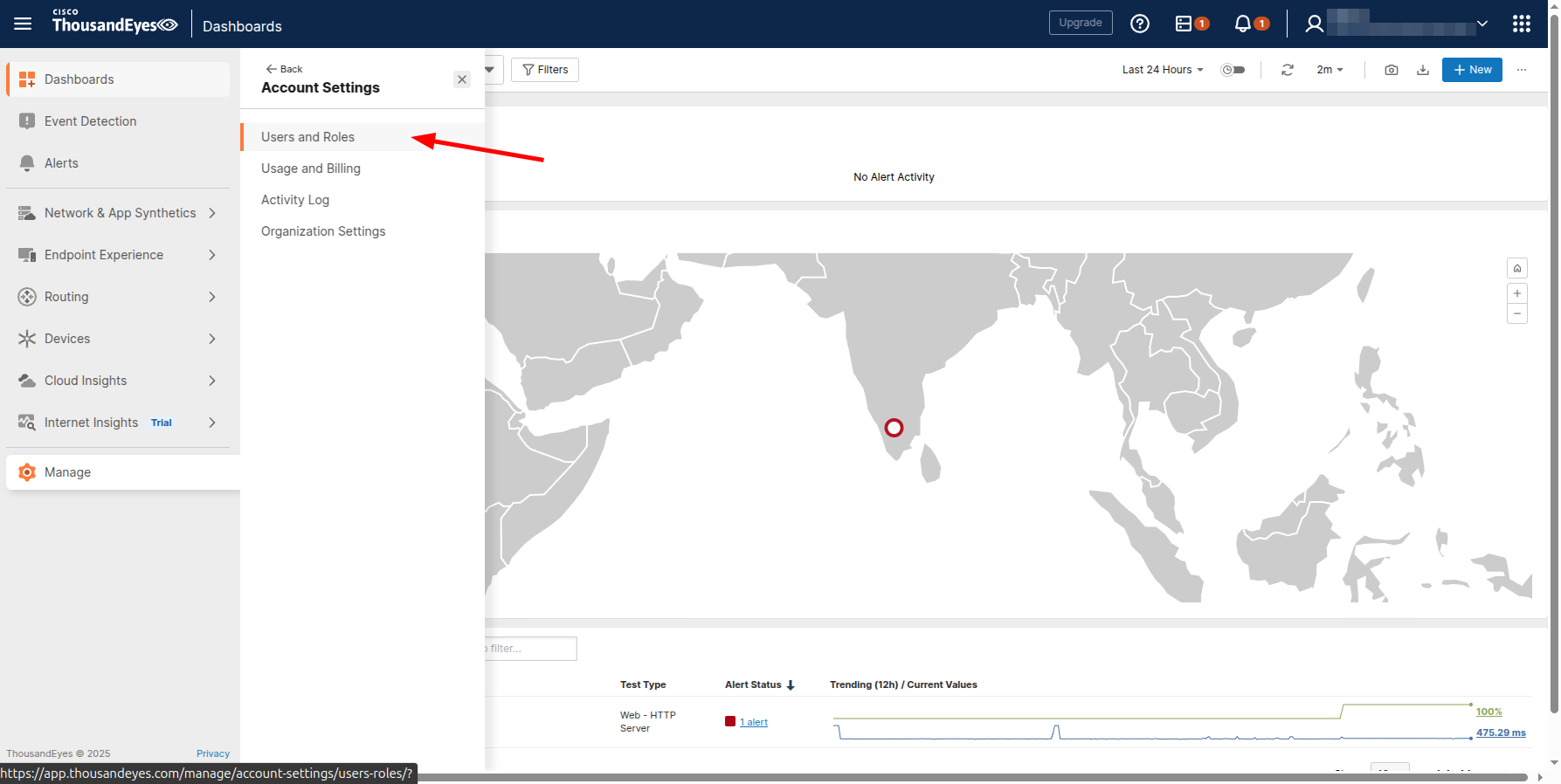
 3. Select `Users and Roles` in the Account Settings
 4. Under `User API Tokens`, you can create OAuth Bearer Token
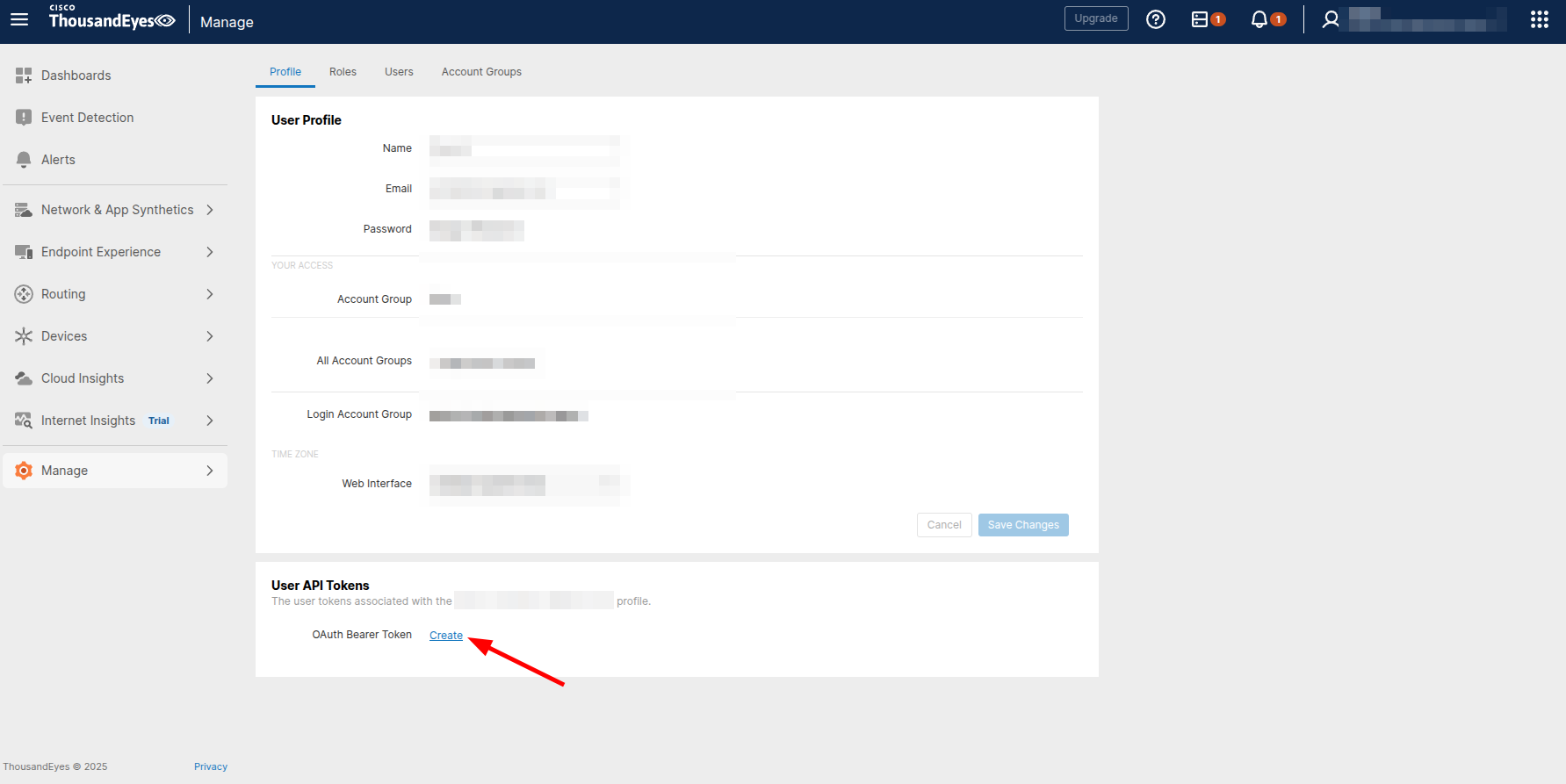 5. Copy the generated token. This will be used as the `OAuth2 Bearer Token` in the provider settings.
## Webhooks Integration
1. Open [ThousandEyes Dashboard](https://app.thousandeyes.com/dashboard) and click on `Network & App Synthetics` in the left sidebar and select `Agent Settings`.
5. Copy the generated token. This will be used as the `OAuth2 Bearer Token` in the provider settings.
## Webhooks Integration
1. Open [ThousandEyes Dashboard](https://app.thousandeyes.com/dashboard) and click on `Network & App Synthetics` in the left sidebar and select `Agent Settings`.
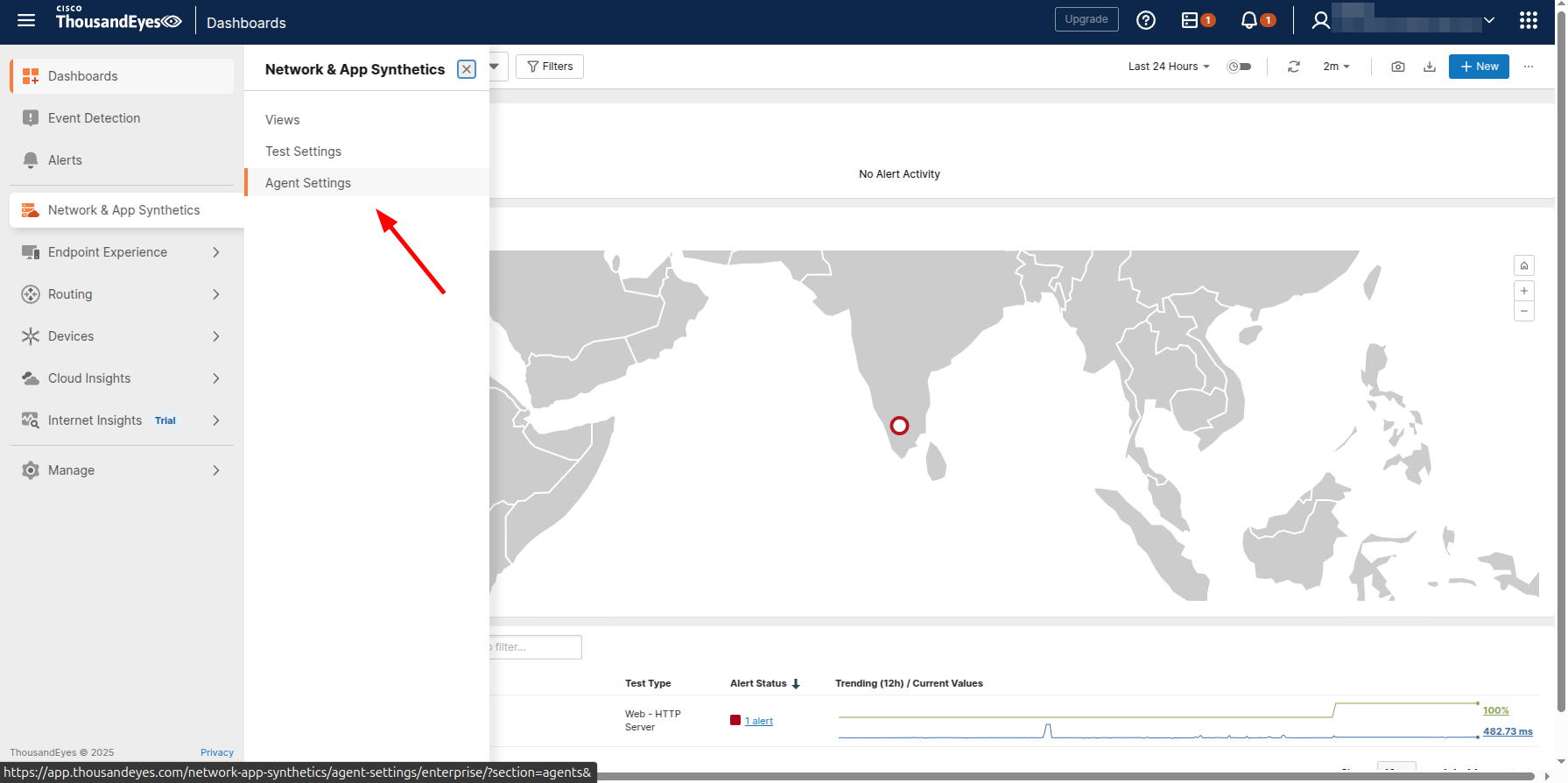 2. Go to `Notifications` under `Enterprise Agents` and click on `Notifications`.
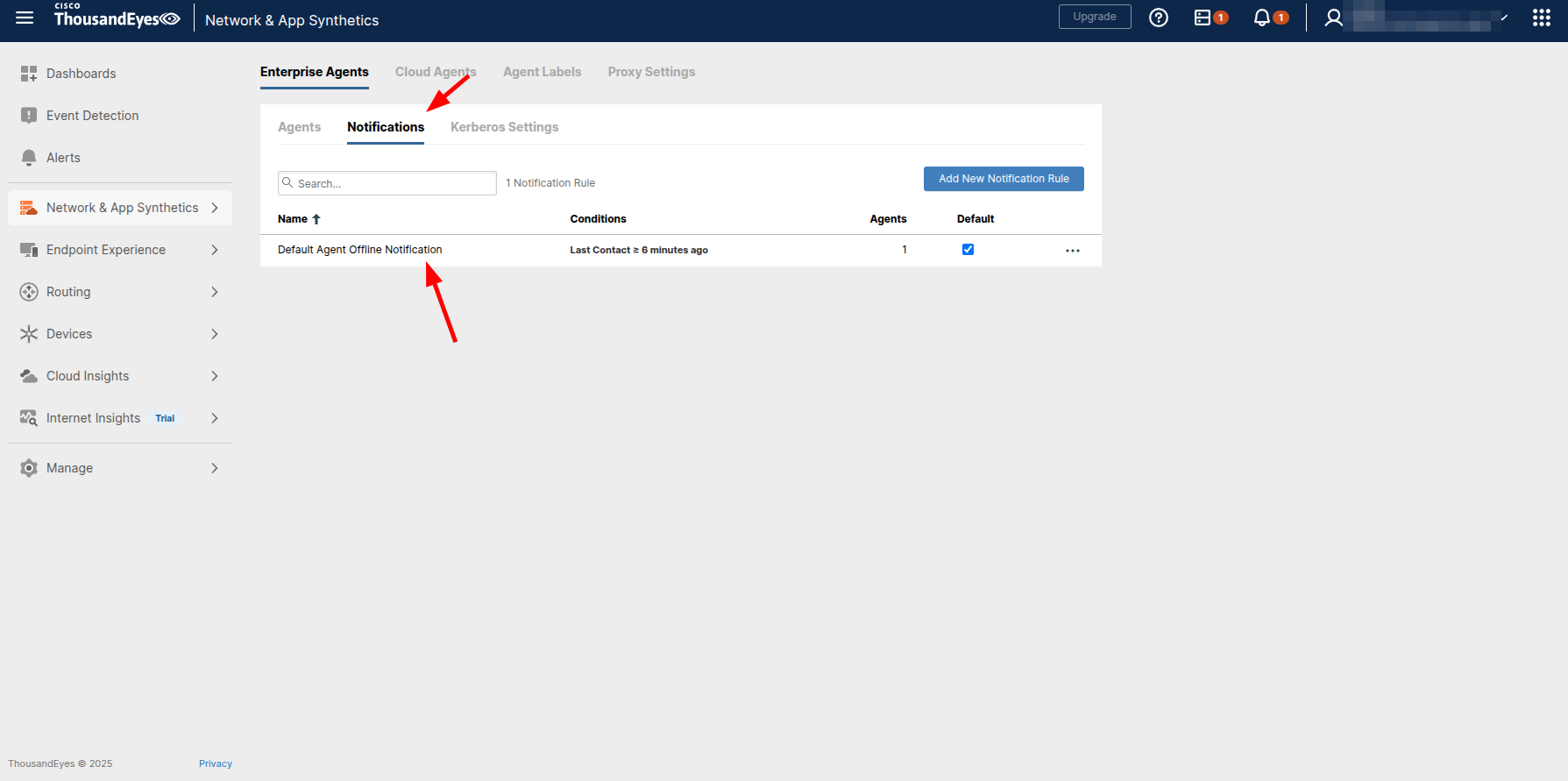 3. Go to `Notifications` and create new webhook notification.
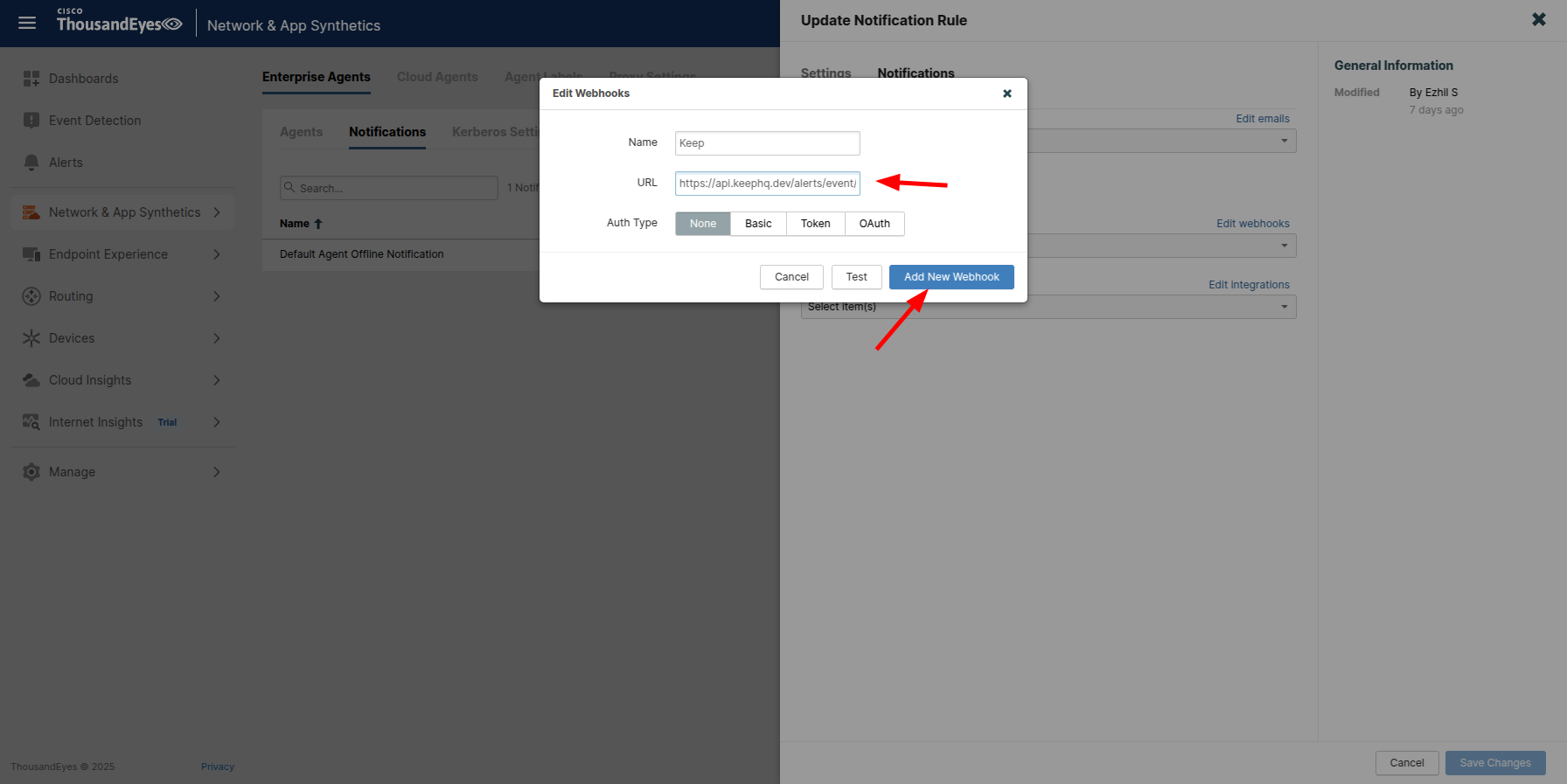
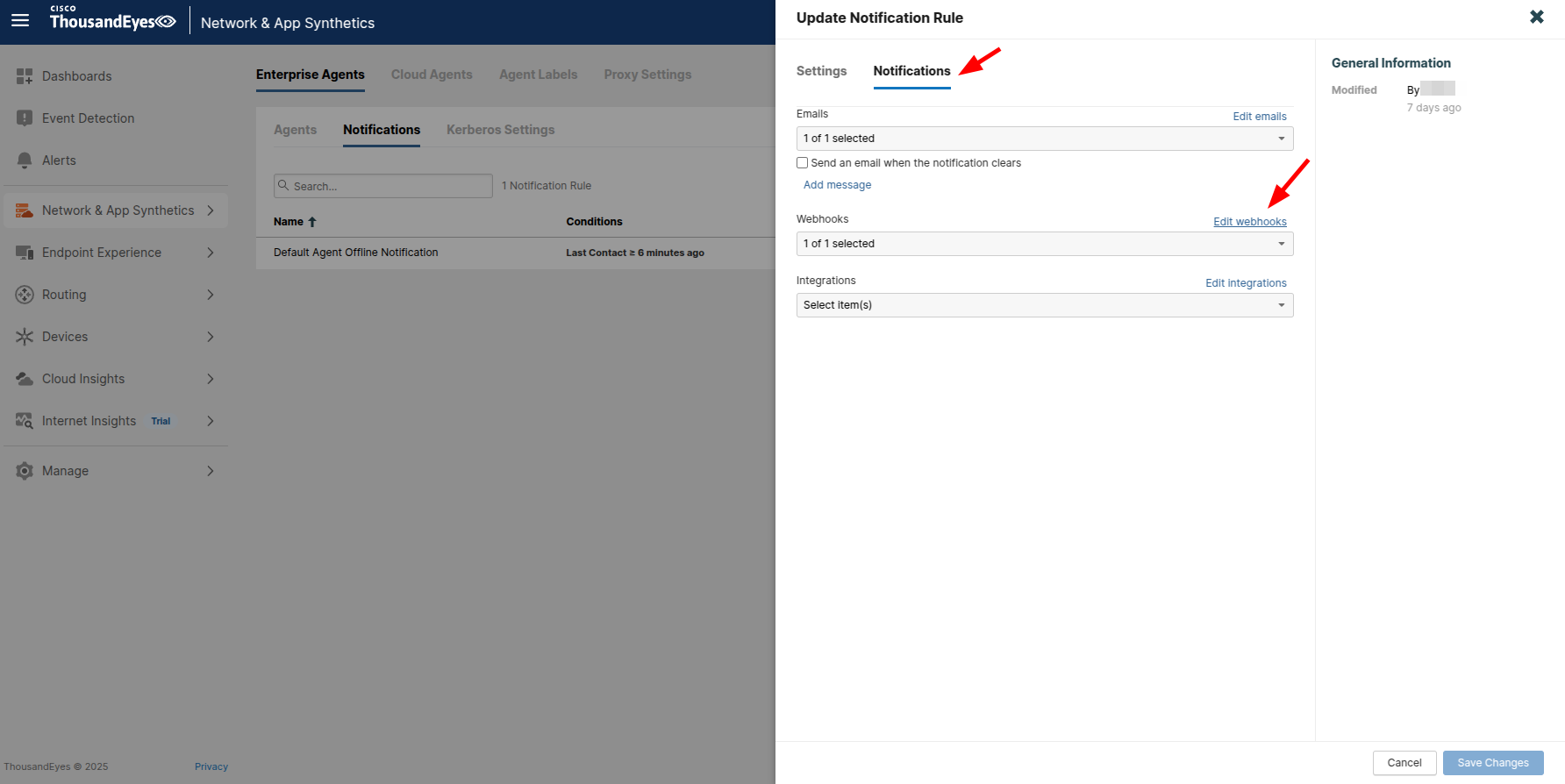 4. Give it a name and set the url as [https://api.keephq.dev/alerts/event/thousandeyes?api\_key=your-api-key](https://api.keephq.dev/alerts/event/thousandeyes?api_key=your-api-key)
5. Select `Auth Type` as None and `Add New Webhook`.
4. Give it a name and set the url as [https://api.keephq.dev/alerts/event/thousandeyes?api\_key=your-api-key](https://api.keephq.dev/alerts/event/thousandeyes?api_key=your-api-key)
5. Select `Auth Type` as None and `Add New Webhook`.
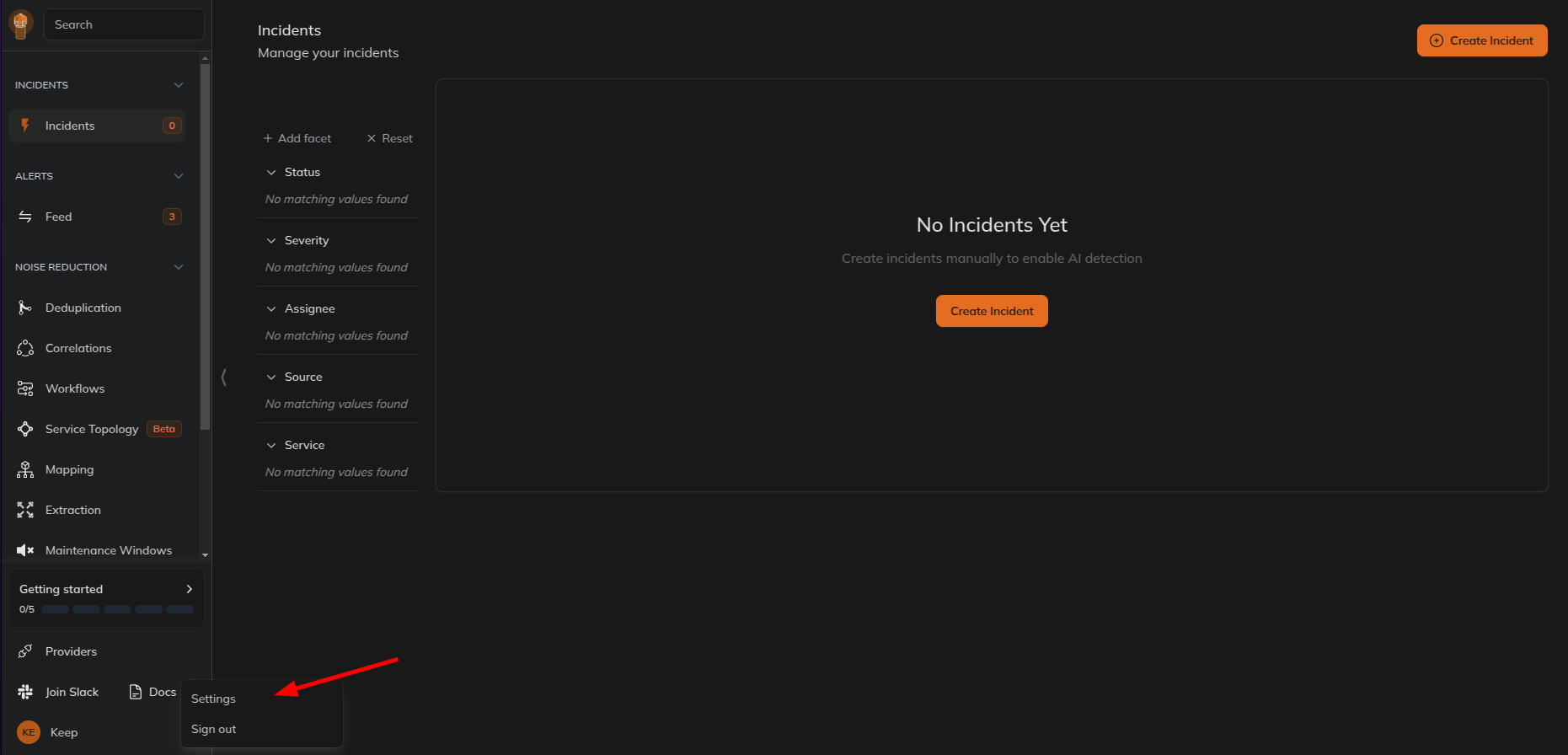
 6. Go to Keep dashboard and click on the profile icon in the botton left corner and click `Settings`.
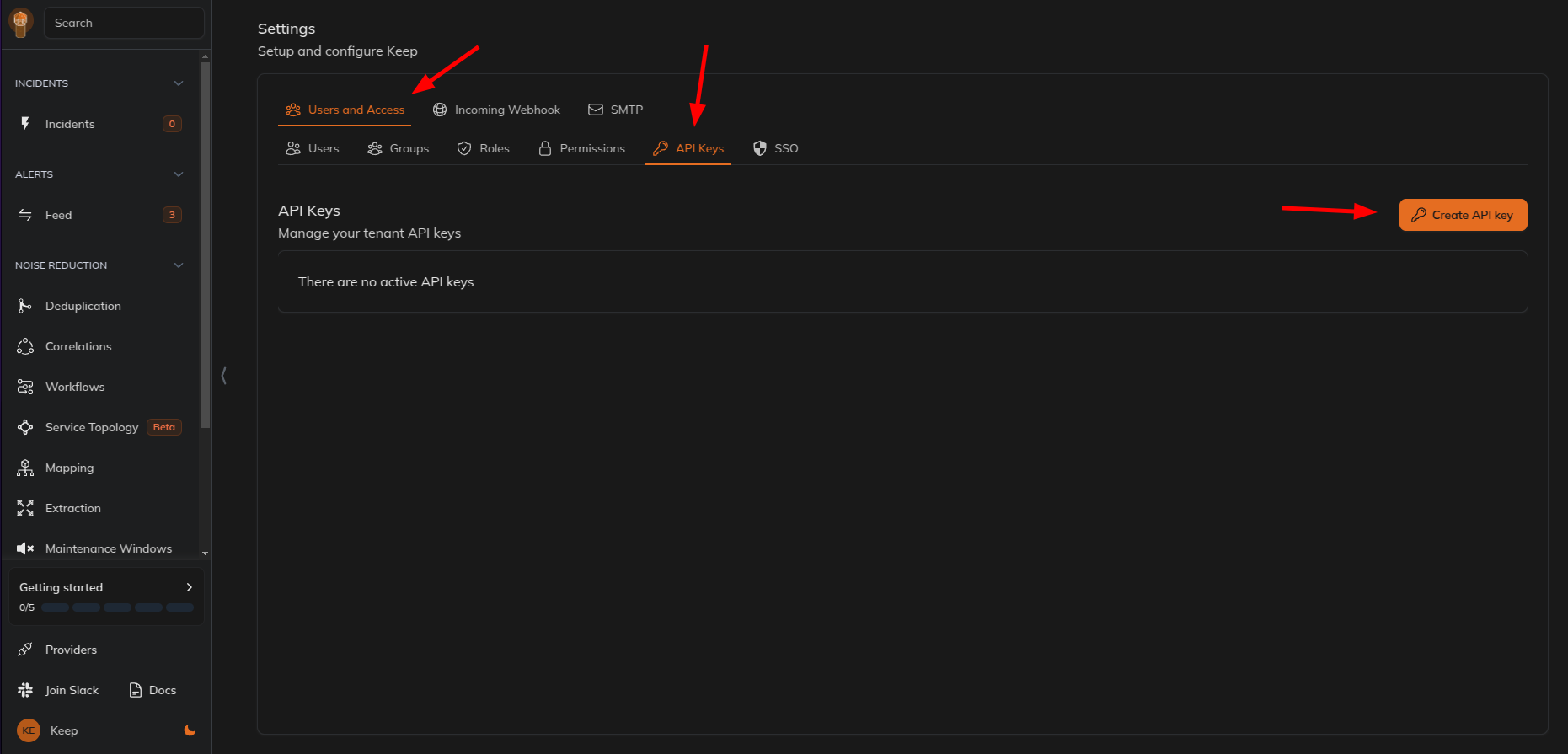
 7. Select `Users and Access` tab and then select `API Keys` tab and create a new API key.
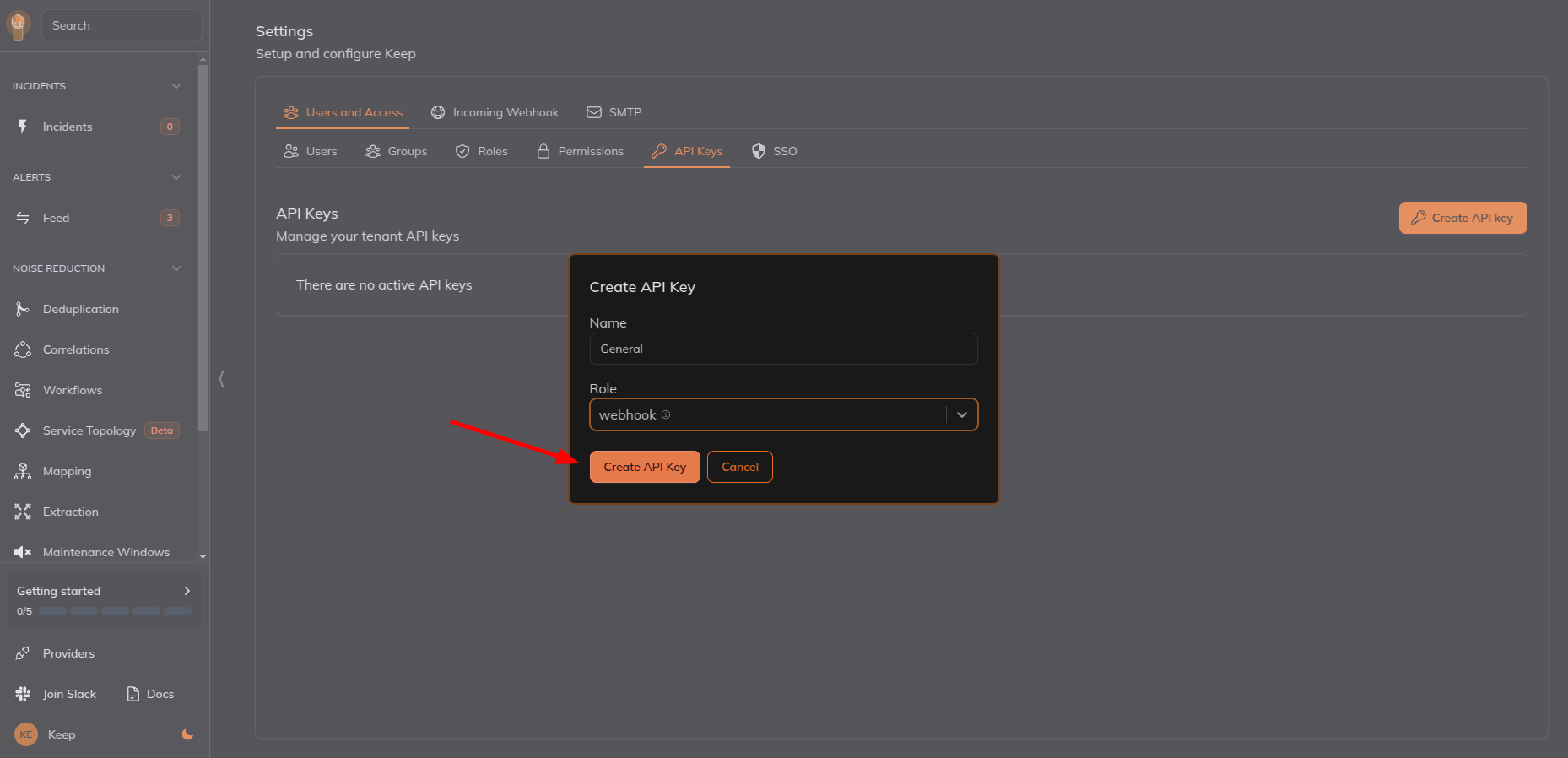
 8. Give name and select the role as `webhook` and click on `Create API Key`.
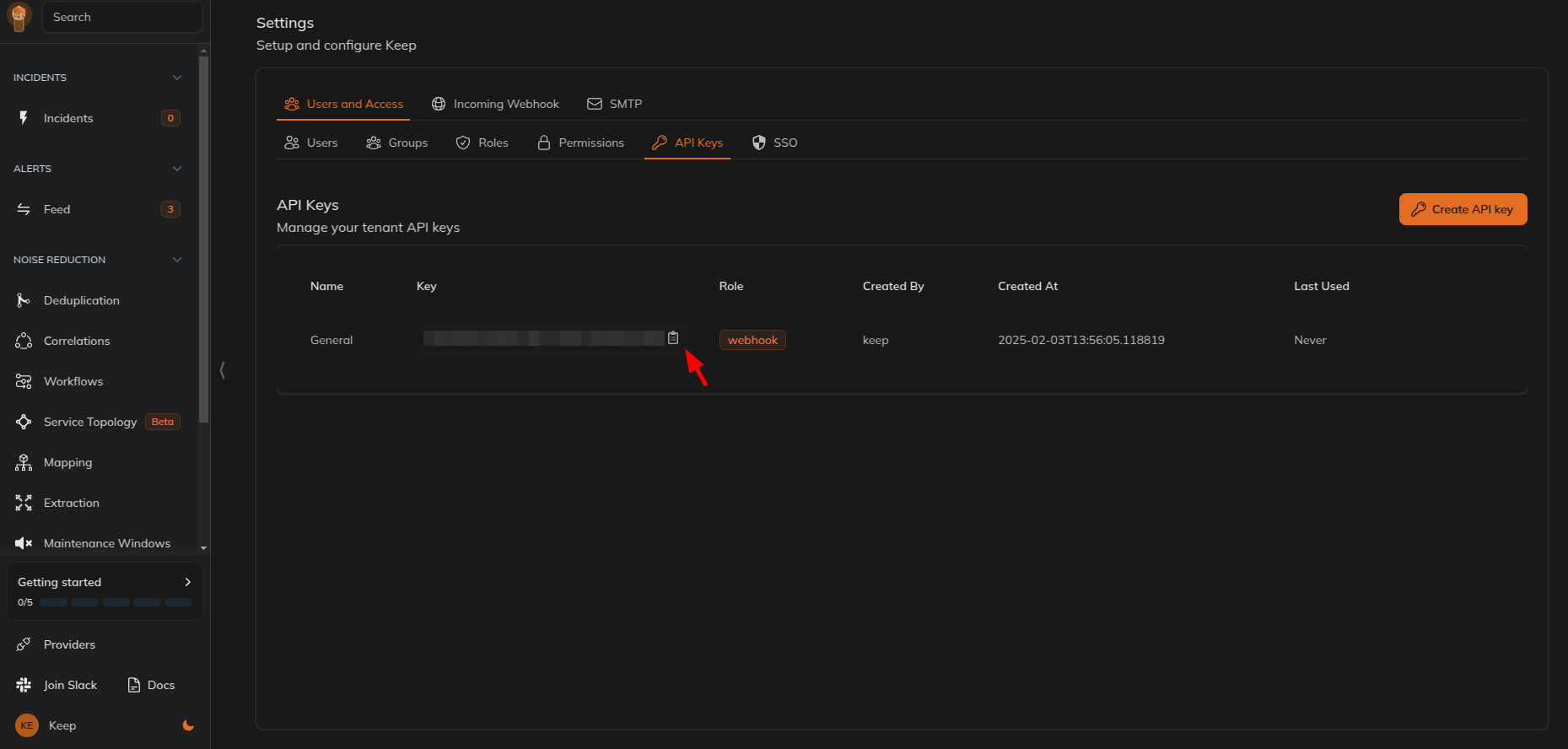
 9. Copy the API key and paste it in the webhook URL.
 ## Useful Links
* [ThousandEyes](https://www.thousandeyes.com/)
## Useful Links
* [ThousandEyes](https://www.thousandeyes.com/)