> ## Documentation Index
> Fetch the complete documentation index at: https://docs.keephq.dev/llms.txt
> Use this file to discover all available pages before exploring further.
# Zoom
> Zoom provider allows you to create meetings with Zoom.
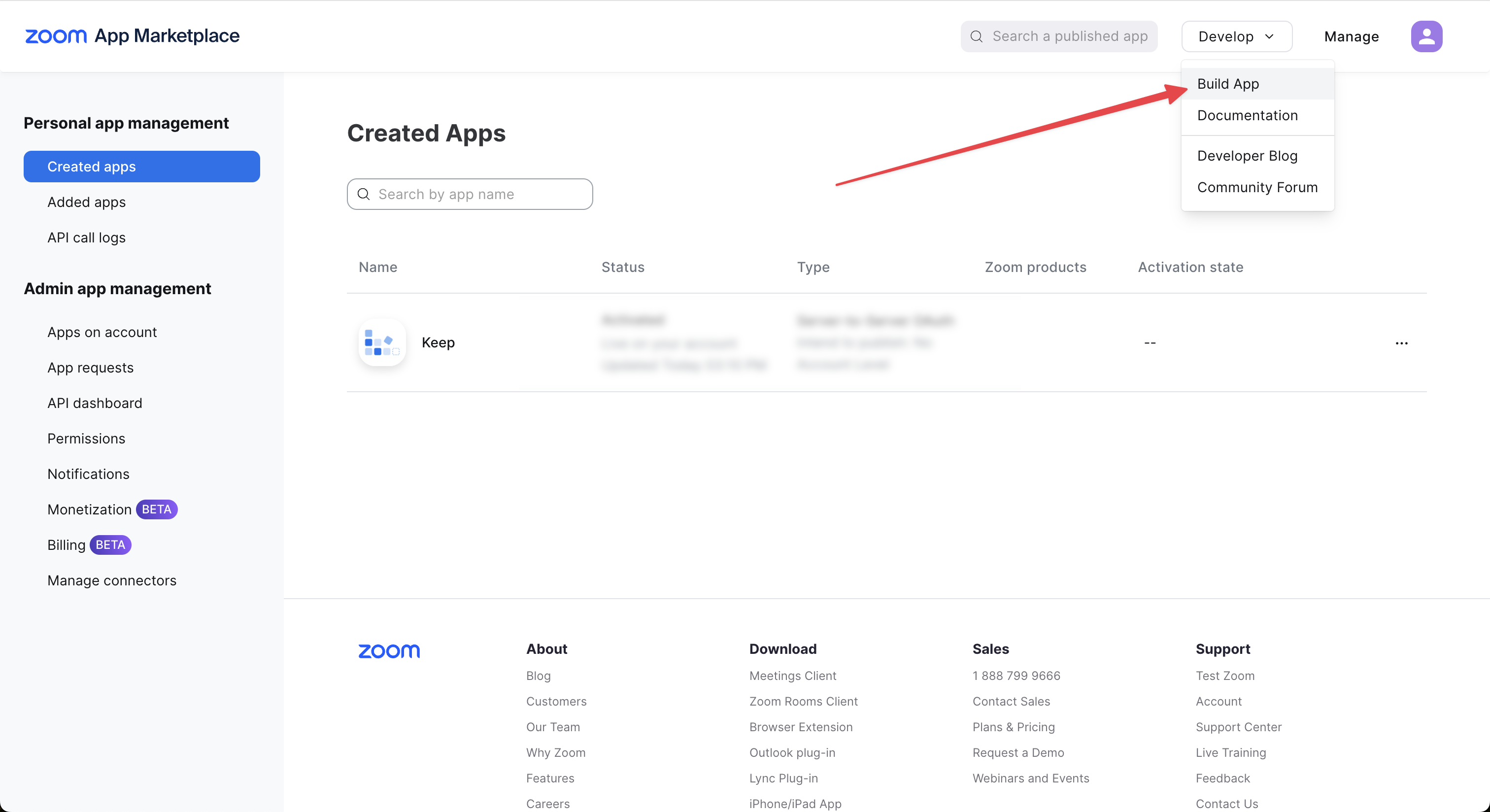
For this integration, you'll need to create a Zoom Application - for more details read [https://developers.zoom.us/docs/internal-apps](https://developers.zoom.us/docs/internal-apps)
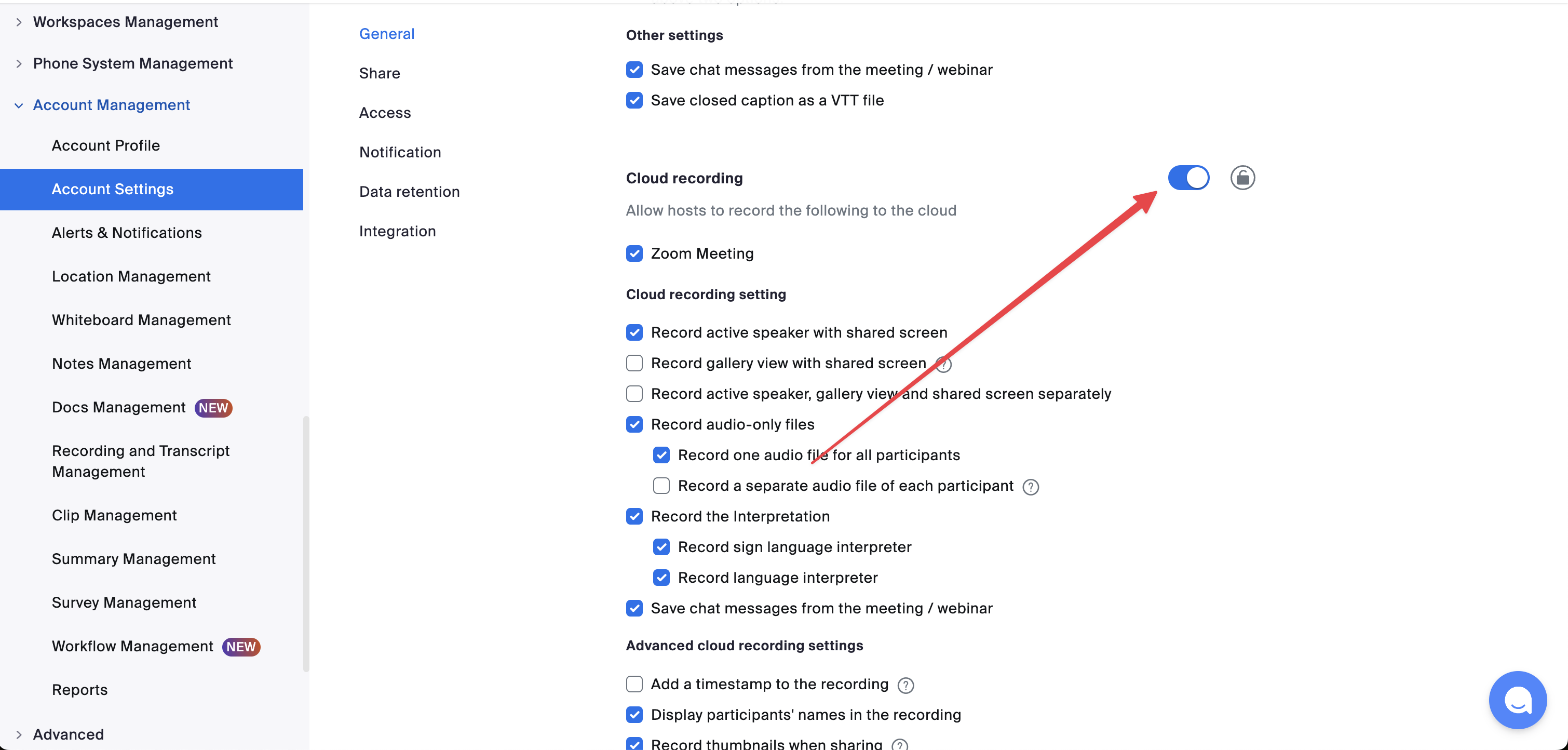
The `record_meeting` parameter won't work with Zoom's basic plan. With basic plan, you'll be able to connect to the meeting and enable the "recording" manually.
## Authentication
This provider requires authentication.
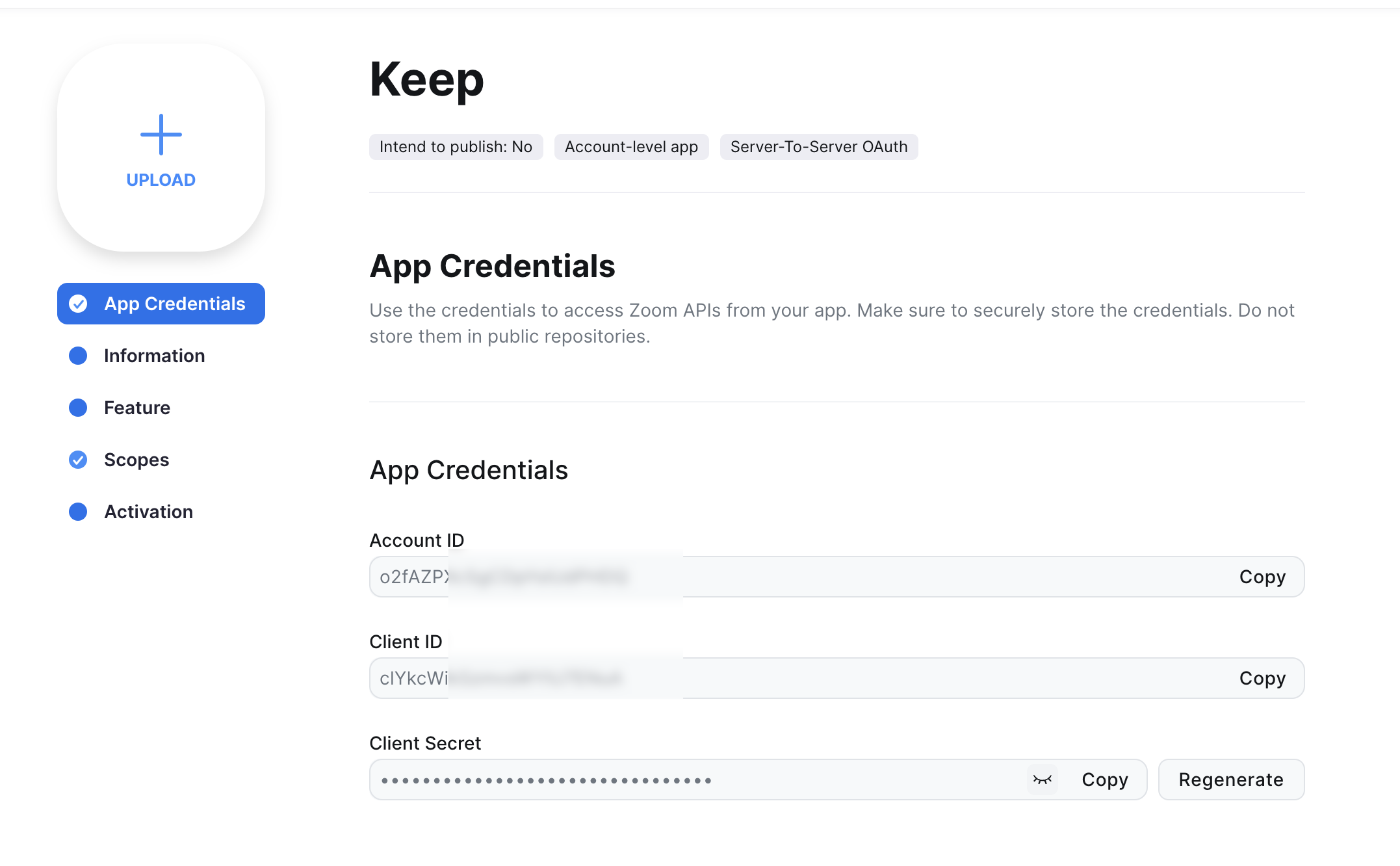
* **account\_id**: Zoom Account ID (required: True, sensitive: True)
* **client\_id**: Zoom Client ID (required: True, sensitive: True)
* **client\_secret**: Zoom Client Secret (required: True, sensitive: True)
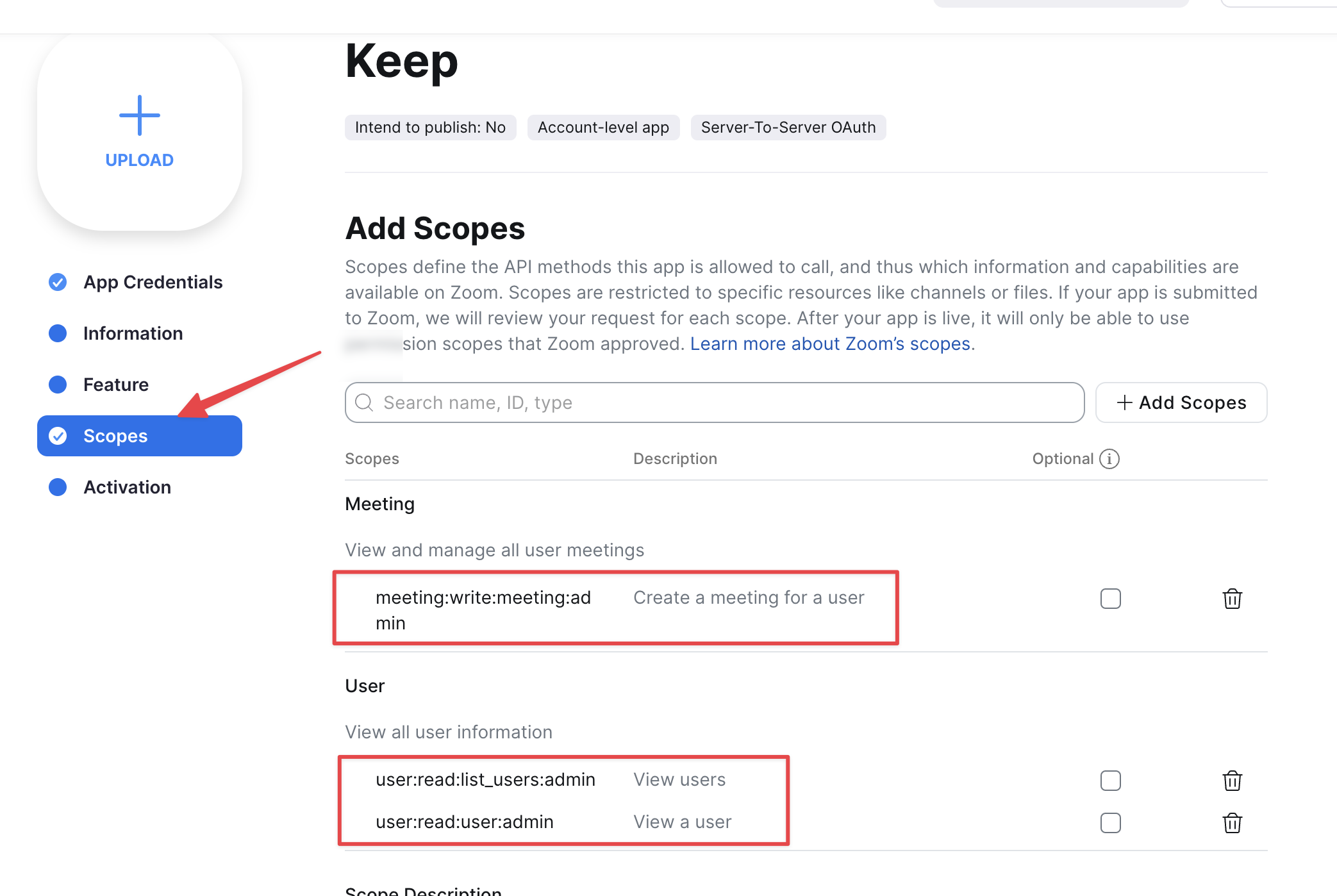
Certain scopes may be required to perform specific actions or queries via the provider. Below is a summary of relevant scopes and their use cases:
* **create\_meeting**: Create a new Zoom meeting (mandatory)
## In workflows
This provider can be used in workflows.
As "action" to make changes or update data, example:
```yaml theme={null}
actions:
- name: Query zoom
provider: zoom
config: "{{ provider.my_provider_name }}"
with:
topic: {value}
start_time: {value}
duration: {value}
timezone: {value}
record_meeting: {value}
host_email: {value}
```
Check the following workflow examples:
* [zoom\_chat\_example.yml](https://github.com/keephq/keep/blob/main/examples/workflows/zoom_chat_example.yml)
* [zoom\_example.yml](https://github.com/keephq/keep/blob/main/examples/workflows/zoom_example.yml)
## Connecting with the Provider
### Create an Application
 Keep the credentials:
 ### Grant Scopes
 ### Activate the app
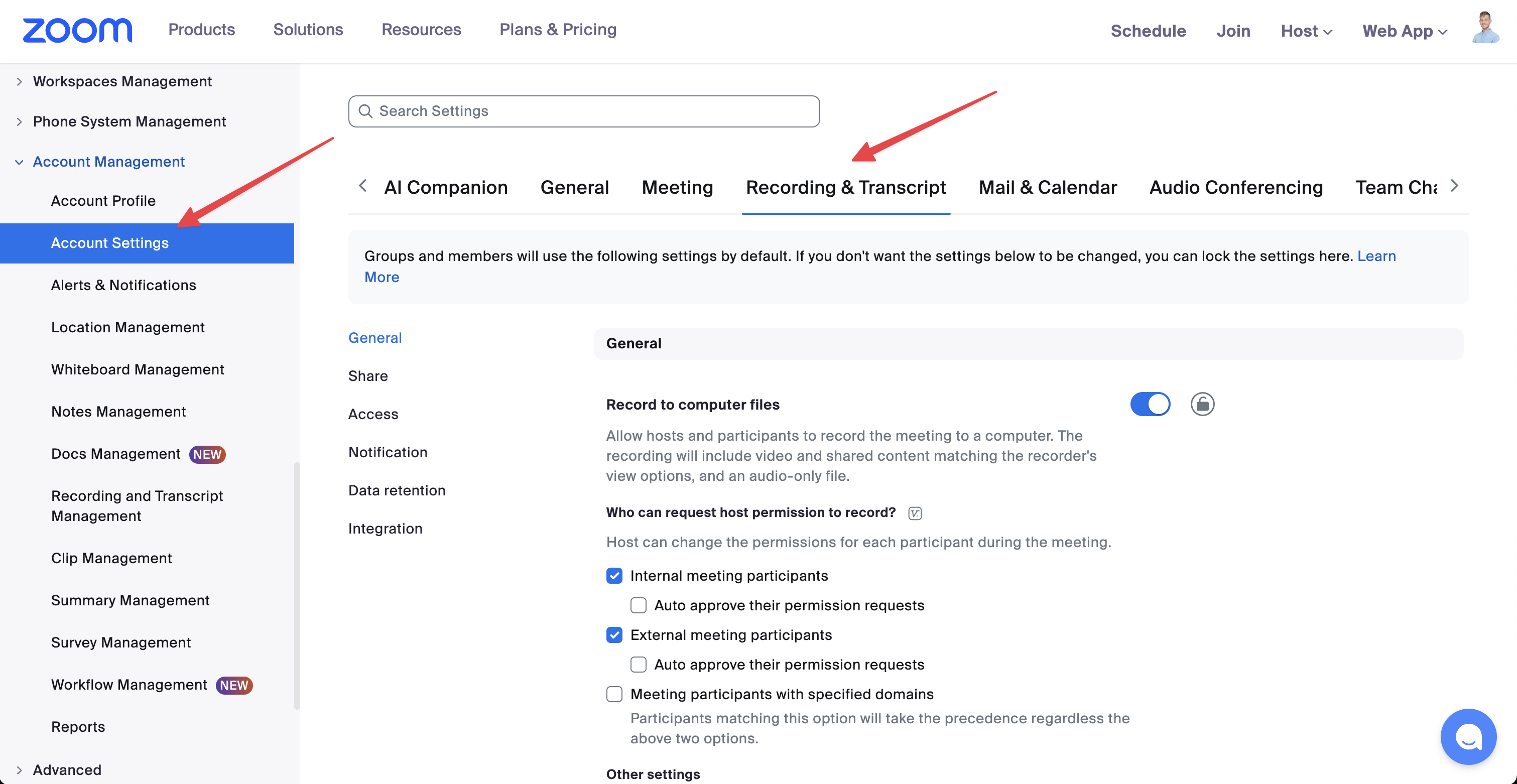
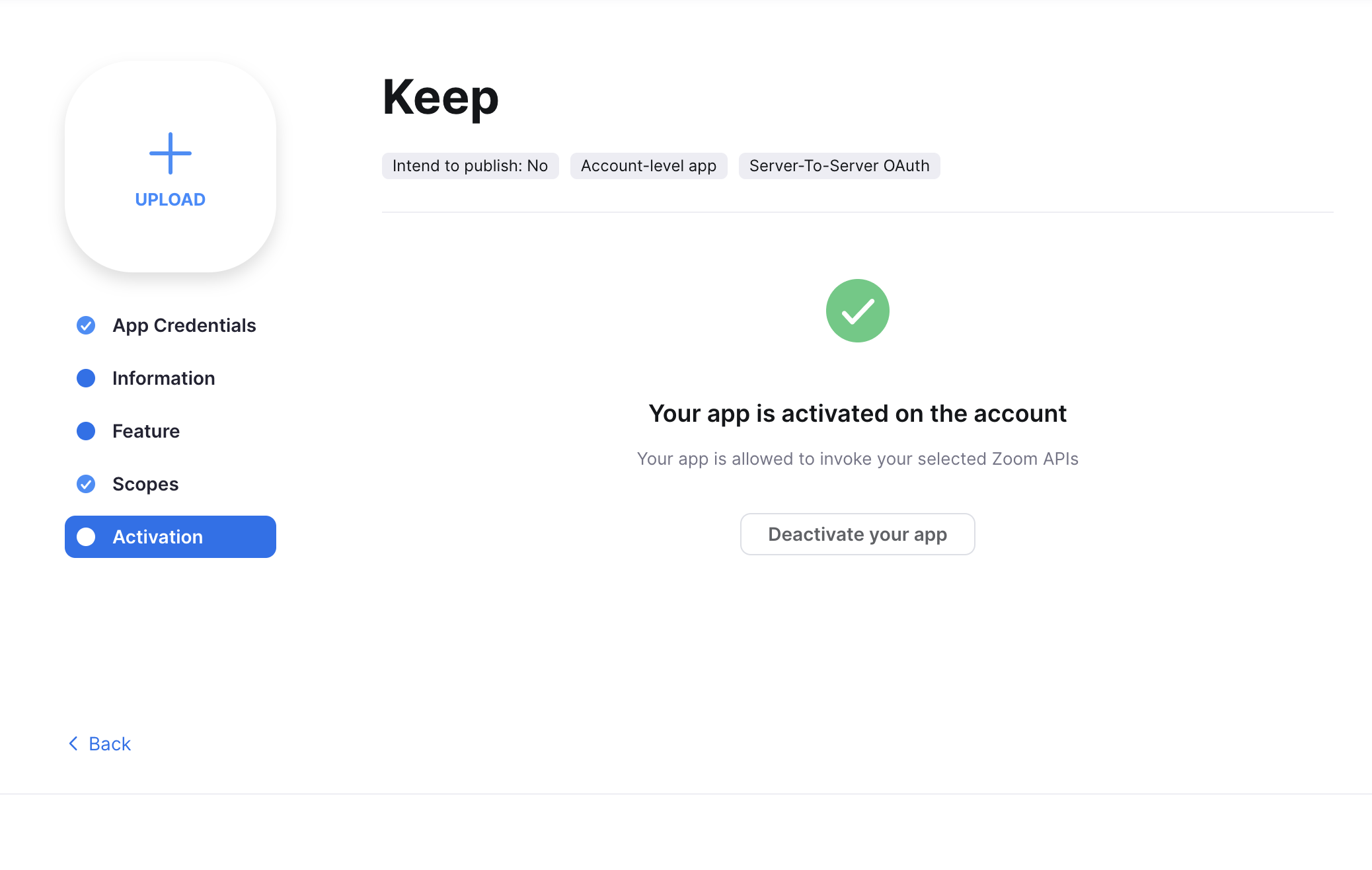 ### (Optional) Make sure cloud recording is set on your account