> ## Documentation Index
> Fetch the complete documentation index at: https://docs.keephq.dev/llms.txt
> Use this file to discover all available pages before exploring further.
# Zoom Chat
> Zoom Chat provider allows you to send Zoom Chats using the Incoming Webhook Zoom application.
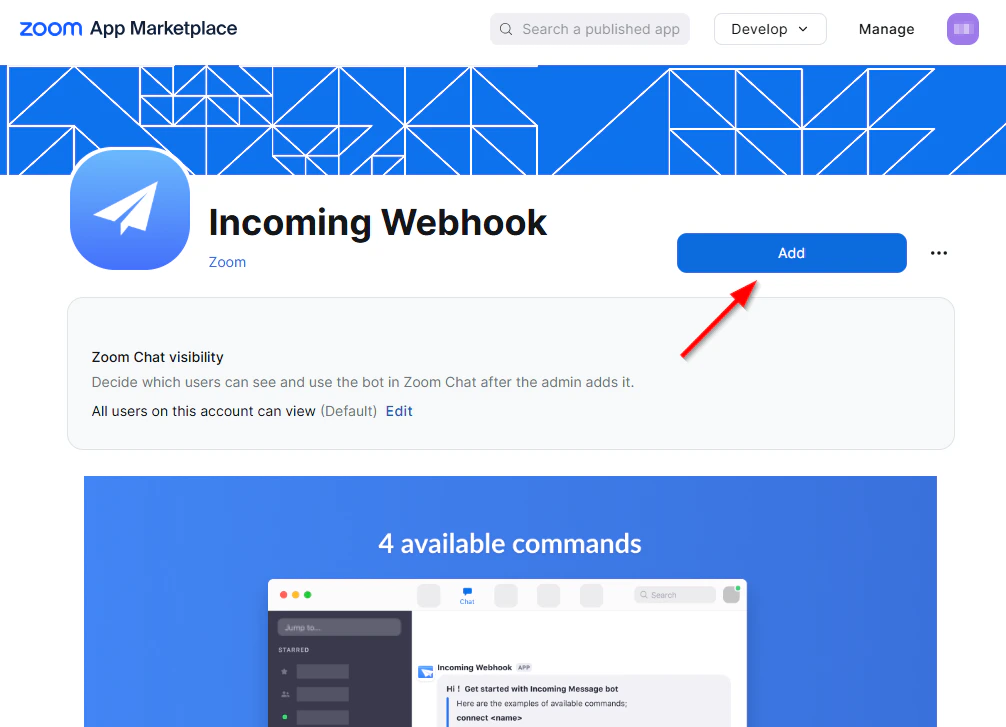
For this integration, you will need to add and configure the Incoming Webhook application from the Zoom App Marketplace: [https://marketplace.zoom.us/apps/eH\_dLuquRd-VYcOsNGy-hQ](https://marketplace.zoom.us/apps/eH_dLuquRd-VYcOsNGy-hQ)
## Authentication
This provider requires authentication.
* **webhook\_url**: Zoom Incoming Webhook Full Format Url (required: True, sensitive: True)
* **authorization\_token**: Incoming Webhook Authorization Token (required: True, sensitive: True)
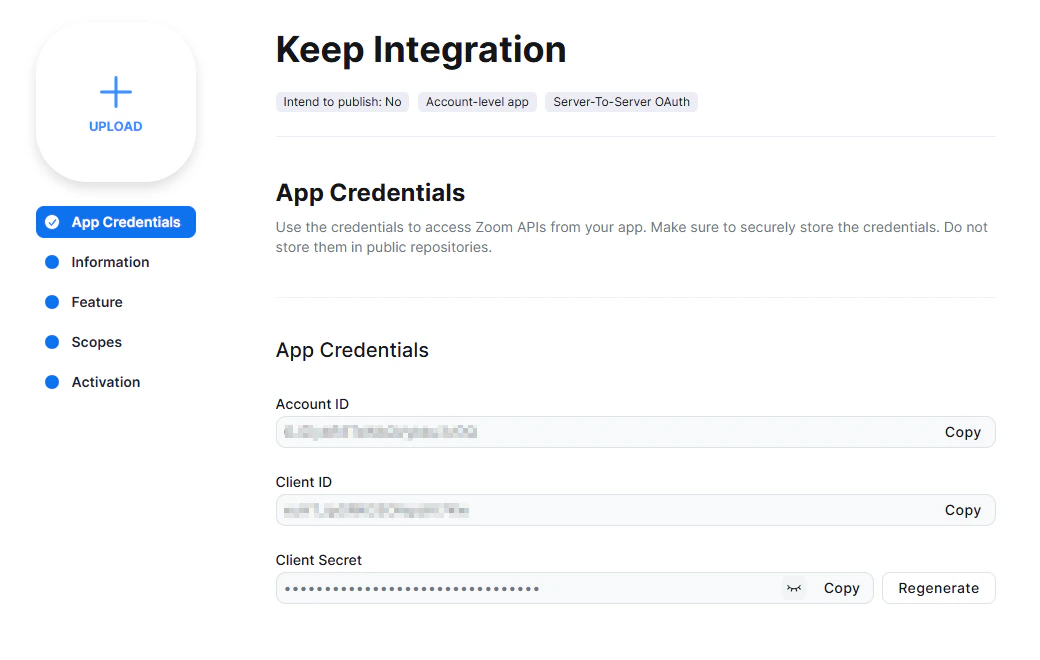
* **account\_id**: Zoom Account ID (required: False, sensitive: True)
* **client\_id**: Zoom Client ID (required: False, sensitive: True)
* **client\_secret**: Zoom Client Secret (required: False, sensitive: True)
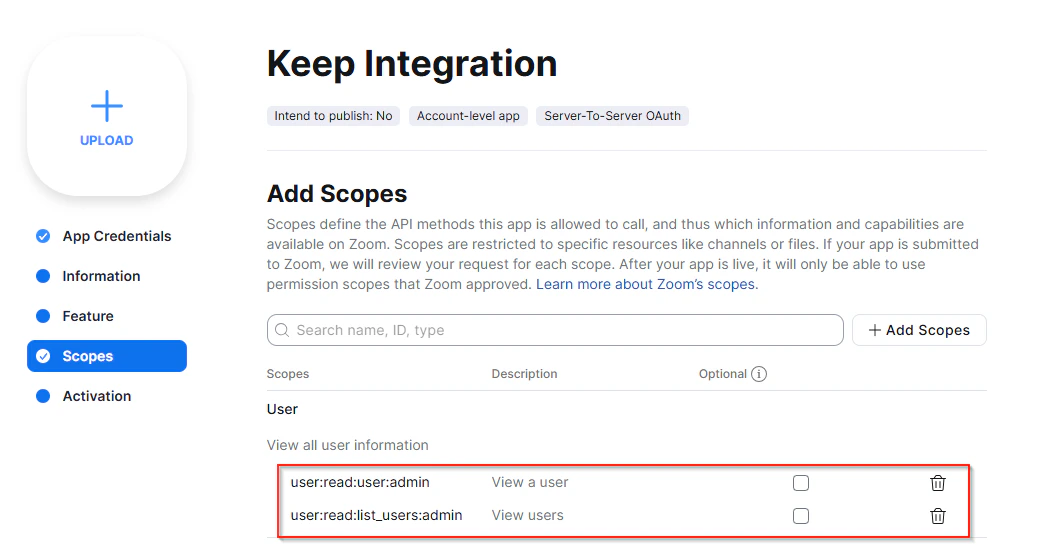
Certain scopes may be required to perform specific actions or queries via the provider. Below is a summary of relevant scopes and their use cases:
* **user:read:user:admin**: View a Zoom user's details
* **user:read:list\_users:admin**: List Zoom users
## In workflows
This provider can be used in workflows.
As "action" to make changes or update data, example:
```yaml theme={null}
actions:
- name: Query zoom_chat
provider: zoom_chat
config: "{{ provider.my_provider_name }}"
with:
severity: {value} # The severity of the alert.
title: {value} # The title to use for the message. (optional)
message: {value} # The text message to send. Supports Markdown formatting.
tagged_users: {value} # A list of Zoom user email addresses to tag. (optional)
details_url: {value} # A URL linking to more information. (optional)
```
Check the following workflow example:
* [zoom\_chat\_example.yml](https://github.com/keephq/keep/blob/main/examples/workflows/zoom_chat_example.yml)
## Connecting with the Provider
### Enable the Incoming Webhook Application
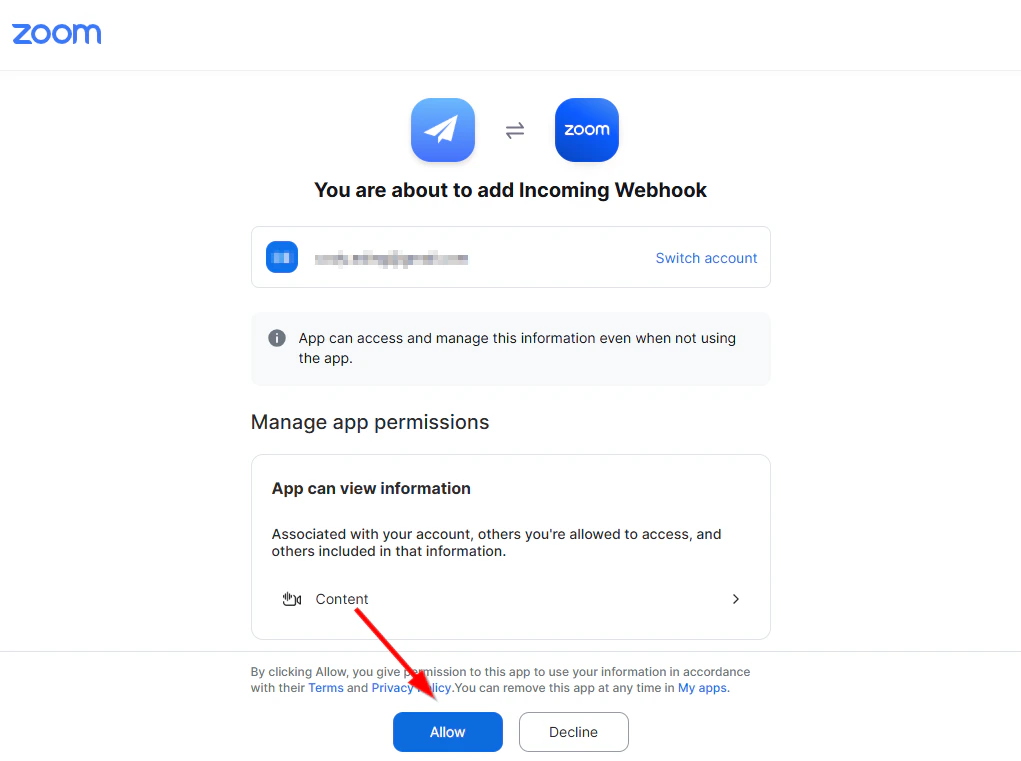
The Incoming Webhook application is available in the Zoom App Marketplace.
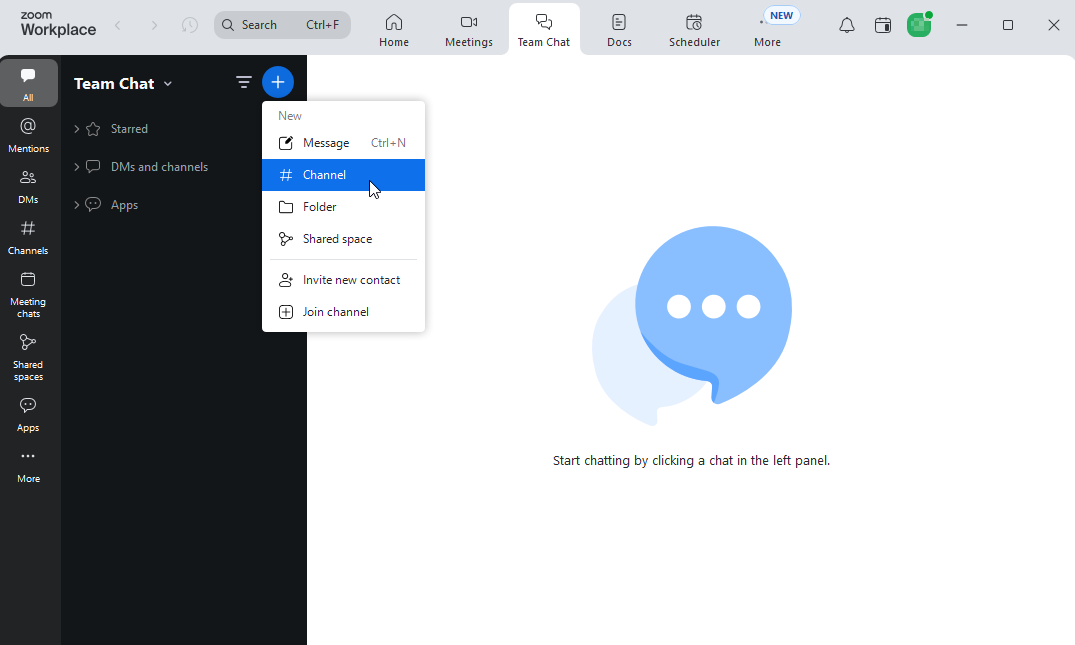
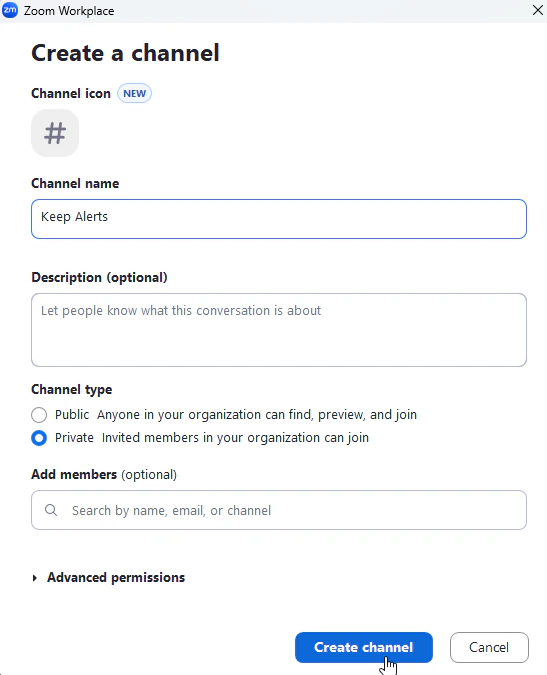
 ### Create Team Chat Channel:
This channel will be the recipient of the Keep notifications.
### Create Team Chat Channel:
This channel will be the recipient of the Keep notifications.
 ### Enable the Incoming Webhook Application
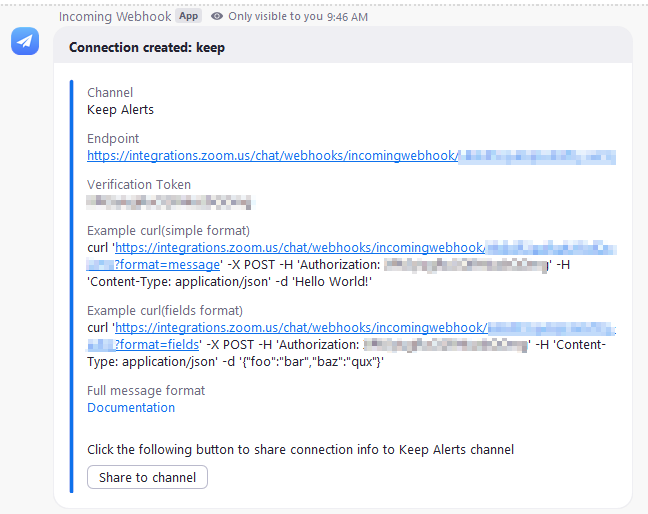
Send `/inc connect ` to the channel to enable a webhook with authorization code. The app will respond with the webhook url and authorization code.
You should use the "Full Format" Incoming Webhook Url, which ends in `?format=full`.
### Enable the Incoming Webhook Application
Send `/inc connect ` to the channel to enable a webhook with authorization code. The app will respond with the webhook url and authorization code.
You should use the "Full Format" Incoming Webhook Url, which ends in `?format=full`.

 ## (Optional) Enabling User JID Lookup
Messages can optionally include Zoom user JIDs, which are used to tag a particular Zoom user in a message.
This is useful, for example, if a team subscribes to a chat channel but members only wish to be notified when they are explicitly tagged.
### Create a Zoom Application
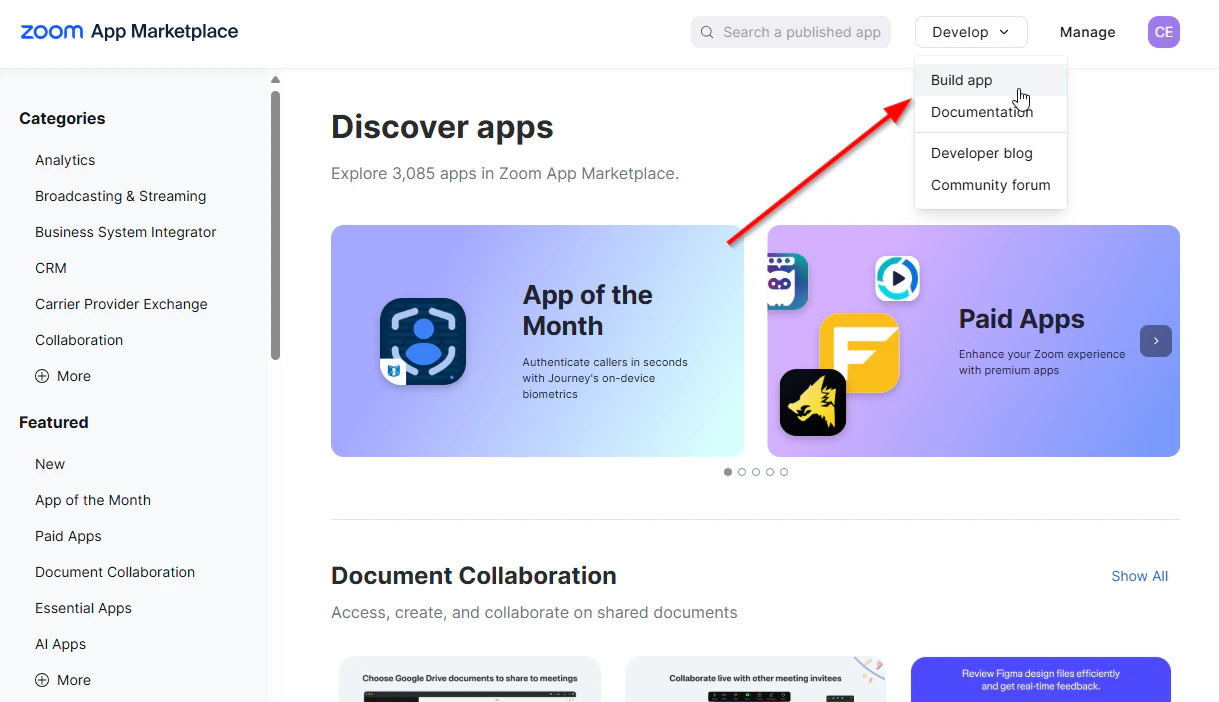
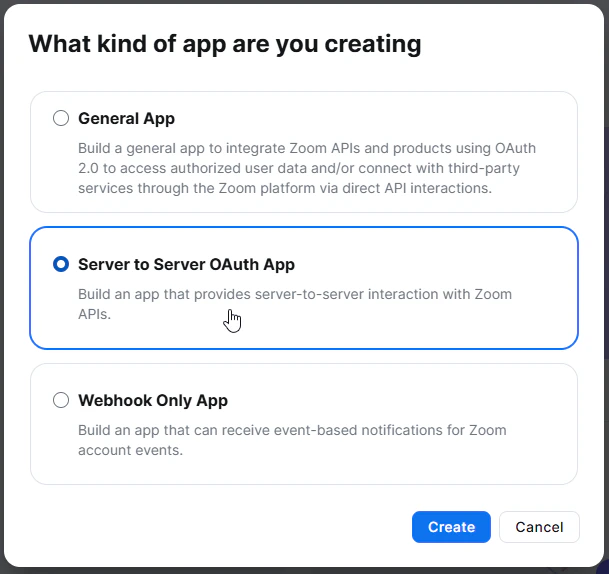
User lookup requires authorization. Create an internal only, Zoom Server to Server OAuth application.
## (Optional) Enabling User JID Lookup
Messages can optionally include Zoom user JIDs, which are used to tag a particular Zoom user in a message.
This is useful, for example, if a team subscribes to a chat channel but members only wish to be notified when they are explicitly tagged.
### Create a Zoom Application
User lookup requires authorization. Create an internal only, Zoom Server to Server OAuth application.
 ### Assign Required Scopes